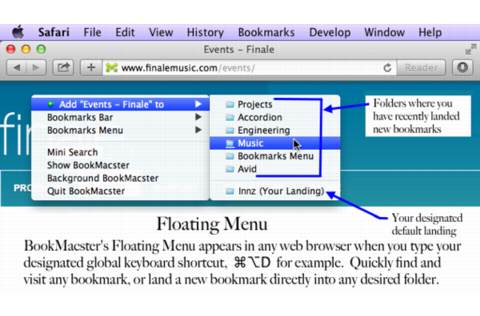
Markster keeps your internet bookmarks in a central store. People use Markster because either:
The internal bookmarks facilities (Bookmarks Bar, Bookmarks Menu, Favorites Bar, etc.) in their web browser(s) do not meet their feature expectations.
They use more than one web browser, and prefer to keep all their bookmarks in a separate app, independent of the web browsers, instead of syncing the browsers’ internal bookmarks facilities together.
When Markster users want to visit a bookmark they have previously stored, or add a new bookmark, instead of reaching for the Bookmarks Bar or Bookmarks Menu in the browser, they bring up Markster’s Floating Menu. Markster provides three ways to do that:
Global Keyboard Shortcut, for example Cmd-Shift-D.
Dock Menu
Status Menulet (right side of Menu Bar)
The keyboard shortcut and/or status menulet are enable/disabled in Markster’s preferences.
What’s New:
Version 3.0.12:
Release notes were unavailable when this listing was updated.
BookMacster is a bookmarks manager for your Mac, which plays nicely with iCloud, Sign In to Chrome, and Firefox Sync. It can be used in three ways, or all three:
Cross-Browser Syncing. Sync bookmarks of Safari Firefox, Chrome, and more among all your devices.
Directly. Keep your bookmarks in one central store, accessible within web browsers.
Features
Compatible with iCloud’s Safari syncing, Google Chrome’s Sign In, and Firefox Sync. Bookmarks added to Safari from BookMacster on your Mac will sync via iCloud to Safari on iOS devices.
Import/export with Safari, Firefox, Chrome, iCab, Opera 11-12, Roccat, Pinboard, Delicious, Diigo, and OmniWeb.
Easily organize with Tags, Hierarchy, or both.
Verifies bookmarks, fixes redirects and duplicates.
Sort (alphabetize) automatically when bookmarks are changed. You control which folders you want to be sorted or not sorted, how to sort them.
Supports multiple User Profiles in Firefox and Google Chrome.
Scriptable to collect new bookmarks from NetNewsWire or similar apps.
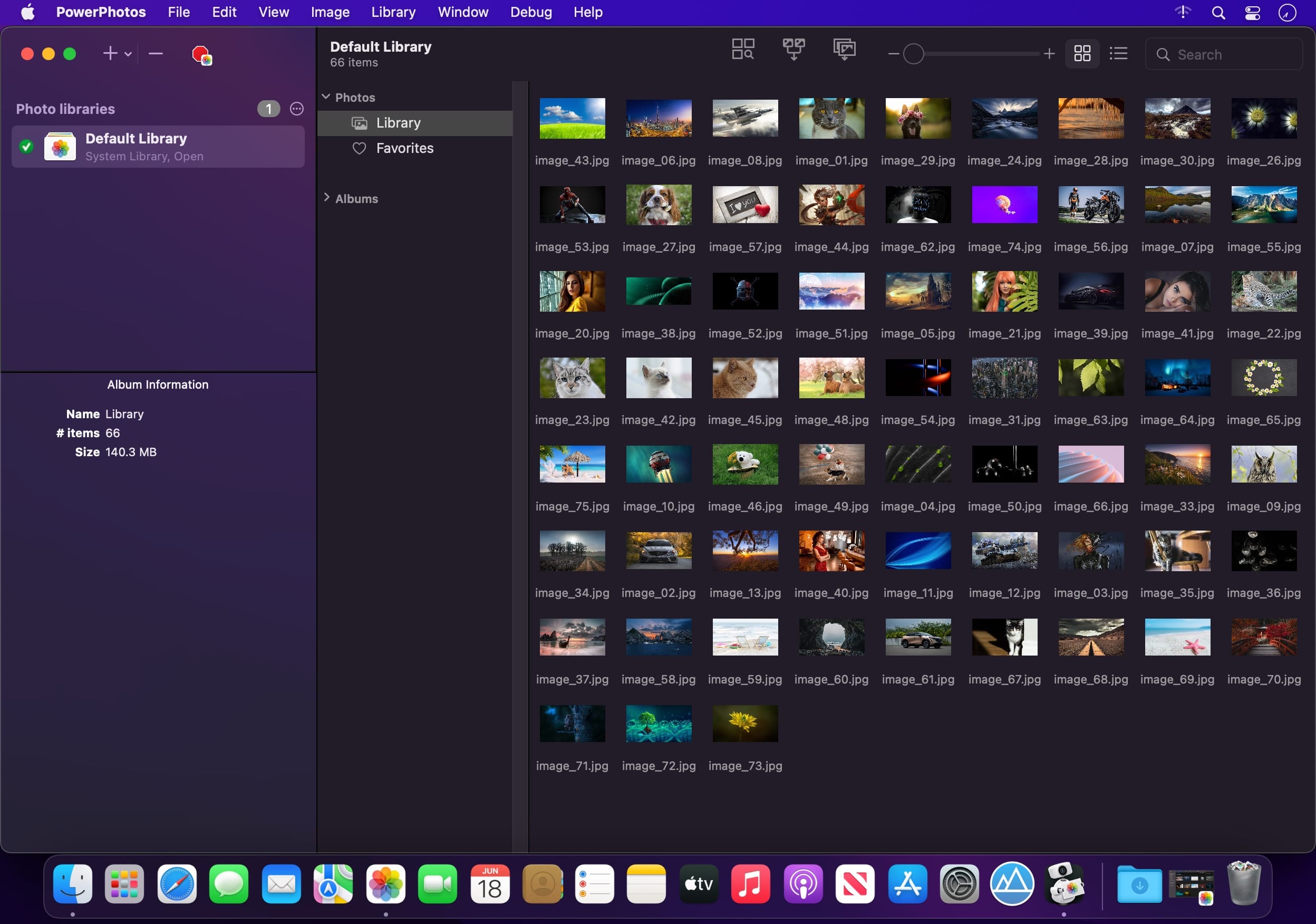
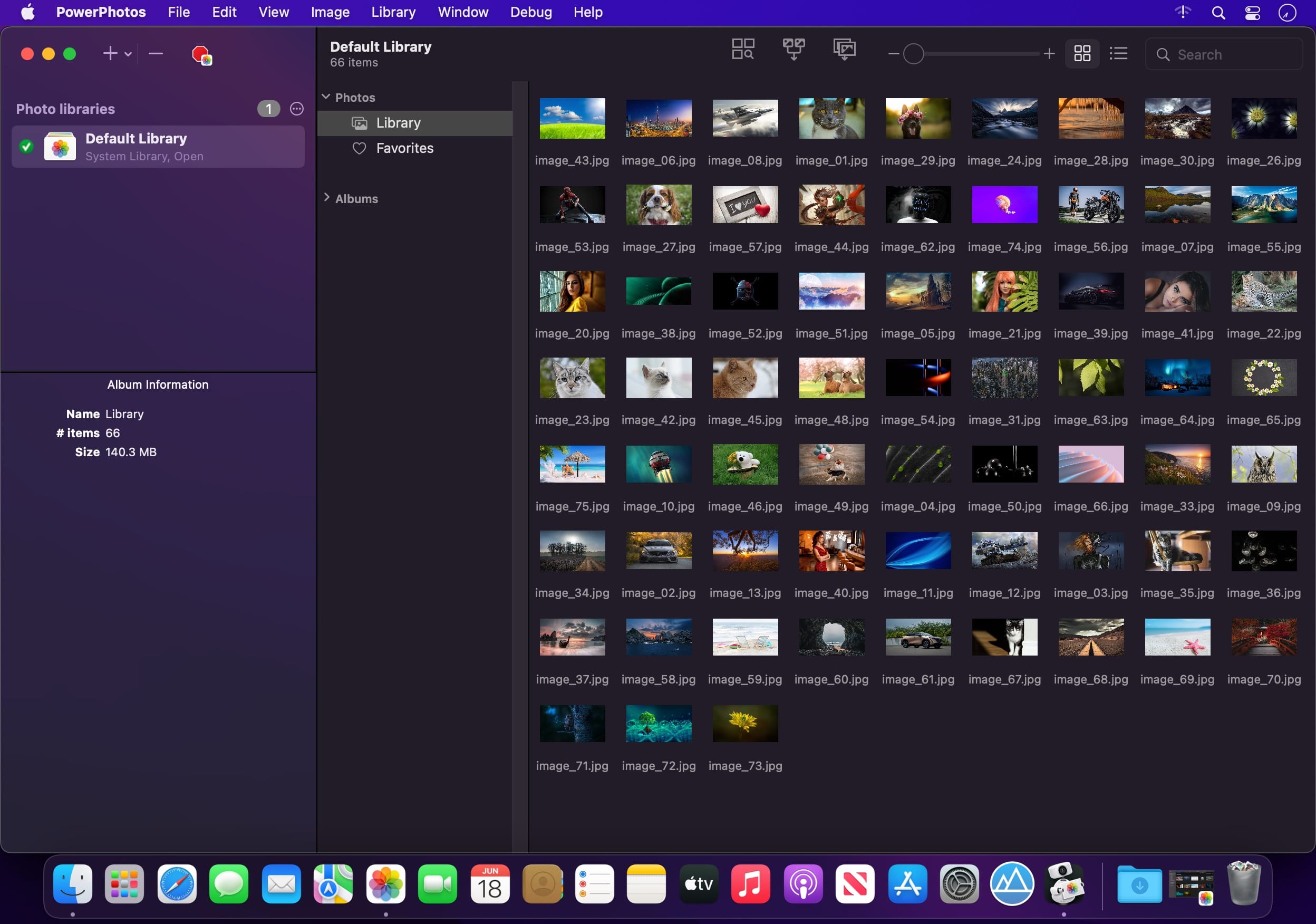
PowerPhotos – The ultimate toolbox for Photos on the Mac. PowerPhotos works with the built-in Photos app on your Mac, providing an array of tools to help you get your photo collection in order.
Create and manage multiple libraries
Instead of being limited to putting all your photos in a single library, PowerPhotos can work with multiple Photos libraries, giving you many more options for how to organize your ever growing photo collection.
Splitting your photos between multiple libraries helps Photos open more quickly, lets you archive older photos, store some of your collection on an external hard drive, and reduce storage space used by iCloud Photo Library.
Copy photos and their metadata
You can split your library by copying albums and photos with a simple drag and drop. PowerPhotos will take care of copying the photos and retaining their metadata, including keywords, descriptions, titles, dates, and favorite status. Read more about what PowerPhotos can copy.
Merge Photos libraries
Got a whole bunch of libraries you want to consolidate into one? PowerPhotos lets you merge your libraries together while weeding out duplicate photos in the process. You will be shown a preview of what your merged library will look like before any modifications are done, to ensure your merged library looks how you want.
Find duplicate photos
It’s easy to have multiple copies of the same photo creep into your photo collection over time. Use PowerPhotos to find duplicate photos in one or more libraries, view them side by side, and separate them into albums where you can easily delete them from your library.
Browse and search
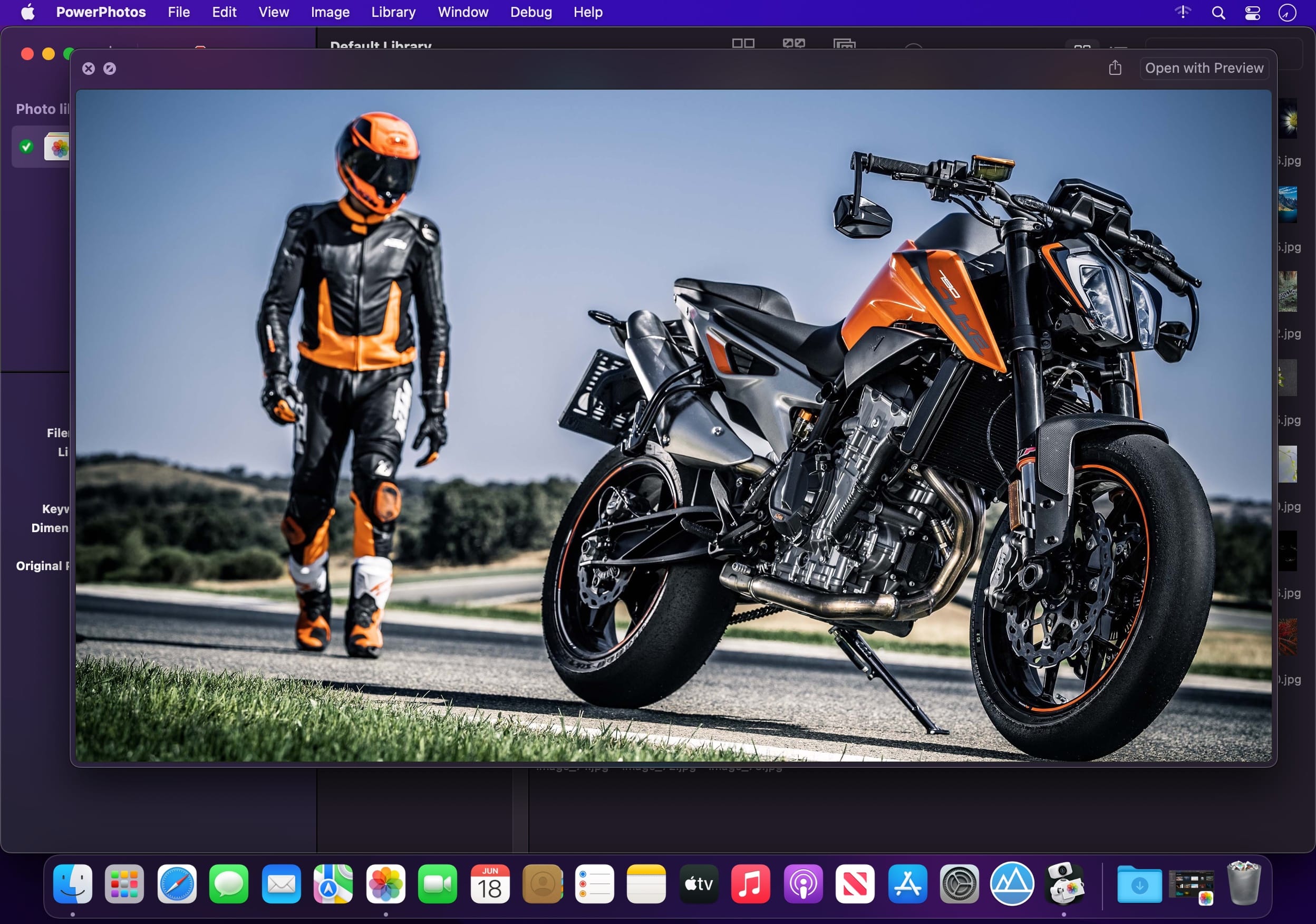
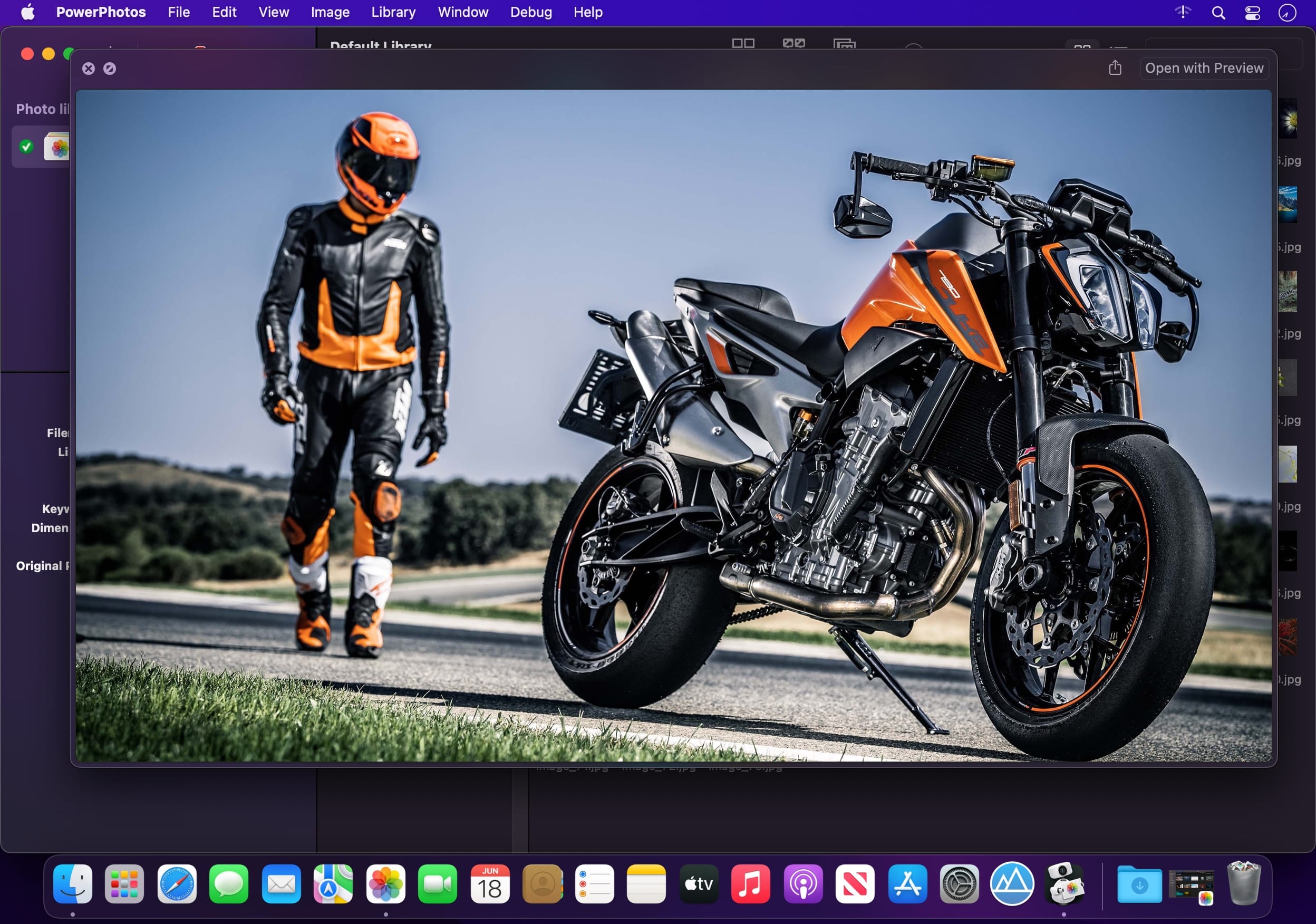
Use PowerPhotos’ image browser to quickly view your photos without having to open Photos itself. View detailed photo information using List View, and search for photos across all your libraries at once.
Migrate your iPhoto/Aperture libraries
If you have a lot of existing iPhoto or Aperture libraries that you want to migrate over to Photos, PowerPhotos will help automate your migrations so you don’t have to spend time babysitting this lengthy process.
New features:
Improved iCloud Photos support: If you use iCloud Photos, PowerPhotos 1.x was only able to see photos in your library that had already been downloaded to your local hard drive. For users with the “Optimize Mac Storage” option enabled, this could mean a significant portion of your iCloud library would not be visible to PowerPhotos. In PowerPhotos 2.0, it can now see and work with any photos in your iCloud photo library, and will automatically download any photos from iCloud as needed.
Advanced exporting: Photos has an export command, but it is fairly limited in what it can provide. PowerPhotos 2.0 has a new, more fully featured export function with options such as
Export as a flat folder or as a folder hierarchy in the Finder that mimics your album hierarchy
Export unmodified photos, or as JPG, PNG, HEIF, or TIFF of different sizes
Include captions, dates, keywords, and titles in EXIF metadata
Retain or strip location metadata
Optionally include videos from Live Photos and all photos from a burst
Set Finder creation/modification dates to the photo’s EXIF date
Video export support as H.264 or H.265
Global menu bar item: Get fast access to your libraries via a global item in your menu bar even when PowerPhotos itself isn’t running.
Library groups: For those with lots of libraries, you can now organize your libraries into groups in the PowerPhotos sidebar.
Multiple windows: You can now open each library in a separate window in PowerPhotos, allowing for easier comparison between libraries, and dragging and dropping photos/albums between libraries.
New duplicate search engine: PowerPhotos 2.0 uses a new duplicate comparison algorithm that can find more duplicate photos which are not quite 100% identical, such as scaled down copies of photos, photos that have been resaved in a different format or with different compression, and even photos with minor edits applied to them.
Faster library loading: PowerPhotos 2.0 has rewritten a bunch of its internals to load your library much faster than PowerPhotos 1.0.
Improved AppleScript support: New support for copying albums or photos between libraries, merging libraries, and exporting photos/albums from a library.
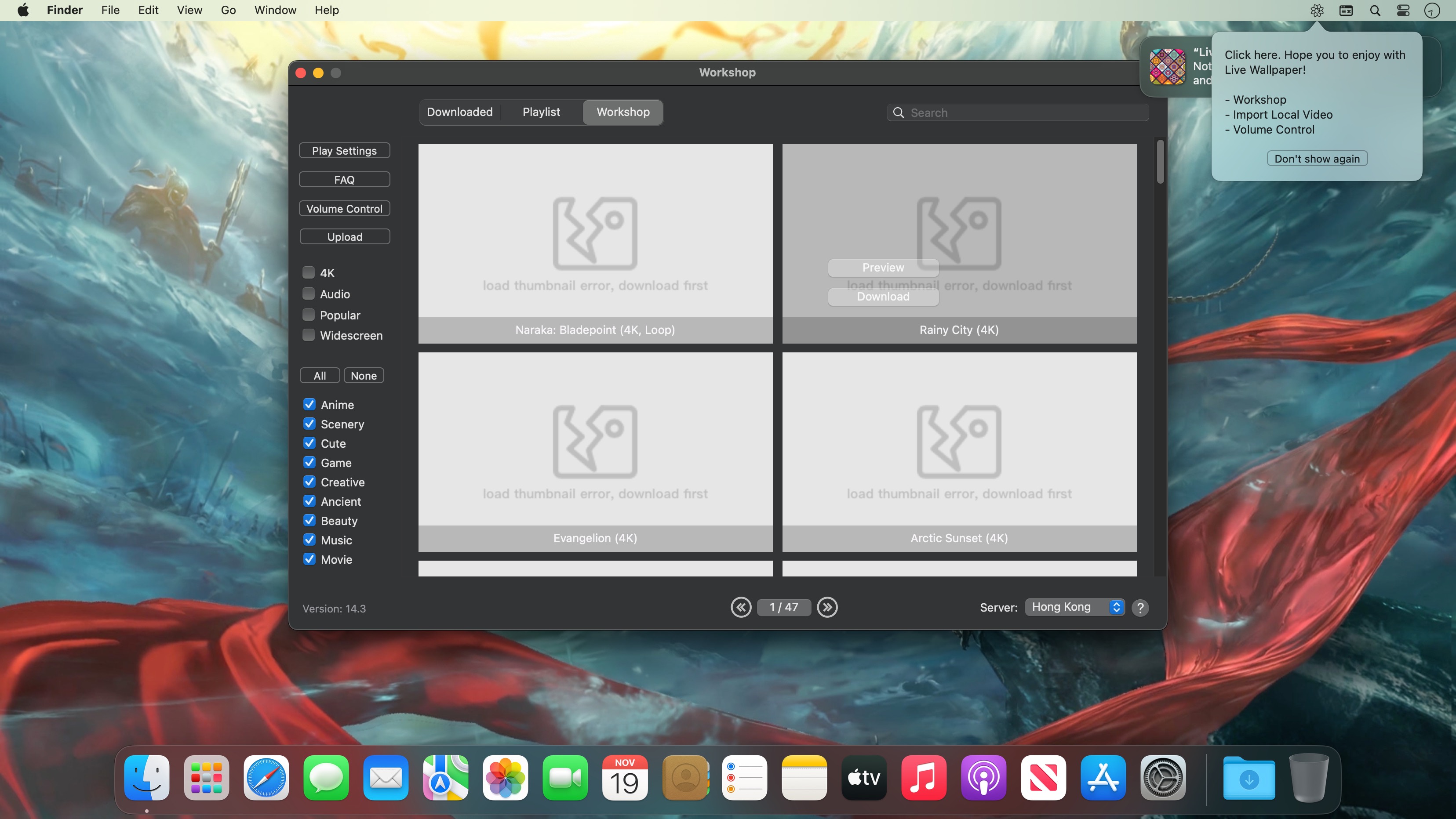
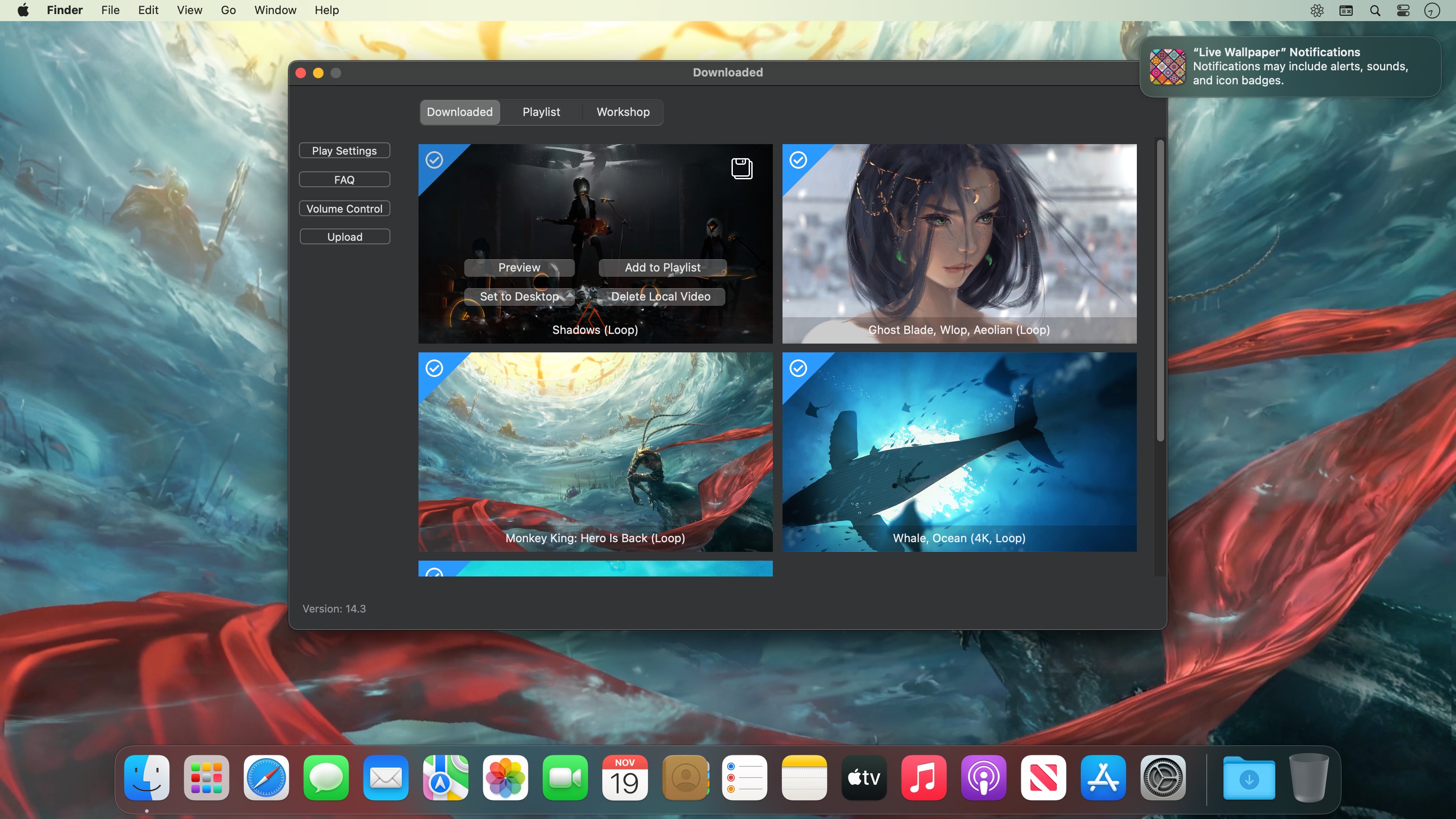
Live Wallpaper & Themes 4K allows you to use live wallpapers on your desktop/screensaver. It provides thousands of live wallpapers in the Workshop while taking as little system resources as possible. It’s the Wallpaper Engine for Mac.
Feature:
2000+ hand-picked videos which are updated every day.
Multiple types of 4K Ultra HD videos, anime, scenery, cute, game, creative, Beauty, Ancient, Movie, etc.
Supports “keyword searching” in videos.
Supports “Dynamic-ScreenSaver”, personalize your lock screen.
Easy to import local video.
Supports The playlist, list loop, shuffle loop.
Supports multiple screen aspect ratios and video native resolutions.
Set different wallpapers on different displays.
Manual control, video pause, resume and mute.
Break reminders, with flexible customization if you want it.
Supports global hotkeys to control wallpaper, hide desktop icons and show screensaver.
Auto mode, pause the video when other apps are active, not disturbed at work.
Auto mode, pause the video when Power Disconnected.
Support for hiding desktop icons.
Live Wallpaper Engine is designed to provide an interesting experience while consuming as little system resources as possible.
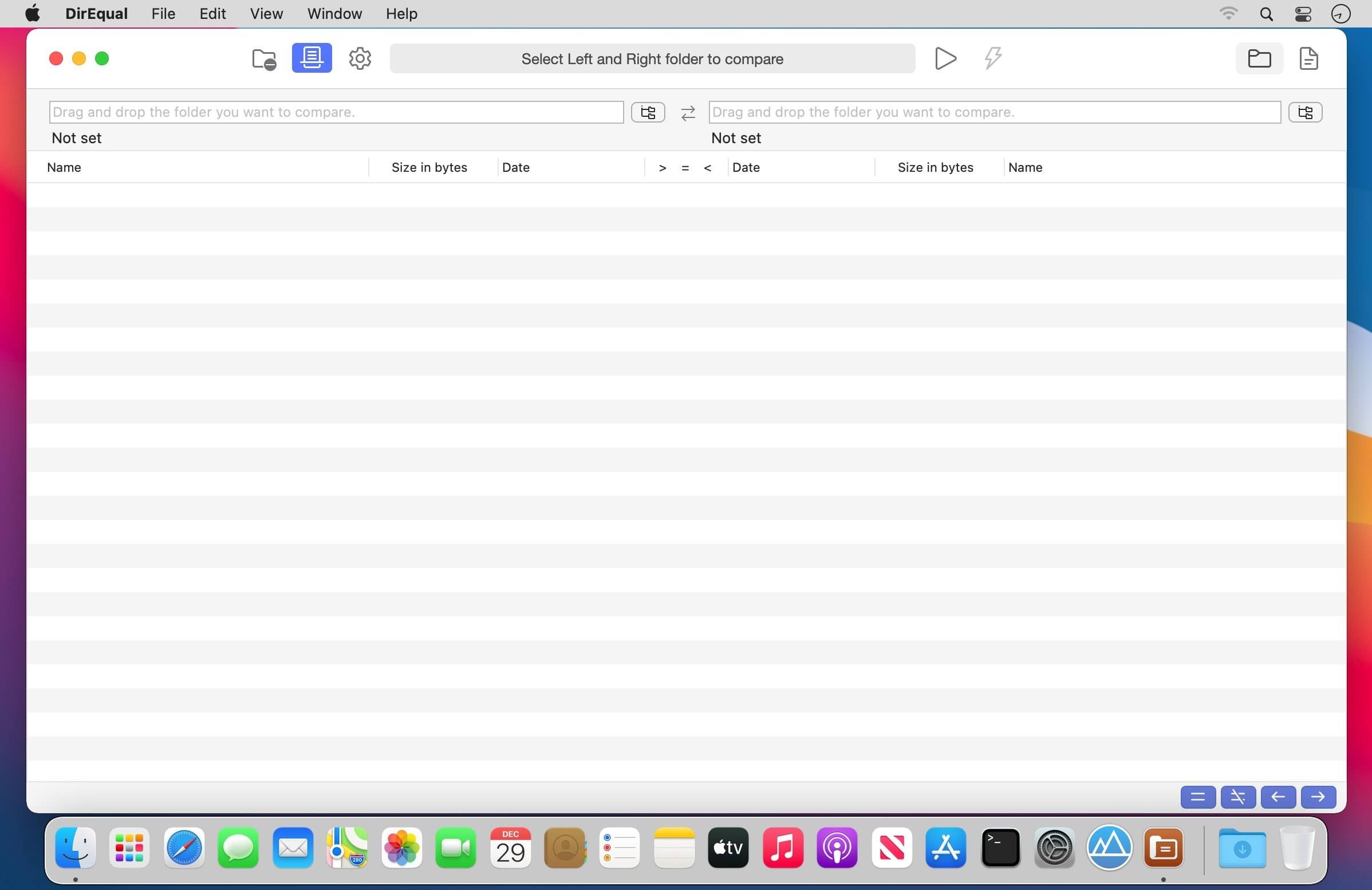
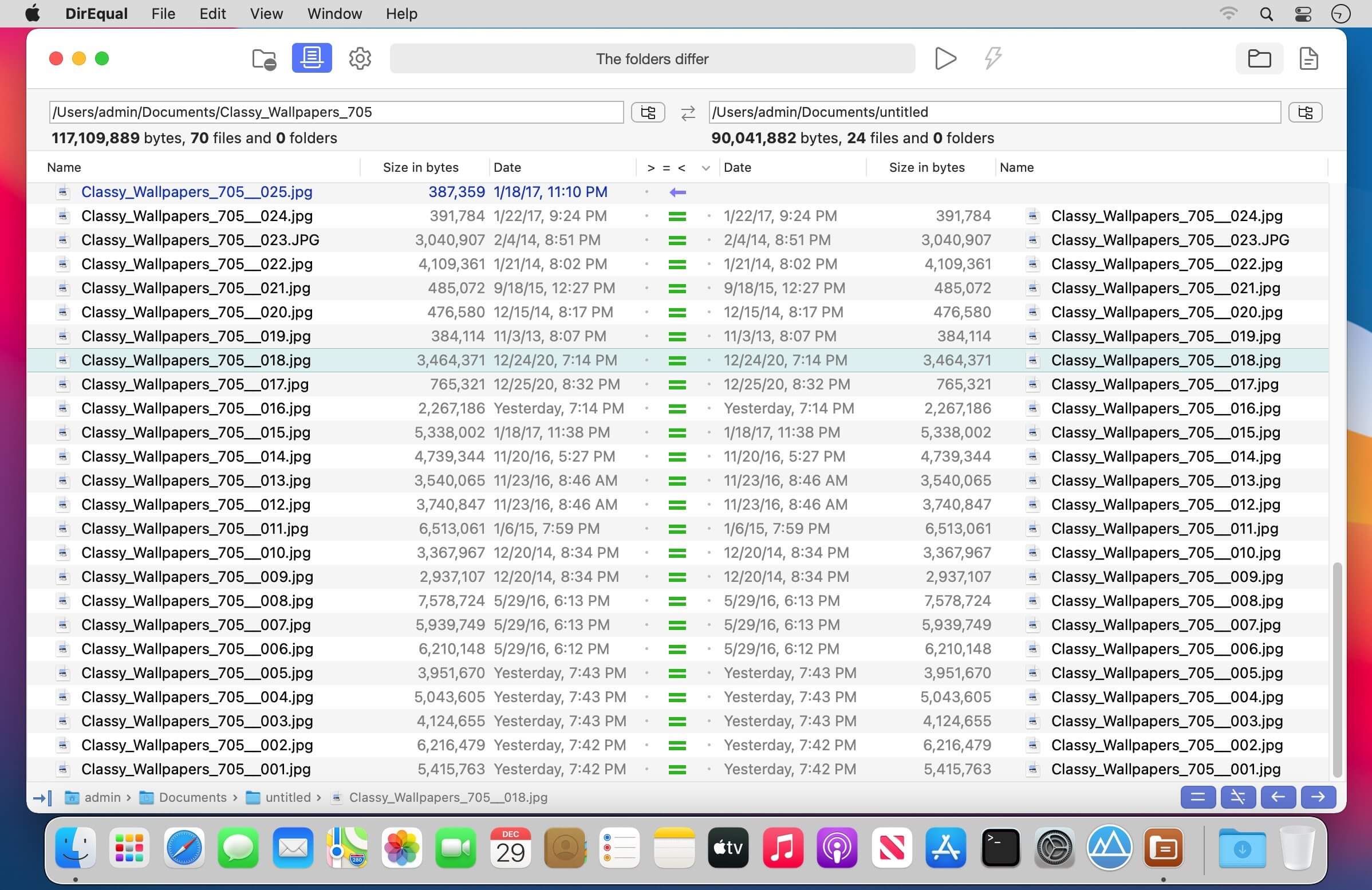
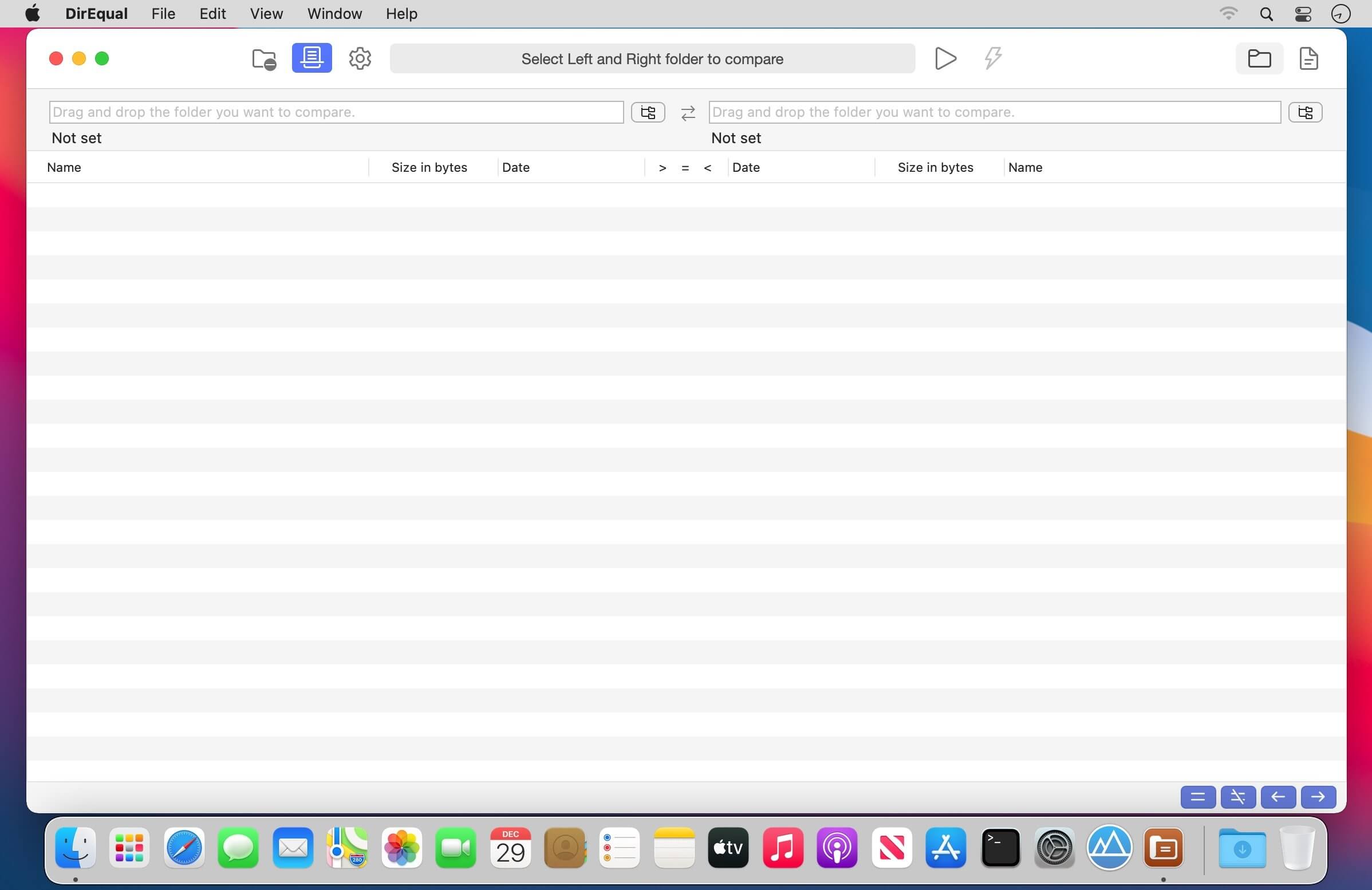
DirEqual is a Folder Compare Tool that makes it extremely easy to compare local files and folders on your Mac.
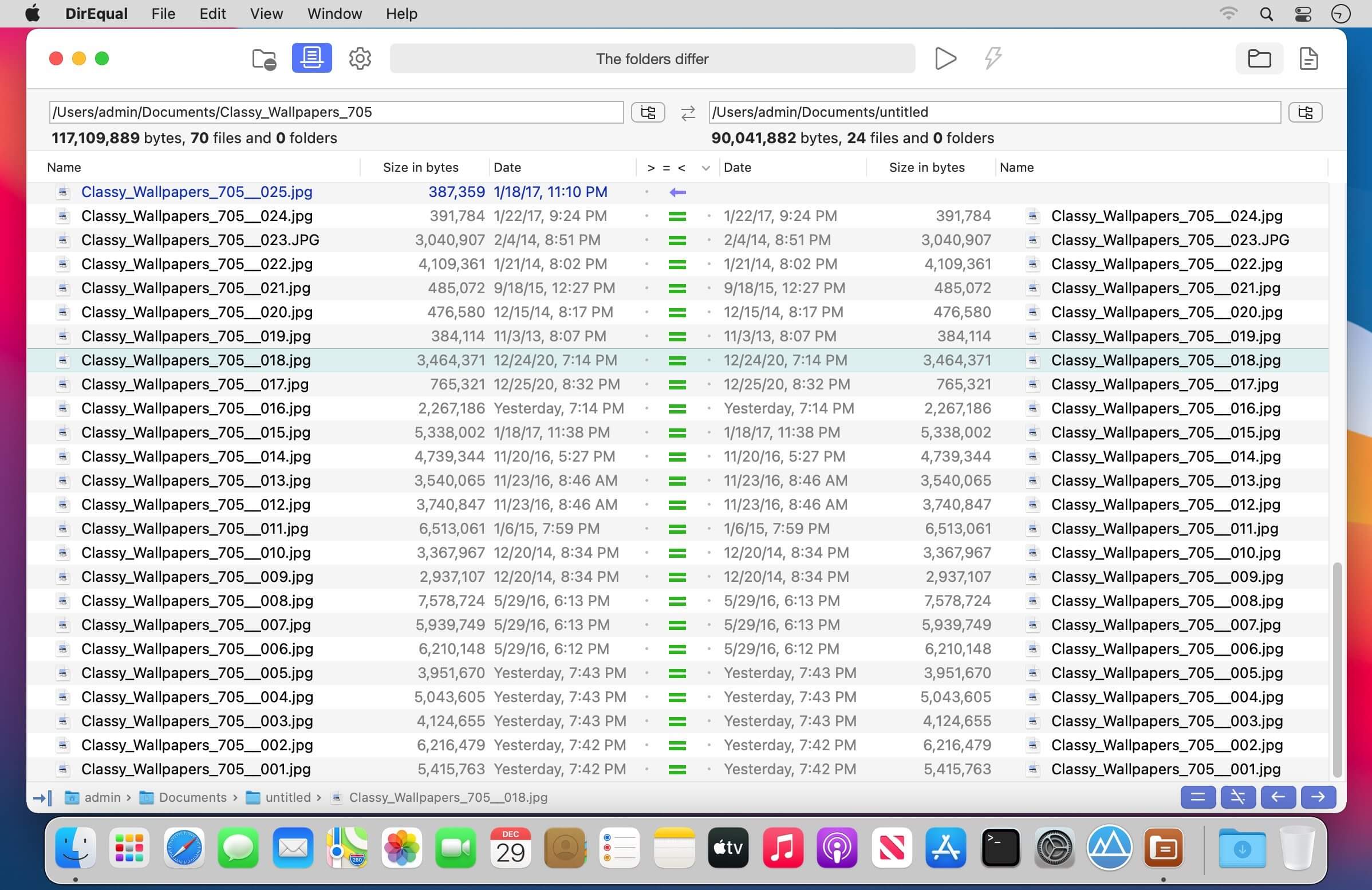
DirEqual displays compared directories side by side as expandable trees, and the size and date are indicated for each item. Differences between the directories are indicated with colour and easy to identify icons.
To copy or delete files or folders, click an individual item to choose the appropriate action.
The action is represented with red or blue arrow. Then click “Execute” to synchronise the two folders.
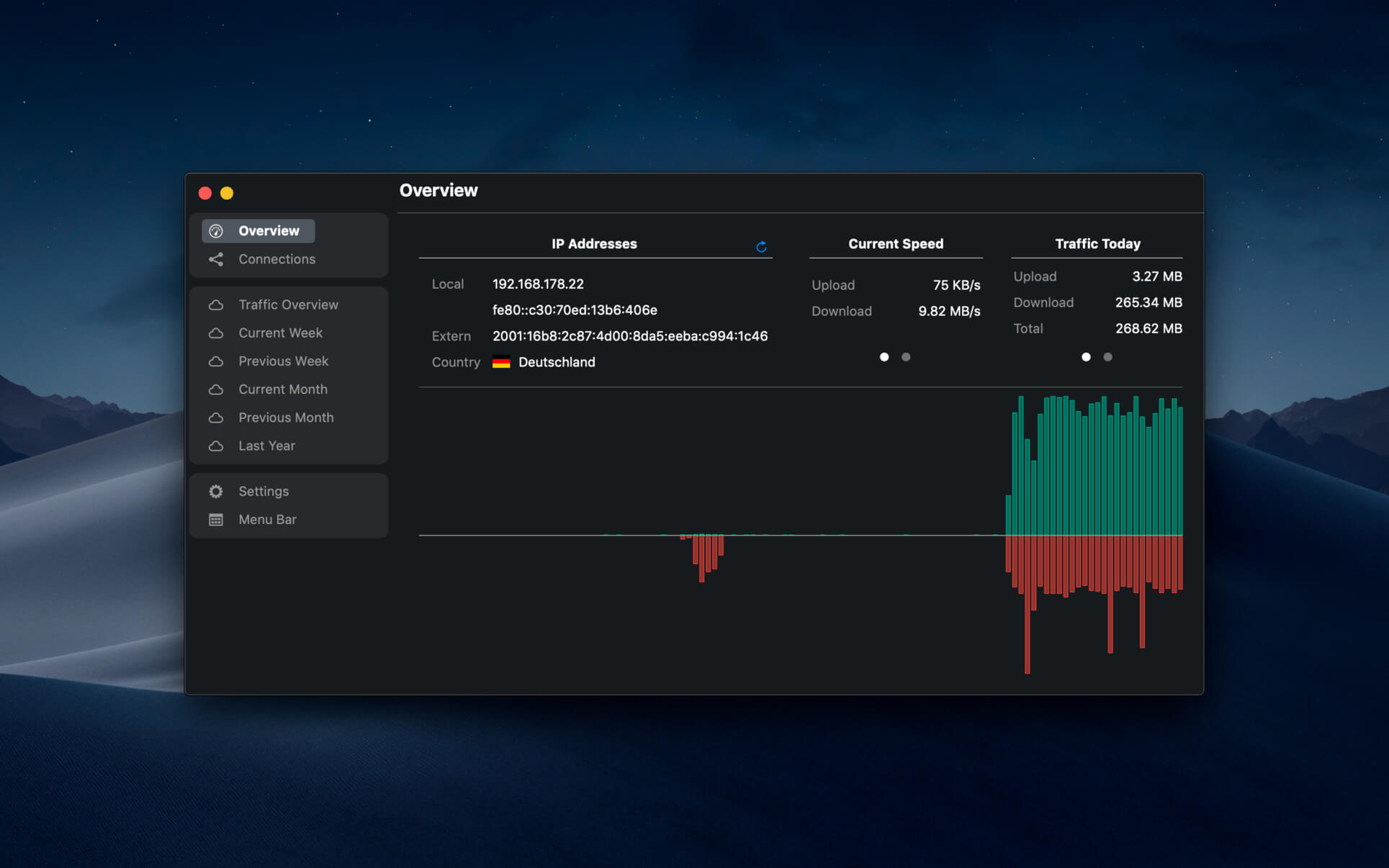
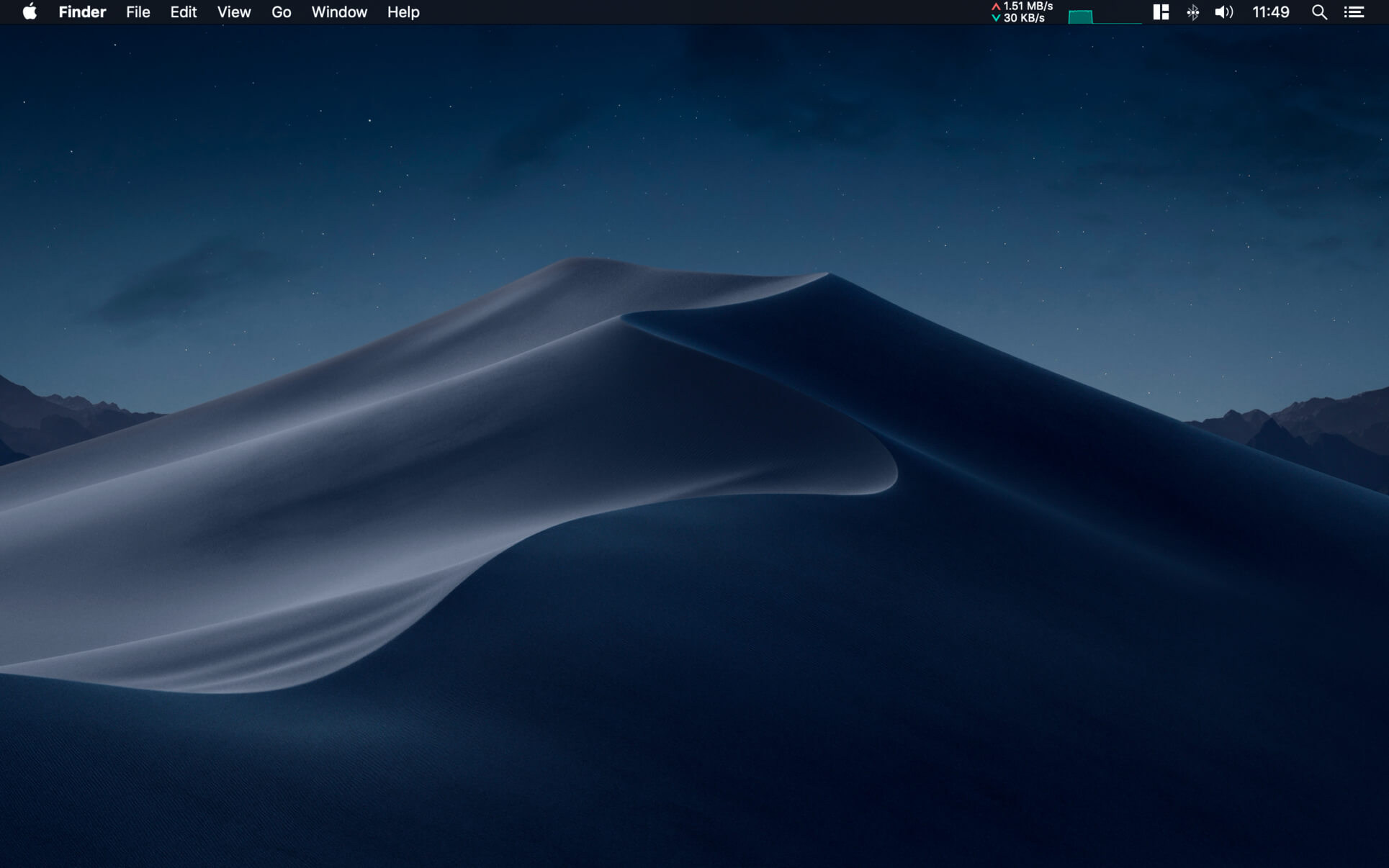
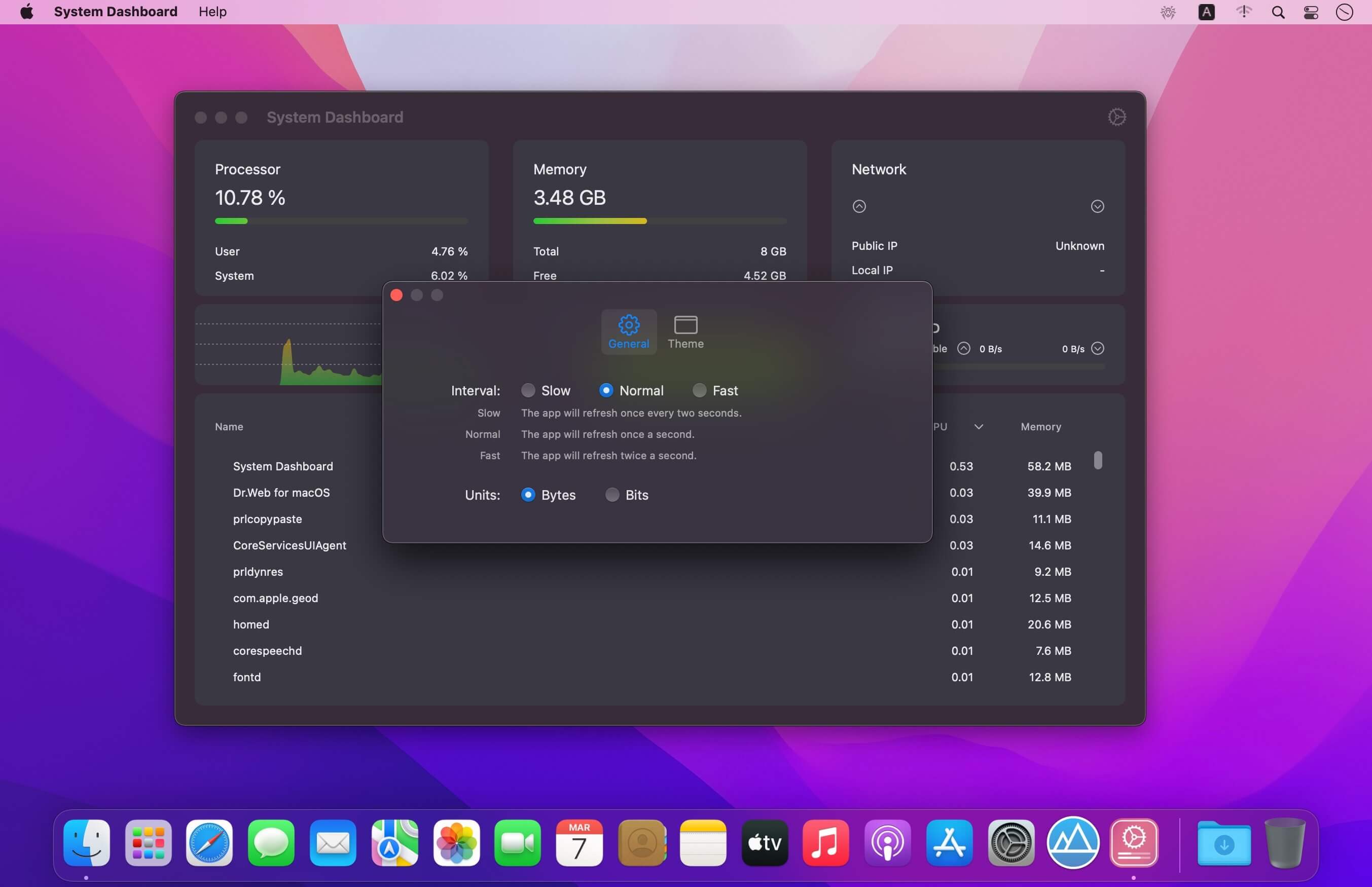
NetWorker shows network information conveniently in the menu bar. It also features a window that shows additional information about the currently active network adapter.
NetWorker features:
Fully customizable view – you can choose which information is shown and select many different, pre-defined widgets.
The currently active network adapter is detected automatically.
Optional overlay window that always stays on top – useful for fullscreen apps or games.
Adjustable refresh interval.
Check your external IP address.
Choose between a byte- or bit-mode.
Support for auto start.
Traffic Overview: Use this feature if you are on a volume limited plan.
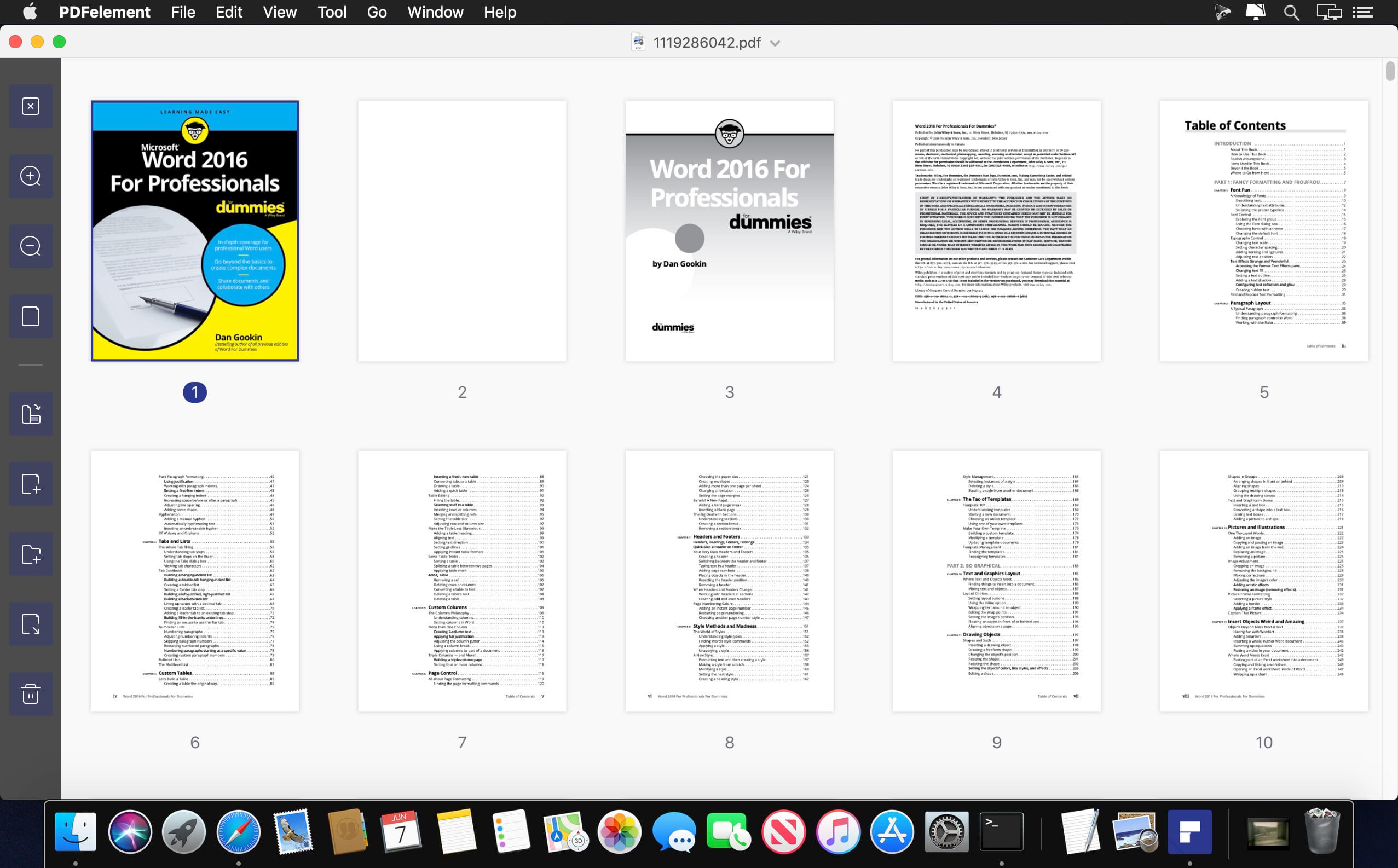
PDFelement – The easiest way to create, edit, convert, and sign PDF documents. We’re now introducing the all-new PDFelement 8, which includes a redesigned UI, more advanced writing tools, improved team collaboration features, more powerful conversion tools, a user management console, and more.
PDFelement Pro OCR (Exclusive in Pro version)
OCR (Optical Character Recognition)enables you to edit and convert characters in scanned PDF files or pictures
Supports recognition of 29 languages
Create & Sign Forms (Exclusive in Pro version)
Create fillable PDF Forms from interactive field objects, such as buttons, check boxes, radio buttons, list boxes, and drop-down lists
Support adding digital signatures to forms
Merge PDF (Exclusive in Pro version)
Combine different format files into a new PDF
Convert PDF (Exclusive in Pro version)
Supports converting PDF file to a greater number of output formats like EPUB, HTML, Text, RTF
PDF/A (Exclusive in Pro version)
Support PDF/A as an available output format with ISO Standard for long term archiving
Batch Processing of PDF Files (Exclusive in Pro version)
Process PDFs in batches
Add backgrounds, watermarks, headers and footers in batches
Bates Numbering (Exclusive in Pro version)
Apply Bates Numbering with advanced formatting
Redact PDF (Exclusive in Pro version)
Redact sensitive text and images in PDFs
What’s New:
Version 9.2.7 (OCR):
Release notes were unavailable when this listing was updated.
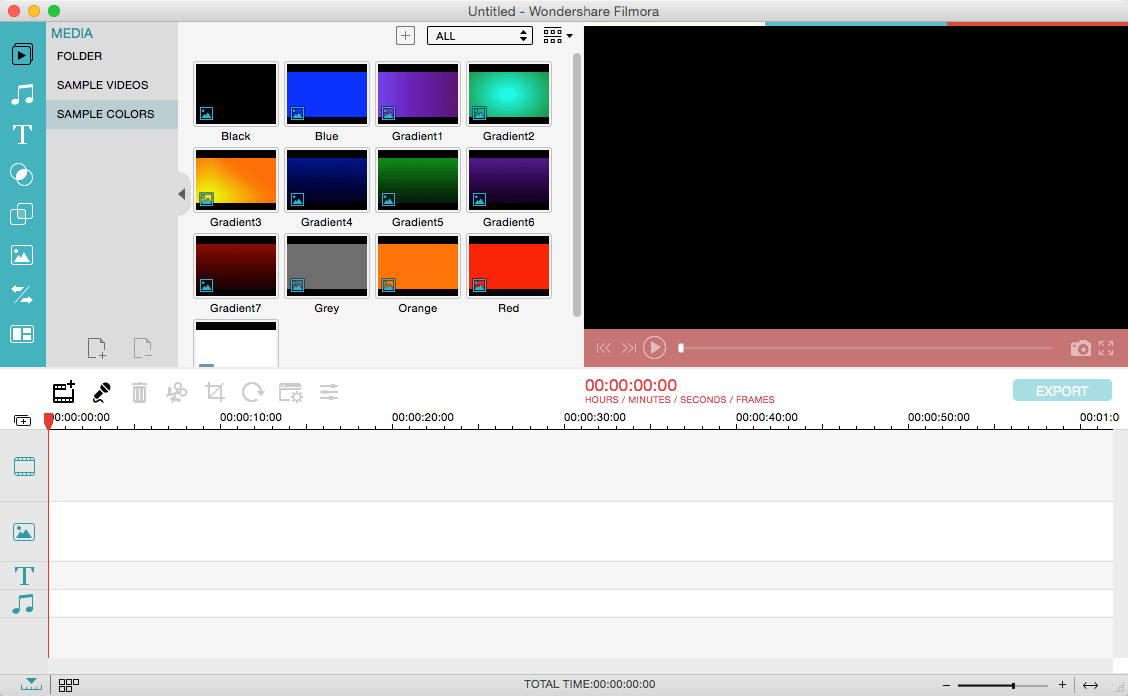
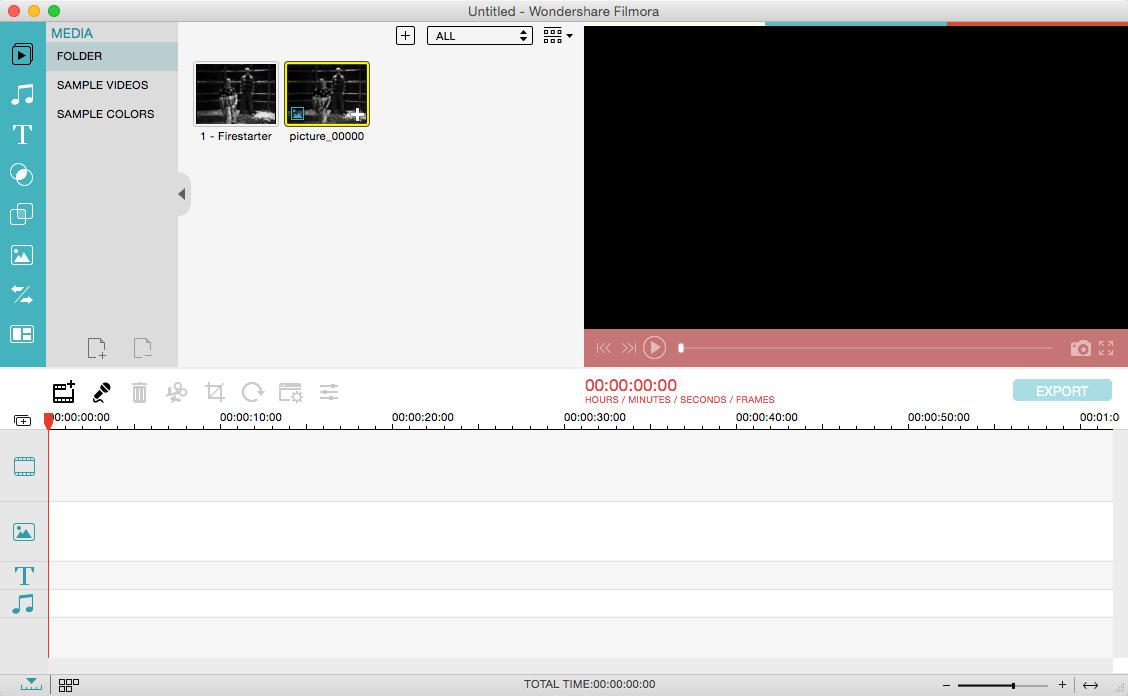
Wondershare Filmora, an easy-to-use video editor with all the video editing tools you need, enables you to create Hollywood-like home movies with titles, effects and transitions from all regular videos, audio and photos. Share instantly with family and friends with easy upload to YouTube, Facebook, etc.
Ignite your story
Use Filmora video editor to express your creativity and amaze with beautiful results.
Modern and Simple UI
A modern and intuitive design that you’ll be delighted to use again and again.
Text & Titles
Now you can create beautiful animated messages from our text & titles library
Music Library
Add your favorite music dircectly into your movie to create the perfect atmosphere.
Overlays & Filters
Transform a movie into something spectacular with our handcrafted, overlays and filters.
Elements
Take your video to the next level by adding impressive Still and Motion Graphics.
Simple Effects
Expand Your Imagination with Over a Hundred Unique Visual Effects. Wondershare Filmora allows you to turn your home video into something extraordinary with minimal effort.
Advanced Effects
Expand Your Imagination with Over a Hundred Unique Visual Effects. Turn your home video into something extraordinary with minimal effort.
Share Your Creative Work
Showcase your creativity with your family, friends and the rest of the world! You can easily publish your masterpiece in so many ways.
Key Features: Support Formats Support video formats editing: MP4, FLV, MOV, AVI, MKV, FLV, WMV, TS, MTS, etc. Make it possible for homemade and downloaded SD/HD videos for editing. Audio: MP3, WMA, WAV, M4A, AAC, AC3, OGG, etc., as background music of the videos. Photo:BMP, JPG, PNG, GIF, etc. and create home movies combining photos.
Basic Editing
Trim, crop and rotate videos
Remove unwanted black edges or other unwanted parts
Change audio pitch, adjust volume, and get rid of video noise
Professional Effects
80+ professional filters and artistic effects including particle effects, fire effects, face-off effect, tilt-s**t effect, mosaic and more.
50+ transition and motion effects.
Touch up your photo with perfect brightness, contrast, or saturation, and turn your photos into an animated slideshow.
Effects Pack
8bit Gamers Effect Pack.
80s Vintage Collection.
Fashion Collection.
Summer Effect Pack.
Travel Effect Pack
Special Thanks to iTEHb
What’s New:
Version 12.0.10:
Release notes were unavailable when this listing was updated.
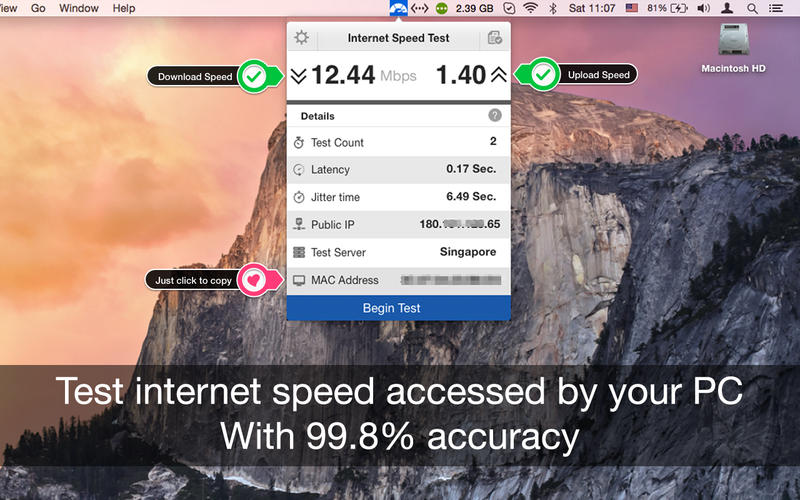
Internet Speed test is a single threaded test while most others (like speed test dot net) are multi-threaded. It uses a single connection to download the sample files which is closer to what you actually do in your everyday browsing and downloading.
Features:
One click internet speed test right from the menu bar.
Upload and Download speed of your network connection.
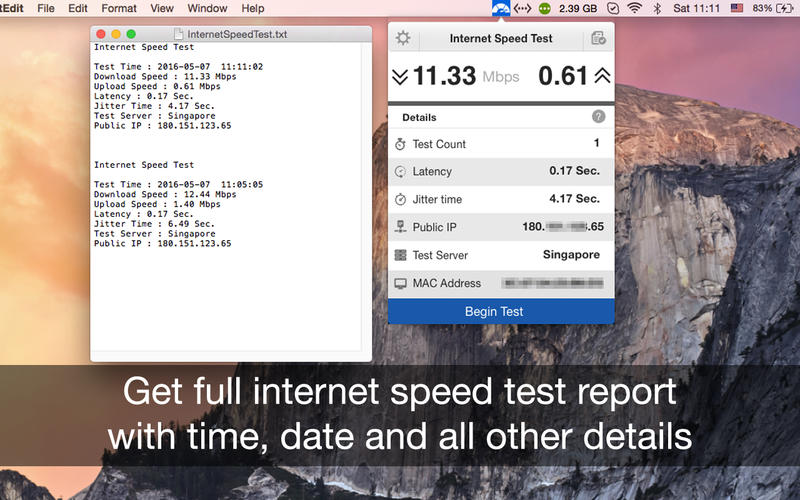
Export .txt format report for internet speed tests with date and time.
Get the public IP address of your computer.
Just click to copy MAC address of your PC.
PC network connectivity is shown with a dark and grey icon.
Retina Display enabled icons.
Easy to use interface.
Best in the market.
Basics:
Test Count: Number of tests done to get accurate results
Latency Time: A time delay between the cause and the effect of some physical change in the system being observed.
Jitter Time: The amount of time it takes for a block of information, called a packet, to travel across a network
Public IP: Your public IP address is the IP address that is logged by various servers/devices when you connect to them through your internet connection.
Test Server: Location of Server user to determine your internet speed.
Mac Address: A unique identifier assigned to network interfaces for communications on the physical network segment.
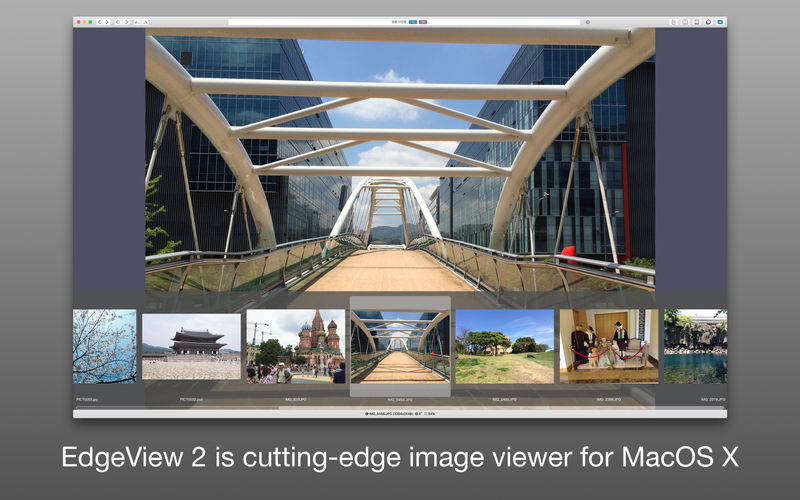
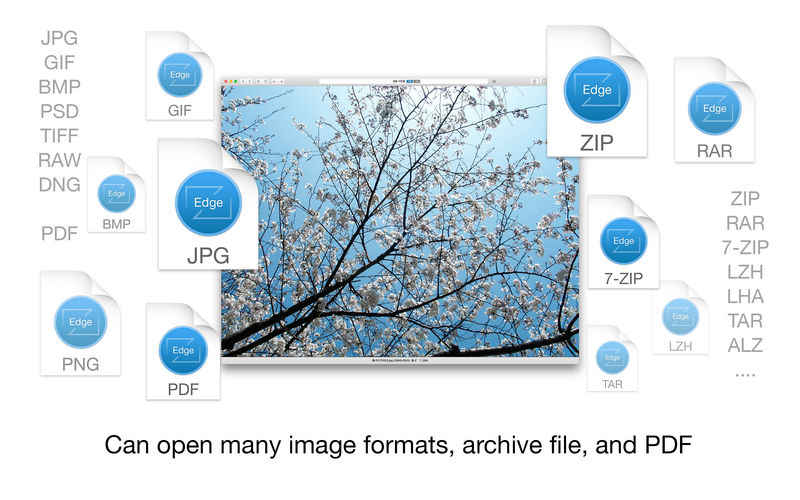
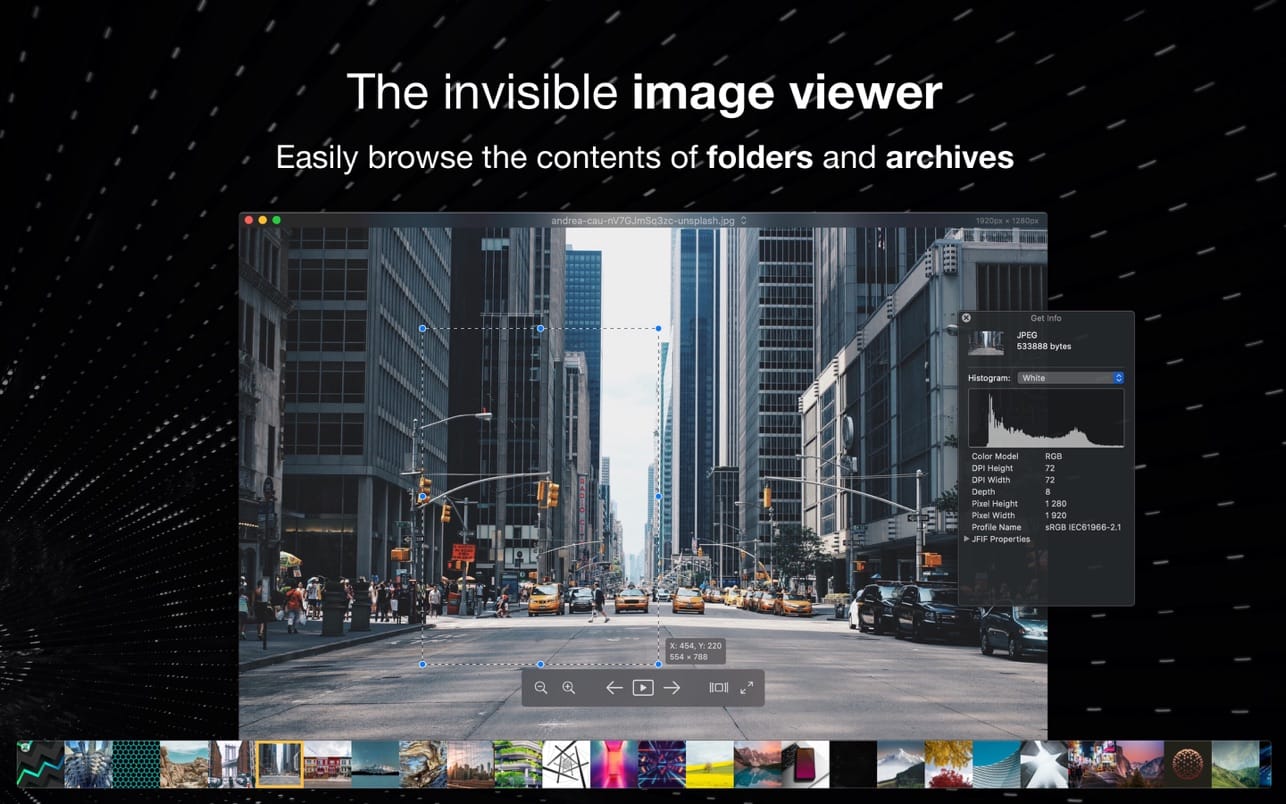
EdgeView 3 is fast image viewer has elegant user interface. EdgeView 3 is developed and designed for modern MacOS. It can open various image files such as JPEG, PNG, TIFF, BMP, and RAW file of DSLR, EPS and PDF, AI(Adobe Illustrator). Can open image files in archive directly without extraction.
User can open files, rename files, delete files from EdgeView’s file browser. Also can access to SMB/AFP/FTP network volume.
User can navigate images quickly by using keyboard shorcut, mouse wheel, trackpad gesture. EdgeVew show EXIF information, play animation GIF/PNG/WebP smoothly. Save last status to history, and restore when reopen file.
EdgeView 3 will be the best choice when viewing and managing image files.
Features
Rewrote full code as Swift for improve performance.
Support m1 CPU Mac.
Has easy UI, can control main function at Sidebar.
Support English/Korean/Japanese/Chinese(Simplified).
Image Viewer
Supporting image files such as JPG, GIF, BMP, PSD, TIFF, RAW, WEBP and PDF, EPS, AI(Adobe Illustrator), OpenEXR, HDR, TGA.
Can play animation GIF/PNG/WebP. User can control animation with floating animation controller.
Dispaly internal image(or frame) of animation GIF/PNG/WebP or HEIC that has multiple internal image.
Can read and show images of major archive formats (such as ZIP, RAR, CBZ, CBR, 7-zip) without extraction. Of course, can open ZIP file that 4GB over.
Can read encrypted archive file.
Can read archive file in archive file recursively
Improved draw speed by rebuilt image cache system and drawing engine.
Draw images as high quality.
Provide suitable functions for comic reading such as ‘Two-Page Spread’, ‘Continuous Scroll mode’, ‘Right to Left’, etc.
Provide multiple navigation functions like as ‘Move’, ‘Skip’, ‘Shift’, etc.
User can navigate images and check whole thumbnails at Thumbnailsbar.
User can navigate images by using keyboard shortcut, mouse wheel, trackpad gesture.
Can rotate and flip images. Orientation will be saved to history.
User can select part of images, and copy it or save as file.
Can zoom in/out image freely.
Built-in loupe function to make it easier to magnify part of image.
Show histogram.
Show neighbor files list. And can open neighbor file.
Support history feature for saving and restoring last status of file.
Can reopen file or remove history at history list.
Can rate image files.
File Browser
Built-in file browser can show and open files from local drive or AFP/SMB/FTP network drive.
Can display files as lists or icon.
Show images in folder/archive file at preview panel.
Generate thumbnails of archive files and folders.
Support powerful search feature.
Show category and writer information.
User can sort files by various options, and can delete or rename files.
Can rate files or folders.
Others
Support customizing feature. Also user can change shortcuts.
Built-in Quick Look Extension generate thumbnails and preview of archive files at Finder.
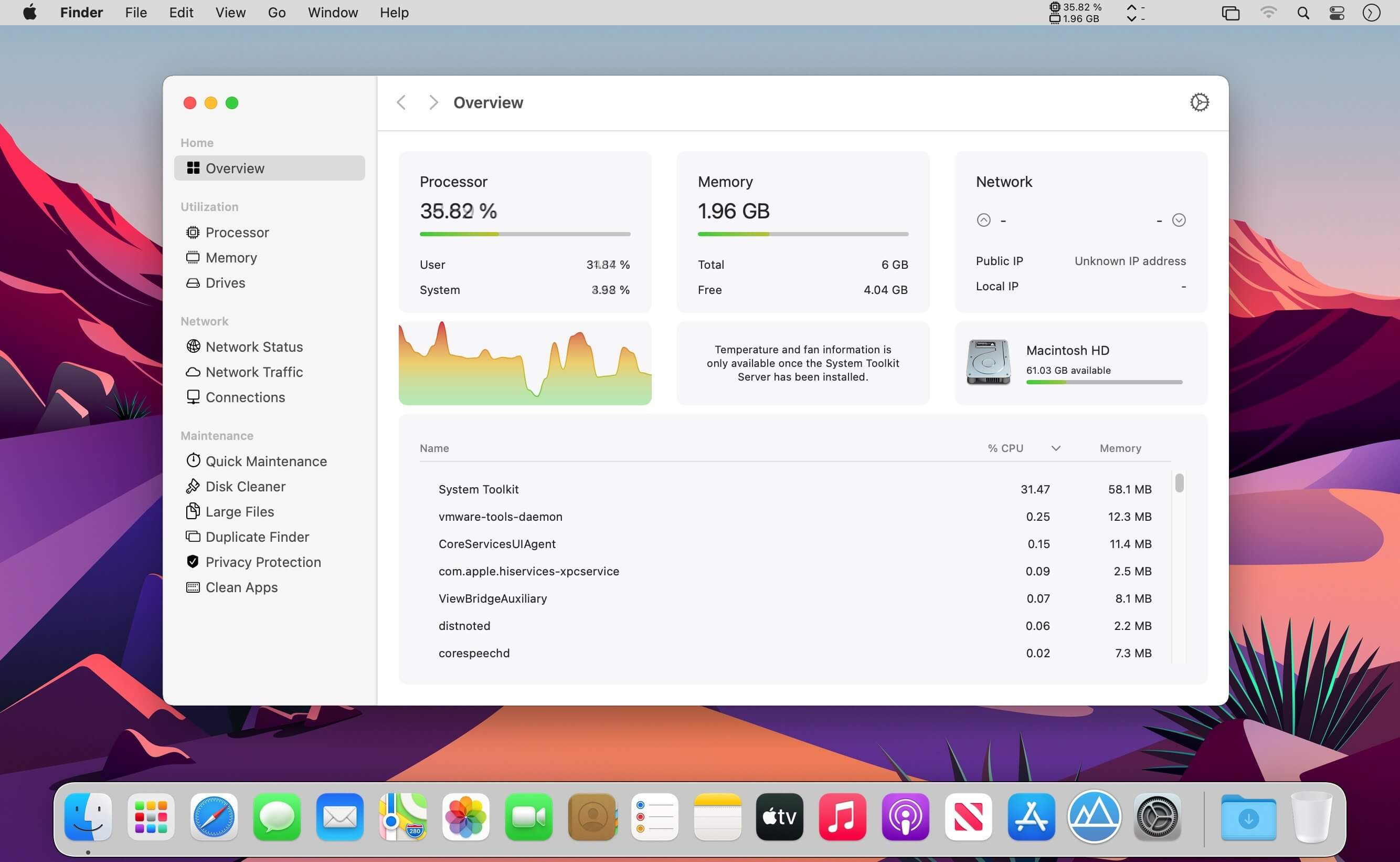
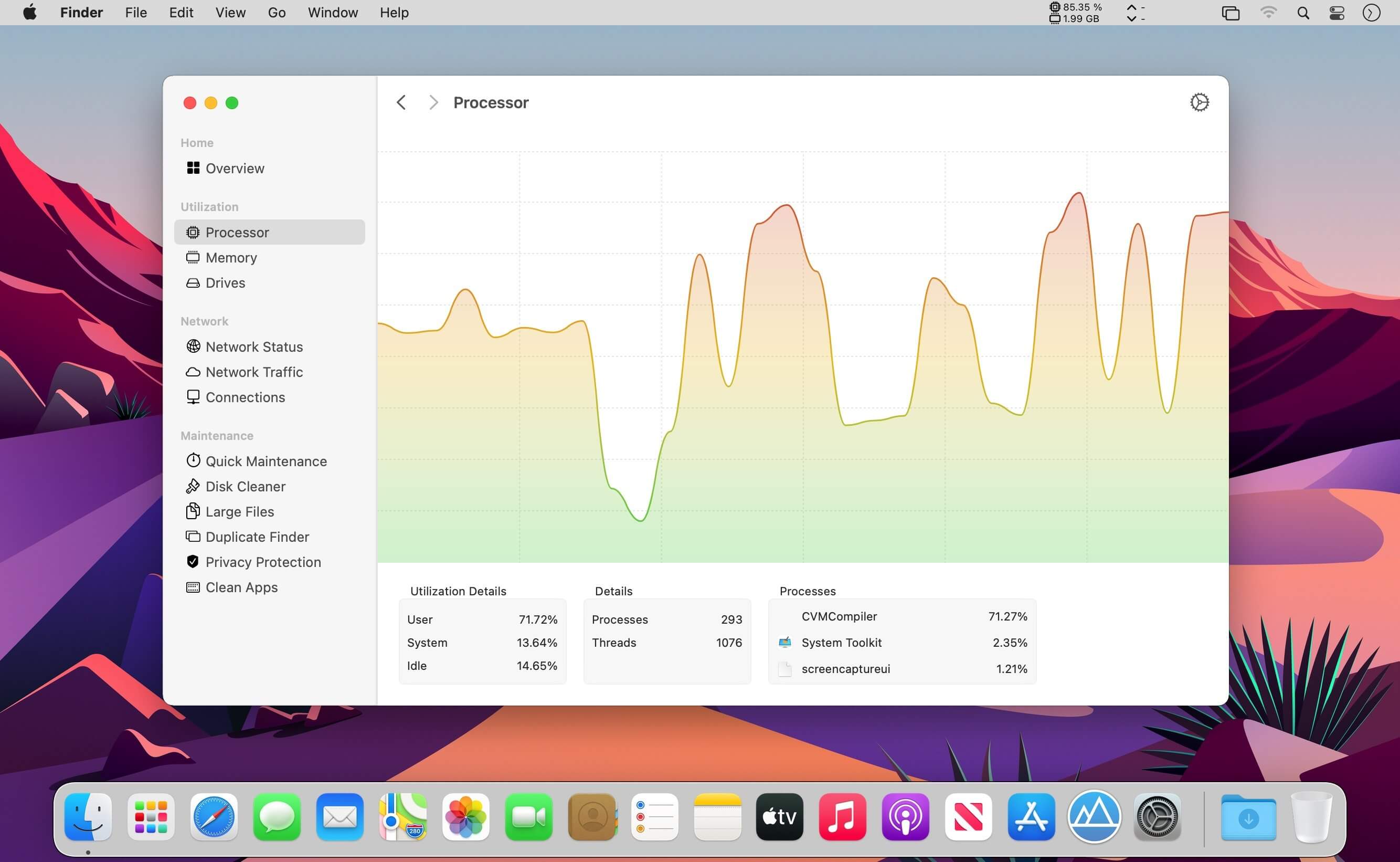
The System Toolkit is an all-in-one information and maintenance app designed for macOS.
Information: System Information
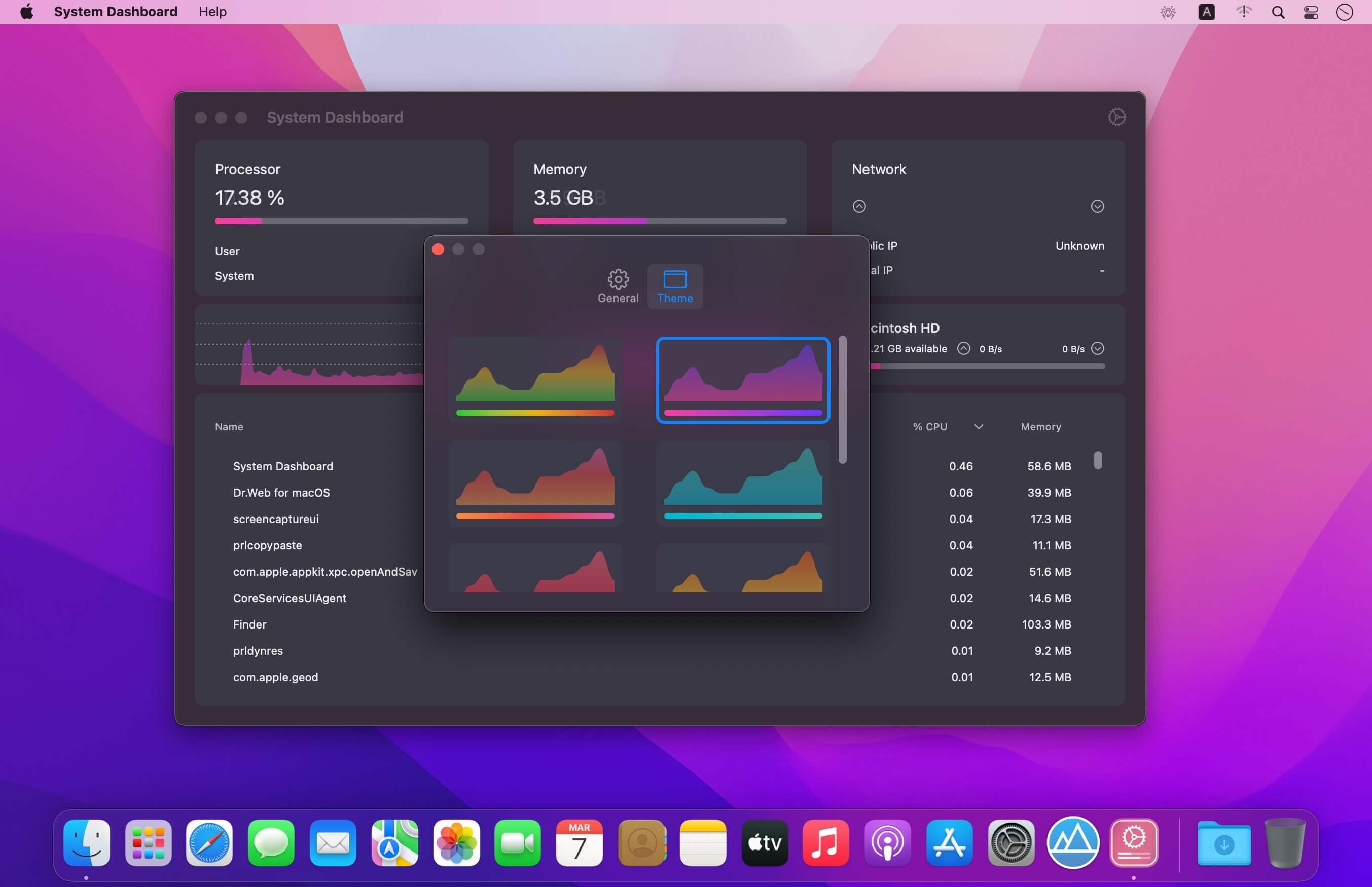
Keep track of all your system loads. This includes CPU load, memory usage, network speeds and -traffic and the open network connections. All information can be shown in both the menu bar extra and the overlay window. Use the Dashboard to take a look at the most important parameters.
Menu Bar Extra
You can add as many menu bar widgets as you like. Every menu bar widget can be configured to show information.
Info Panel
The info panel shows the most important information in a separate window.
Bluetooth Device Battery Levels
The System Toolkit shows the battery levels of Bluetooth devices.
The following devices are supported:
Peripherals:
Apple Magic Mouse
Apple Magic Mouse 2
Apple Magic Trackpad 2
Apple Wireless Keyboard
Apple Wireless Trackpad
Earphones:
Apple AirPods
Apple AirPods Pro
Apple AirPods Max
Beats Solo 3
Beats
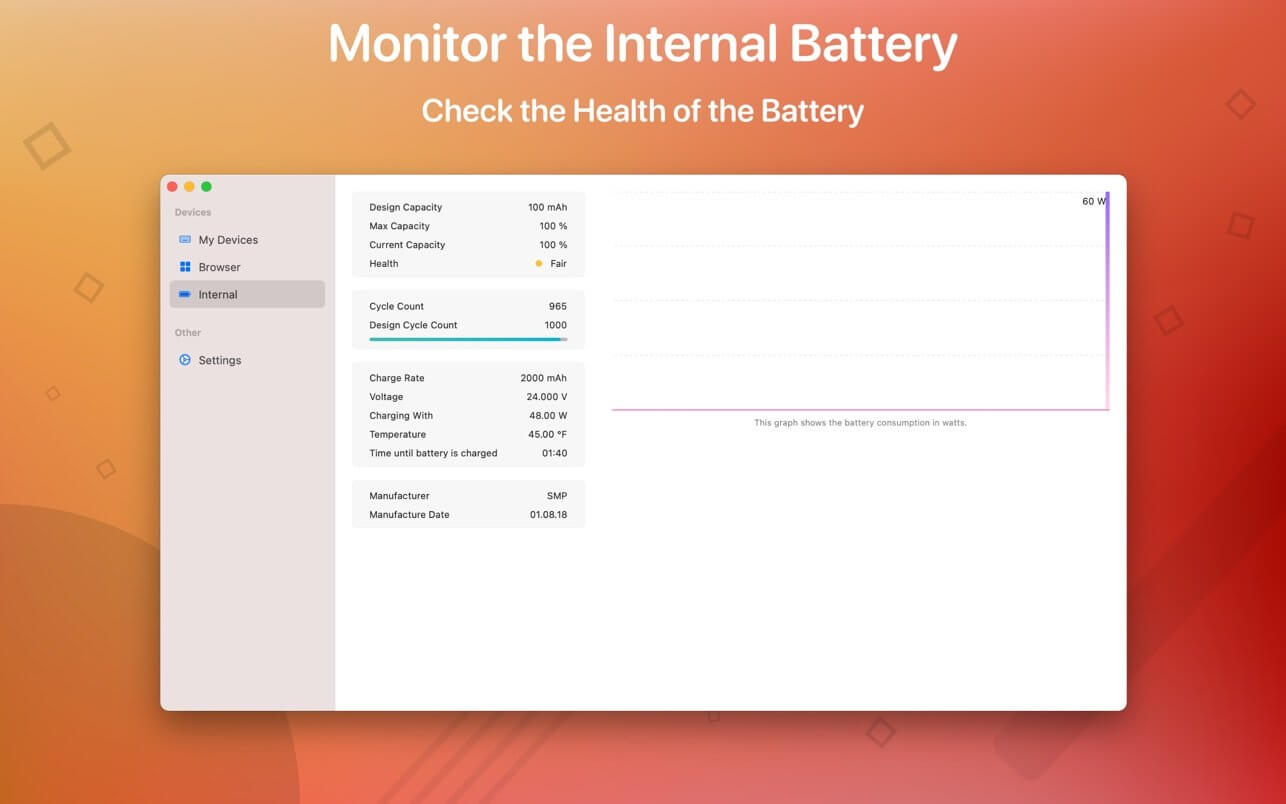
Battery Information
You can check the battery parameters on the battery page. This page shows detailed information about the internal battery. If you are using a Mac without battery, this page is hidden.
Besides the information pages, the System Toolkit also offers the following maintenance features:
Fast Maintenance: Clean your Mac System with a single click!
Disk Cleaner
The disk cleaner searches your entire hard disk for temporary or cached files that can be deleted to free up some disk space. The categories include application- and user cache, developer cache, browser cache and many more caches.
Duplicate Finder
Find duplicate files on your system. Use the smart selection to quickly select and delete your duplicate files and free up disk space.
Big Files Finder
This feature allows you to find big files on your hard disk. Quickly see which files take the most space. The files can be deleted from within the app.
Privacy Protector
Erase all your private data on your system. Did you visit some website that you do not want your other system users to find out about? Just start the Privacy Protector and erase your footsteps – it cleans the data of all major Werb Browsers.
App Cleaner
Use the App Cleaner to find and remove files that were created and are being used by an app.
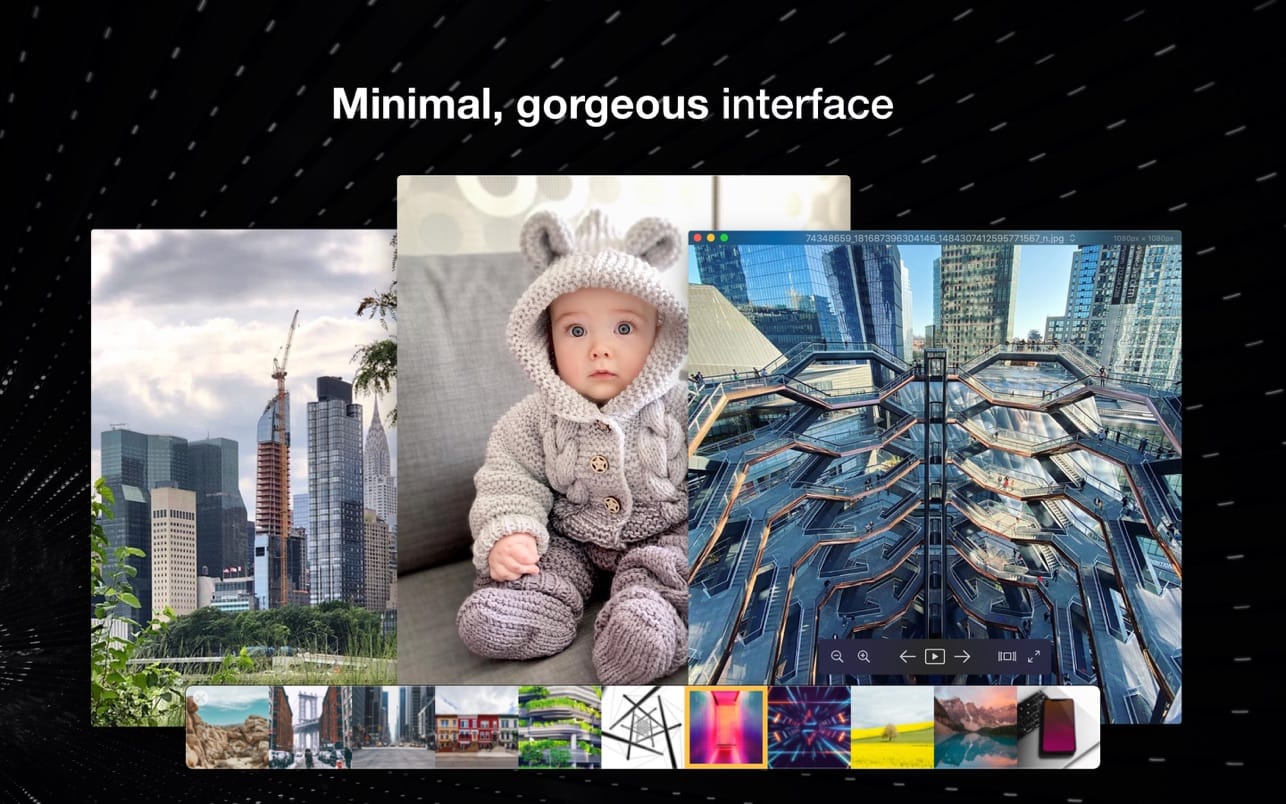
Pixea is an image viewer for macOS with a nice minimal modern user interface. Pixea works great with JPEG, HEIC, PSD, RAW, WEBP, PNG, GIF, and many other formats. Provides basic image processing, including flip and rotate, shows a color histogram, EXIF, and other information.
Supports keyboard shortcuts and trackpad gestures. Shows images inside archives, without extracting them.
Supported formats
JPEG, HEIC, GIF, PNG, TIFF, Photoshop (PSD), BMP, Fax images, macOS and Windows icons, Radiance images, Google’s WebP. RAW formats: Leica DNG and RAW, Sony ARW, Olympus ORF, Minolta MRW, Nikon NEF, Fuji RAF, Canon CR2 and CRW, Hasselblad 3FR. Sketch files (preview only). ZIP-archives.
Export formats
JPEG, JPEG-2000, PNG, TIFF, BMP.
What’s New:
Version 3.0
New zooming engine
We have redesigned the zooming engine for better browsing and zooming experience. No more unwanted window centering when jumping between previous and next images.
Super Resolution
2x and 4x upscaling powered by machine learning. Sharpen and upscale a photo without losing its content instead of mathematically interpolating the values of pixels as done by the regular scaling algorithms.
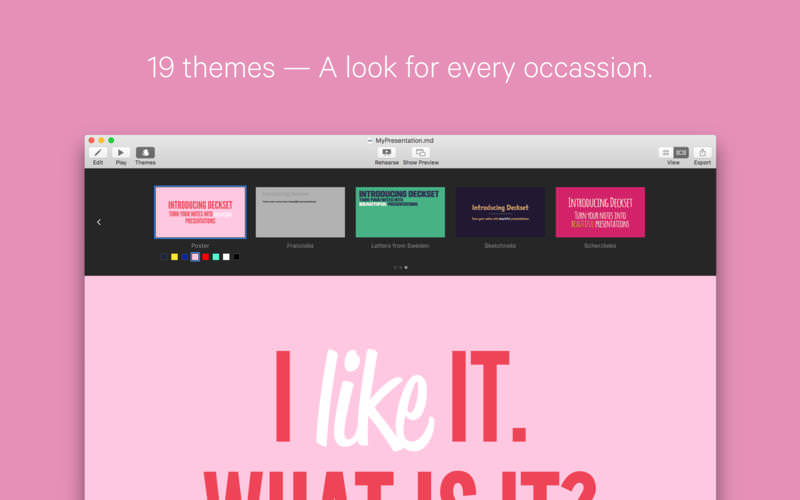
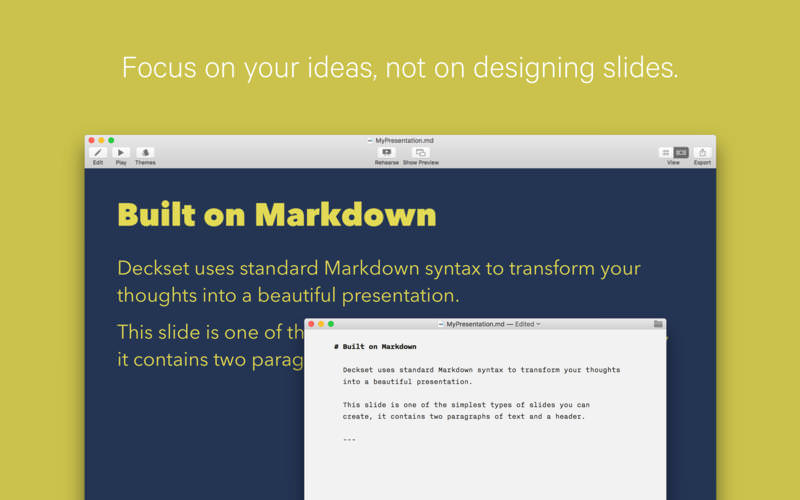
Deckset is a new, simple way to create presentations. Open your favorite text editor, write down your thoughts, and Deckset will turn them into beautiful presentations. Focus on your ideas, not on designing slides.
Deckset comes with ten amazing-looking themes that are designed to work for any audience, whether it’s a business meeting or a tech conference.
Features
10 themes for every occasion, ranging from playful to serious
Automatic layout and advanced typographic features
Present code samples with syntax highlighting and “scale to fit”
Easily include images and videos
Stunning image filters
Speaker notes and rehearsal mode
Everything’s Markdown: edit your presentation using your favorite text editor
Floating preview window
Easily change aspect ratio to suit any projector
Export to PDF
Formula support as in-app purchase
What’s New:
Version 2.0.23:
Release notes were unavailable when this listing was updated.
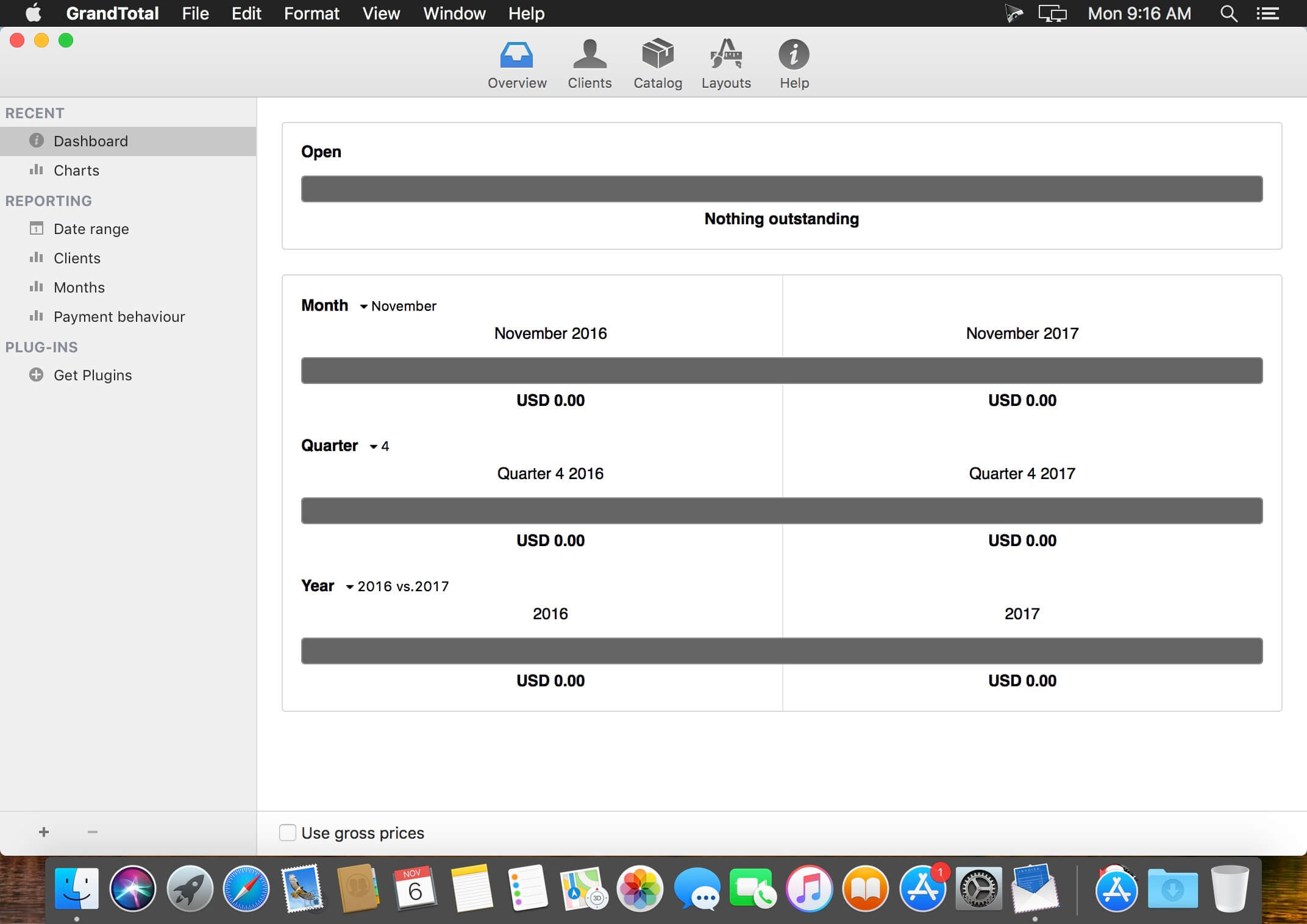
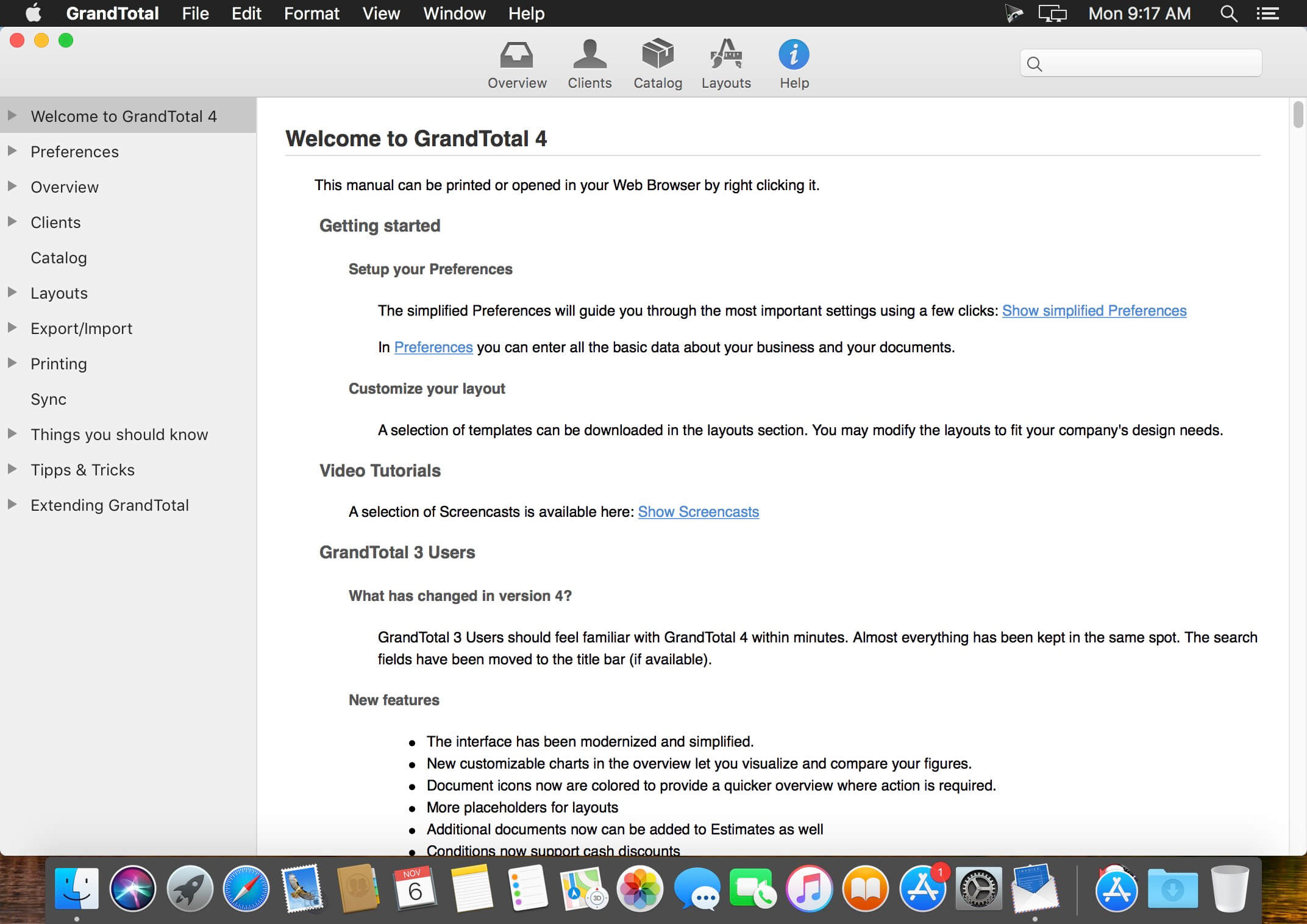
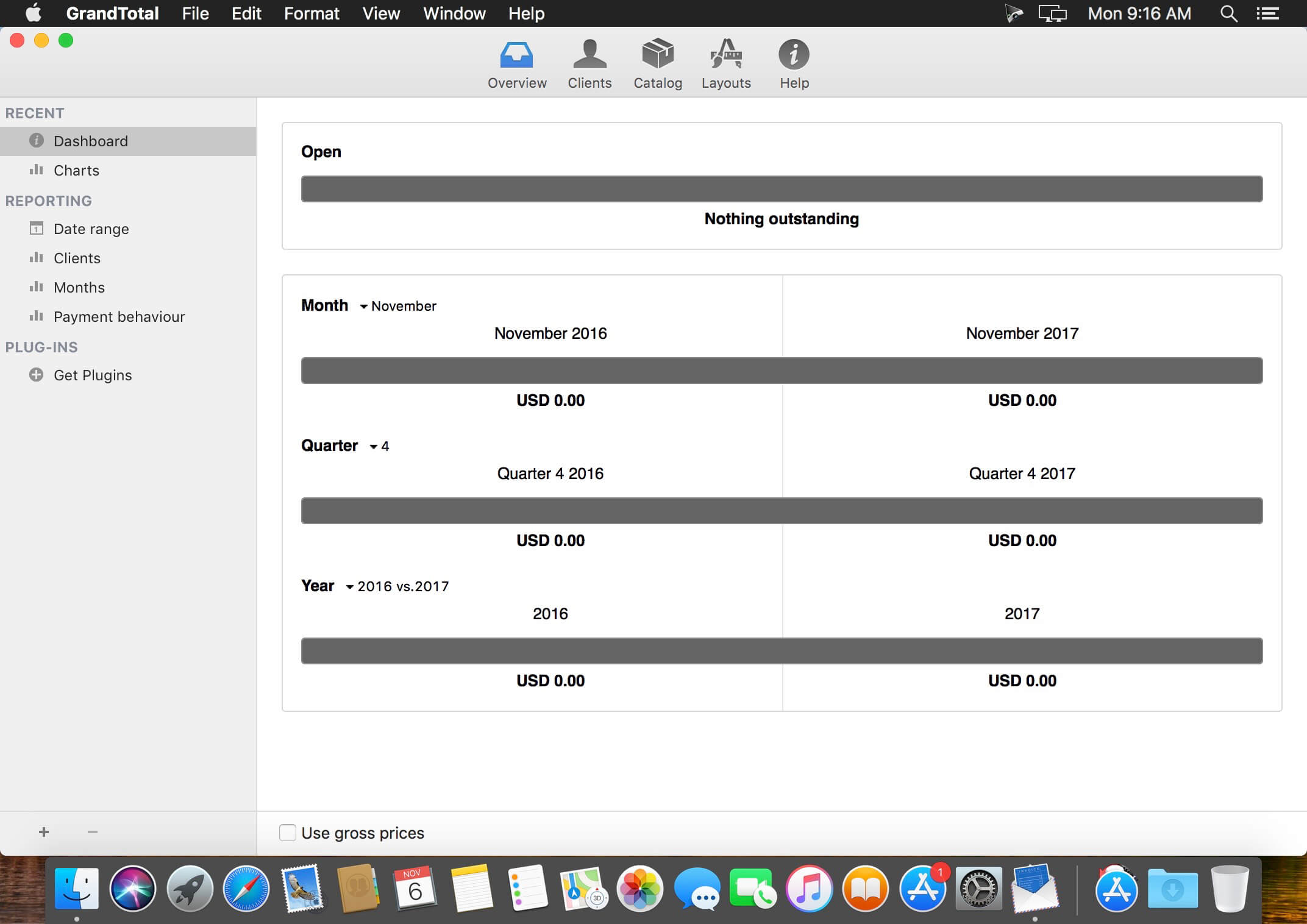
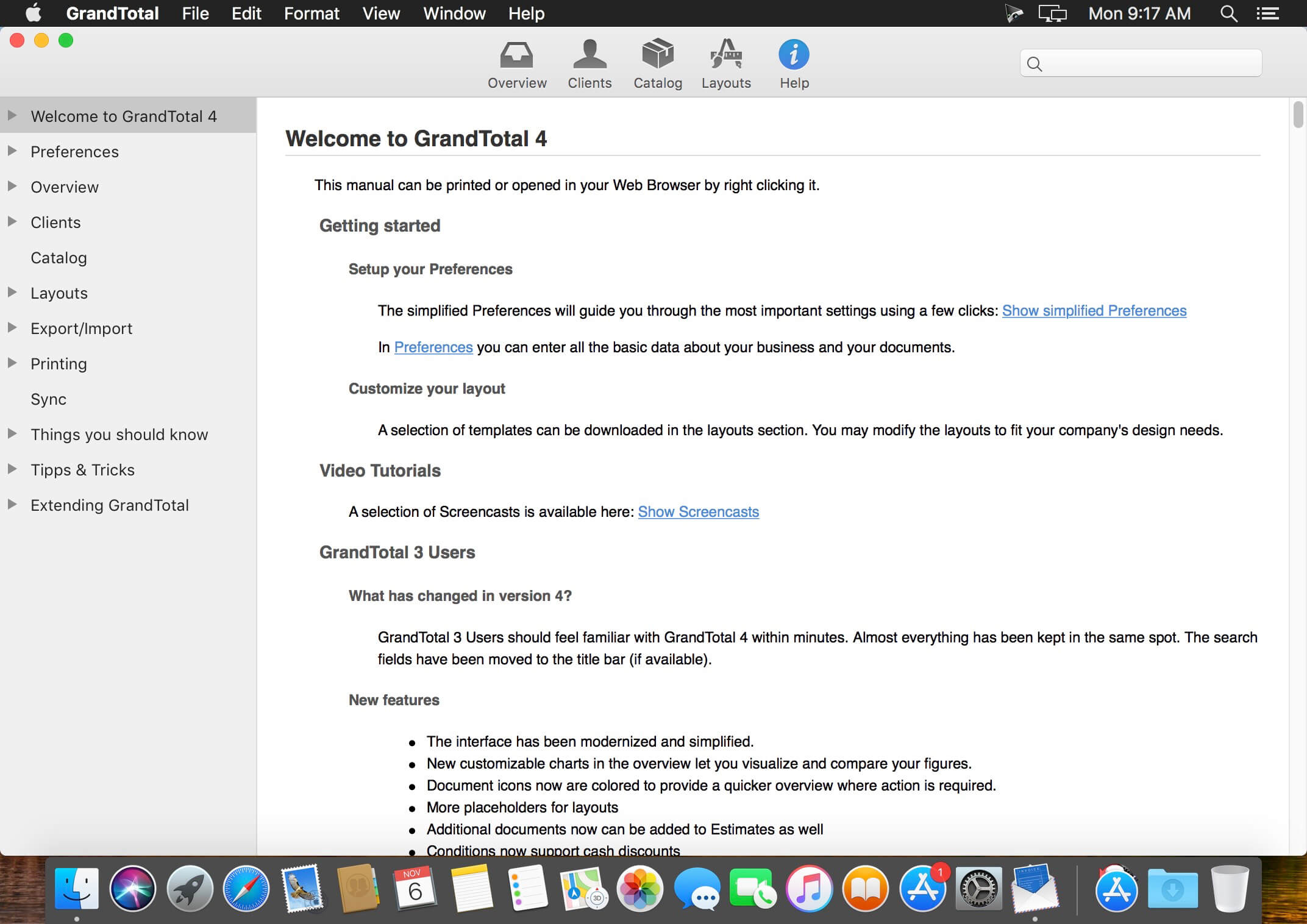
GrandTotal is an application to create invoices and estimates based on your own templates. The built-in template editor allows you to adjust your layout to fit your company’s corporate design. GrandTotal works great in conjunction with TimeLog. Using GrandTotal you can create invoices and estimates in the twinkling of an eye and keep track over the outstanding payments. Detailed statistics and graphs give you an insight into the current state of your business and allow comparison to previous periods.
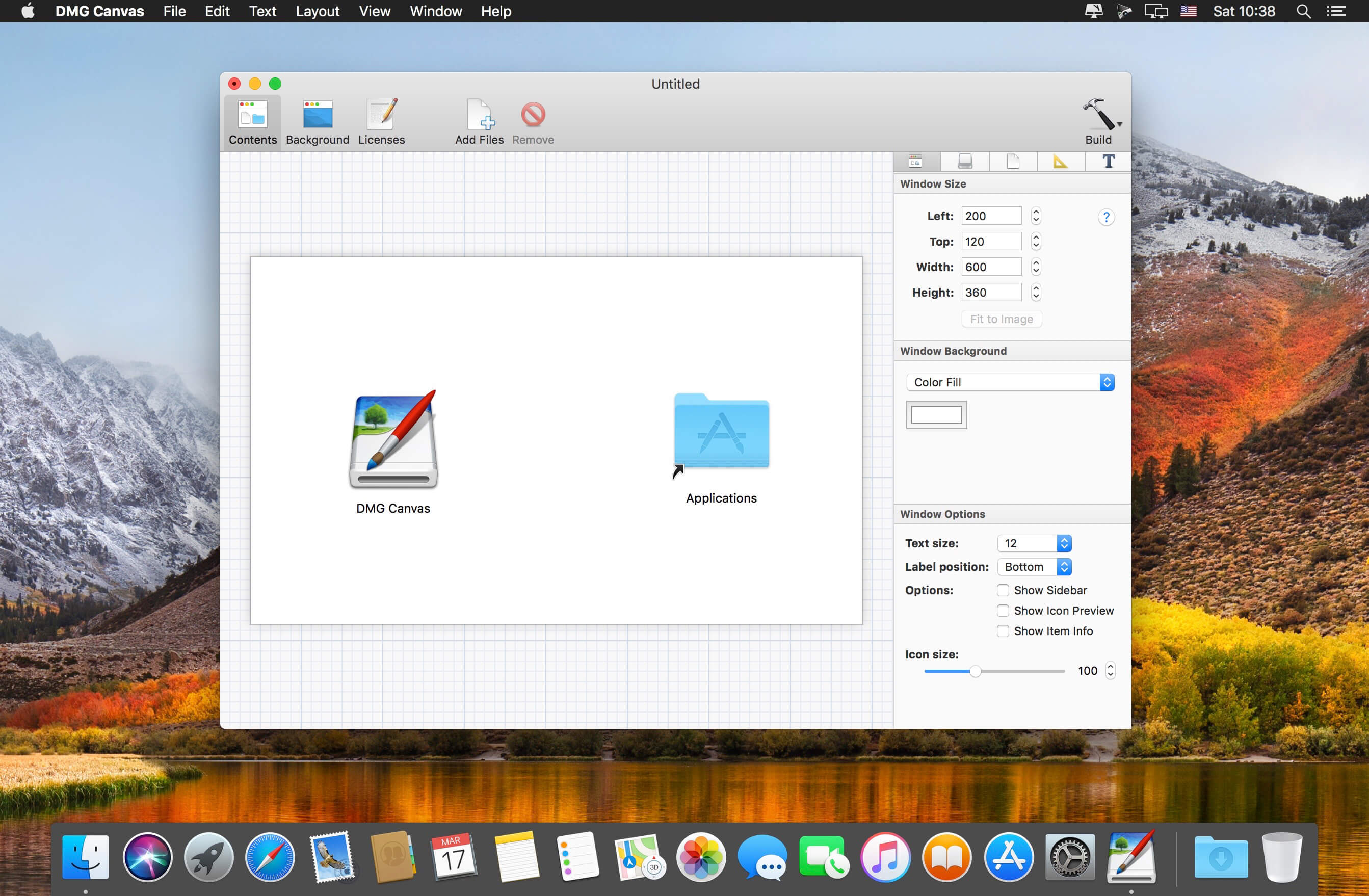
Effortlessly build disk images with your own beautiful design. Simply drag and drop your files, design your disk image’s appearance using the rich visual editor, and click “Build” to easily and quickly create a fully assembled disk image ready to ship. Each time you release a new version of your disk image, simply click “Build” again, or automate it as part of your own build process using the built-in command-line tool.
WYSIWYG Design Making disk images shouldn’t be hard. With DMG Canvas, simply give your disk image a background image, drag and drop files onto the window view, and click Build. What you see in DMG Canvas is exactly how it will look in Finder.
Easy Backgrounds
Using the Background layout view, you can create great backgrounds for your disk images right inside DMG Canvas itself. Just drop in images, add customized text, and you’re done in a snap.
Localized Licenses
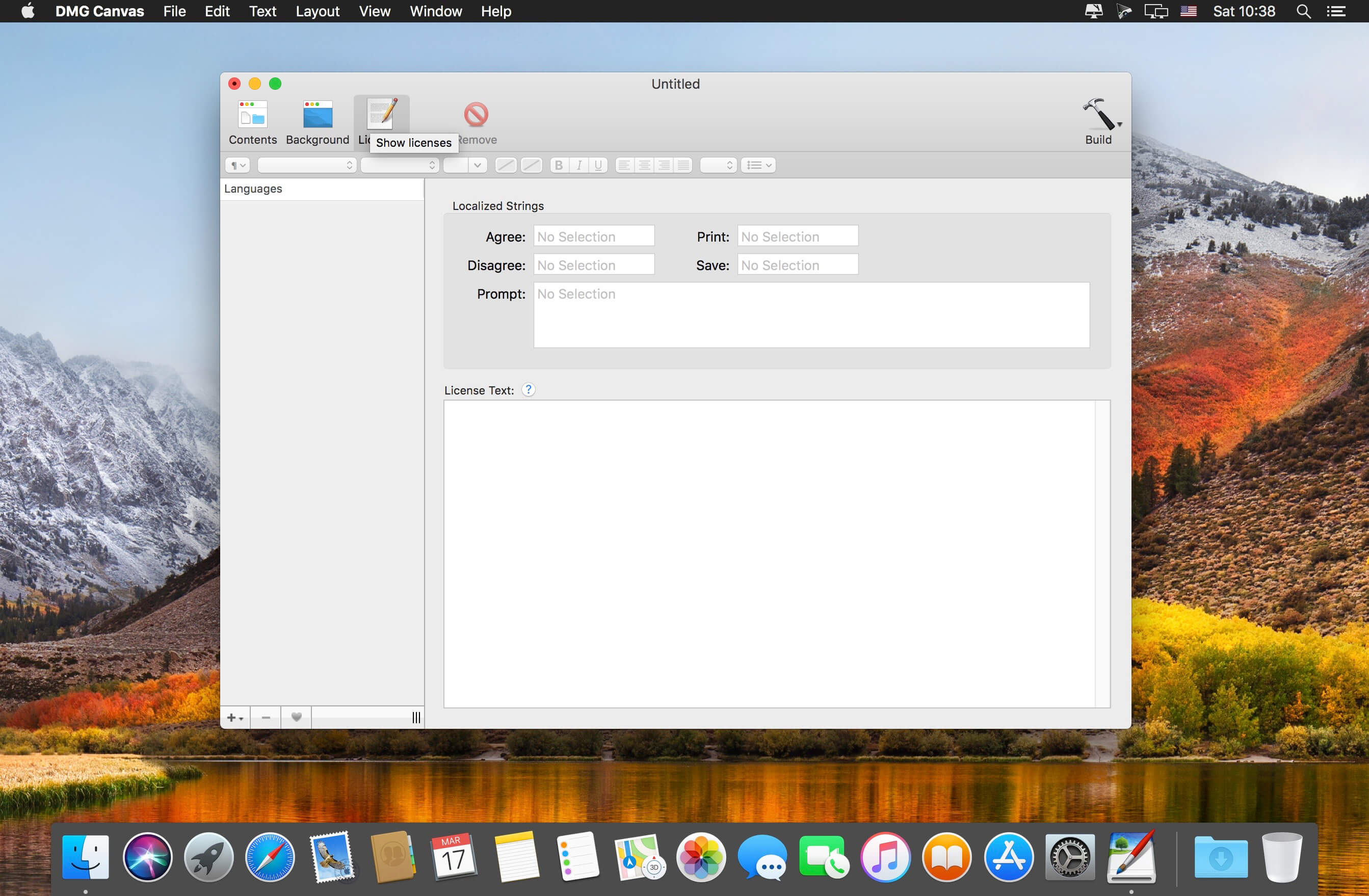
Do you need your disk image to prompt a license agreement when mounted? Not a problem. Don’t spend hours trying to figure it out yourself; Just put your license’s text into DMG Canvas and you’re done. It even supports styles and multiple languages.
Maximum Compatibility
DMG Canvas goes the extra mile and carefully creates disk images with maximum compatibility so they look and work great all the way back to OS X 10.4, regardless of which version of OS X you’re using.
Create Retina-Ready Designs
When targeting OS X Lion and later, add beautifully crisp Retina images and text to your disk images. Your users (and potential users) will see your attention to detail before they even launch your application for the first time.
Code Signing
Ensure your customers and macOS itself know that the disk image is safe and secure with code signing. Gatekeeper in macOS Sierra enables extra security features if your disk image is not code signed, potentially breaking behaviors in your application. Using DMG Canvas, code signing is as easy as a single click.
Notarization
Starting in macOS Catalina, a new security feature called Notarization requires new application to be notarized by Apple to ensure they are not infected with malware. To help with this, DMG Canvas can easily notarize the disk image and its contents. (Notarization requires that Xcode be installed.)
Dark Mode
When using the “None/Default” background choice for the disk image Window, the window’s appearance will change depending on the user’s system appearance setting. In Dark Mode, the window background will be a dark-gray and file names will be displayed with a white color. If the window background choice is set to an image, gradient, or color, then the file names will always appear in black.
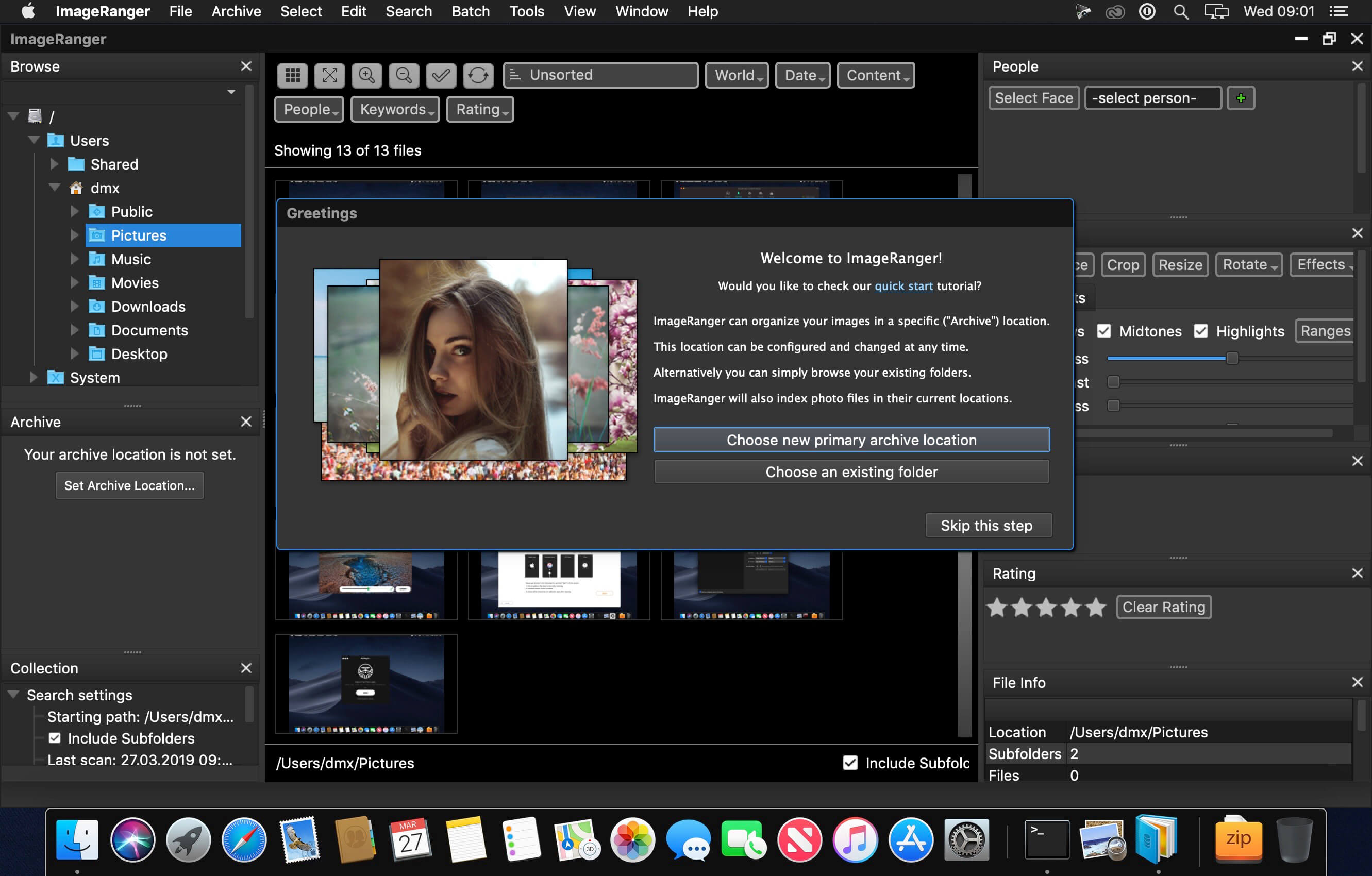
We live in the day in which pictures are a common thing, especially with all phones being equipped with pretty powerful cameras. As such, your computer can end up the storage place of your picture collections, but it can be a hassle to manually handle it. In this regard, ImageRanger comes as an advanced picture finding and organizing tool.
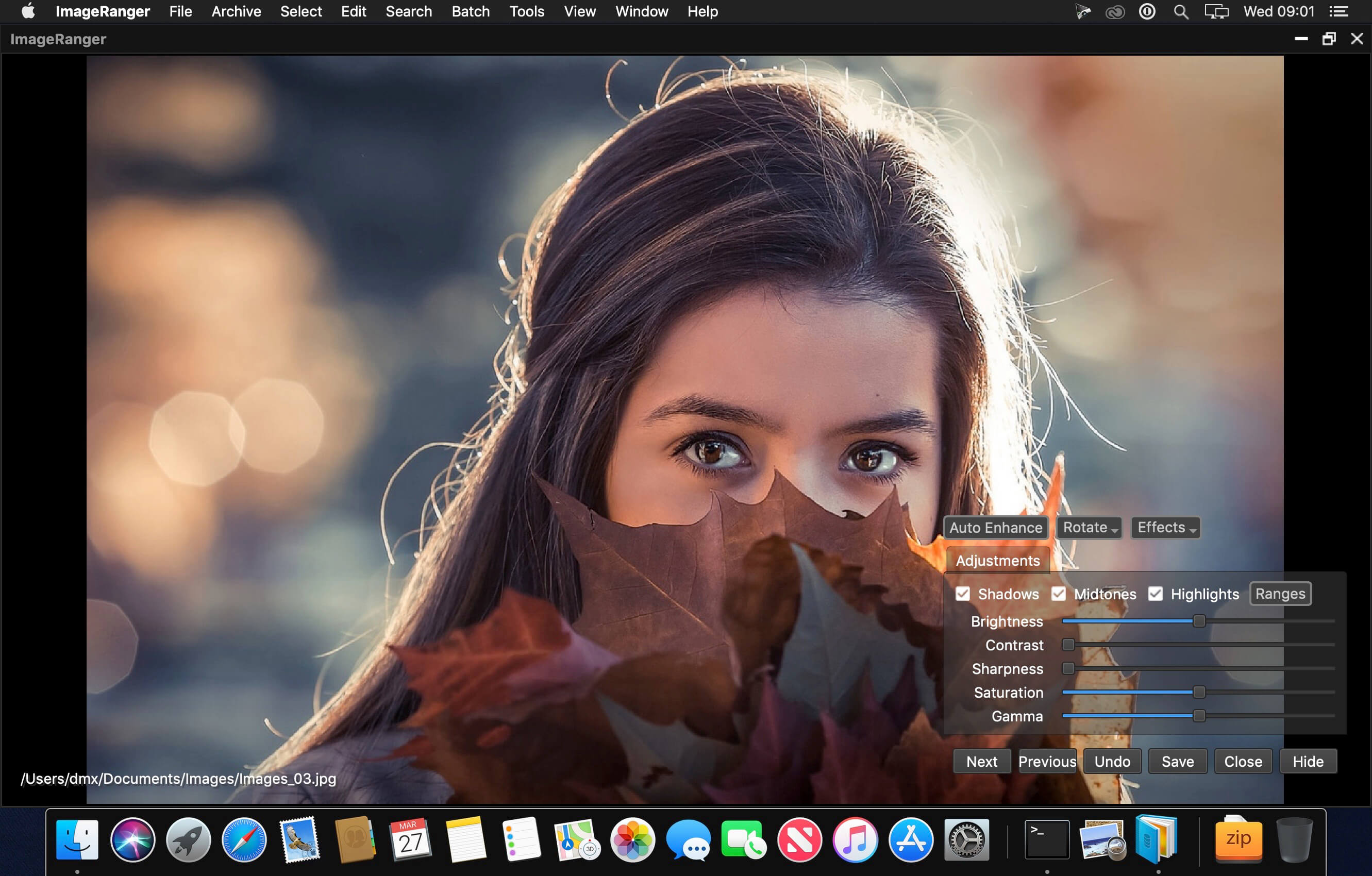
With ImageRanger, auto-enhancements can be applied to multiple images at once. Manual fine-tuning makes it possible to select dark or bright regions of the image and apply various correction settings.
All necessary editing controls (brightness, contrast, sharpness, saturation) are designed in a user friendly interface, with an UNDO function to correct any mishaps as you go.
You can even ask ImageRanger to find and categorize all images of poor quality automatically for your convenience. For advanced users, a powerful batch-processing allows work to be carried out on entire folders while processing only relevant photos.
ImageRanger will index photos on your Mac or storage drives so you can:
Quickly load thousands of images
Find portraits, faces
Sort and filter
Find duplicates and remove copies
Organize in folders by year, location
Crop, resize very quickly
Manually sort collections from multiple folders
Sort out your images from other illustrations, clip arts
Find low quality images and improve image contrast
Perform general photo managment tasks
Print hundreds of photos
What’s New:
Version 1.9.1.1841:
Release notes were unavailable when this listing was updated.
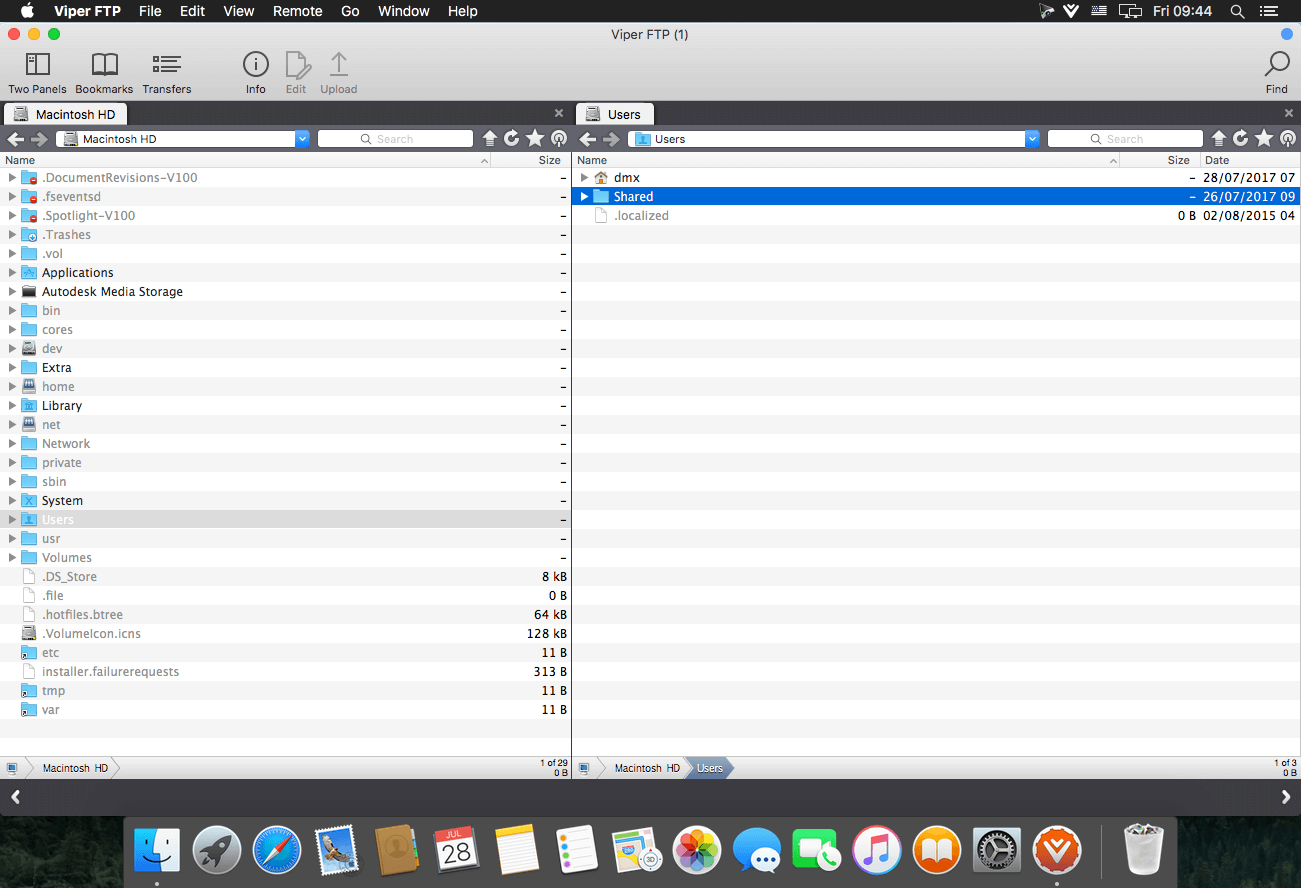
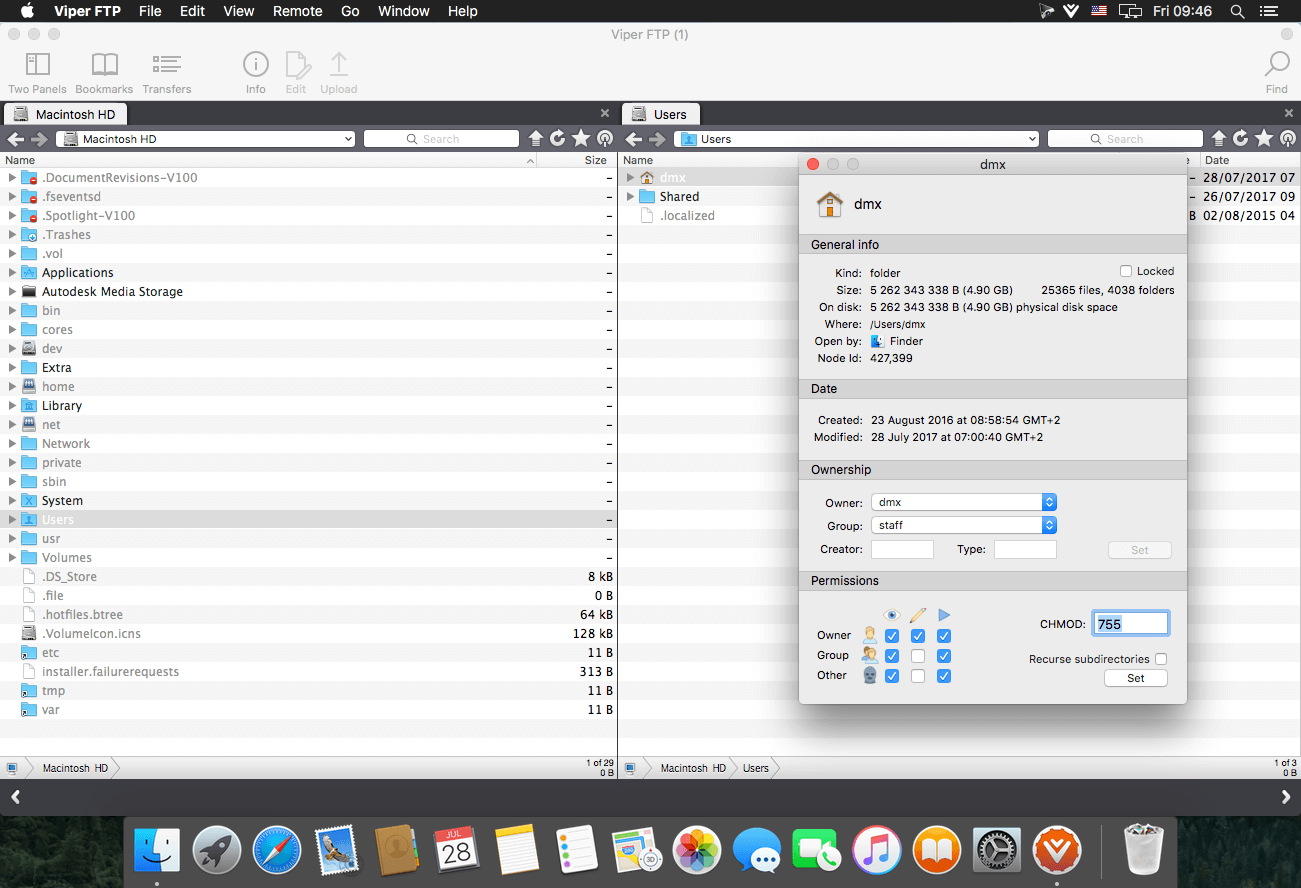
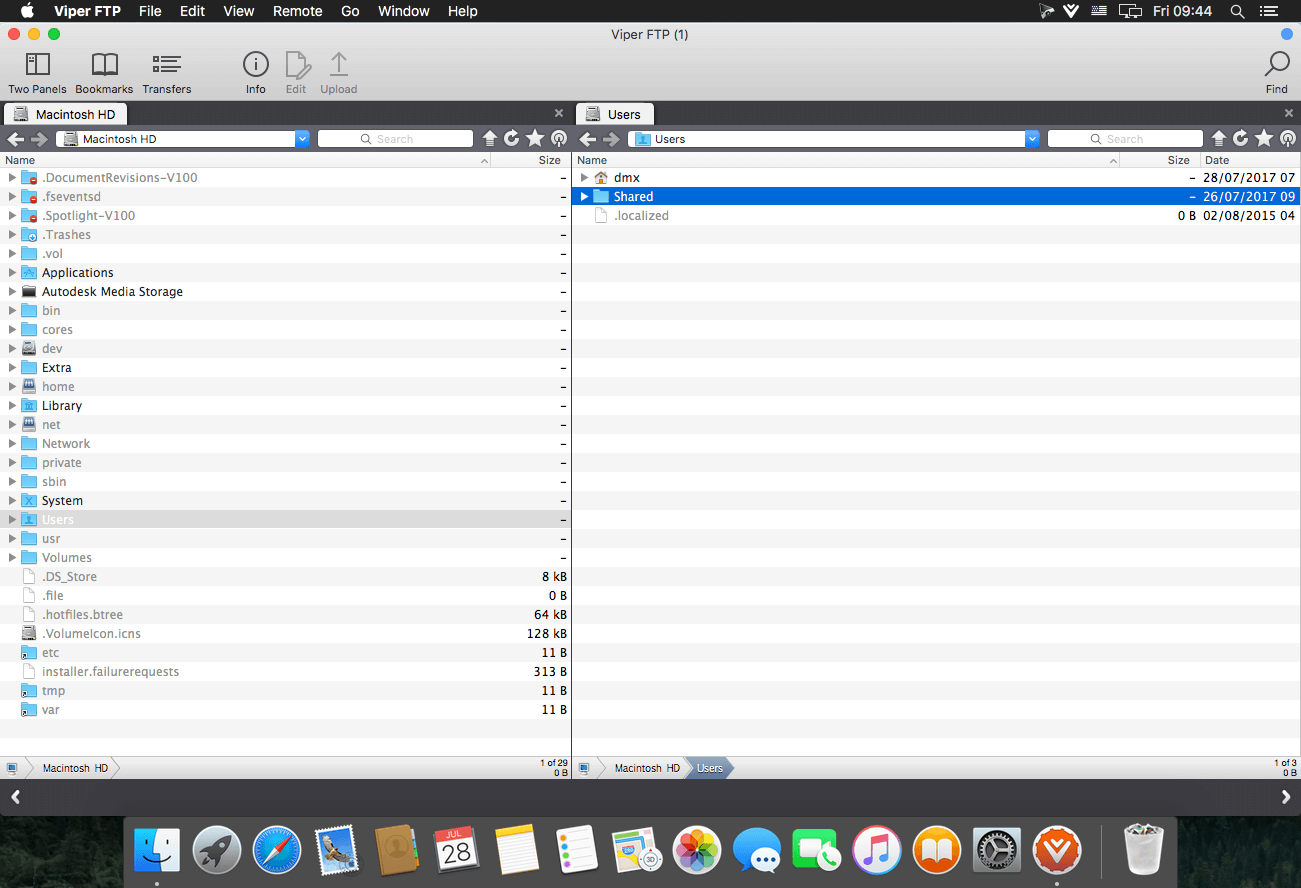
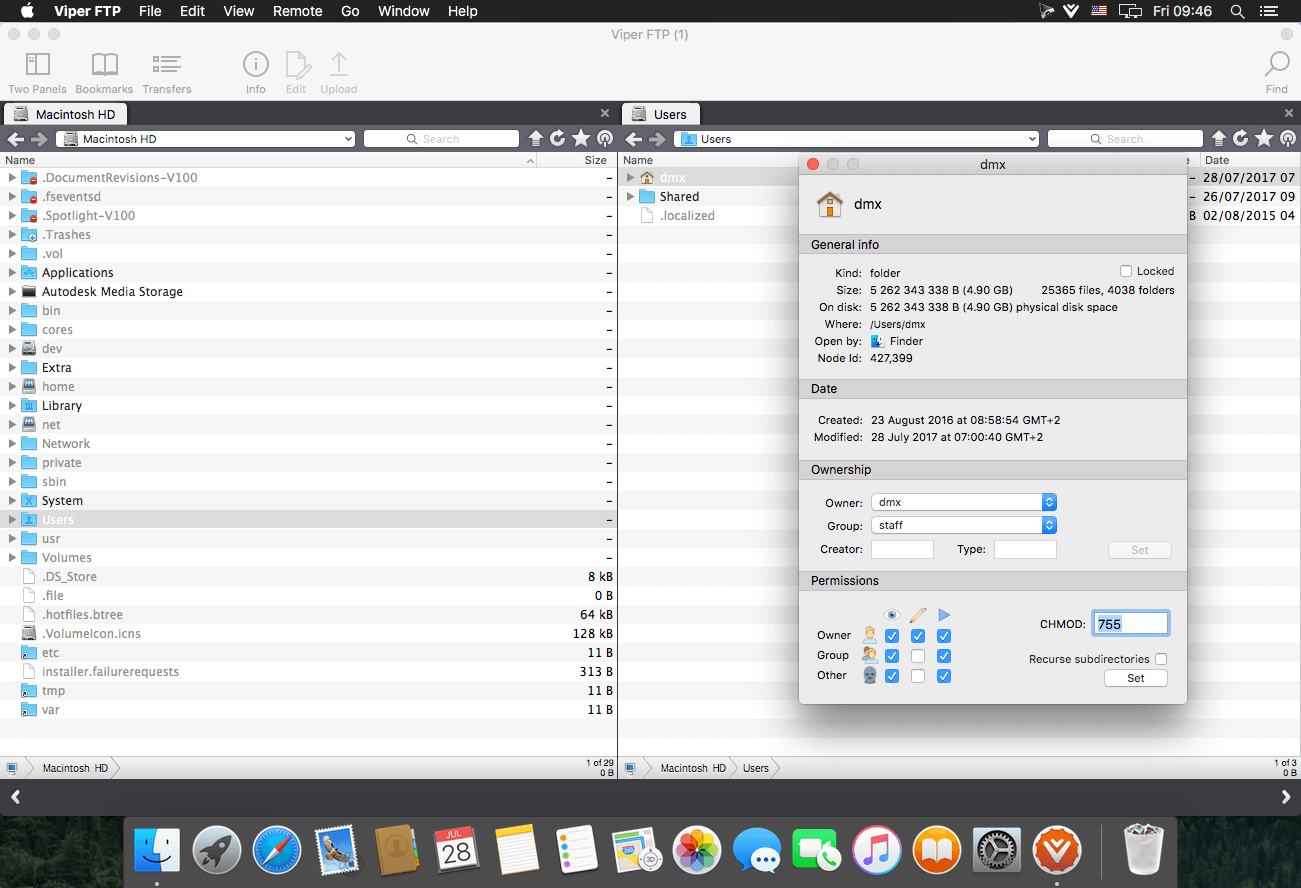
Viper FTP is a handy and powerful file manager for macOS, with a tremendous user interface that makes it effortless to use. Quickly access your remote servers to manage and transfer your files. The new user interface was redesigned to be cool, clean and functional. Viper FTP handles WebDav servers, Amazon S3 servers, LAN Bonjour servers, and even the uploading of videos directly to YouTube. It will create the HTTP URL of files you select, allowing you to easily share them via URL or email. It stores and shows your history and trace log, stores the credentials of multiple FTP accounts, and allows you to have multiple simultaneous transfers happening across different servers. The Toolbar gives you instant access to your bookmarked servers. Viper FTP has in-built ZIP, RAR, GZ, and TAR support. It has fast file searching on both your local and remote machines. You can customise many elements of the interface via preferences. You can edit remote files to make quick changes.
Top 10 Features
Local and remote file management (FTP, SFTP, WebDav, Amazon S3, YouTube-upload)
Last connections, Bookmarks, Bonjour, Favorites
can be managed in one place.
History of file operations (what, when, where with a server reply)
Converting remote file/folder into HTTP/HTTPS address with an instant email option.
Searching, viewing and editing files directly on a remote server.
Using the toolbar for keeping your favorite servers gives an instant access to the remote locations.
All files (hidden, system) are visible. To locate a file just start typing its name.
Files/folders compare.
Zip,rar,gz and tar management.
Application windows can be linked (will move, show and hide together)
Language: English, German, French, Spanish and others. Compatibility: macOS 10.13 or later • Apple Silicon or Intel Core processor Homepagehttps://viperftp.com
SQLPro for Postgres – PostgreSQL database manager. SQLPro for Postgres is a advanced but lightweight PostgresSQL database client, allowing quick and simple access to Postgres servers.
Features
Syntax highlighting
Intellisense
Tab-based interface
Support for executing multiple queries at once
Quick access to tables, columns, and more
Stored procedure execution
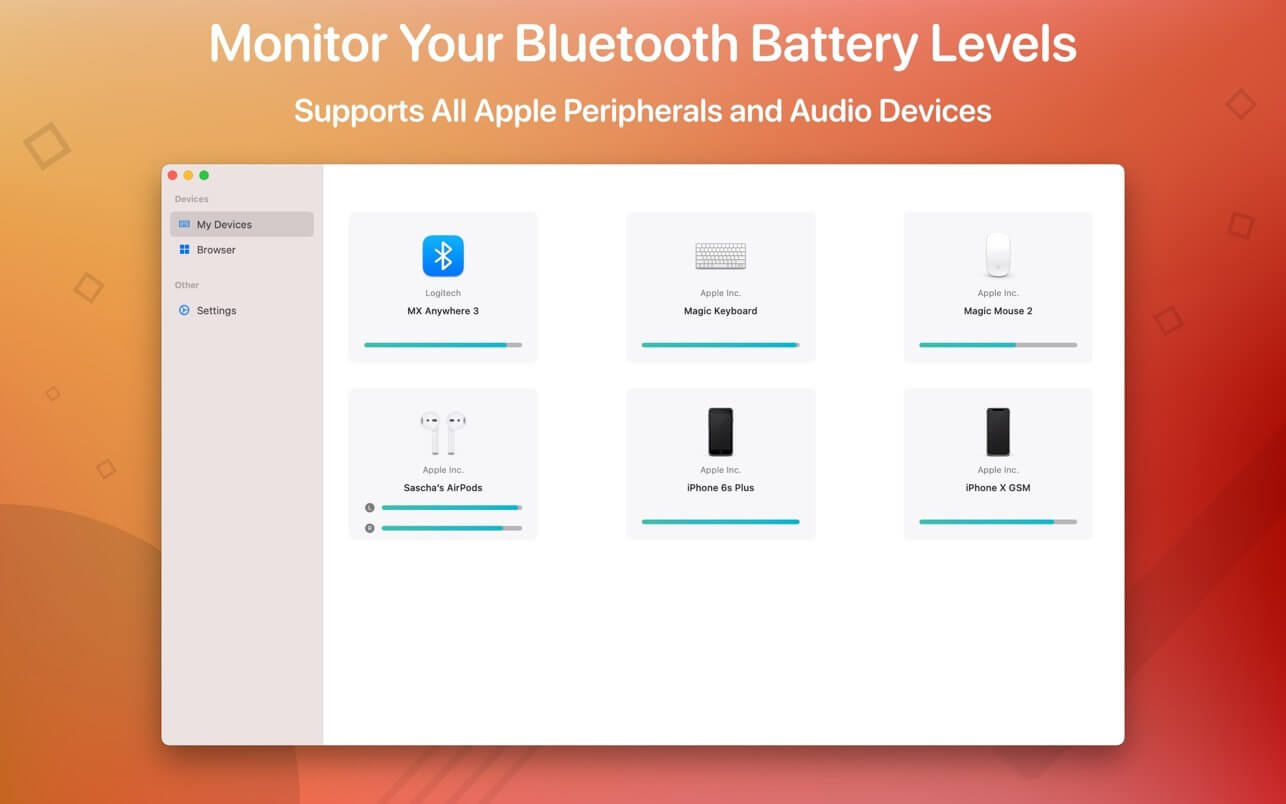
Magic Battery supports all Apple input and audio devices. Battery information will be shown in the menu bar and the main window.
The App Magic Battery shows the battery level of supported input devices and headphones that are connected via Bluetooth in the menu bar. Internal batteries are also supported.
The following devices are supported:
Input devices:
Apple Magic Mouse
Apple Magic Mouse 2
Apple Magic Trackpad 2
Apple Wireless Keyboard
Apple Wireless Trackpad
Logitech MX Anywhere 3
Headphones:
AirPods
AirPods Pro
AirPods Max
Beats Solo 3
Beats X
Beats Studio 3 Wireless
Other devices:
Apple iPad (all models)
Apple iPhone (all models)
The app features:
Modern GUI for displaying connected devices and their battery levels.
Shows the percentage of the internal battery including how long the battery will last.
You can choose between a detailed, a compact or an icon-only view. In the detailed view, the battery level is shown next to the device icon. In the icon-only view, the battery levels are shown once the menu of the app is opened. The compact view shows all the information in a way that very little space is used.
Apple Silicon support.
Connected or disconnected devices are detected automatically. The view is then adjusted accordingly.
Receive notifications when the battery level of a device is reaches 20%.
Support for auto-start: The app is started as soon as the user is logged in (optional).
All products that are supported and were listed above are a registered trademark of Apple Inc.
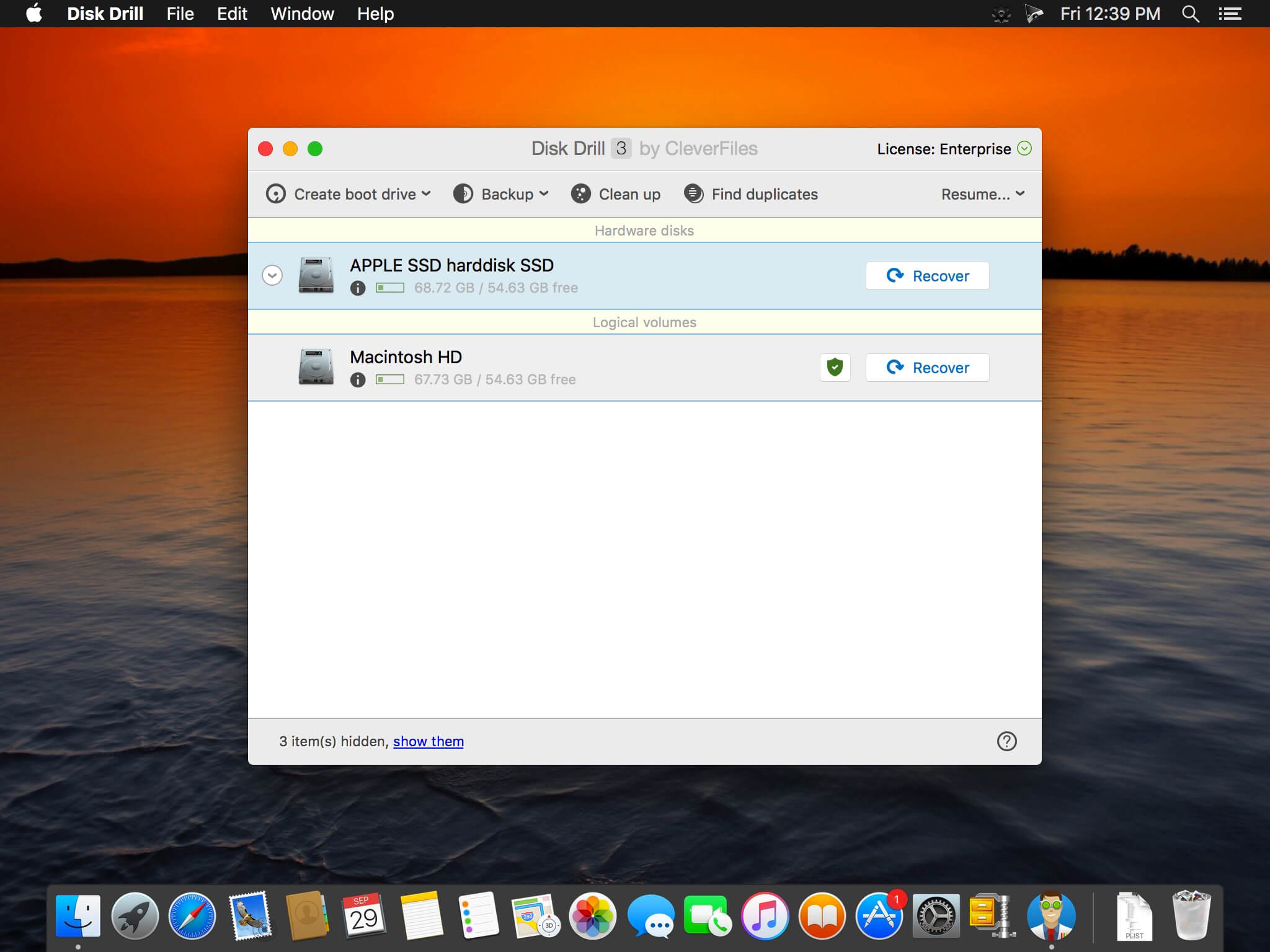
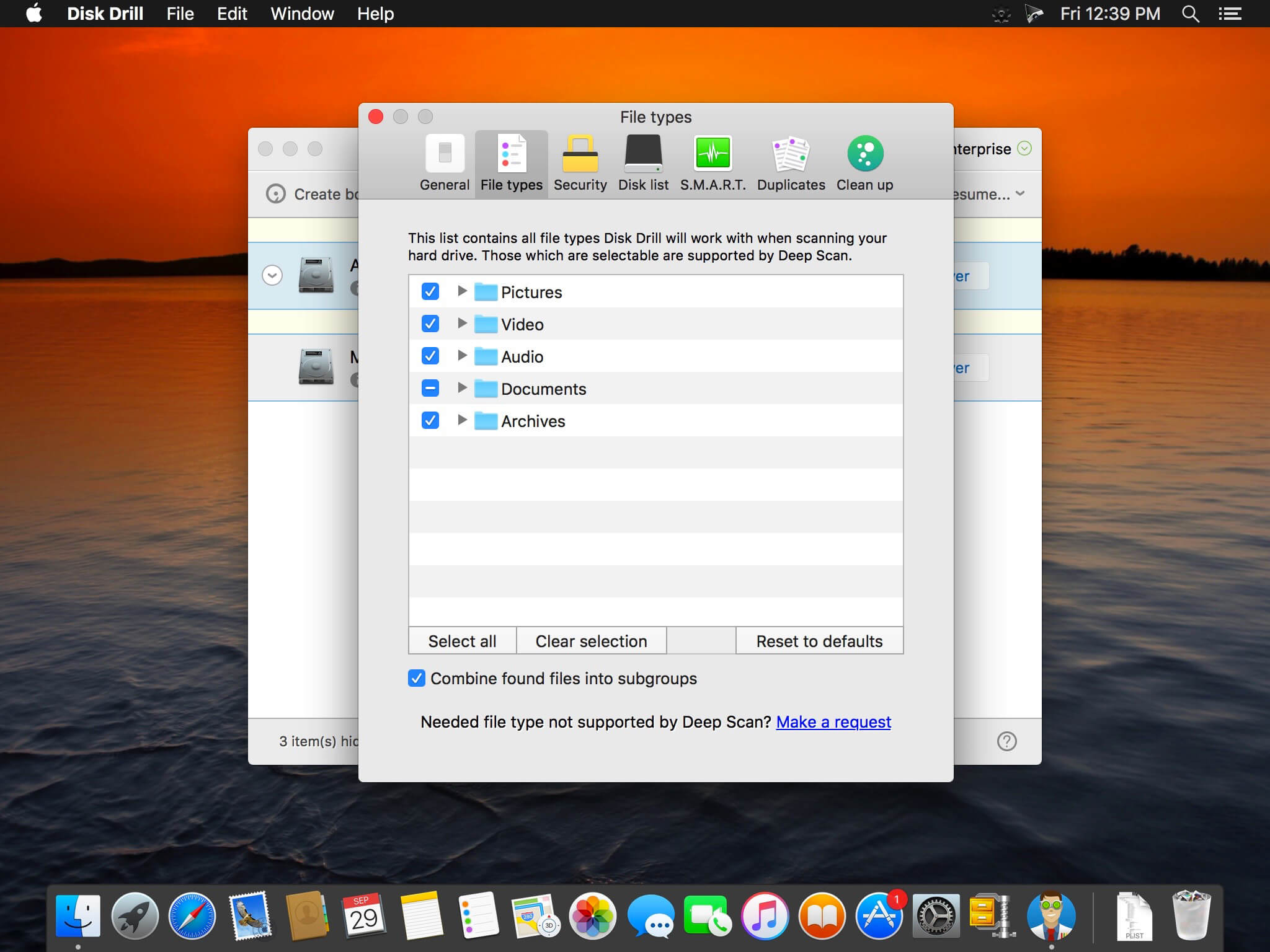
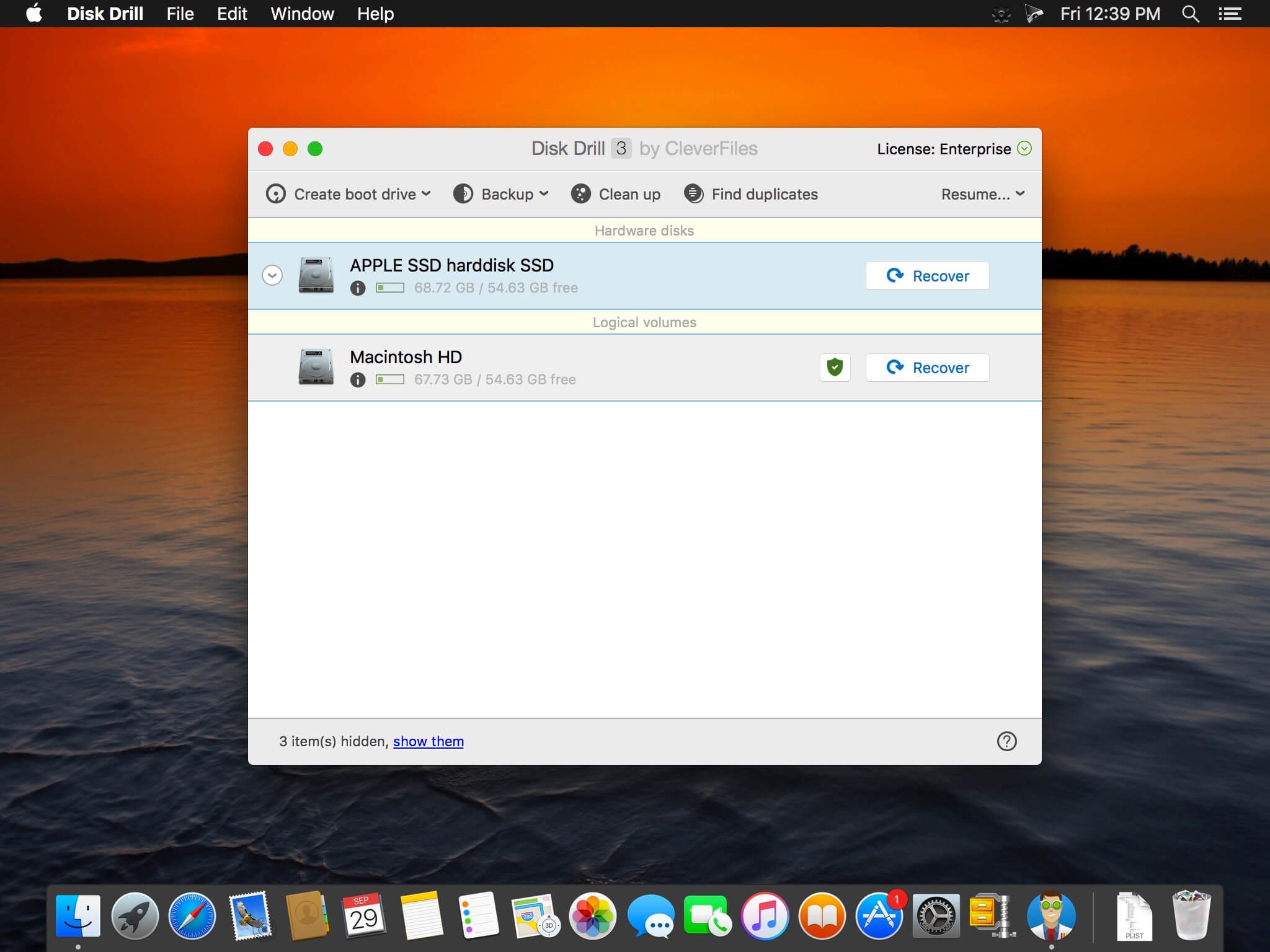
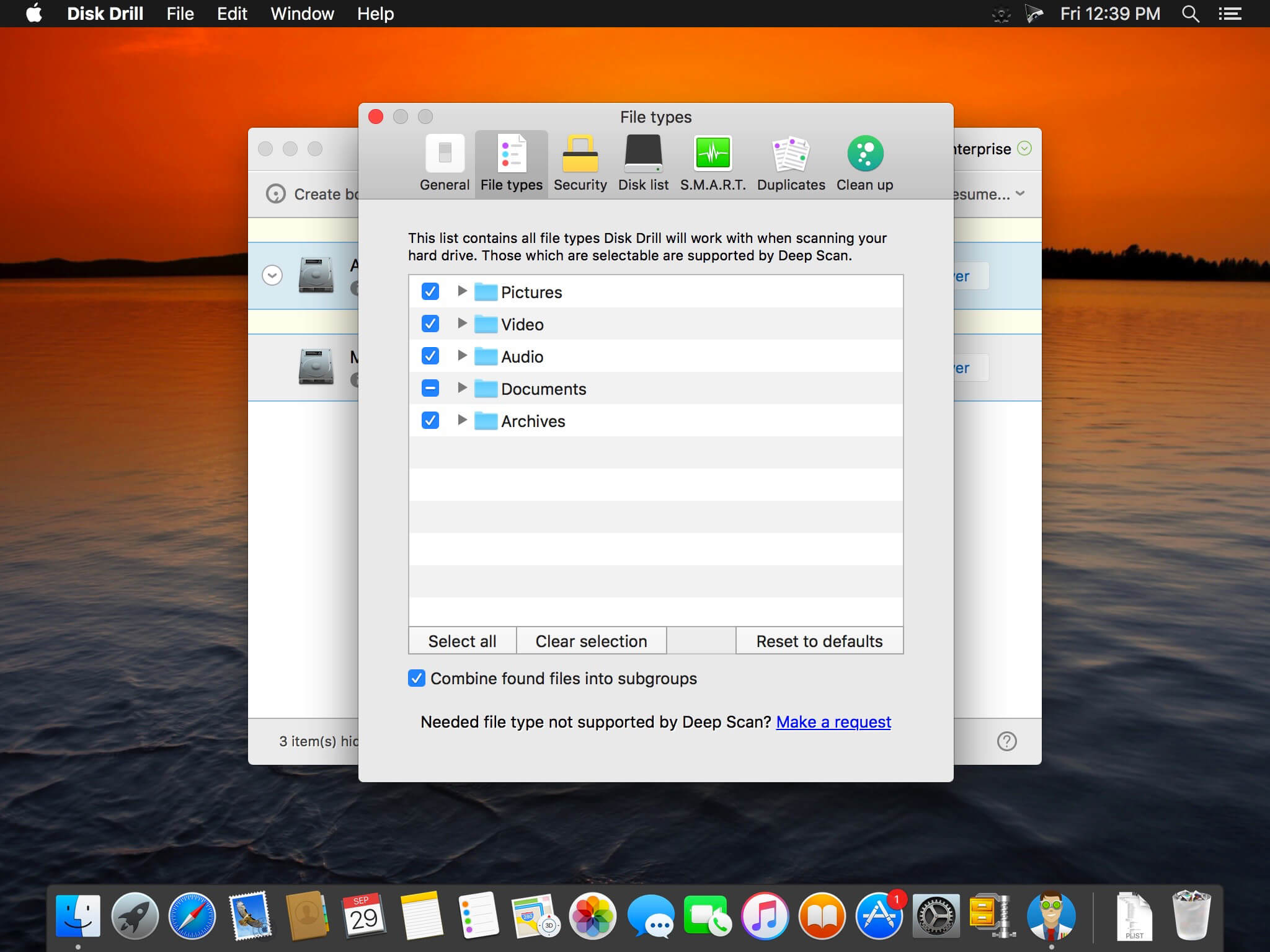
Disk Drill is a Mac data recovery software designed natively for Mac OS: easily protect your files from accidental deletion with Recovery Vault and recover lost data from Mac disks. Most of storage devices, file types and file systems are supported. You can recover deleted files from iPhone and Android devices! Disk Drill offers helpful and free tools for disk management like duplicate file finder, byte-to-byte backups, disk cleanup and space visualization, bootable data recovery drive, disk health monitoring, etc.
When something is deleted Recovery Vault makes it possible to recover not only the file itself, but also its properties, such as original file name, location, etc. So you will always be able to recover data from Mac files system (HFS/HFS+) and FAT32 partitions. Disk Drill also includes powerful S.M.A.R.T. disk monitoring right out-of-the-box; you can monitor your disks’ hardware status and get automatic notifications of potential failures or other issues. If a disk or partition is failing, you can easily backup it into a disk image (DMG) which can later be mounted for recovery.
Disk Drill PRO also features a number of advanced scanning modes for data recovery of FAT, NTFS, HFS/HFS+, other file systems and formatted (initialized) drives. Using Quick Scan you can locate deleted items on FAT and NTFS disks, this scanning method is fast and accurate, but is unlikely to find data deleted long ago. With Deep Scan you can try to recover data from any disk or memory card regardless of their file system. This recovery method is long and thorough, it scans your disk in a binary mode and is capable of finding deleted files even after formatting.
What’s New:
Version 4: Better Interface
Easier access to numerous features + faster and more informative scans + simple yet powerful management of found items + embedded preview = the elevated user experience! Enjoy simpler scan progress notifications and embedded tutorials.
More Files Found
Updated FAT32, NTFS, HFS+ and APFS recovery algorithms, powered by Disk Drill’s clever scans, simply find more recoverable files. In many test cases we’ve seen up to a 200% recovery efficiency and quality boost.
Data Shredder
Securely delete any files and folders, for good! This new free module will destroy unwanted files on your storage device beyond any future recovery.
Time Machine Recovery
Analyze your Time Machine backups and safely extract any data you may need. No need to restore or roll back your historic snapshots.
Ready for macOS 11 Big Sur
We haven’t just brought the long-awaited Dark Mode to Disk Drill, we’ve also optimized it for the new macOS in terms of features, internal technologies, code, speed, etc.
Ready for iOS 14
Disk Drill’s iOS recovery not only gets highlighted in the new sidebar as a separate recovery mode, we’ve also added support for the all-new Apple’s iOS 14.
New Disk Image Formats
Got an unsupported disk image that you would want Disk Drill to scan for lost data? We are adding the support of DSK, BIN, DAT, RAW, and DD formats to our arsenal.
More Free Tools
We are adding Data Shredder and Free Disk Space Erasure as separate free extras that help prevent further data recovery. In addition to your entire drives, Clean Up mode can now map specific folders.
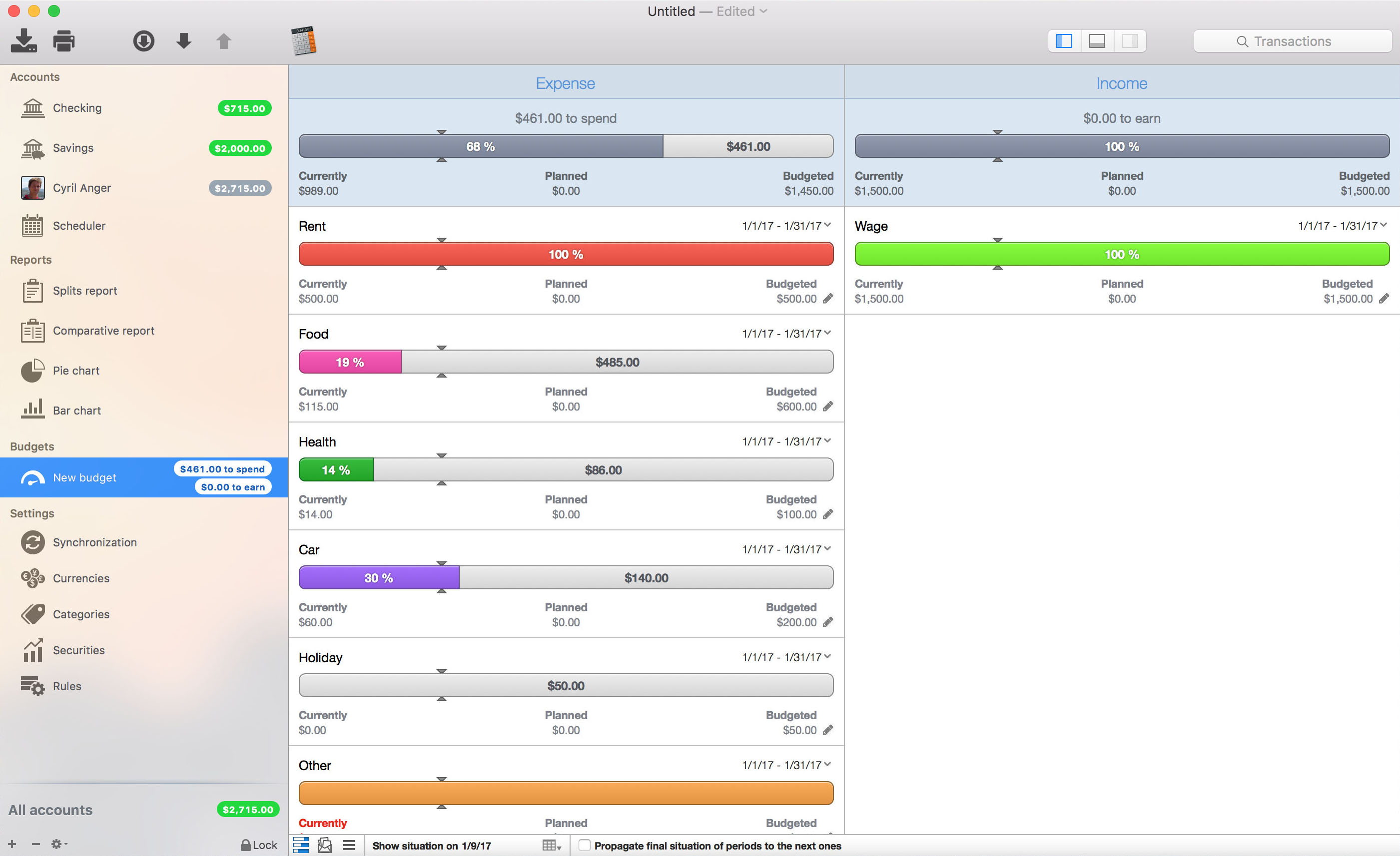
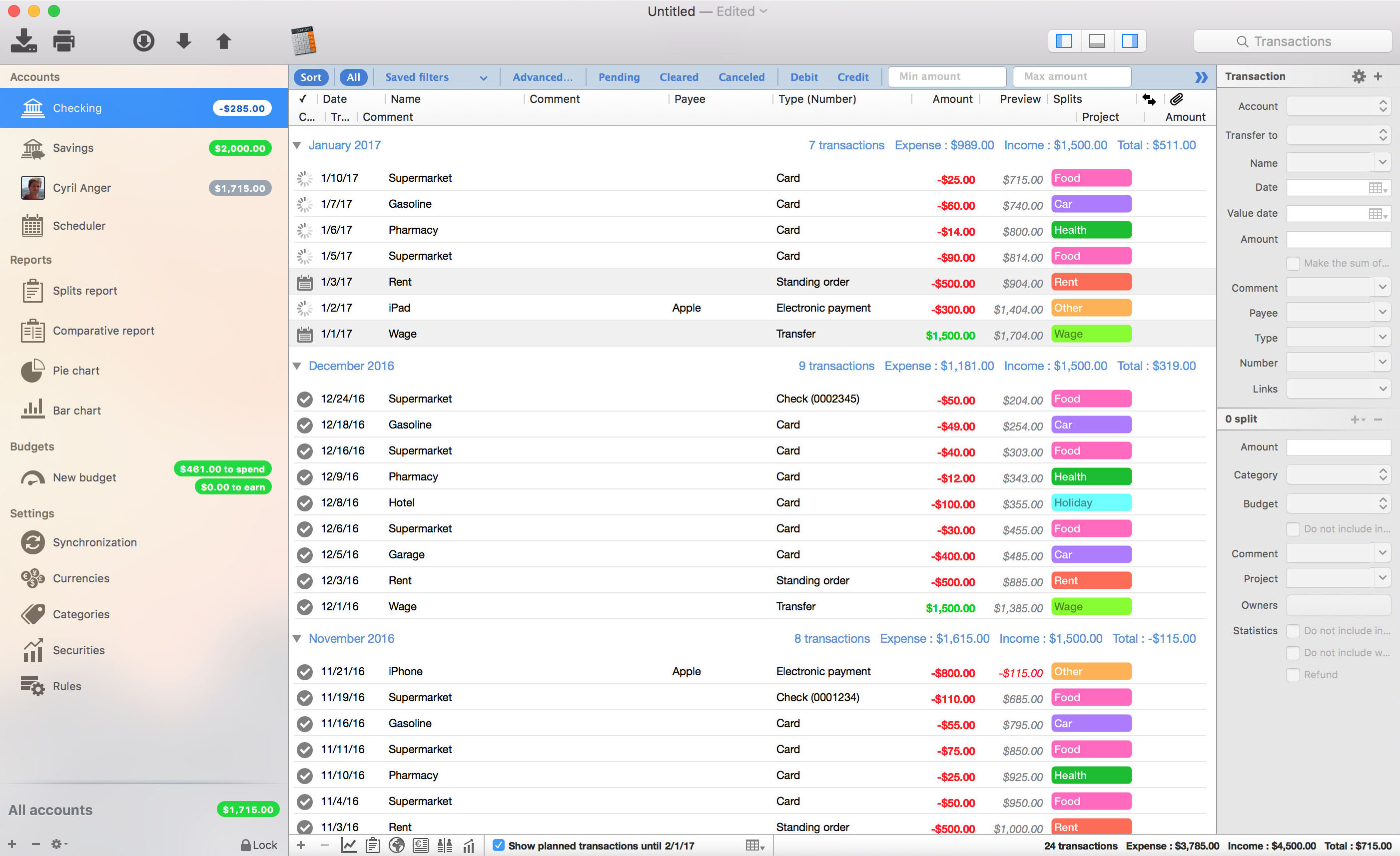
Money Pro is the one place for bill planning, budgeting and keeping track of your accounts. Easy sync with iPhone/iPad versions. Money Pro works great for home budgeting and even for business use.
Calendar
Mark days on the big calendar when your bills are due.
Schedule recurring bills with custom periodicity.
Filter transactions by selecting dates on the calendar.
Today view
Take a quick glance at bills due.
When you actually have a transaction, approve it quickly.
Money Pro predicts transactions for the day that may not have been scheduled manually.
Bills due notifications
A whole system of reminders will alert you of upcoming bills.
Quick rescheduling option will help you deal with bills due (tomorrow, in 3 days, next week).
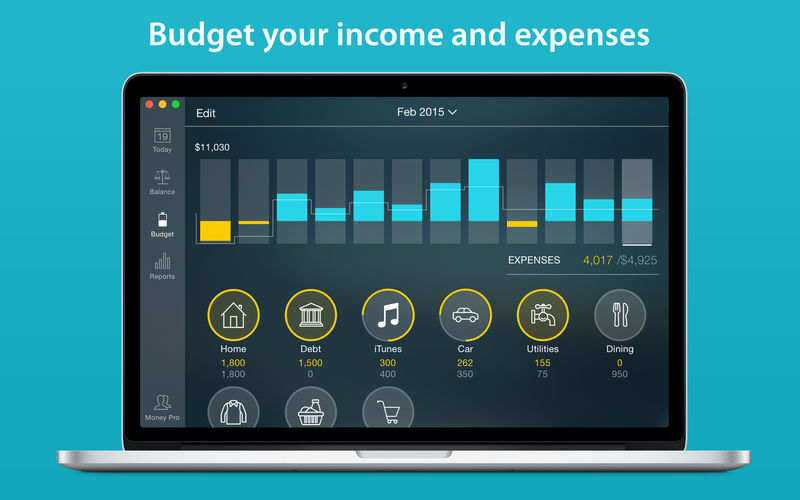
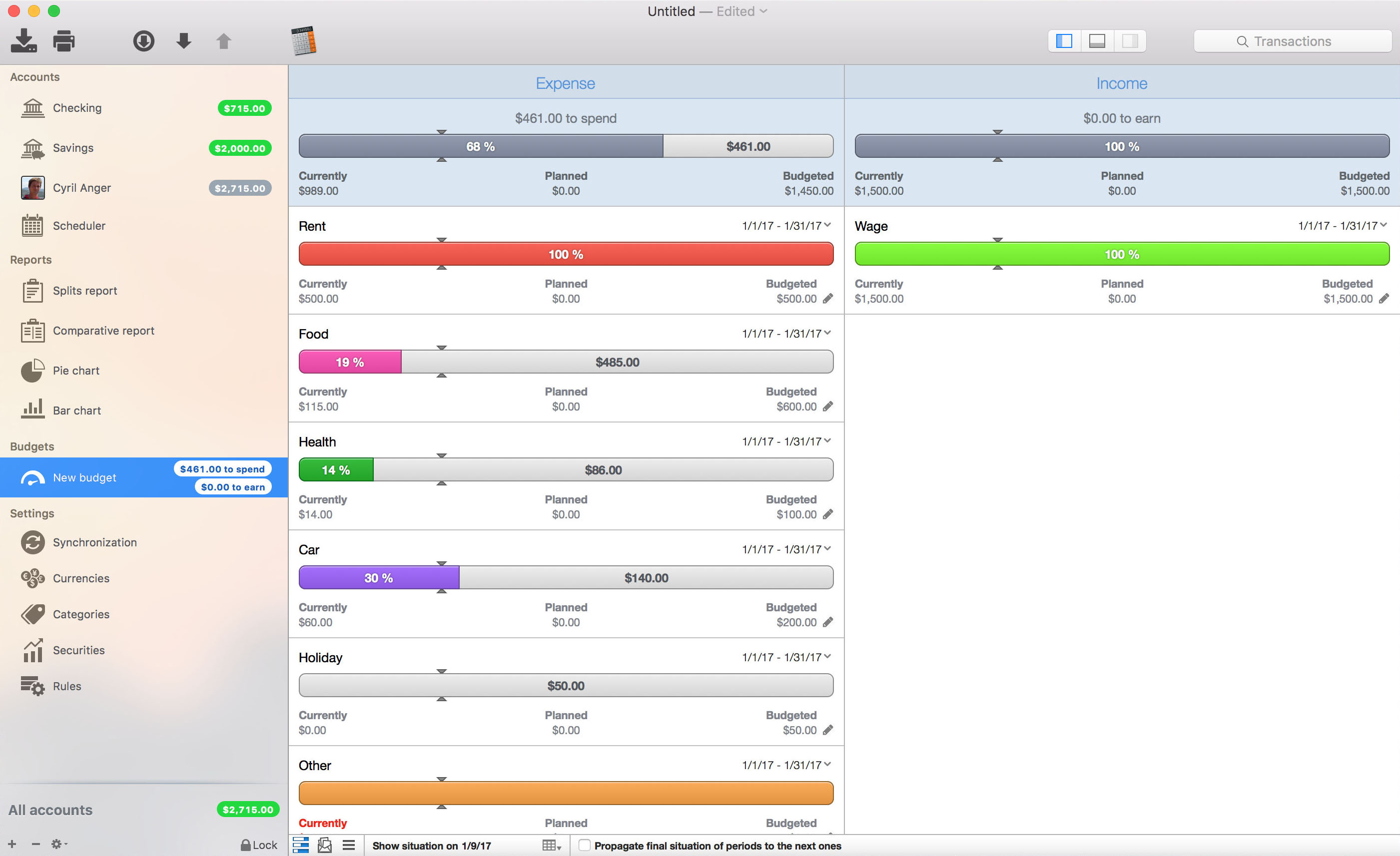
Budgets
Create budgeted entries, both for your income and expenses, and indicate budget limits for each entry.
You can set different budget limits for every period, which is useful if you plan to reduce your spending gradually month by month.
Start adding every transaction you have, and see progress of each category and the overall progress.
Monitor visual indicators for budget overspending.
Select the category you want to analyze and examine a budget trend chart generated on the fly.
Budget rollover
You can set budgets to transfer the leftover of the current period to the next budget period.
Budget rollover limits your spending automatically if you overspent in previous periods.
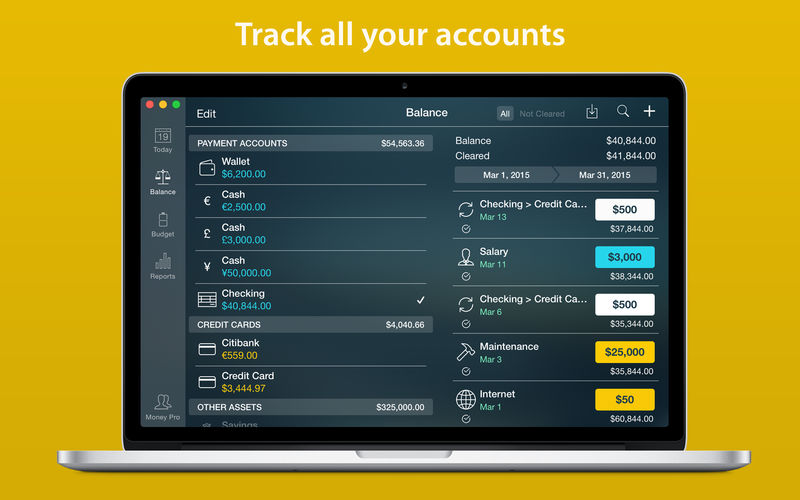
Checkbook register
Unlimited number of accounts in one place (checking, savings, credit card, etc).
Setting transactions as recurring or as one-time only.
Balance change history.
Additional fields for organizing your records including payee, description, check #, class (personal/business travel expenses).
Attachment of receipt photos.
Account reconciliation
You can record transactions and clear them later on (reconcile).
Automatically calculated available balance and cleared balance.
Perfectly Clear Workbench is an application that uses Athentech’s Perfectly Clear image correction libraries and is made available to demonstrate the capabilities of the Perfectly Clear processing libraries, face detection library and to allow a quick export of the processing settings for use.
Supported Image Formats:
Perfectly Clear requires RGB-formatted images in either 8 or 16-bit color depth. Any image file that Photoshop or Lightroom can open and convert to this format may be used in Perfectly Clear. Monochrome and CMYK images must be converted to RGB before using Perfectly Clear. RAW files must be opened through Adobe Camera RAW and loaded into Photoshop to be accessible to Perfectly Clear.
What’s New:
Version 4.3.0.2408:
Release notes were unavailable when this listing was updated.
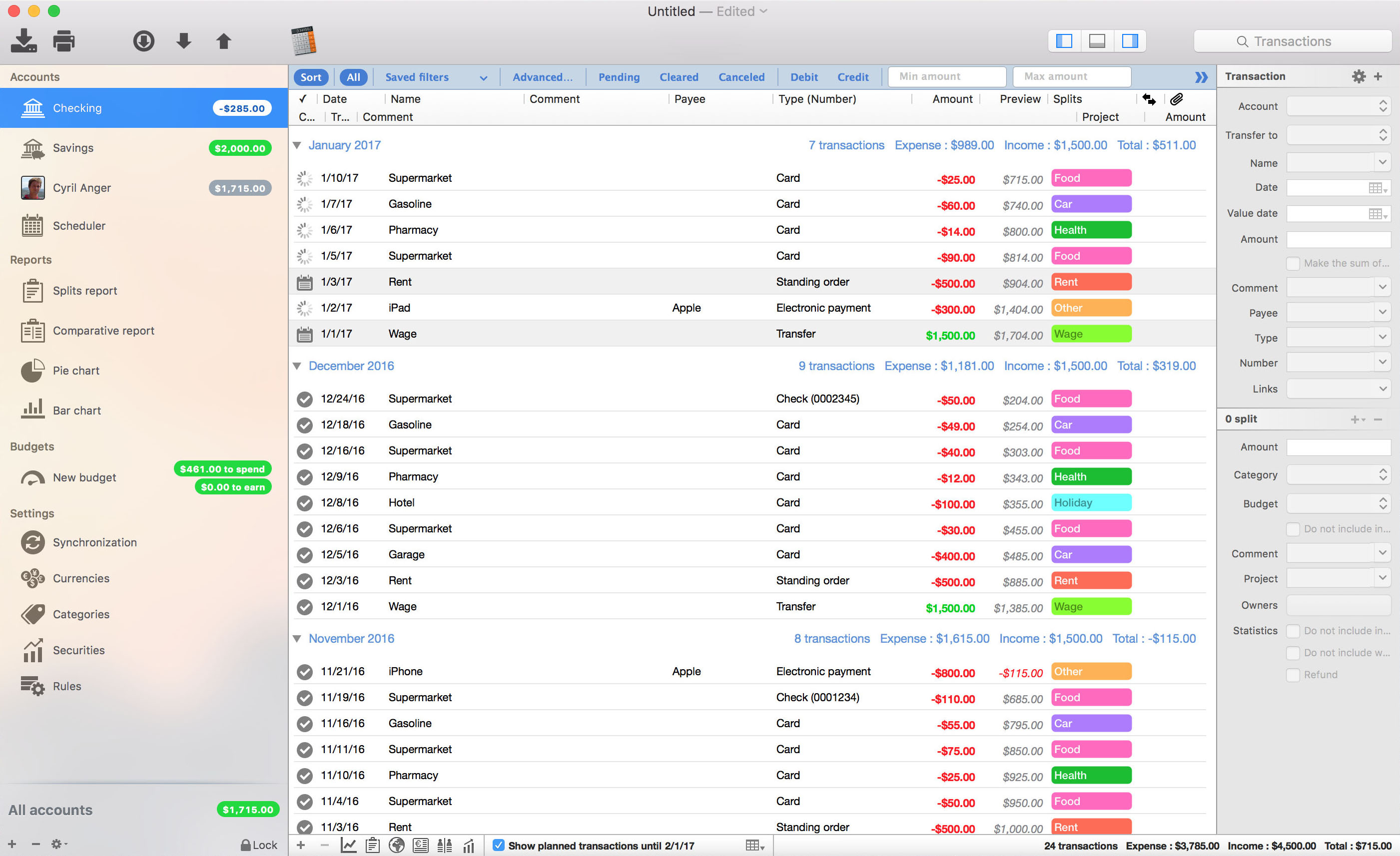
iCompta is an application that lets you manage your accounts with ease. Keep track of your income and expense, schedule your bills, stay in line with your budget and finally know where all your money goes thanks to beautiful charts.
MAIN FEATURES :
– Manage multiple accounts with multiple currencies
– Sort and filter your transactions to make statistics on your income and expense
– Keep track of your income and expense thanks to budgets
– Monitor your portfolio
– Manage shared expenses : you can finally know who owes what to who
– Beautiful reports and charts
– Transfers
– Download your transactions from your bank in just one click if your bank supports OFX direct download or with just a few more clicks using the embedded browser
– Easy import / export of transactions in QIF, OFX, CSV, XML and JSON formats
– Full synchronization between iCompta 6 on Mac and iCompta 6 on iPhone / iPad using iCloud, Dropbox or local network
– Modify many transactions at once using batch editing or the powerful rules engine
– Professional features : handle taxes, manage clients and make invoices
– Check transactions on your bank statements to avoid mistakes
– Password protection
Compatibility: macOS 10.10 or later (Apple Silicon compatible) HOMEPAGE:https://icompta-app.com/
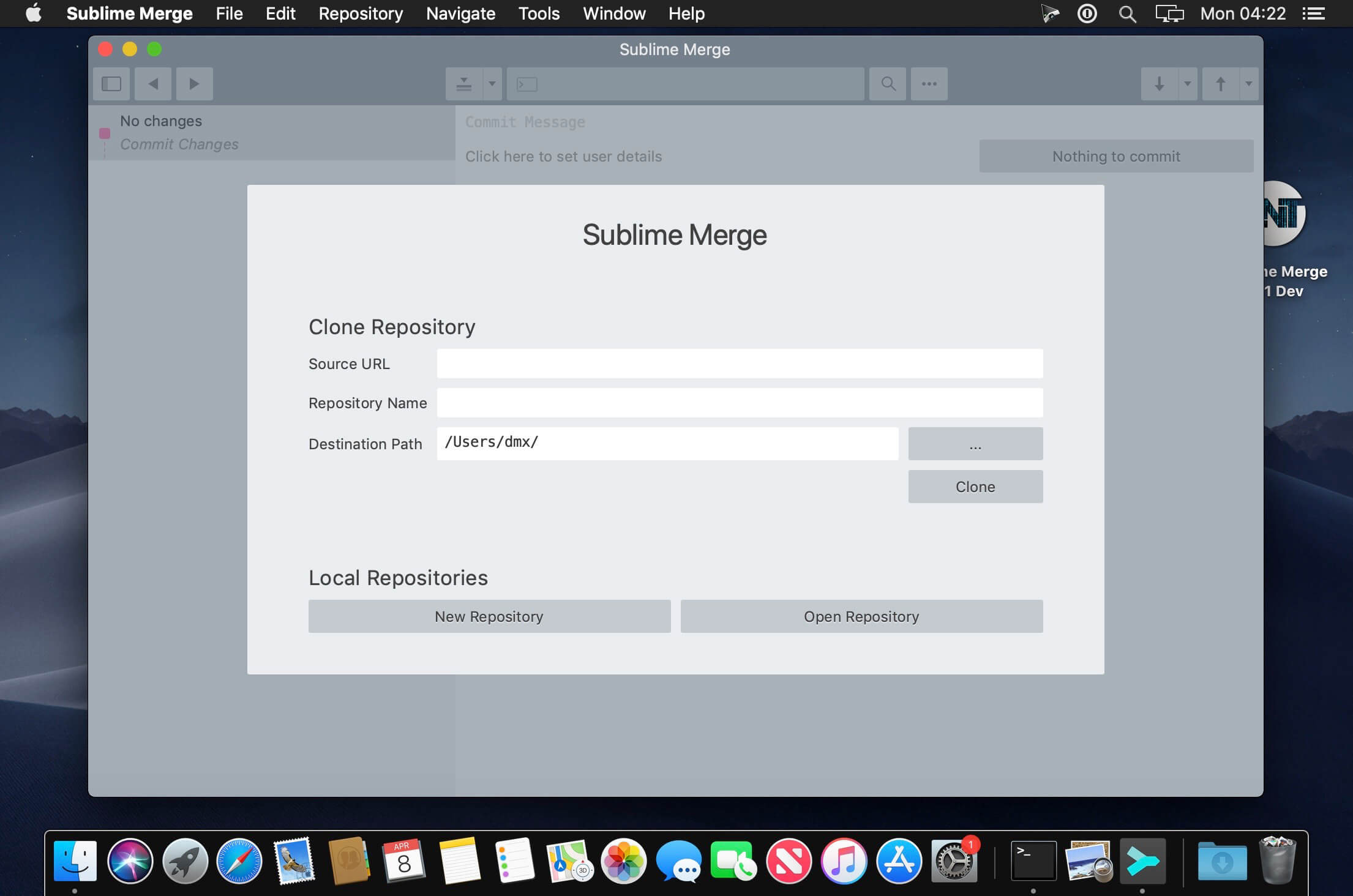
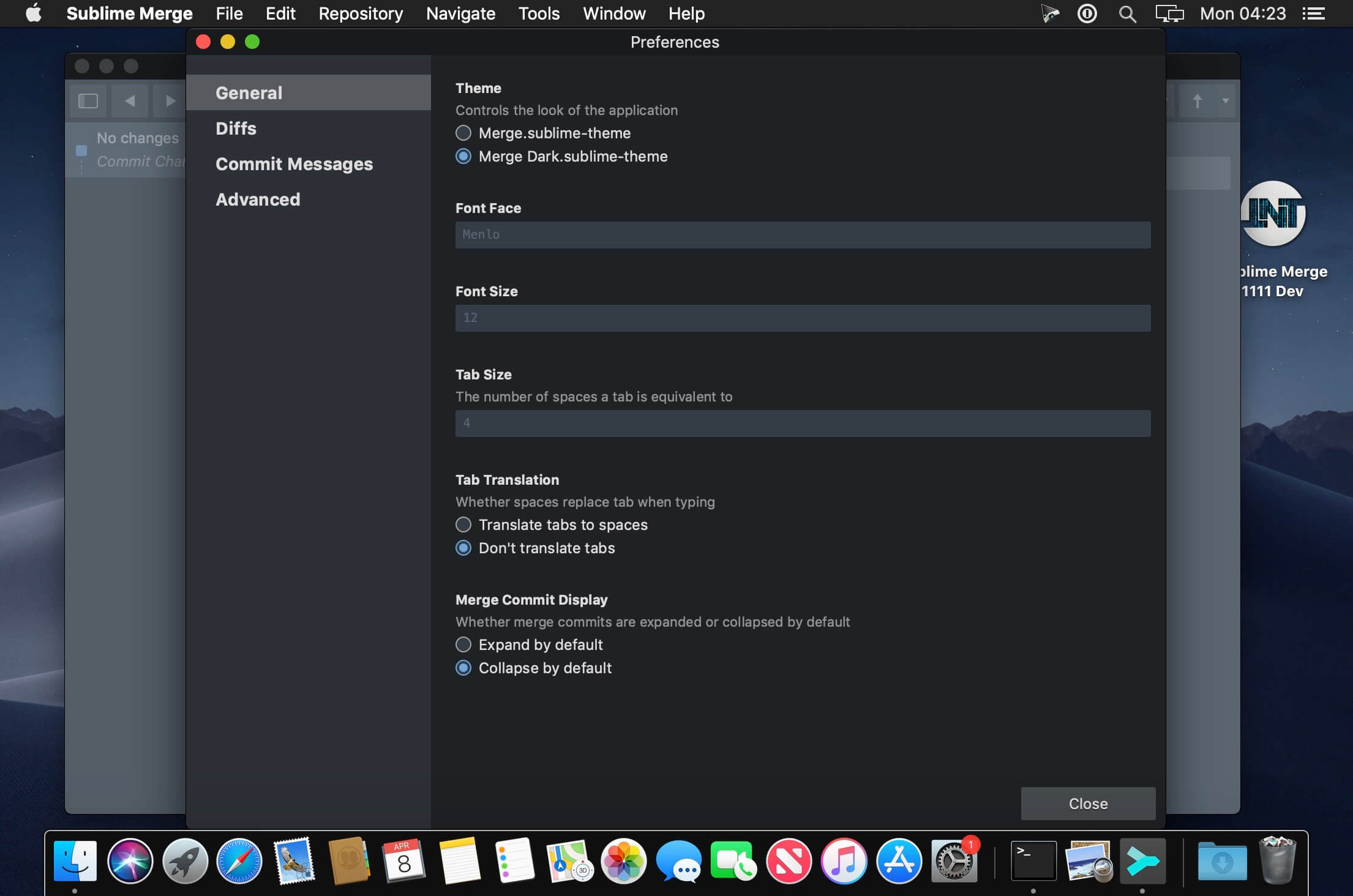
Git Client, done Sublime. Meet a new Git Client, from the makers of Sublime Text. A snappy UI, three-way merge tool, side-by-side diffs, syntax highlighting, and more. Stage Files, Hunks and Lines with no waiting – Sublime Merge is really, really fast.
GraphicConverter is an all-purpose image-editing program that can import 200 different graphic-based formats, edit the image, and export it to any of 80 available file formats.
The high-end editing tools are perfect for graphic manipulation as well as the ability to use Photoshop-compatible plug-ins. It offers batch-conversion capabilities, a slide-show window, batch rename, batch and individual editing of metadata (EXIF, IPTC, XMP) and so much more.
GraphicConverter 11 RAW Developer
RAW images are much easier to edit thanks to their enormous data depth. This is particularly noticeable when brightening images with the Exposure slider. The picture remains clear, there is no gray haze as with many JPG images. GraphicConverter now offers a full-screen dialog when opening RAW files with controls for Exposure, Contrast, and Color Corrections. The picture noise can be reduced even with 6 controllers.
Unpack Archives
You want to know which pictures and documents are in an archive file? Then double-click is enough: GraphicConverter temporarily shows you the content or secures the content permanently. In addition to the Zip format, there are 12 additional formats supported, such as the TAR and TGZ formats.
Wide Equalization
In wide-angle shooting, faces and objects on the left and right edges of the image are often heavily distorted in width. With the new wide-angle equalization in GraphicConverter 11, you can now reduce this distortion.
Gradients
You need a gradient, e.g. as a background for a collage? No problem. Easily create color gradients with up to 10 colors via the new dialog.
Duo-Tone
Color your shots with two colors to duo-tone images. In this impressive technique, the lighter shades are colored with the color 1 and the darker ones with the color 2. The result is an effect that enchants your pictures.
Apple Finder Tags
Do you organize your work with Finder Tags from Apple? Then your work will be even easier, because in the browser you can now use the context menu to directly display and change these tags.
Compatibility: macOS 10.13 or later • Apple Silicon or Intel Core processor Homepagehttps://www.lemkesoft.de
GrandTotal is an application to create invoices and estimates based on your own templates. The built-in template editor allows you to adjust your layout to fit your company’s corporate design. GrandTotal works great in conjunction with TimeLog. Using GrandTotal you can create invoices and estimates in the twinkling of an eye and keep track over the outstanding payments. Detailed statistics and graphs give you an insight into the current state of your business and allow comparison to previous periods.
Whether you’re remodeling, renovating, or designing your dream home, Planner 5D has you covered! Create detailed 2D & 3D floor plans, browse a 3000+ item catalog, and create photo-realistic images of your projects. With over 2 million downloads, Planner 5D makes interior design easier than ever!
Features:
Drag and drop design in both 2D & 3D modes
User-friendly features that do not require special skills
Create a completely unique home – from the floorplan to the finishing details
Browse the regularly updated 3000+ item catalog complete with furniture, appliances, decor, household items, landscape features and more
Create exceptionally detailed and personalized design in both the interior and exterior of your project
“Snapshot” function to create photo-realistic images of your projects with realistic lighting, textures, and shadows
Sign in with Google+ or Facebook to work on your projects on any platform, including your laptop or other mobile device
Switch between Metric and Imperial systems of measurement
Save and share your projects with friends, family and home professionals
Work on downloaded projects offline
Completely Ad-free
Multi-language
Free Version
2D and 3D editor
150+ item catalog
Unlimited number of projects
Multi-platform synchronization
600+ item catalog of colors, textures and patterns to personalize your design
Premium Version
Access to the entire 3000+ item catalog
Ability to alter the size and appearance of all furniture
Other Features
Apple Pencil support
3D Touch support
Follows Apple Design Guidelines
Split-screen multitasking on iPad
Basic Accessibility features for the visually impaired
Top In-App Purchases: Premium features – included *** You need to disable the System Integrity Protection (SIP) to perform the selected Application.
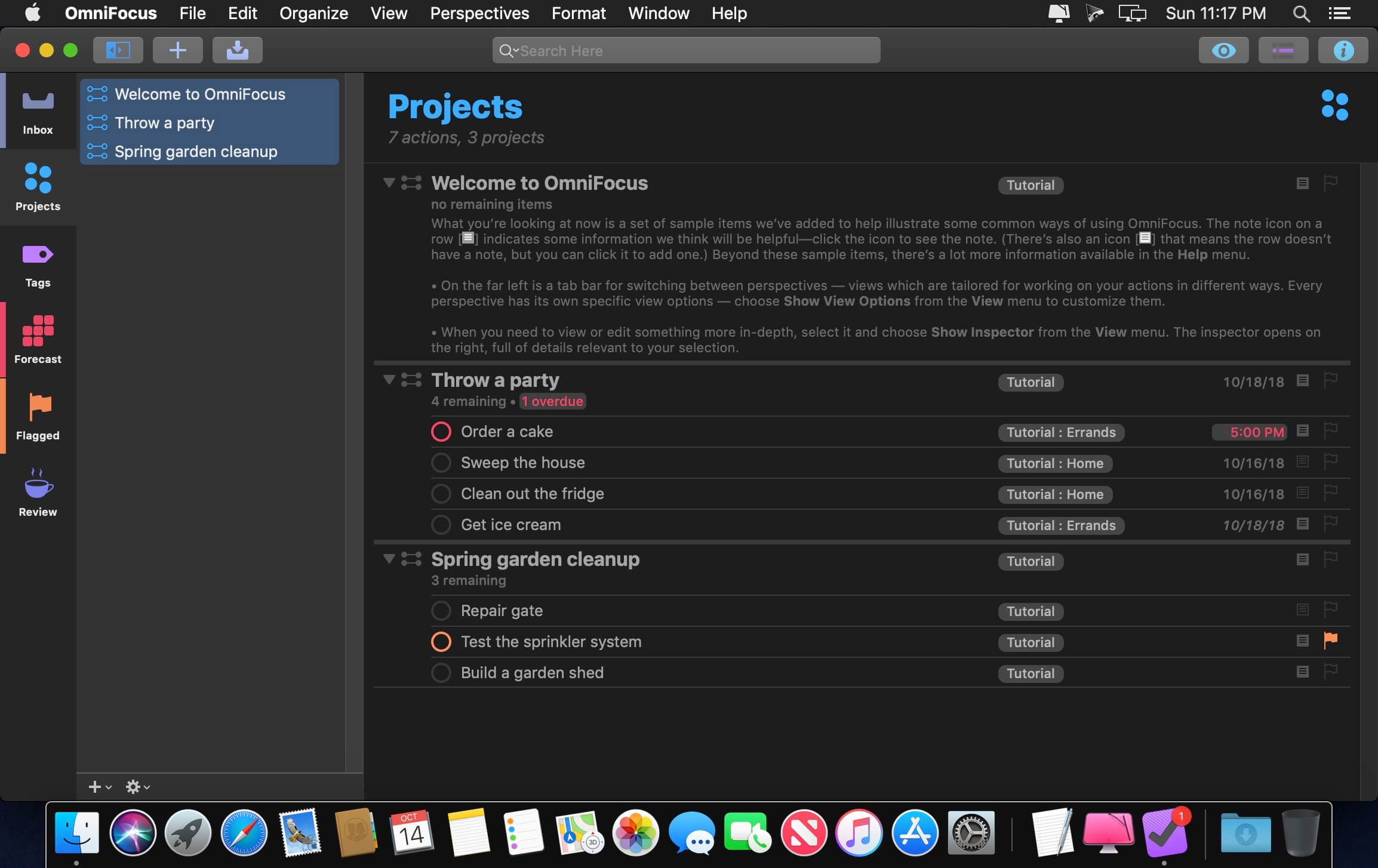
OmniFocus Standard and Pro are in-app purchases, with discounts for people who bought earlier versions of OmniFocus for Mac through the Mac App Store. Download the app for details.
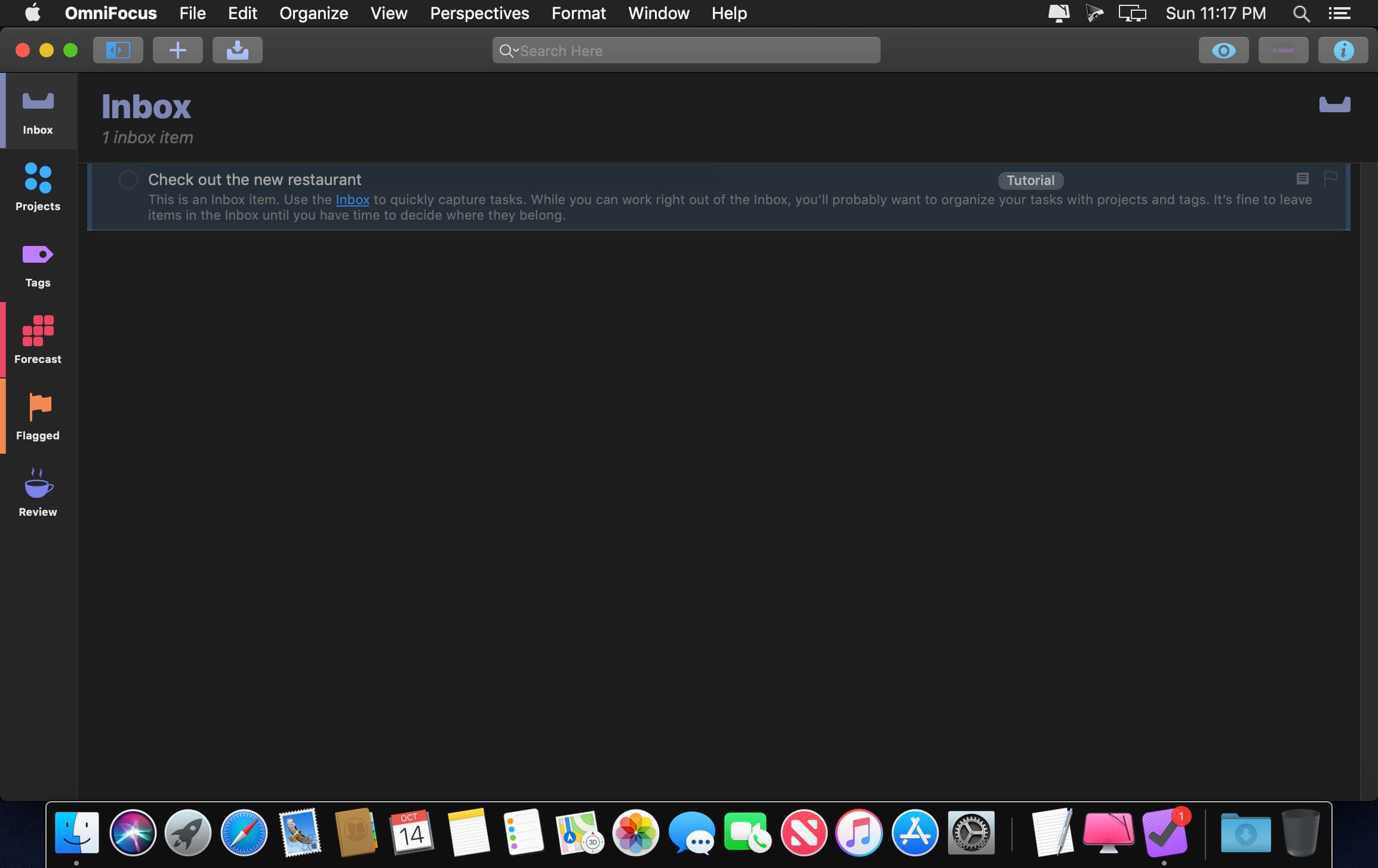
Use OmniFocus to accomplish more every day. Create projects and tasks, organize them with tags, focus on what you can do right now — and get stuff done.
OmniFocus — now celebrating 10 years as the trusted, gold-standard to-do list app — brings unrivaled power and flexibility to your Mac, making it easy to work the way you want to work.
OmniFocus manages everything in your busy life. Use projects to organize tasks naturally, and then add tags to organize across projects. Easily enter tasks when you’re on the go, and process them when you have time. Tap the Forecast view — which shows both tasks and calendar events — to get a handle on your day. Use the Review perspective to keep your projects and tasks on track.
Then let our free syncing system make sure you data is the same on every Mac. (And on OmniFocus for iOS, available separately.) Because your data is encrypted, it’s safe in the cloud.
STANDARD FEATURES
NEW: Tags add a powerful additional organizing tool. Create tags for people, energy levels, priorities, locations, and more.
NEW: The Forecast view shows your tasks and calendar events in order, so you can better see what’s coming up in your day.
NEW: Enhanced repeating tasks are easier than ever to set up — and they work with real-world examples such as the first weekday of the month.
NEW: The Modern, fresh-but-familiar design helps you focus on your content.
Inbox is where you quickly add tasks — save them when you think of them, and organize them later.
Syncing supports end-to-end encryption so that your data is safe wherever it’s stored, on our server or yours.
Notes can be attached to your tasks, so you have all the information you need.
Attachments — graphics, video, audio, whatever you want — add richness to your tasks.
View Options let you customize each perspective by deciding what it should show and how it should filter your tasks.
The Review perspective takes you through your projects and tasks — so you stay on track.
OmniFocus Mail Drop adds tasks via email and works with services like IFTTT and Zapier (if you’re using our free syncing server).
The Today Widget shows you your most important items — you don’t even have to switch to the app to know what’s up.
PRO FEATURES
Custom perspectives help you create new ways to see your data by filtering and grouping projects and tags. NEW: The filtering rules are simpler to use while being more powerful than ever, letting you combine rules with “all,” “any,” and “none.” You can also choose any image to use as your custom perspective’s icon, and a custom tint color to go with it.
NEW: Today’s Forecast can include items with a specific tag, and you can reorder those tasks however you choose, so you can plan your day better.
The customizable sidebar lets you organize your perspectives the way you want to, for super-fast access.
The Today Widget shows a perspective of your choice in Notification Center.
AppleScript support opens up a world of automation, using Apple’s Mac scripting language.
Language: English, Dutch, French, German, Italian, Japanese, Korean, Portuguese, Russian, Simplified Chinese, Spanish
strong>Compatibility: OS X 10.11 or later Homepagehttps://www.omnigroup.com/omnifocus/
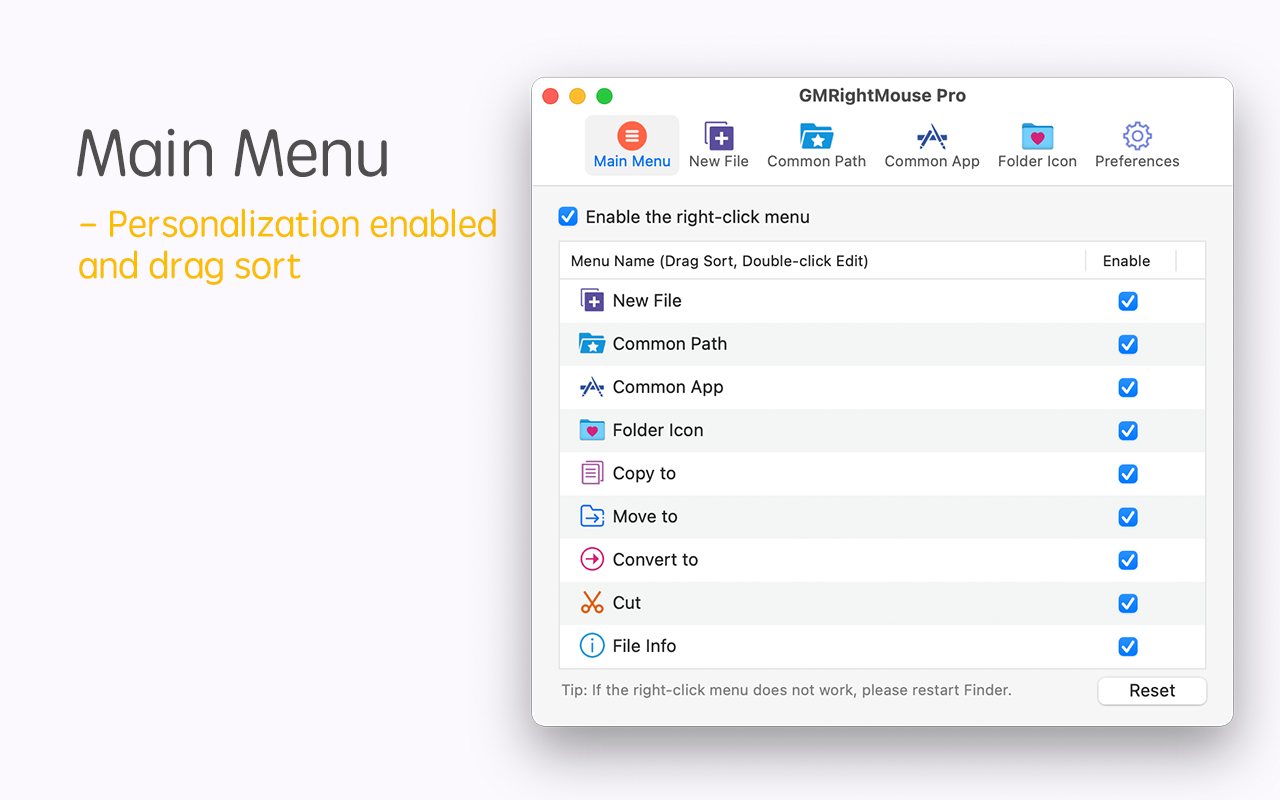
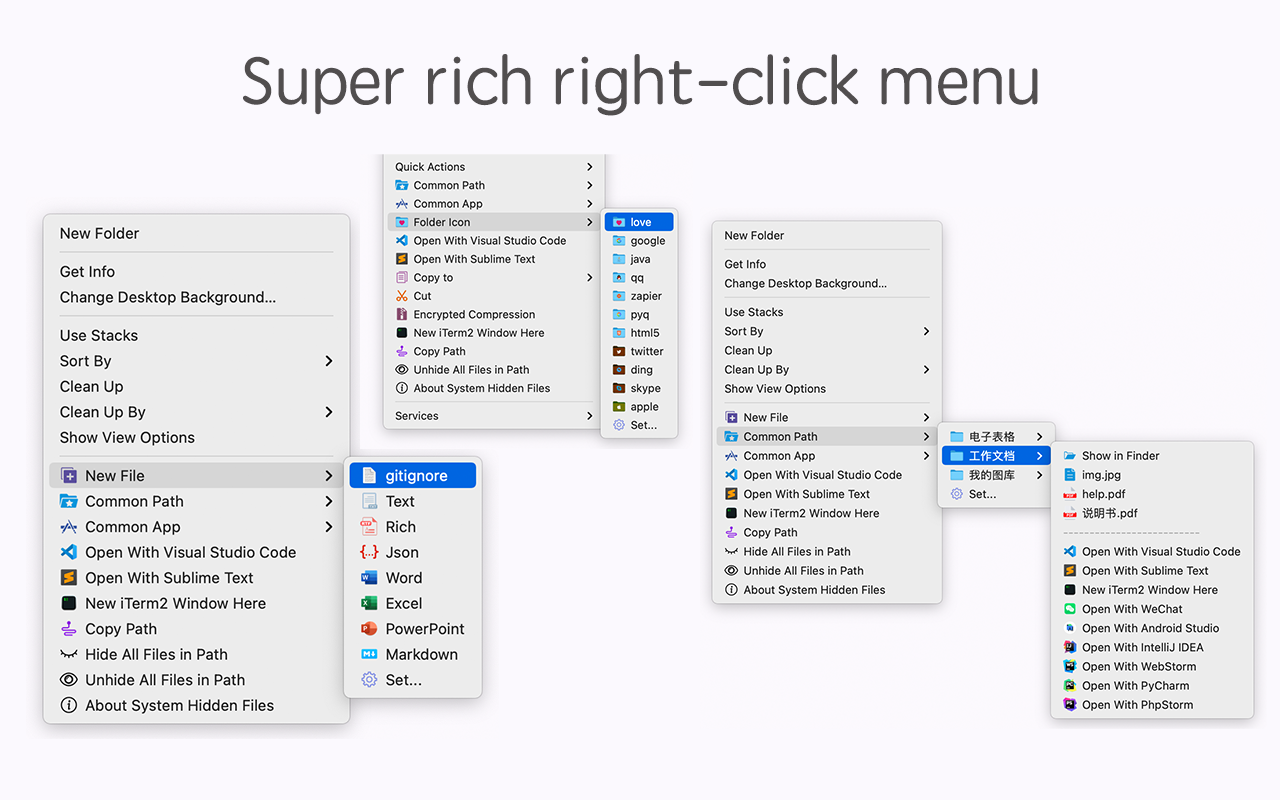
GM Right Mouse Pro integrates more than 20 kinds of small tools, and the operation way is very simple, as long as you click the right mouse button, you can activate all kinds of functions you want, so that your work efficiency is greatly improved.
You can create any file type you want, open any APP you want, self-sorting, fully customized!
*** Main Features ***
– All menus support custom sorting.
– Quickly create all kinds of commonly used files, and supports custom creation of various file types you want.
– Quickly open your terminal, iTerm2, and go to the directory you want.
– Quickly open VSCode, Sublime Text and Emacs, and customize the various apps you want to open.
– Quickly copy the current path power.
– Complete files deletion is supported.
– Supports files moving, copying and cutting.
– Supports files encrypted compression.
– Quickly open your favorite directory.
– Quickly get file MD5,SHA1,SHA256 and other information.
– Supports hiding and displaying of specified files.
– Supports modify folder icon.
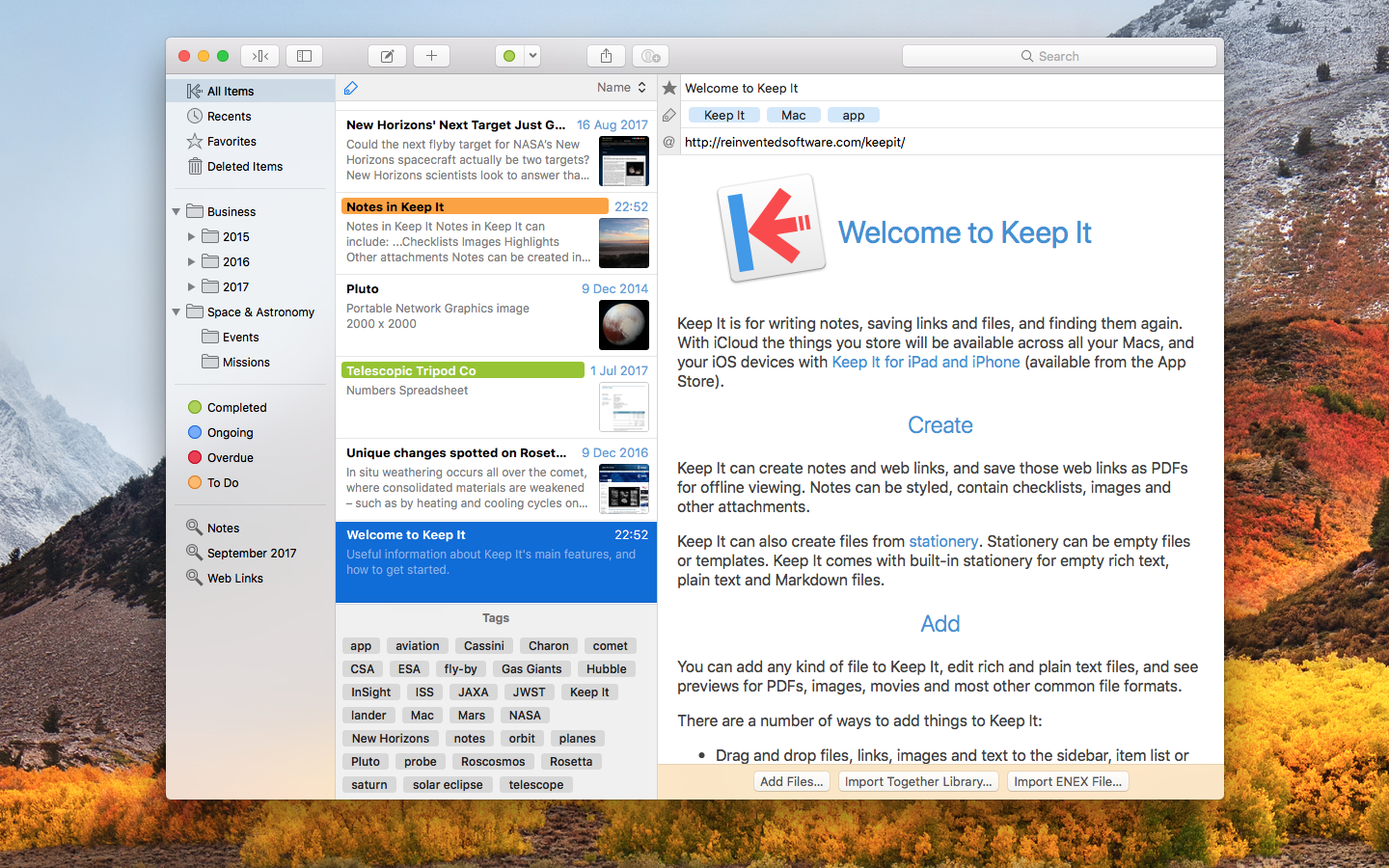
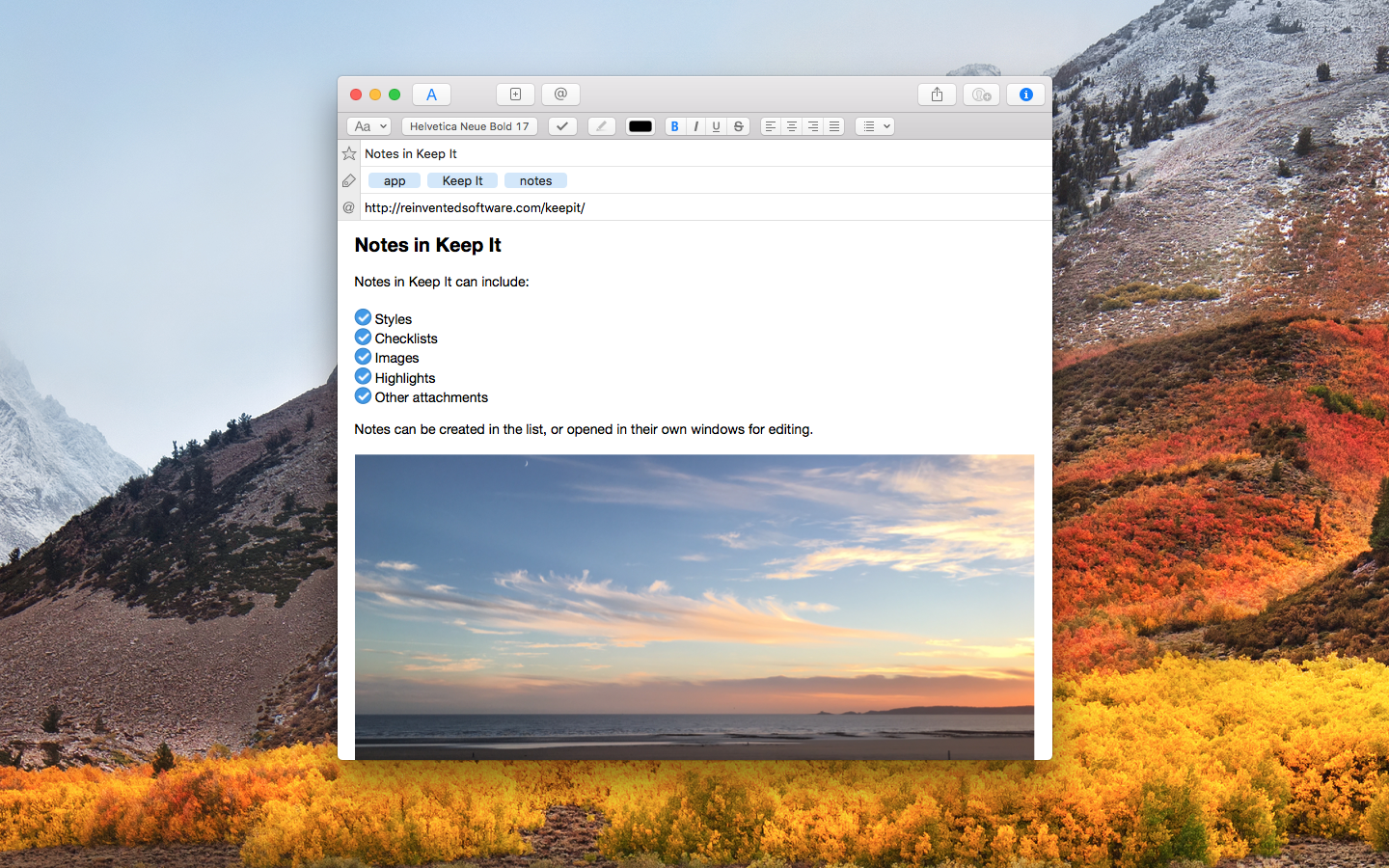
Keep It is for writing notes, keeping web links and documents, and finding them again. Available on Mac, and as a separate app for iPhone and iPad, Keep It is the destination for all those things you want to put somewhere, confident you will find them again later.
Notes and Links Make Notes
Create notes with built-in styles that look good and read well on all your devices. Notes can contain checklists, bulleted and numbered lists, images, links and other attachments.
Save Web Links
Save web links to Keep It, view them in the app, open them in your browser, or save them as PDFs for offline reading.
Files Add Anything
Any kind of file can be added to Keep It or saved to its folders, and opened for editing in their original applications. With iCloud, changes are automatically made available across all your Macs and iOS devices.
Preview and Edit
Keep It generates thumbnails and summaries for most files, can edit its own notes, rich and plain text files, and show previews for PDFs, images, web pages and most other documents.
Search and Filter Search
Keep It can search the content of most files. Suggestions appear as you type, allowing you to narrow down results to exactly what you need, or use keywords and natural language. Save searches for later reuse.
Tag Filter
Keep It’s Tag Filter makes finding things by their tags a pleasure. Choose a tag to see all the tagged items and any other relevant tags; choose another tag to drill down further.
Organize Folders
Folders let you organize items and bundles hierarchically, when needed. Select a folder to see everything it contains.
Bundles
When you need to gather things into one place, make a bundle. Items can be in more than one bundle at a time, and when you remove the bundle, everything else stays where it was.
Labels
Use labels to color-code items for quick visual recognition. Labels are listed in the sidebar so you can quickly see everything with a particular label.
More Lists
Use the Recents list to see things you’ve added or viewed lately, with the latest shown at the top. Favorites provide quick access. Deleted Items are automatically removed after 30 days.
Where You Need It Compact Mode
In compact mode, Keep It for Mac becomes a single column, ideal for using alongside other apps or in split screen.
Works with Other Apps
Pretty much anything can be dragged to Keep It, and you can also add things from a variety of apps with Keep It’s share extension.
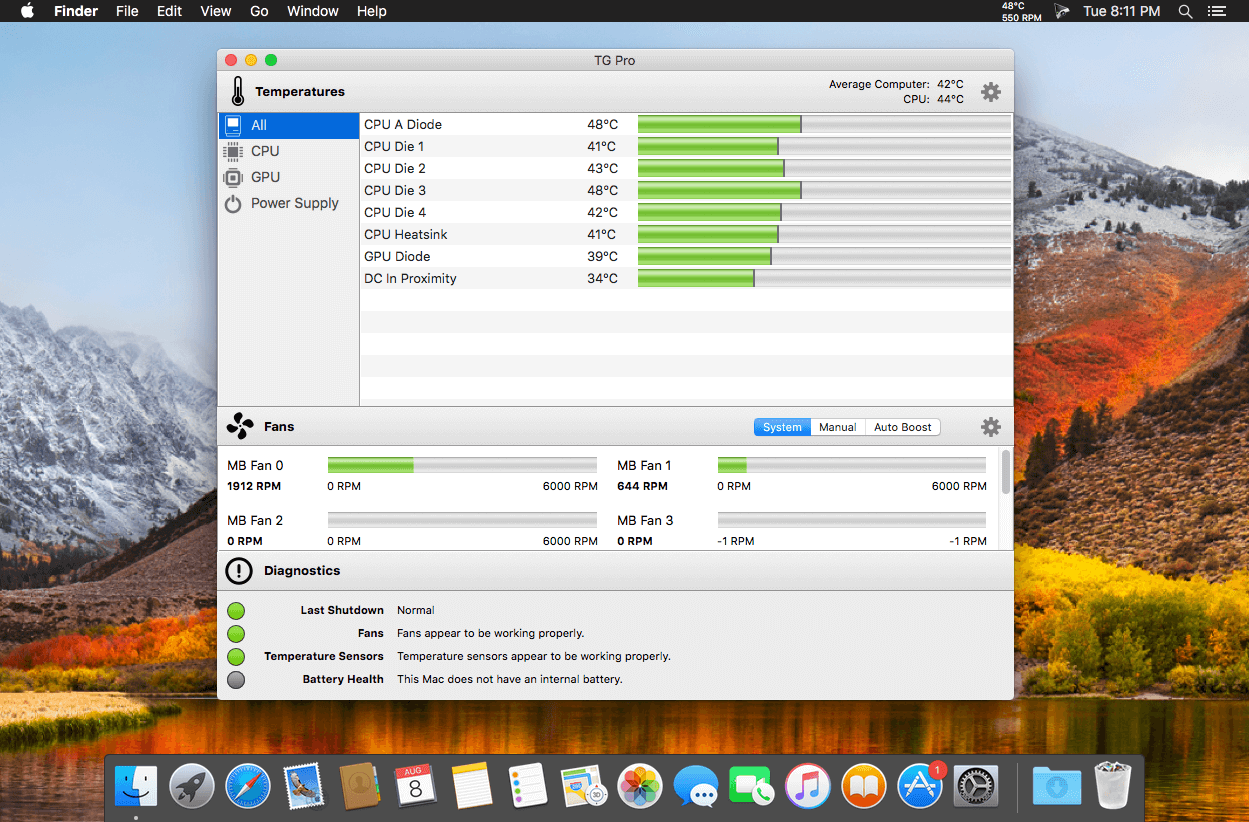
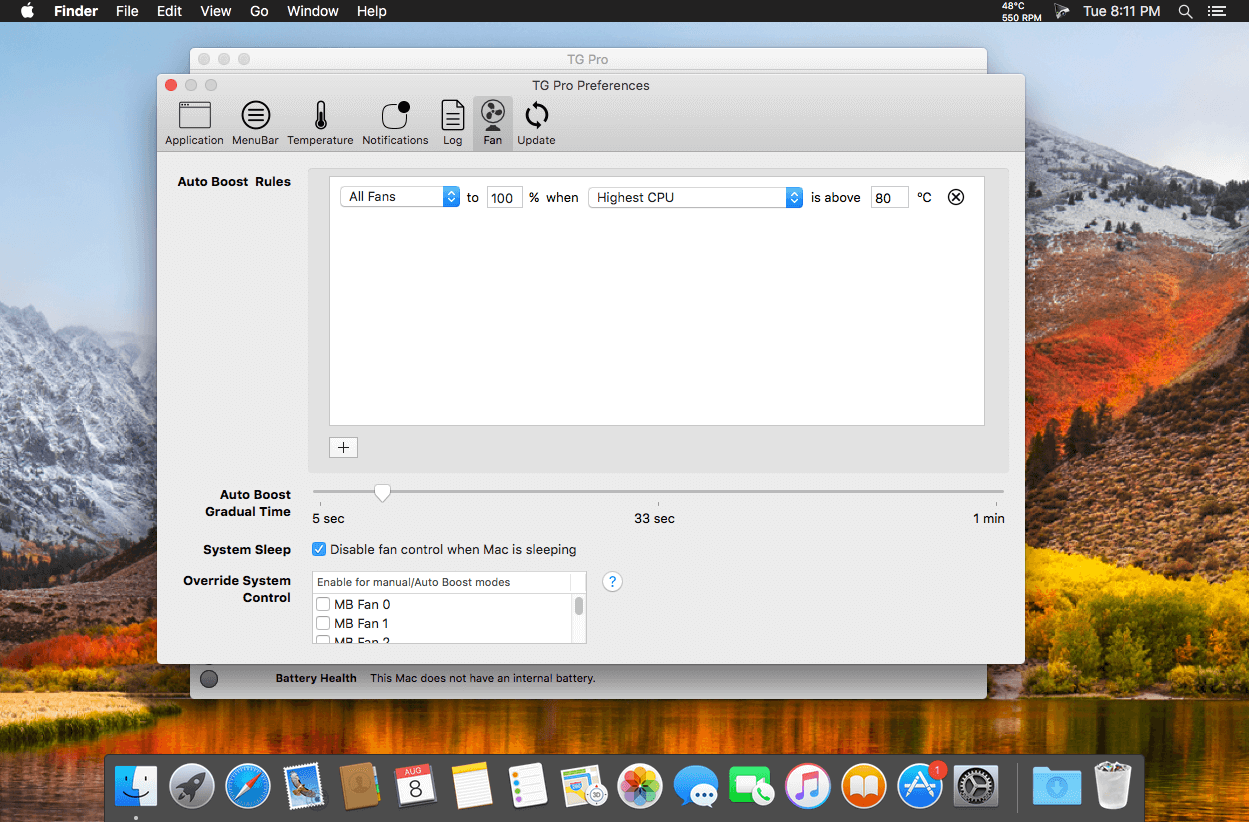
Temperature Gauge Pro will also show a notification through the Notification Center or Growl when a temperature is hit or Auto Boost is enabled. Also, log all information to a CSV for graphing in an external app. Works on all Macs, whether it’s a laptop or desktop.
Temperature Gauge Pro is a must-have utility for every Mac user with three top features:
Check up on your Mac by viewing the current and maximum recorded temperatures for every sensor. Choose between Celsius or Fahrenheit.
Tune the fan speeds so that your Mac can run cooler with the manual fan control. Or have the fans spin at maximum speed with Auto Boost when a specific temperature is hit.
Discover faulty fans and temperature sensors with the built-in diagnostics.
PowerPhotos – The ultimate toolbox for Photos on the Mac. PowerPhotos works with the built-in Photos app on your Mac, providing an array of tools to help you get your photo collection in order.
Create and manage multiple libraries
Instead of being limited to putting all your photos in a single library, PowerPhotos can work with multiple Photos libraries, giving you many more options for how to organize your ever growing photo collection.
Splitting your photos between multiple libraries helps Photos open more quickly, lets you archive older photos, store some of your collection on an external hard drive, and reduce storage space used by iCloud Photo Library.
Copy photos and their metadata
You can split your library by copying albums and photos with a simple drag and drop. PowerPhotos will take care of copying the photos and retaining their metadata, including keywords, descriptions, titles, dates, and favorite status. Read more about what PowerPhotos can copy.
Merge Photos libraries
Got a whole bunch of libraries you want to consolidate into one? PowerPhotos lets you merge your libraries together while weeding out duplicate photos in the process. You will be shown a preview of what your merged library will look like before any modifications are done, to ensure your merged library looks how you want.
Find duplicate photos
It’s easy to have multiple copies of the same photo creep into your photo collection over time. Use PowerPhotos to find duplicate photos in one or more libraries, view them side by side, and separate them into albums where you can easily delete them from your library.
Browse and search
Use PowerPhotos’ image browser to quickly view your photos without having to open Photos itself. View detailed photo information using List View, and search for photos across all your libraries at once.
Migrate your iPhoto/Aperture libraries
If you have a lot of existing iPhoto or Aperture libraries that you want to migrate over to Photos, PowerPhotos will help automate your migrations so you don’t have to spend time babysitting this lengthy process.
New features:
Improved iCloud Photos support: If you use iCloud Photos, PowerPhotos 1.x was only able to see photos in your library that had already been downloaded to your local hard drive. For users with the “Optimize Mac Storage” option enabled, this could mean a significant portion of your iCloud library would not be visible to PowerPhotos. In PowerPhotos 2.0, it can now see and work with any photos in your iCloud photo library, and will automatically download any photos from iCloud as needed.
Advanced exporting: Photos has an export command, but it is fairly limited in what it can provide. PowerPhotos 2.0 has a new, more fully featured export function with options such as
Export as a flat folder or as a folder hierarchy in the Finder that mimics your album hierarchy
Export unmodified photos, or as JPG, PNG, HEIF, or TIFF of different sizes
Include captions, dates, keywords, and titles in EXIF metadata
Retain or strip location metadata
Optionally include videos from Live Photos and all photos from a burst
Set Finder creation/modification dates to the photo’s EXIF date
Video export support as H.264 or H.265
Global menu bar item: Get fast access to your libraries via a global item in your menu bar even when PowerPhotos itself isn’t running.
Library groups: For those with lots of libraries, you can now organize your libraries into groups in the PowerPhotos sidebar.
Multiple windows: You can now open each library in a separate window in PowerPhotos, allowing for easier comparison between libraries, and dragging and dropping photos/albums between libraries.
New duplicate search engine: PowerPhotos 2.0 uses a new duplicate comparison algorithm that can find more duplicate photos which are not quite 100% identical, such as scaled down copies of photos, photos that have been resaved in a different format or with different compression, and even photos with minor edits applied to them.
Faster library loading: PowerPhotos 2.0 has rewritten a bunch of its internals to load your library much faster than PowerPhotos 1.0.
Improved AppleScript support: New support for copying albums or photos between libraries, merging libraries, and exporting photos/albums from a library.
Disk Drill is a Mac data recovery software designed natively for Mac OS: easily protect your files from accidental deletion with Recovery Vault and recover lost data from Mac disks. Most of storage devices, file types and file systems are supported. You can recover deleted files from iPhone and Android devices! Disk Drill offers helpful and free tools for disk management like duplicate file finder, byte-to-byte backups, disk cleanup and space visualization, bootable data recovery drive, disk health monitoring, etc.
When something is deleted Recovery Vault makes it possible to recover not only the file itself, but also its properties, such as original file name, location, etc. So you will always be able to recover data from Mac files system (HFS/HFS+) and FAT32 partitions. Disk Drill also includes powerful S.M.A.R.T. disk monitoring right out-of-the-box; you can monitor your disks’ hardware status and get automatic notifications of potential failures or other issues. If a disk or partition is failing, you can easily backup it into a disk image (DMG) which can later be mounted for recovery.
Disk Drill PRO also features a number of advanced scanning modes for data recovery of FAT, NTFS, HFS/HFS+, other file systems and formatted (initialized) drives. Using Quick Scan you can locate deleted items on FAT and NTFS disks, this scanning method is fast and accurate, but is unlikely to find data deleted long ago. With Deep Scan you can try to recover data from any disk or memory card regardless of their file system. This recovery method is long and thorough, it scans your disk in a binary mode and is capable of finding deleted files even after formatting.
What’s New:
Version 4: Better Interface
Easier access to numerous features + faster and more informative scans + simple yet powerful management of found items + embedded preview = the elevated user experience! Enjoy simpler scan progress notifications and embedded tutorials.
More Files Found
Updated FAT32, NTFS, HFS+ and APFS recovery algorithms, powered by Disk Drill’s clever scans, simply find more recoverable files. In many test cases we’ve seen up to a 200% recovery efficiency and quality boost.
Data Shredder
Securely delete any files and folders, for good! This new free module will destroy unwanted files on your storage device beyond any future recovery.
Time Machine Recovery
Analyze your Time Machine backups and safely extract any data you may need. No need to restore or roll back your historic snapshots.
Ready for macOS 11 Big Sur
We haven’t just brought the long-awaited Dark Mode to Disk Drill, we’ve also optimized it for the new macOS in terms of features, internal technologies, code, speed, etc.
Ready for iOS 14
Disk Drill’s iOS recovery not only gets highlighted in the new sidebar as a separate recovery mode, we’ve also added support for the all-new Apple’s iOS 14.
New Disk Image Formats
Got an unsupported disk image that you would want Disk Drill to scan for lost data? We are adding the support of DSK, BIN, DAT, RAW, and DD formats to our arsenal.
More Free Tools
We are adding Data Shredder and Free Disk Space Erasure as separate free extras that help prevent further data recovery. In addition to your entire drives, Clean Up mode can now map specific folders.
*** You need to disable the System Integrity Protection (SIP) to perform the selected Application.
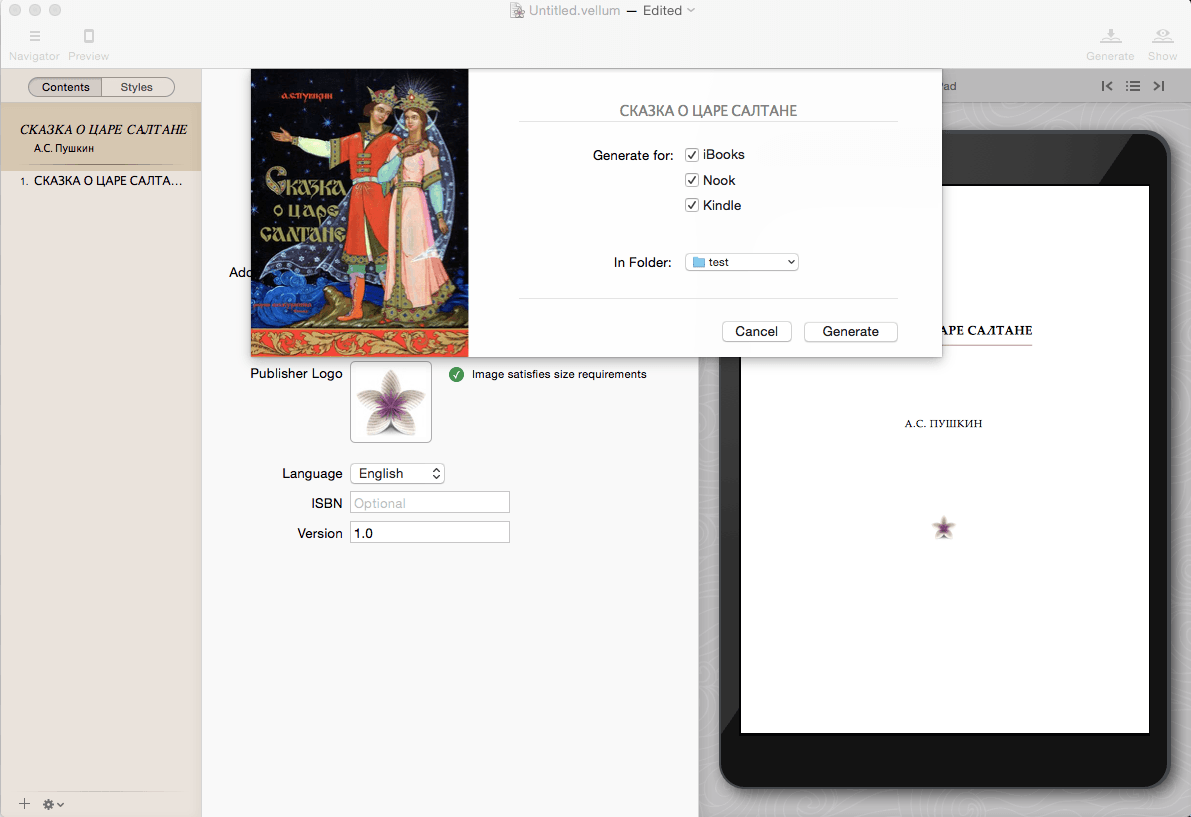
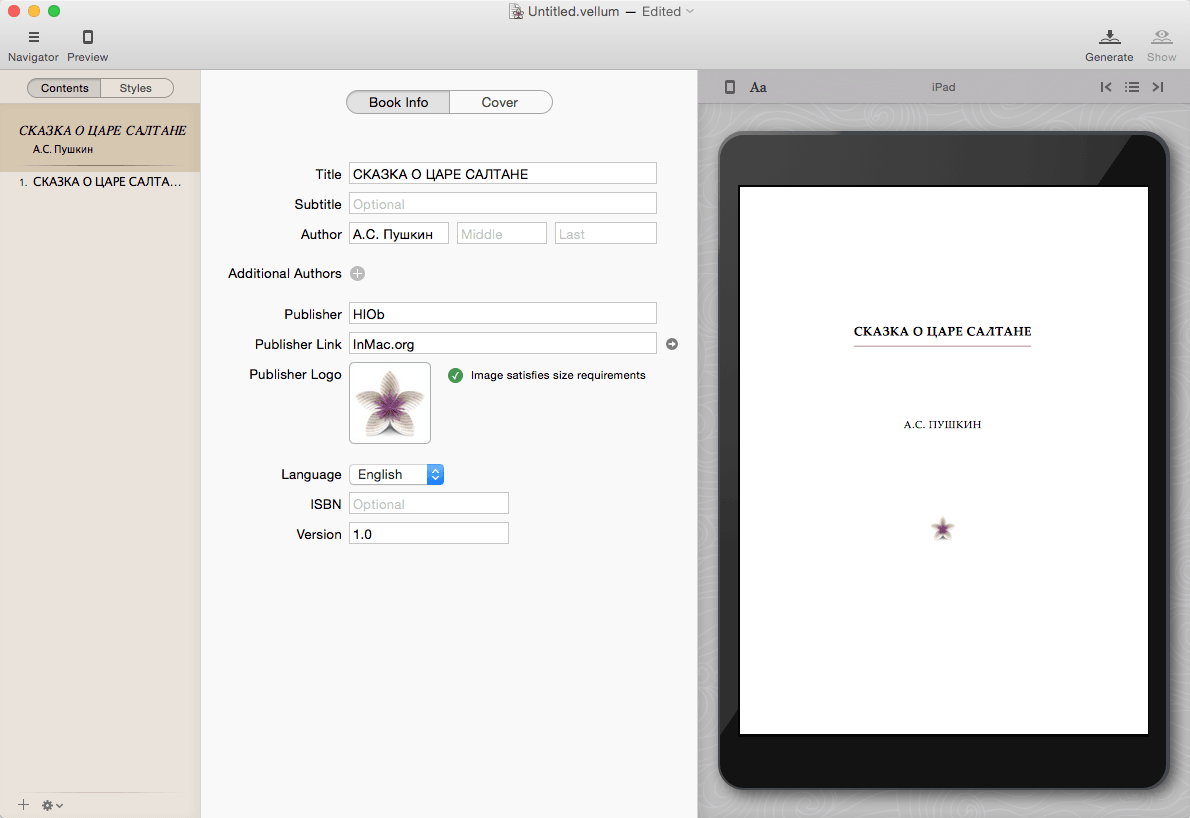
Vellum is an eBook-generating tool that lets you easily create an eBook from a text manuscript or from scratch within the application. Choose the appropriate style from several options, view instant previews of the finished product, and easily generate and regenerate eBooks with a single click to avoid disaster upon finding mistakes.
What’s New:
Version 3.4.3:
fixes a crash that affected some users of Vellum 2.6.2
Compatibility: OS X 10.15 or later • Apple Silicon or Intel Core processor Homepagehttps://vellum.pub/
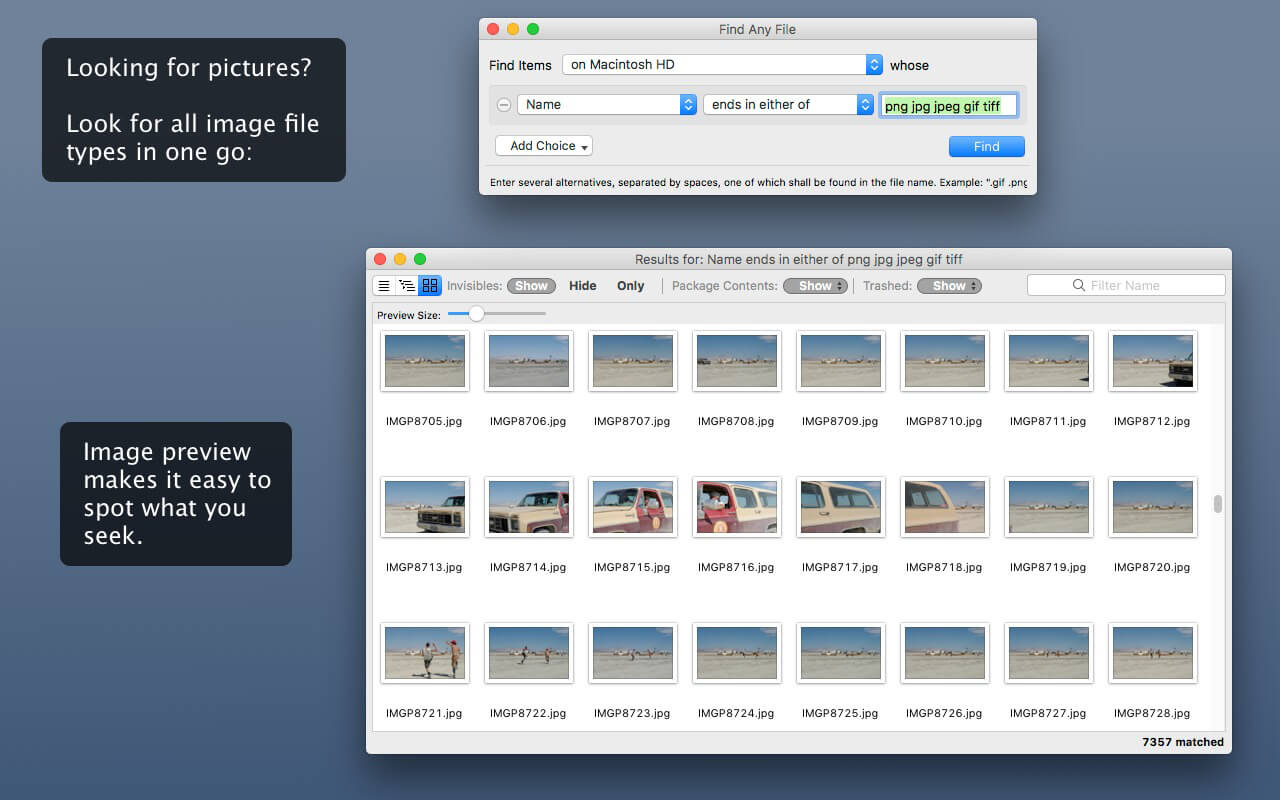
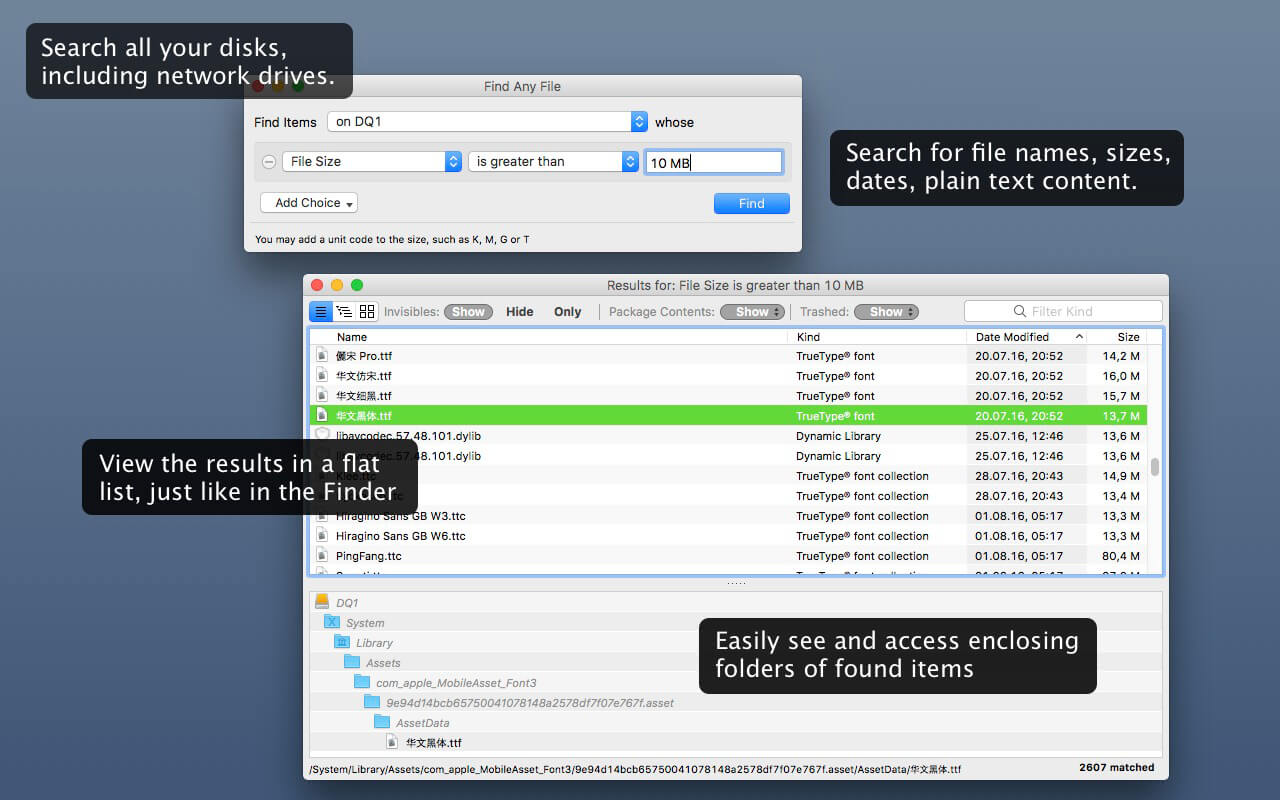
Find Any File searches your local disks for files by name, creation or modification date, size, or type and creator code (not by content, though).
As there are other tools with a similar search operation, here are the special features unique to Find Any File:
Has a new hierarchical view of the found items, making it much easier to browse 100s of items (see the screenshot).
Can run as root user, finding really any file on your disk, even those that are hidden from normal users.
Can save queries and run them again later.
Unlike Spotlight (i.e., the Finder’s Find command), it does not access a pre-built database but searches the chosen volume directly. This allows you to find any file, even those inside packages and others excluded from Spotlight search. Hence it is great for finding system files, for example.
On the other hand, it may take a little longer than Spotlight, and it is only fast on HFS(+) volumes. But even on mounted network volumes of a Mac OS X server it can still be surprisingly fast.
Hence, this is not an entire replacement for Spotlight but it can come handy in certain, if not many, situations.
iCompta is an application that lets you manage your accounts with ease. Keep track of your income and expense, schedule your bills, stay in line with your budget and finally know where all your money goes thanks to beautiful charts.
MAIN FEATURES :
– Manage multiple accounts with multiple currencies
– Sort and filter your transactions to make statistics on your income and expense
– Keep track of your income and expense thanks to budgets
– Monitor your portfolio
– Manage shared expenses : you can finally know who owes what to who
– Beautiful reports and charts
– Transfers
– Download your transactions from your bank in just one click if your bank supports OFX direct download or with just a few more clicks using the embedded browser
– Easy import / export of transactions in QIF, OFX, CSV, XML and JSON formats
– Full synchronization between iCompta 6 on Mac and iCompta 6 on iPhone / iPad using iCloud, Dropbox or local network
– Modify many transactions at once using batch editing or the powerful rules engine
– Professional features : handle taxes, manage clients and make invoices
– Check transactions on your bank statements to avoid mistakes
– Password protection
Compatibility: OS X 10.9 or later • Apple Silicon or Intel Core processor HOMEPAGE:https://icompta-app.com/
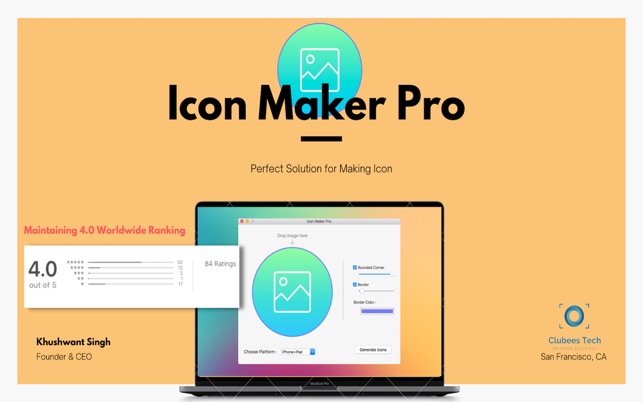
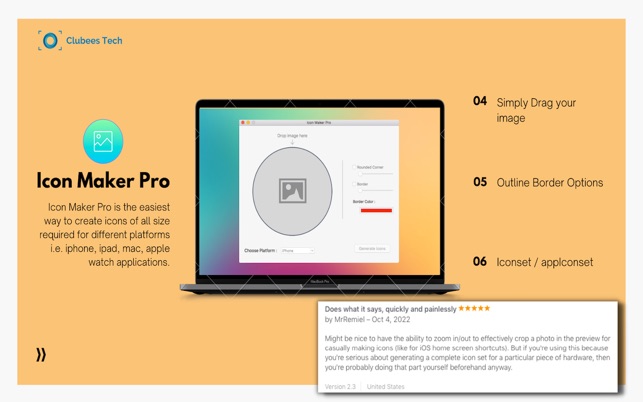
Icon Maker Pro is the easiest way to create icons of all size required for different platforms i.e. iphone, ipad, mac, apple watch applications.
With our tool you can instant edit icons by rounding corners or making a colour border around edges etc. This app is very helpful for developers to desktop and mobile application developers to instantly generate required icons of all sizes according to choosen platform.
Some features of Icon Maker Pro:
– create icons for maximum platforms (iphone, ipad, mac, apple watch)
– ICNS export also available for mac application developers.
– iOS – Every format needed for your iPhone, iPad or Apple Watch App
– Iconset / appIconset
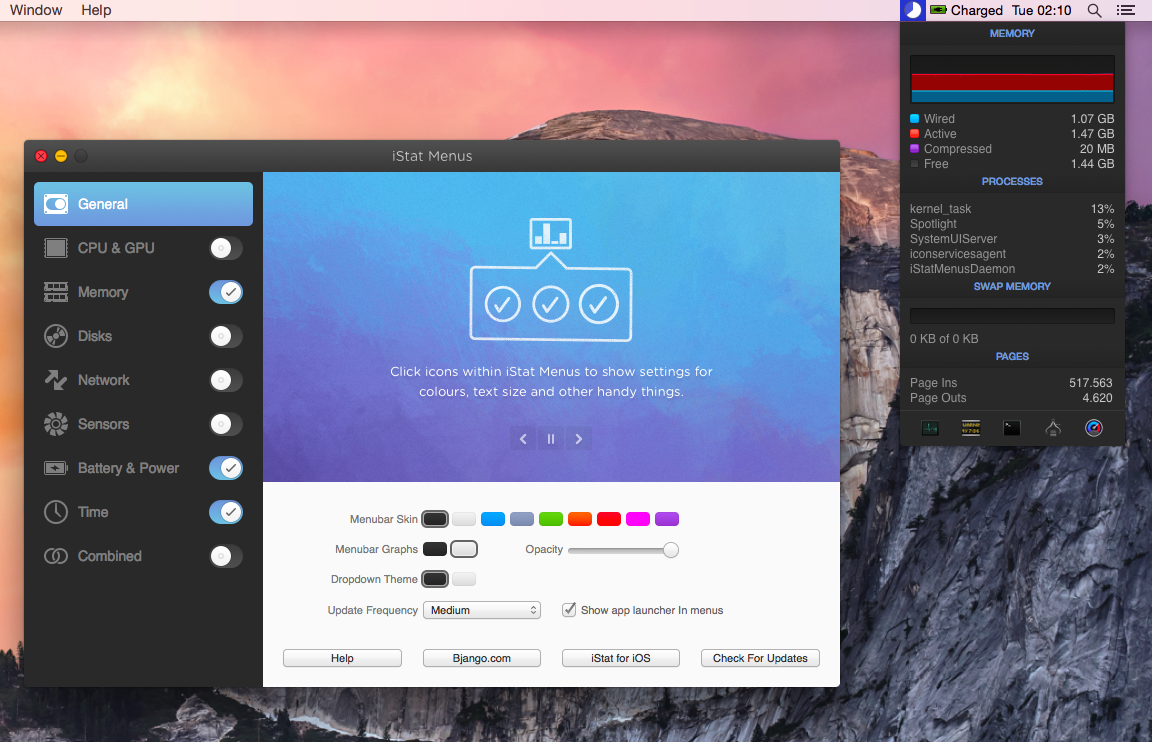
iStat Menus lets you monitor your system right from the menubar. Included are 8 menu extras that let you monitor every aspect of your system. iStat Menus 6 sports a completely new design — new menubar icons, new dropdown menus, and the app and icon itself have all been redesigned to be cleaner, clearer and more at home on Yosemite. Menubar graphs can now use dark backgrounds, improving legibility.
Better per-app stats
iStat Menus 5 features read and write disk activity on a per-app basis. Upload and download activity is also shown per-app, making it far easier to track down the biggest bandwidth hogs.
More stats
Far more detailed network information, including router address, subnet mask, DNS and MAC address. Wi-Fi stats, including channel, signal to noise ratio and many more. Improved GPU monitoring, including active GPU in menubar.
Time & world clocks
A vastly improved time menu, with current time, sunrise, noon, sunset, dawn, dusk, sun azimuth, sun altitude, light map and more for over 120,000 cities. Daylight is now indicated in the clock face (it even fades near sunrise and sunset).
Speaks your language
Our menubar and dropdown menus are now localised for Arabic, Catalan, Chinese (Simplified), Chinese (Traditional), Croatian, Czech, Danish, Dutch, Finnish, French, German, Greek, Hebrew, Hungarian, Italian, Japanese, Korean, Norwegian, Polish, Portuguese, Portuguese (Portugal), Romanian, Russian, Slovak, Spanish, Swedish, Thai, Turkish, and Ukrainian.
CPU & GPU
Realtime CPU graphs and a list of the top 5 CPU resource hogs. CPU usage can be tracked by individual cores or with all cores combined, to save menubar space. Plus, GPU memory and processor usage on supported Macs, and the active GPU can be shown in the menubar.
Memory
Memory stats for your menubar as a pie chart, graph, percentage, bar or any combination of those things. Opening the menu shows a list of the apps using the most memory, and other useful info.
Network
A realtime graph to keep on top of what’s being sent and received for all network connections, including a bandwidth breakdown for the top 5 apps.
Disk usage & activity
See used and free space for multiple disks in your menubar. S.M.A.R.T. status monitoring and more detail for all your disks is only a click away. Detailed disk I/O in your menubar, displayed as a graph, a variety of different read and write indicators, or both.
Sensors
Realtime listings of the sensors in your Mac, including temperatures, hard drive temperatures (where supported), fans, voltages, current and power. Fan speeds can be controlled, with different rules when on battery power, if you’d like.
Date & time
A highly configurable date, time and calendar for your menubar, including fuzzy clock and moon phase. Open iStat Menus’ calendar to display upcoming events, or events for any day. Plus, a world clock with sunrise, sunset, moonrise and moonset times for over 120,000 cities.
Battery & power
Detailed info on your battery’s current state and a highly configurable menu item that can change if you’re draining, charging, or completely charged. Plus, Magic Mouse, Magic Trackpad and Apple wireless keyboard battery levels.
BusyCal is an award-winning desktop calendar that combines personal productivity features for individuals with powerful calendar sharing capabilities for families and workgroups. Its unique features include a non-modal Info Panel for easier data entry; To Dos that display in the calendar and auto-forward until completed; repeating To Dos; customizable calendar views including a List view and scrolling Month and Week views; adjustable font styles and sizes, live weather feeds, moon phases, graphics, sticky notes and more. And when you first launch BusyCal, all of your iCal data is instantly imported. BusyCal automatically syncs with iCal, iPhone, iPad, iPod Touch, and other apps and devices that sync with MobileMe or Sync Services. If you later decide to switch back to iCal, all of your calendar data will be current.
BusyCal allows families and workgroups to share calendars with MobileMe, Google Calendar, iCal Server, and other CalDAV Servers. You can even share calendars with other BusyCal users on a local area network without the need of a server. And BusyCal syncs with iCal, iPhone, iPad, iPod Touch, and other apps and devices that sync with MobileMe or Sync Services.
Features
View and edit event details in a non-modal info panel.
Create repeating To Dos that display in the calendar and carry-forward until completed.
Scrolling Month and Week Views.
Customizable list view lets you filter and sort events by date, calendar, and more.
View live weather forecasts, sunrise/sunset times, and moon phases right in your calendar.
Customizable event fonts, sizes, styles and colors.
Add graphics to your calendar.
Add virtual sticky notes to your calendar.
Sync with the iPad, iPhone, and iPod Touch via MobileMe, Google Calendar, or iTunes.
Sync with MobileMe Calendar and other computers/devices that sync with MobileMe.
Sync with Google Calendar and other computers/devices that sync with Google Calendar.
Sync with other BusyCal users on a local area network or over the internet.
Share calendars with others, with password-protection and SSL encryption.
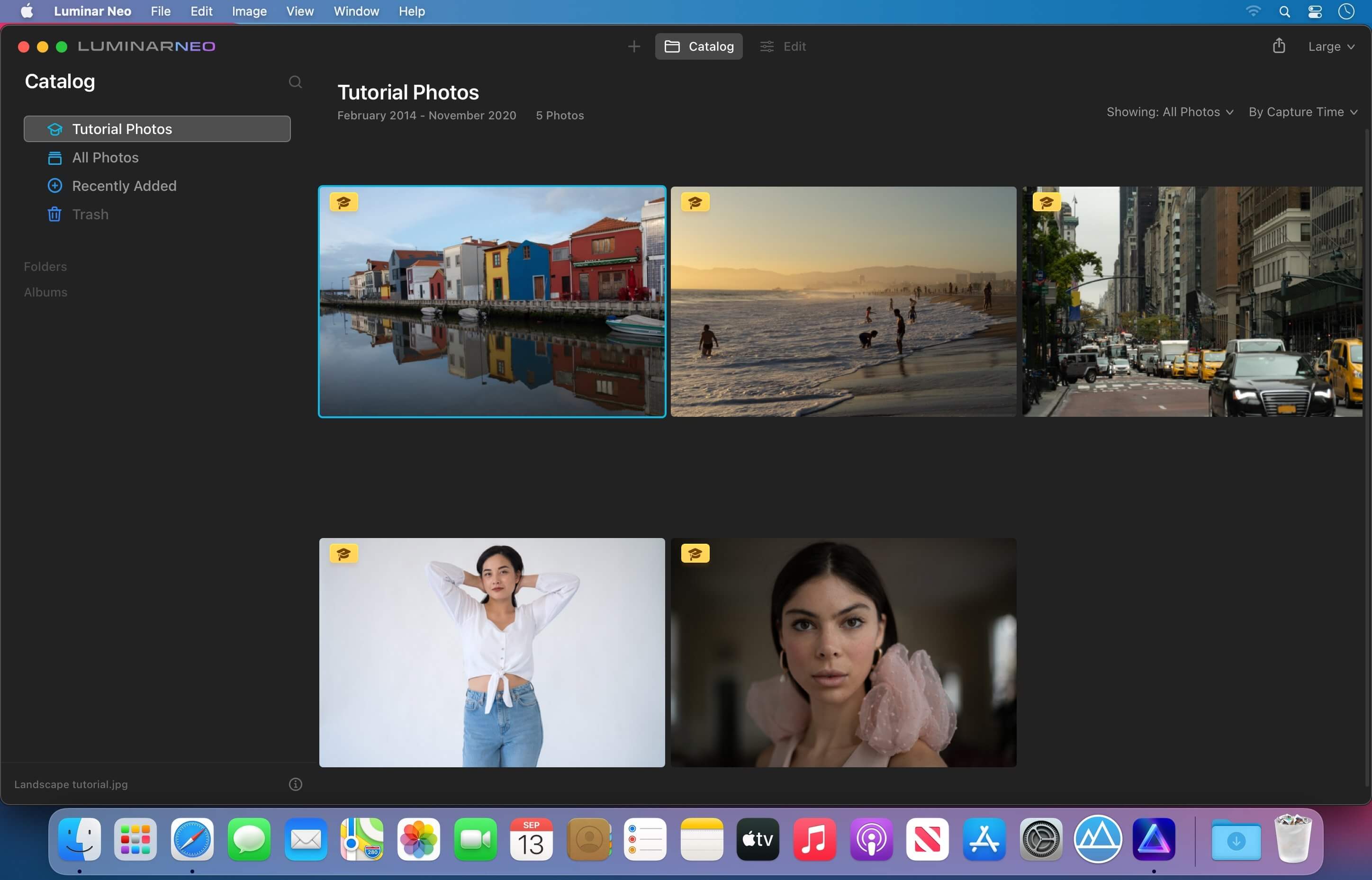
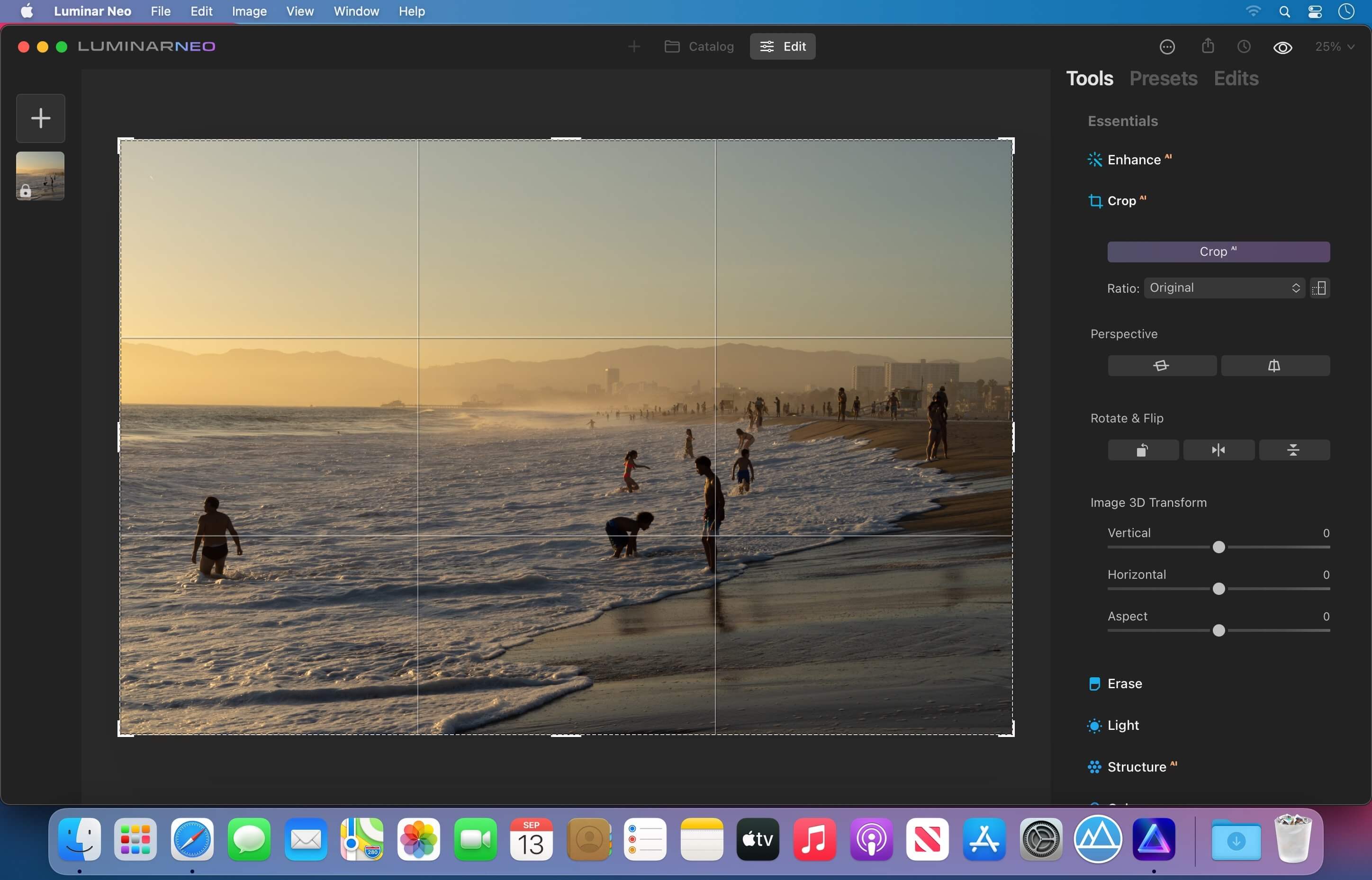
Luminar Neo is an AI-driven creative image editor. A creative image editor to bring your ideas to life. Have you ever wanted to achieve more with your images? Luminar Neo is an innovative image editor powered by AI technologies of the future that simplifies complex editing routines and enables creators to bring their boldest ideas to life. And enjoy it.
Control the light in 3D space with RelightAI
Relight backlit photos or darkened images in a click with the RelightAI feature. Luminar Neo calculates the depth of a photo and creates a 3D map, making it possible to spread light naturally in 3D space across a 2D image. You can also relight the background and foreground separately — meaning you can darken parts of the image as well. This opens up an opportunity for creative relighting in order to bring your artistic vision to life.
Remove messy powerlines with AI
Automatically remove distracting elements in your cityscapes, urban landscapes or travel photos. Get a clear sky with no cluttered phone or power lines.
Unleash your creativity with Layers and AI Masking
Use both MaskAI and Layers for limitless creativity. MaskAI automates the masking process by identifying objects in the image and creating precise masks. You can always manually refine those masks with a brush if you choose to. Layers open up a whole new level of creative expression, with endless possibilities for adding objects, textures, watermarks, and any other graphics to your images.
Replace the sky in one click
Cutting-edge sky replacement technology with water reflections, sky positioning, and human-aware relighting to match the new sky.
Lightning-fast creative editing with an all-new image engine.
Designed as a module system its parts now can be optimized separately, for the best performance.
→ What is Luminar Neo?
Have you ever wanted to achieve more with your images? Luminar Neo is an innovative image editor powered by AI technologies of the future that simplifies complex editing routines and enables creators to bring their boldest ideas to life. And enjoy it.
• Get speed and flexibility in your editing with our brand-new core engine and layers workflow.
• The new engine we built for Luminar Neo is based on all the best solutions from our combined and evolved experience for maximum performance and creativity and is developed for achieving complex creative results.
• Adjust the light in your photo for creative control over the lighting in a scene. You can control the exposure of an image based on the distance from the lens to independently adjust the background and foreground exposure.
• Automatically remove spots on your images caused by dust and dirt on your lens and sensor.
• Clean up unwanted power lines from the skies in your cityscapes.
• Experiment with infinite creative possibilities by effortlessly combining two or more images in a shot.
• …And much more.
The new technologies and innovative user experience in Luminar Neo make creative image editing simple and fun.
→ What’s New in Luminar Neo?
Luminar Neo is a giant leap forward to more innovative, AI-based editing that targets the pains of photographers. Its goal is high-quality, fast, easy, and enjoyable results for anyone who wants to edit their images and channel their creativity in new ways.
The collection of AI-powered tools take a significant jump forward in function and performance with Luminar Neo. The application expands its toolbox with more groundbreaking AI-powered tools. The new tools are joined by additional options to solve even more problems and unleash creativity.
Speed up your editing workflow with our new fast core engine.
It’s based on unique technologies developed by Skylum and works on a module system, which means that different parts of the application can now be optimized separately for the best results. Thanks to the independent modules engine, Luminar Neo will be updated more frequently. Luminar Neo has a more flexible editing process, which means less memory is required to edit photos. The new engine has many small background optimizations of memory use, which increases the speed of all processes inside the application, from uploading to applying editing effects, using layers, and exporting.
Completely transform your photos with new relighting options.
Luminar Neo analyzes each image to recognize the depth of a scene and its subject allowing for unique control over exposure and tone.
Easily remove distracting image blemishes caused by a dirty camera sensor or lens.
There are also new tools to clean up unwanted elements in the background of a photo.
Explore creativity with an effortless layers workflow and combine a photograph with other visual elements.
Discover a collection of textures, overlays, and visual effects to add creativity to an image and personalize it. This addition unlocks new creative options for compositing images and visuals to create a custom style. You can add an infinite number of Layers, move Layers on top of each other, use blending modes and masking modes, make collages, add double exposure effects, and do more on each layer.
Skylum is also excited to announce that a new mobile app is in development.
It will allow easy transfer of photos between a mobile device and a computer. This will make it easier to add pictures captured on a mobile device to your Luminar library. Once edited in Luminar Neo, results can be sent back to the portable device for easy social sharing or viewing on the go.
The powerful AI tools and the convenient and fresh design that helps photographers effortlessly access all the features give anyone the ability to transform photos easily and achieve satisfying results. We’ll treat you to even more cutting-edge features that will ship as free updates after the official release.
Compatibility: macOS 10.14.6 or later • Apple Silicon or Intel Core processor Homepagehttps://skylum.com
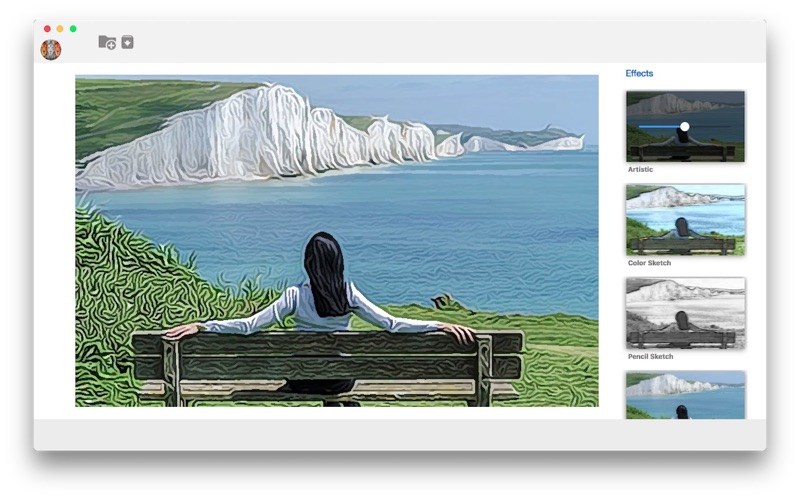
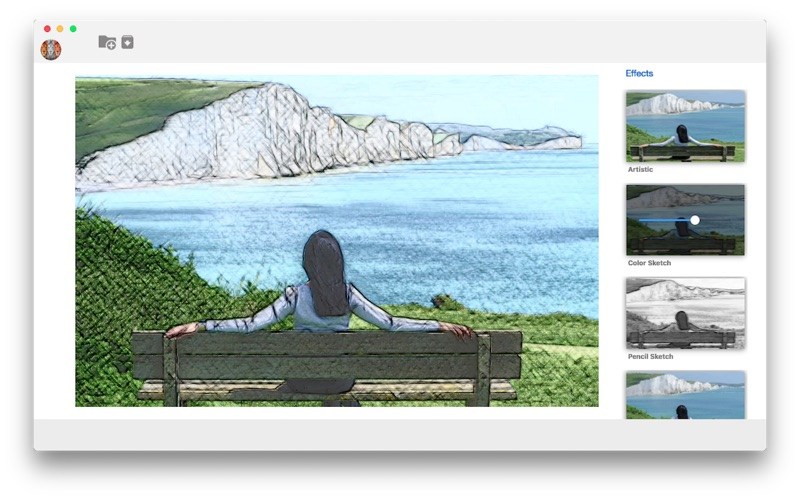
SketchnCartoonize is the best app to give your photo Cartoonize & Sketch look. This application use complex algorithm to achieve REALISTIC and NEAR PERFECTION Cartoon look.
Features:
Our app is SUPER FAST, LIGHT WEIGHT and SIMPLEST to use!
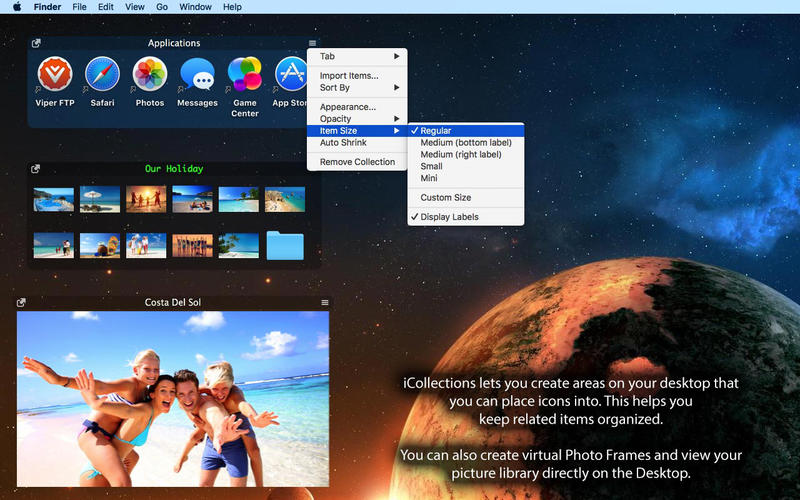
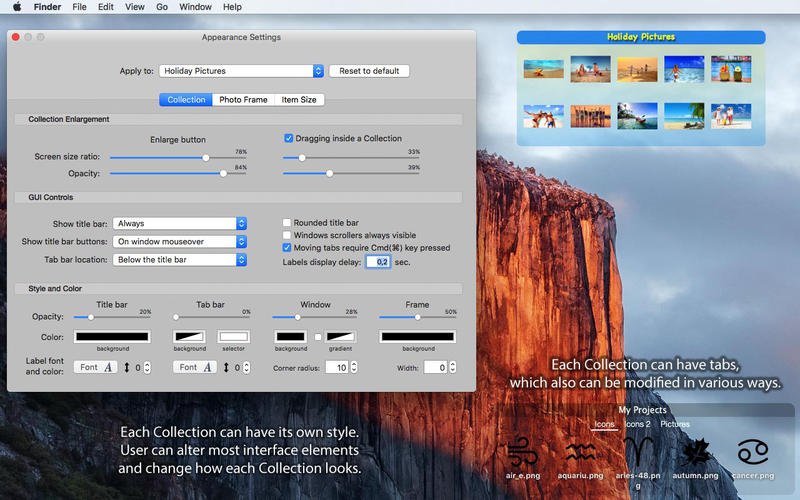
iCollections is an expertly designed application which helps you keep your desktop organized. The app’s unique features are what make it the most popular method of desktop organization for Mac users. iCollections lets you create areas on your desktop that you can place icons into. This helps you keep related items together so your files (pictures, documents, screenshot, applications, etc.) remain organized.
When selecting Photo Frame, a picture frame will be created at the desktop. The Photo Frame will display collection of your pictures as a slide show, eg. a new picture every day. Select your pictures folder and recall wonderful memories.
Use View Settings to define a slide show: window design and details to show. You can also create a static picture – just select a picture instead of a folder. Quick and easy!
Notes with more creative freedom, better organization, and PDF export options. OneNote compatible & Office 365 powered. Take your OneNote to the cloud you like best or even local.
Capture notes at any spot on a page and draggable around. Organize notes in the world’s most natural hierarchy. Store notes in your local file system, and synced across devices with your favorite cloud.
Powered with import from Evernote and Circus Ponies.
ONENOTE’S BEST FRIEND
Give your OneNote notes a new start beyond OneDrive or SharePoint
Export to OneNote, just in case
Go beyond import/export and do a real time collaboration on notes with colleagues who use OneNote (your Mac and their PCs)
STORAGE
Choose where you want to store your notes: Dropbox, iCloud, WebDAV, Box, or OneDrive
Consider a no-cloud option too: some notes need offline and cloud-free privacy
Mind the coming-soon: SharePoint, OneDrive for Business / Office 365
UI
Find everything a note needs by the hand: text, lists, tables, images, checkboxes, hyperlinks, and more
Put that stuff anywhere in a note and then move around / re-size / edit it all, the way you like
Keep notes structured in a natural hierarchy of pages, sections, and notebooks
Access a note fast via recents, search, and note links
Manage font size and color, apply styles and highlighting
Attach files and insert printouts, to collect documents in one place
Viper FTP is a handy and powerful file manager for macOS, with a tremendous user interface that makes it effortless to use. Quickly access your remote servers to manage and transfer your files. The new user interface was redesigned to be cool, clean and functional. Viper FTP handles WebDav servers, Amazon S3 servers, LAN Bonjour servers, and even the uploading of videos directly to YouTube. It will create the HTTP URL of files you select, allowing you to easily share them via URL or email. It stores and shows your history and trace log, stores the credentials of multiple FTP accounts, and allows you to have multiple simultaneous transfers happening across different servers. The Toolbar gives you instant access to your bookmarked servers. Viper FTP has in-built ZIP, RAR, GZ, and TAR support. It has fast file searching on both your local and remote machines. You can customise many elements of the interface via preferences. You can edit remote files to make quick changes.
Top 10 Features
Local and remote file management (FTP, SFTP, WebDav, Amazon S3, YouTube-upload)
Last connections, Bookmarks, Bonjour, Favorites
can be managed in one place.
History of file operations (what, when, where with a server reply)
Converting remote file/folder into HTTP/HTTPS address with an instant email option.
Searching, viewing and editing files directly on a remote server.
Using the toolbar for keeping your favorite servers gives an instant access to the remote locations.
All files (hidden, system) are visible. To locate a file just start typing its name.
Files/folders compare.
Zip,rar,gz and tar management.
Application windows can be linked (will move, show and hide together)
Language: English, German, French, Spanish and others. Compatibility: macOS 10.13 or later • Apple Silicon or Intel Core processor Homepagehttps://viperftp.com
Professional programmers and web developers can use MAMP Pro to create and manage their own custom development environment.
Support for various CMSs
MAMP Pro comes with a number of extras that allow you to install and integrate various Content Management Systems with MAMP Pro. Hence, you can download and install Joomla, wordPress, webEdition and Drupal directly from within MAMP Pro.
Thanks to the support for multi-PHP, you can now avoid starting and stopping your servers because your hosts use different PHP versions. Consequently, you can run multiple versions of PHP a the same time without restating your servers.
Clean and intuitive interface
MAMP Pro comes with a simple and well-structured interface that offers you easy access to numerous tool tips that offer clear and useful explanations for all available features.
MAMP Pro also provides a status bar menu from where you can check the server status, enable or disable servers and open the main window. Moreover, you can access the log files and change the app settings.
On top of that, MAMP Pro offers Imagemagick that can be easily activated via the php.ini template. As a result, you can now generate images and edit raster graphics more easier.
Local network access, as well as multi-PHP and Virtual Server
xip.io enables you to keep your co-workers updated and in loop. The Sharing button opens your email client along with an embedded link to one of the available hosts. Therefore, the recipient can be redirected to the work on your host.
Beside running different versions of PHP at the same time, you can also setup and test numerous virtual servers without worrying about the stability of your live system.
With the help of test environments offered by MAMP Pro you can create and test various pages using the desired CMS, integrate a shopping cart or design a WordPress template.
MAMP PRO 6 contains a wealth of new features and improvements to make your work as a web developer much easier and faster: Clone hosts, create and use Blueprints of hosts, use the new simplified Standard View for your everyday workflow, benefit from the vastly improved editor, or easily test your scripts with Mailhog and forget about configuring SMTP. These are just some of the new features in MAMP PRO 6.
Less, but better
MAMP PRO 6 introduces Standard View. Here you will find all the important settings that you regularily require. For experienced users Expert View holds all available settings.
Build once, use often
Develop complex websites or WordPress themes once and use them as a blueprint for as many sites as you want. With Plugins, themes, you name it, once created and configured, a blueprint is the perfect starting point for your future projects.
Mailhog – email testing, zero configuration
Nobody cares for complicated mail server configurations just for testing. Neither should you, therefore MAMP PRO 6 includes the popular Mailhog.
Cloning
You deal in hosts, not sheep (probably). Nevertheless, we did teach MAMP PRO the art of cloning. It’s the most comfortable way to experiment with different versions of a website or a WordPress theme
Improved WordPress support
The vastly improved WordPress support allows you to publish and import your sites faster and more reliably than ever. MAMP PRO even keeps your WordPress installation intact when you change the settings (name, port, SSL) of a host.
WordPress site migration
Do you want to change your hosting provider? No problem, just use our WordPress migration and easily move your site to a new provider. Of course, this works without disclosing any of your passwords.
Apache 2.4
In order to match your live server specifications, MAMP PRO 6 supports the latest version of the popular Apache web server.
Completely revamped Editor
The editor built into MAMP PRO is now based on Microsofts Monaco engine. It features diff support, a mini map for faster navigation, multiple selections, code folding and much more.
Improved SSL handling
When creating a SSL host all necessary certificates are created automatically.And web browsers supporting the macOS keychain won’t even complain about validity.
*** You need to disable the System Integrity Protection (SIP) to perform the selected Application.
If copy & paste is a part of your workflow, Pastebot is an indispensible tool to improve your productivity. Quickly recall clippings that you have copied before and apply powerful text filters to format before pasting. You can even queue up multiple copies to paste in sequence. Pastebot is always running and only a keyboard shortcut away to command copy & paste.
Clipboard History:
Pastebot saves everything you copy so that you can quickly recall them in the future. Save and organize frequently-used clippings into custom pasteboards and create keyboard shortcuts to access pasteboards and paste specific clippings.
Powerful Filters:
Build powerful filters with a live preview and apply them as you paste. Create keyboard shortcuts to quickly paste using your filters and export your filters to share with other Pastebot users.
Quick Paste Menu:
Pastebot is there when you need it and invisible when you don’t. Quickly access your clippings from any app and search, preview, or filter clippings before pasting. You can even set the order of clippings to paste in sequence.
iCloud Sync:
With iCloud enabled, your main clipboard, custom pasteboards and filters sync across all of your computers running Pastebot. Your clipboard and filters will be on every mac you work on.
Custom Pasteboards:
Create custom pasteboard groups to organize important clippings you want to save and re-use. Assign keyboard shortcuts to clippings you use most often.
Works with Universal Clipboard:
macOS Sierra’s Universal Clipboard works alongside Pastebot. Copy a clipping in Pastebot and paste it on your iOS device via Universal Clipboard.
Full Screen Support:
Pastebot works in full-screen and split-screen mode. Running in split-screen mode allows you to use Pastebot as a scratch pad.
Options:
Choose from various quick paste window styles to suit your preferences, always paste in plain text, enable release-to-paste and more.
Blacklist:
There are apps you copy from that you never want stored in Pastebot. Just add that application to the blacklist and Pastebot will ignore it.
Search:
Find a clipping quickly with Pastebot’s powerful search capabilities. Search based on content or metadata. You can search by application, date, data type and more.
Keyboard Shortcuts:
Pastebot features many keyboard shortcuts to satisfy any copy & paste maestro. Paste the previous item on the clipboard or paste the current clipping while applying the last used filter.
DirEqual is a Folder Compare Tool that makes it extremely easy to compare local files and folders on your Mac.
DirEqual displays compared directories side by side as expandable trees, and the size and date are indicated for each item. Differences between the directories are indicated with colour and easy to identify icons.
To copy or delete files or folders, click an individual item to choose the appropriate action.
The action is represented with red or blue arrow. Then click “Execute” to synchronise the two folders.