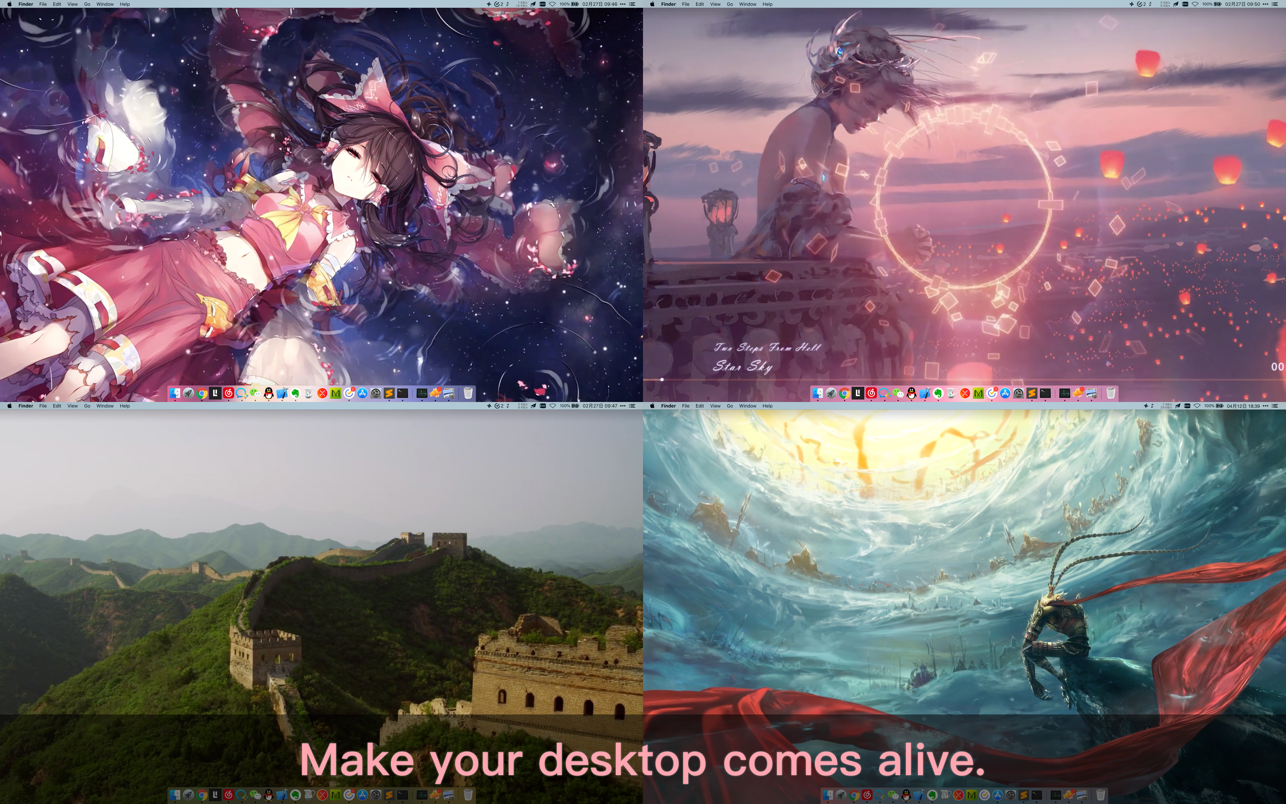
Dynamic Wallpaper Engine allows you to use live wallpapers on your desktop/screensaver. It provides thousands of live wallpapers in the Workshop while taking as little system resources as possible. It’s the Wallpaper Engine for Mac.
Features:
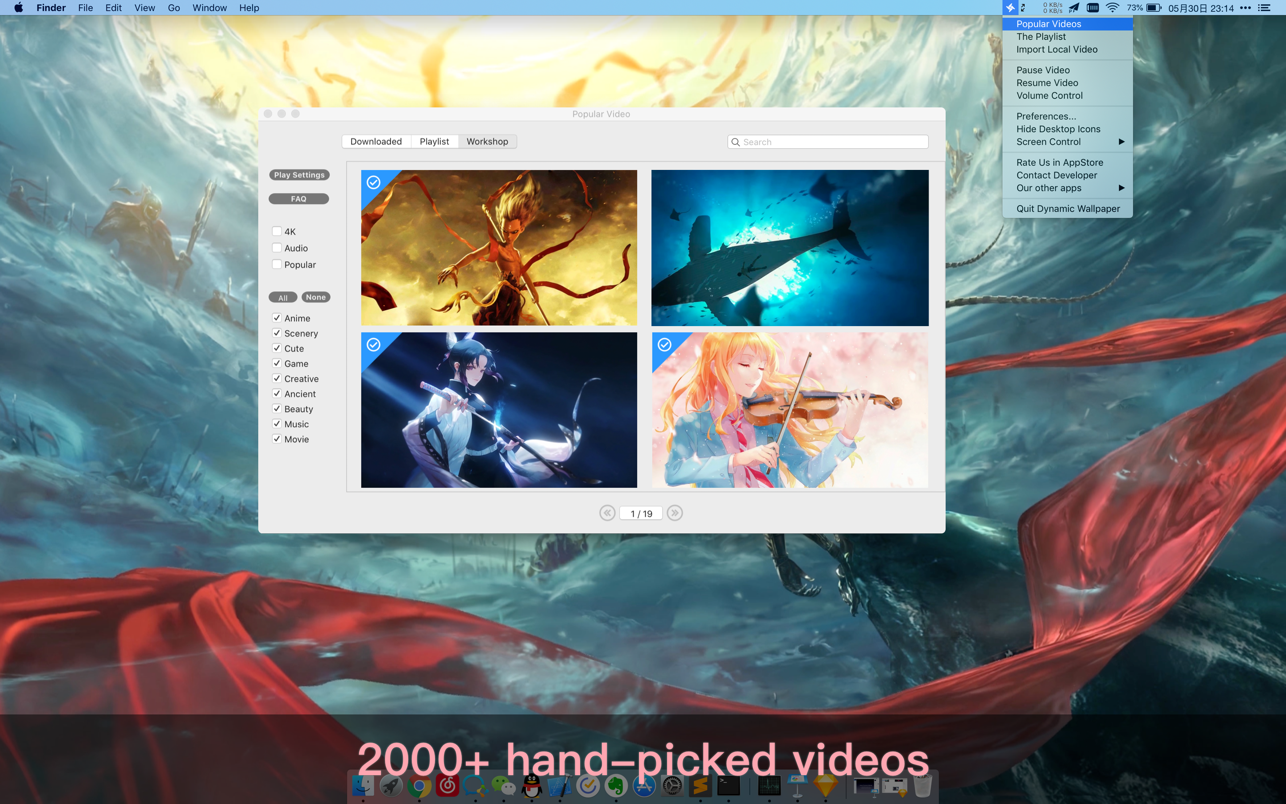
• 2000+ hand-picked videos which are updated every day.
• Multiple types of 4K Ultra HD videos, anime, scenery, cute, game, creative, Beauty, Ancient, Movie, etc.
• Supports “keyword searching” in videos.
• Supports “Dynamic-ScreenSaver”, personalize your lock screen.
• Easy to import local video.
• Supports The playlist, list loop, shuffle loop.
• Supports multiple screen aspect ratios and video native resolutions.
• Supports global hotkeys to control wallpaper, hide desktop icons and show screensaver.
• Set different wallpapers on different displays.
• Manual control, video pause, resume and mute.
• Break reminders, with flexible customization if you want it.
• Auto mode, pause the video when other apps are active, not disturbed at work.
• Auto mode, pause the video when Power Disconnected.
• Support for hiding desktop icons.
• Dynamic Wallpaper Engine is designed to provide an interesting experience while consuming as little system resources as possible.
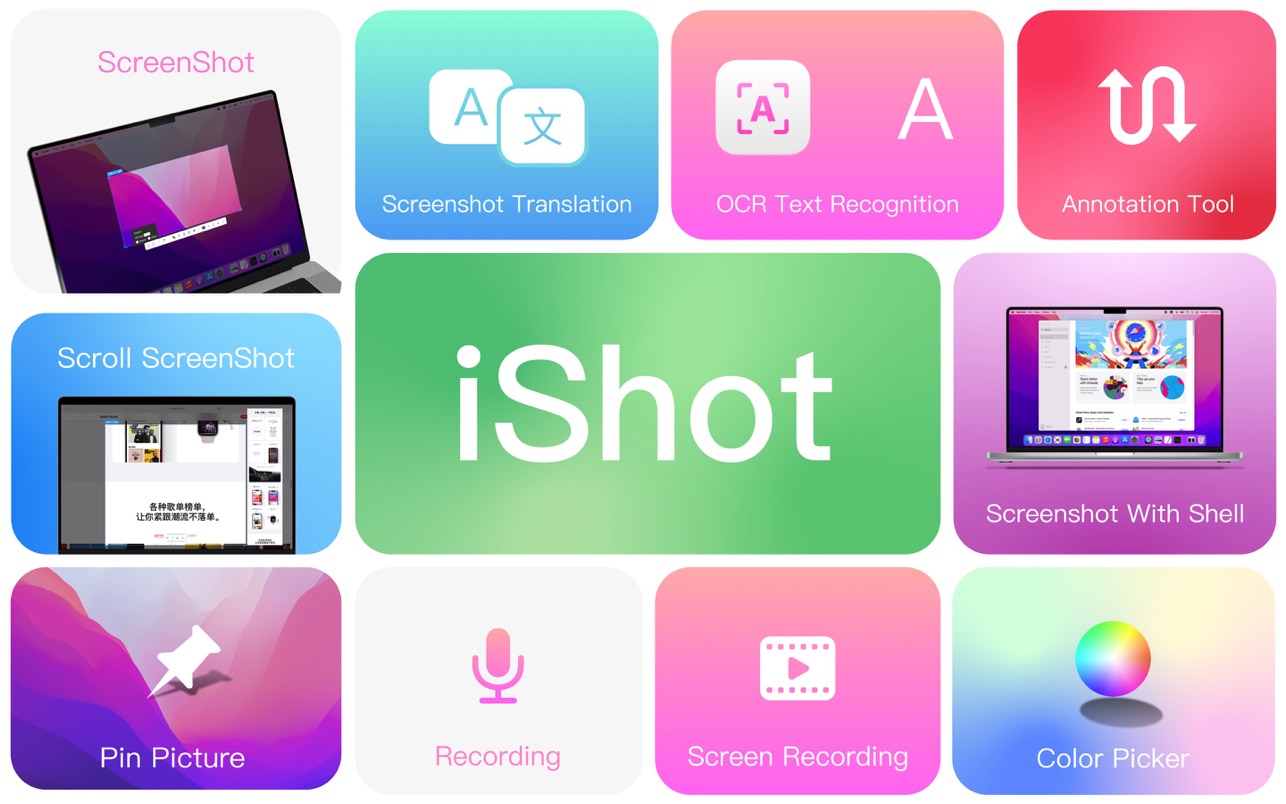
iShot is an excellent, full-featured area screenshot, window screenshot, multi-window screenshot, long screenshot, shell screenshot, time-lapse screenshot, quick annotation, texture, color picking, screen recording, audio recording, OCR, screenshot translation tool on Mac .
1. Screenshots
Area screenshot, window screenshot
Supports frame selection screenshots, intelligent recognition window screenshots, and custom screenshot shortcuts.
Multi-window screenshot
Press the screenshot shortcut key, then Shift, and click on multiple windows to take screenshots of multiple windows.
Delay full screen screenshot
Delay full-screen screenshots, support countdown sound playback, and use to capture windows that are not easy to select.
Take a screenshot of the last screenshot area
Use the shortcut keys to quickly take a screenshot of the area where the last frame was selected.
Screenshot window under cursor
Use the shortcut key to directly capture the window under the current mouse without activating the window.
Screenshot rounded corners and shadow effects
Screenshot to open quickly
After completing the screenshot, you can double-click Option to open the picture with a custom App, so that your screenshot and editing can be seamlessly connected.
Save/Storage
Support saving to clipboard and local
Support saving to the clipboard and saving to the local
Support single save as, custom save name and format
Support HD and SD image quality
Support jpg, png, tiff screenshot saving formats
Support output color standard pictures
2. long screenshots, scrolling screenshots
Select the scrolling screenshot area, then press the “S” shortcut key and slide the screenshot area upwards to start taking a long screenshot. The length of the long screenshot is unlimited.
Support automatic scrolling of long screenshots.
3. with shell screenshot
After taking a full screen screenshot, match your picture with a beautiful Mac shell mockup, high-end and elegant.
4. stickers
After the frame selection area is supported, click the map button to map;
The sticker library will store the record of the sticker.
After supporting the texture, right-click, mark and modify the texture image.
5. Quick Marking
Marking function:
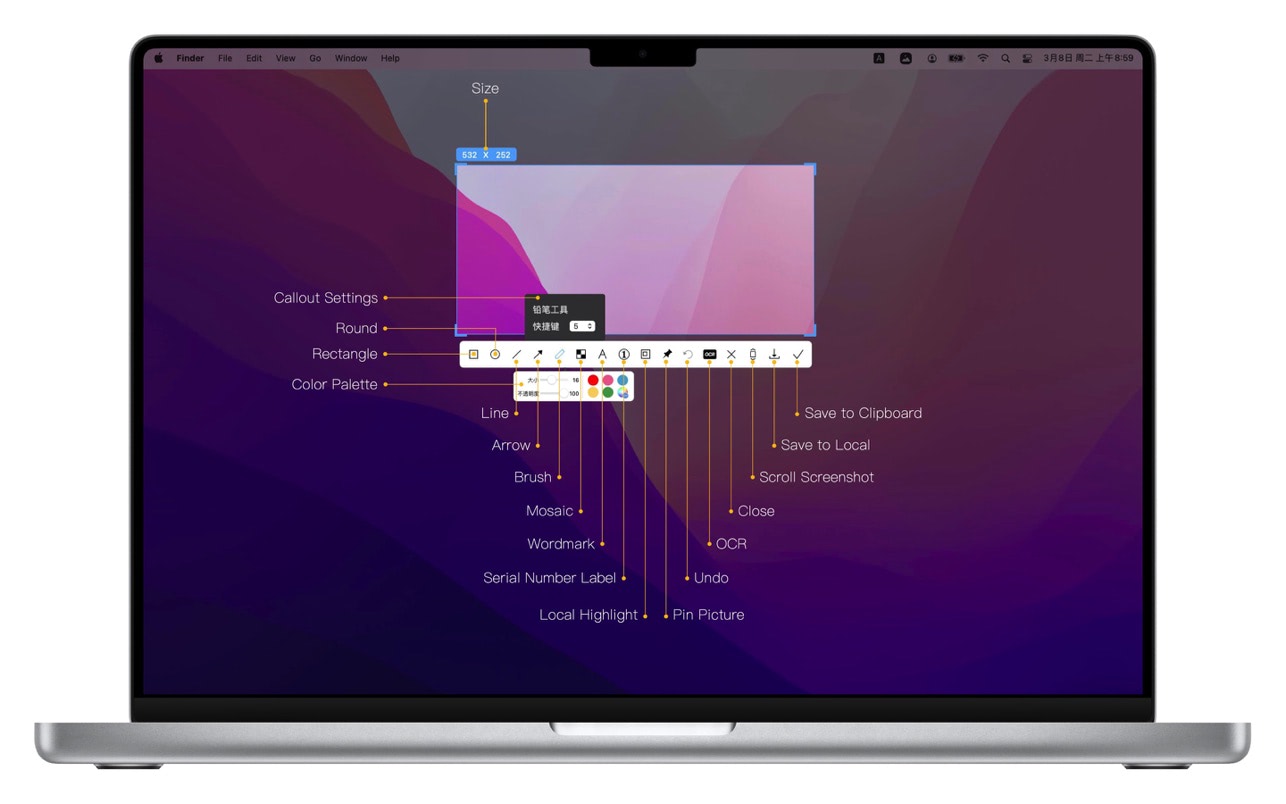
Rectangle, circle, horizontal line, arrow, brush, mosaic, text mark, serial number label, local highlight;
Quickly adjust dimension and transparency
Rich annotation styles
Arrows, mosaics and other annotation tools provide a variety of styles to choose from, making your annotations colorful.
6. Color picking function
When you press the screenshot shortcut key, the magnifying glass will display the color name under the current cursor, press R, G to copy the RGB and HEX color codes, and supports custom color codes with powerful functions.
Support native, normal RGB, SRGB, Adobe RGB, P3 multiple color gamut standards
7. Screen recording function
Supports screen recording of various resolutions and FPS in Ultra HD, HD and SD;
Support for recording the internal sound of the system;
Support for recording online meetings
8.Recording
Support recording function, recording anytime and anywhere, a good helper for business people.
Support for recording the internal sound of the system
9.OCR text recognition
After selecting the screenshot area, click the OCR button to perform text recognition, which is convenient and easy to use
The OCR function supports QR code recognition and prioritizes QR code recognition
Support OCR continuous recognition mode
Support OCR to cancel line feed
10. Screenshot translation
After selecting the screenshot area for OCR recognition, perform translation
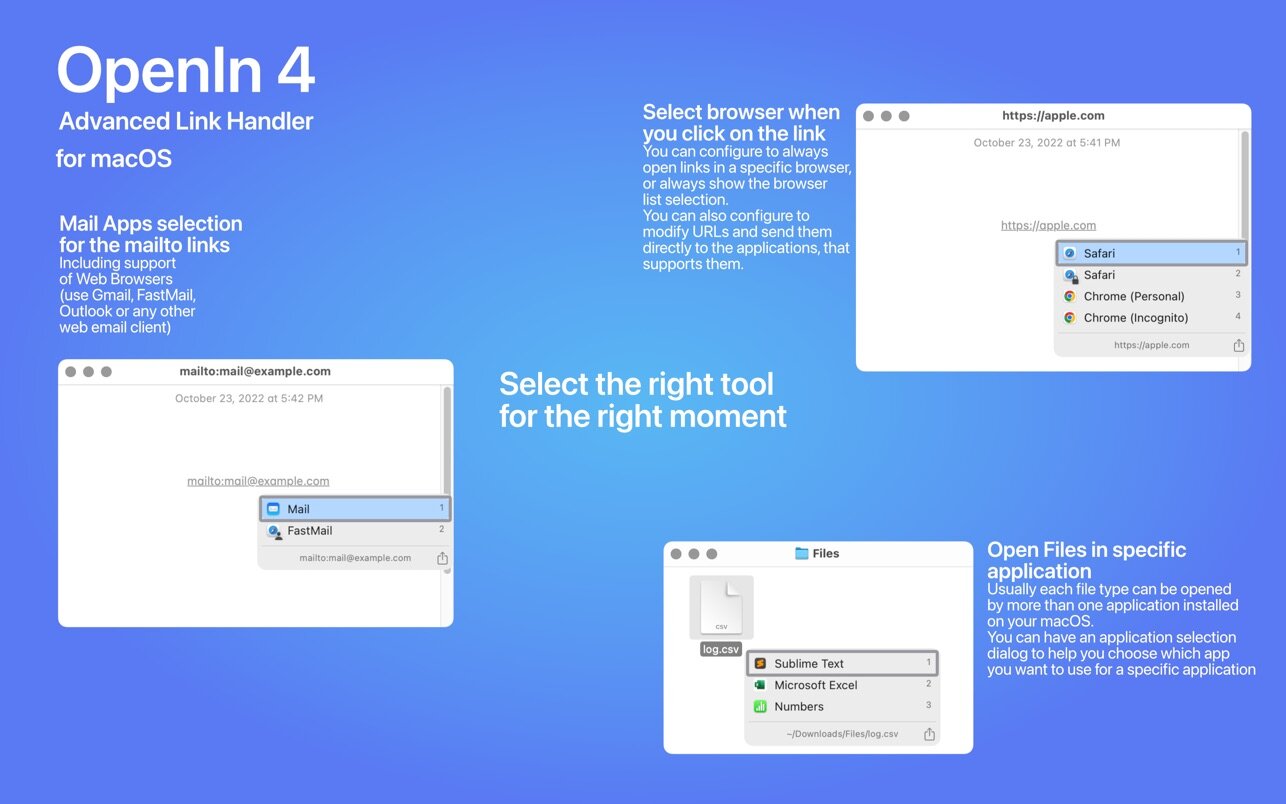
OpenIn.app is an advanced utility that allows you open links, emails, and files in the application of your choice. Just click it, and select the application from the list. This is the easiest way to organize your workflow.
Take control of installed apps on your Mac.
Are you using multiple browsers or Mail applications on your Mac?
Do you want to open links in a specific browser every time you click them?
Do you want to open zoom invites directly in the zoom application?
Do you use more than one application for a specific file type?
Do you use your Mac for work and personal projects?
Remember the last time you double-clicked an app and regretted it right away? Because fully loaded IDE was a default application for a Markdown file, you wanted to edit? No more. We give you a list of applications that support a specific file type, so you can choose which application you want to open.
We can help you with that and more.
Use cases
You can configure OpenIn to open a browser (or application) based on the Focus defined in your system
You can configure OpenIn to open mailto:// links directly with the browser and web mail provider (Gmail, Outlook, Fastmail, etc)
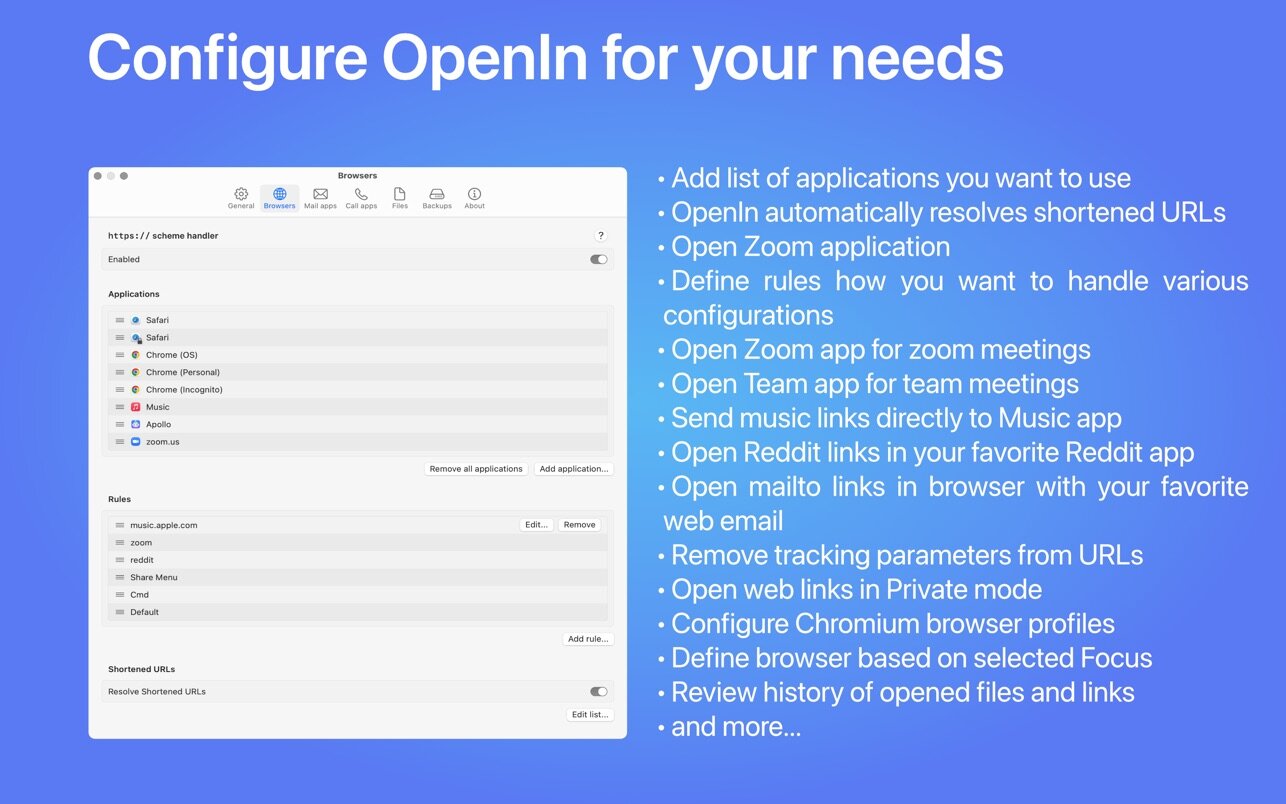
You can always define by default to open files and links with a specific application, and configure additional rules for domains, paths, key modifiers, apps where the links were clicked, etc
You can configure by default to always show the app selection dialog
You can configure opening links directly within the applications that support them. For example, iTunes to Apple TV, music to Apple Music, zoom links to zoom applications, and more.
jаvascript scripts
OpenIn is a 100% macOS native application written in Swift. But it also provides a jаvascript engine for writing your own rules, giving you access to private API, so if you find that the UI is limited for your use case, you can write your own rules the way you want them.
History
OpenIn stores the history of opened files locally on your system. If you need to find a link that you opened a few days ago, you can review the history and quickly find it there.
Security
OpenIn prevents you from phishing attacks. If you decide to always see the app selection dialog, you can review the link before sending it to the browser. Additionally you can choose to open links in Safari Private mode or Chromium browser’s Incognito mode.
With the ability to override the URLs, you can configure Scripts to remove tracking query parameters from URLs.
Architecture support
Intel and Apple silicon are supported!
OpenIn 4 is available for macOS Ventura. You can find OpenIn 3 on the app store, which supports previous versions of macOS.
Upgrading from OpenIn v3
Install OpenIn v4. It will automatically migrate the database from version 3. After that, you can safely delete version 3 from your system.
OpenIn features:
Open mailto links the way you want
OpenIn helps you create a list of options on how to open mailto links so that when you click on such a link, you’ll see the selector with only specific mail clients. It could be Mac apps like Mail or browser-based apps like Gmail. You can also reorder the list to see your preferred options first.
Open files in custom apps
Just like with mail clients, you can personalize the selector list for all the files you open on Mac. All you have to do is pick the apps to open your files with. What’s more, OpenIn allows you to modify file open requests so that an app of your choice opens a parent folder instead of a file.
Works with file extensions
You can even customize the way you open files that have certain file extensions. Just drop a file with the extension in OpenIn, choose the apps to open it with, and set OpenIn as a default file opening utility. It’s also possible to reorder the apps that will appear in the selector.
Easy to personalize
Click on the plus button in the upper right corner of the OpenIn Preferences to add any custom apps and browsers you want to see in the selector. Set the app to always open Zoom links in the Zoom app. Even choose browsers that should be used by default for specific domains. It’s easy to make OpenIn part of your workflow.
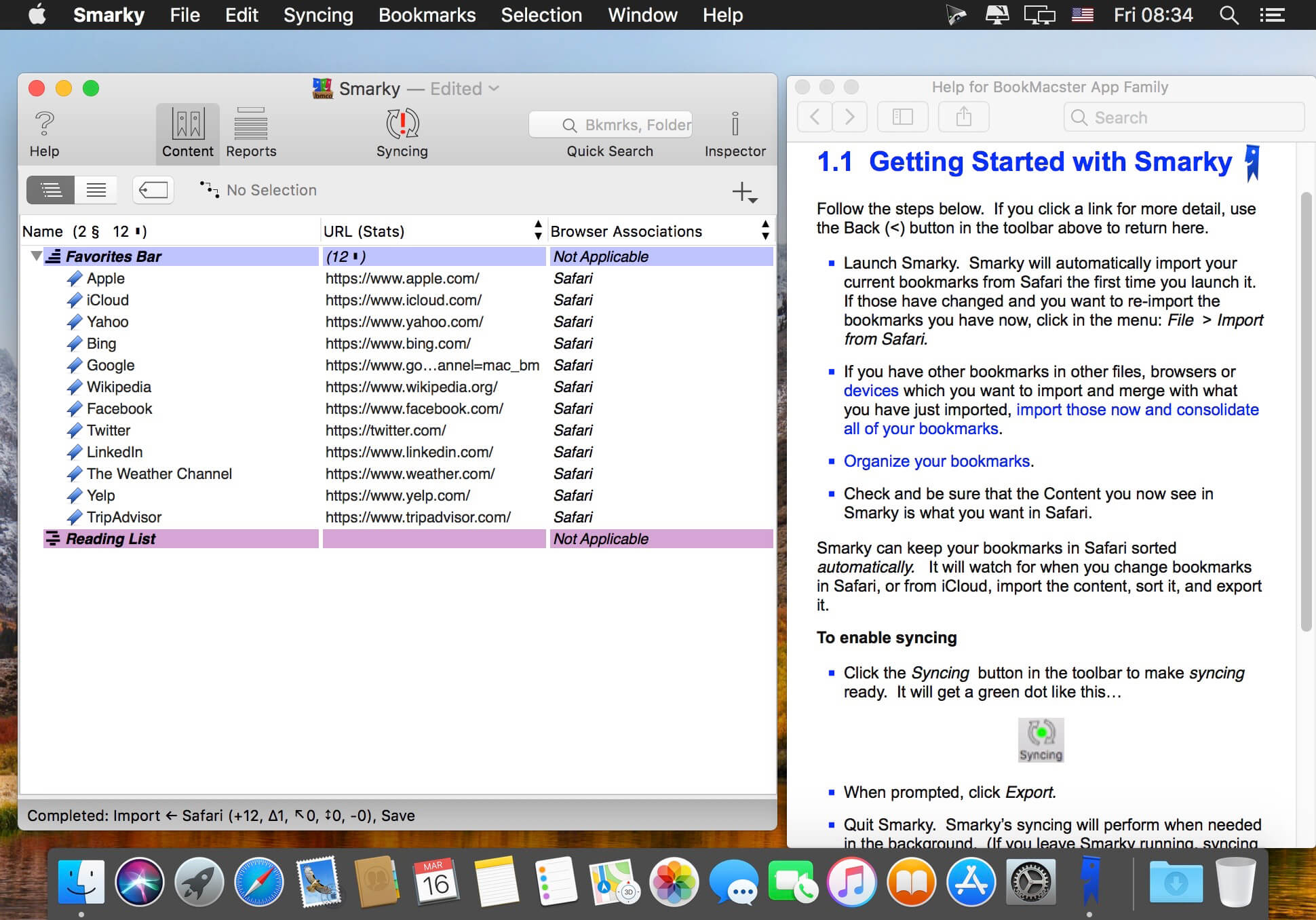
Smarky is the bookmarks manager for Safari bookmarks which is compatible with Apple’s iCloud. After installing Smarky and enabling iCloud syncing, you can have automatically alphabetized and organized Safari bookmarks on all of your Apple devices.
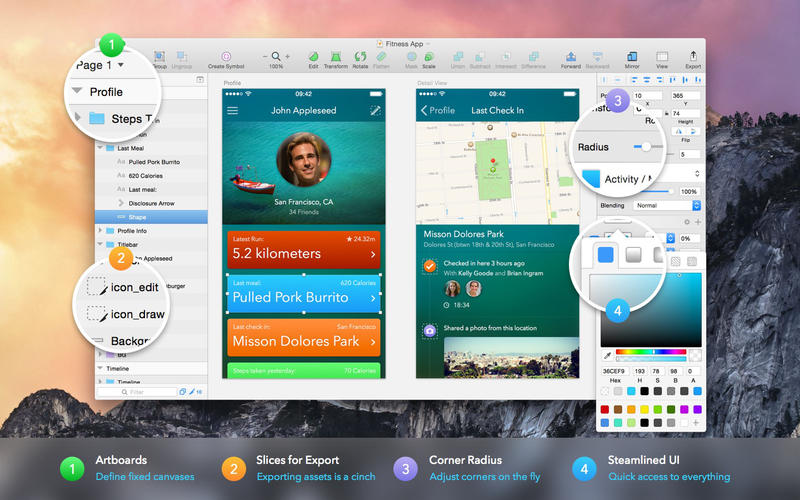
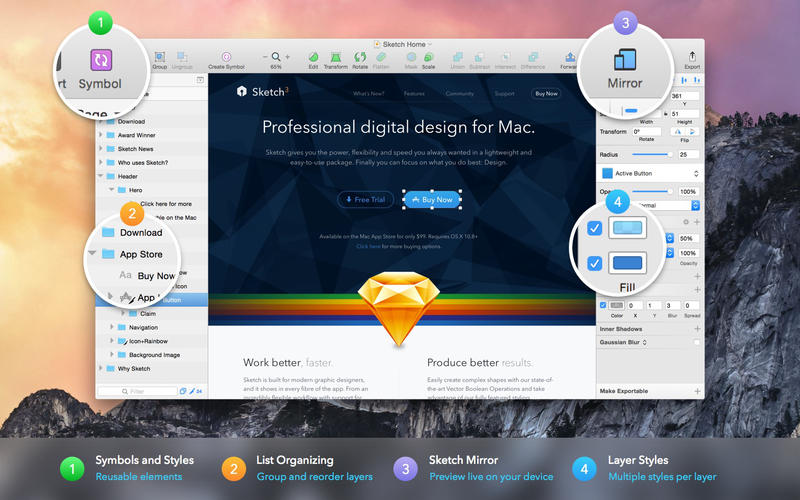
Sketch: graphic design for a digital world. Powerful tools and an elegant interface, in a single award-winning package. Because making beautiful things should be a joy, not a burden.
Sketch supports multiple fills, borders and shadows per layer; has powerful non-destructive boolean operations; smart pixel alignment; and makes exporting a breeze with automatic slicing and multiple resolution export.
Vector tools and basic shapes are the foundation; whether you are designing icons, websites, interfaces or anything else. Combine these into complex shapes with non-destructive boolean operations, leaving you free to edit them in the future, then apply advanced layer style options like multiple shadows, fills, gradients, noise, blending, background blurring, and more.
Sketch doesn’t just do shapes, of course. Imported images can be rotated, scaled, cropped and masked. The best-in-class text tool lets you add beautiful typography to your designs, using native font rendering, so you can be sure that text always looks 100% accurate!
Brand new to Sketch 3, Symbols allow you to reuse entire groups of content in multiple places in your design. Think of interface elements such as buttons, headers and footers. Change them once, and they update everywhere in your document.
Built for the Mac, Sketch supports OS X’s Versions and Auto Save, letting you focus on your work instead of hitting CMD+S. Keep your work safely in sync across multiple Mac computers with iCloud. And take Sketch full screen to maximise the size of your canvas.
All this power is deliciously baked into Sketch’s single-window interface. Everything is there, tucked away until you need it. A simple interface with powerful tools.
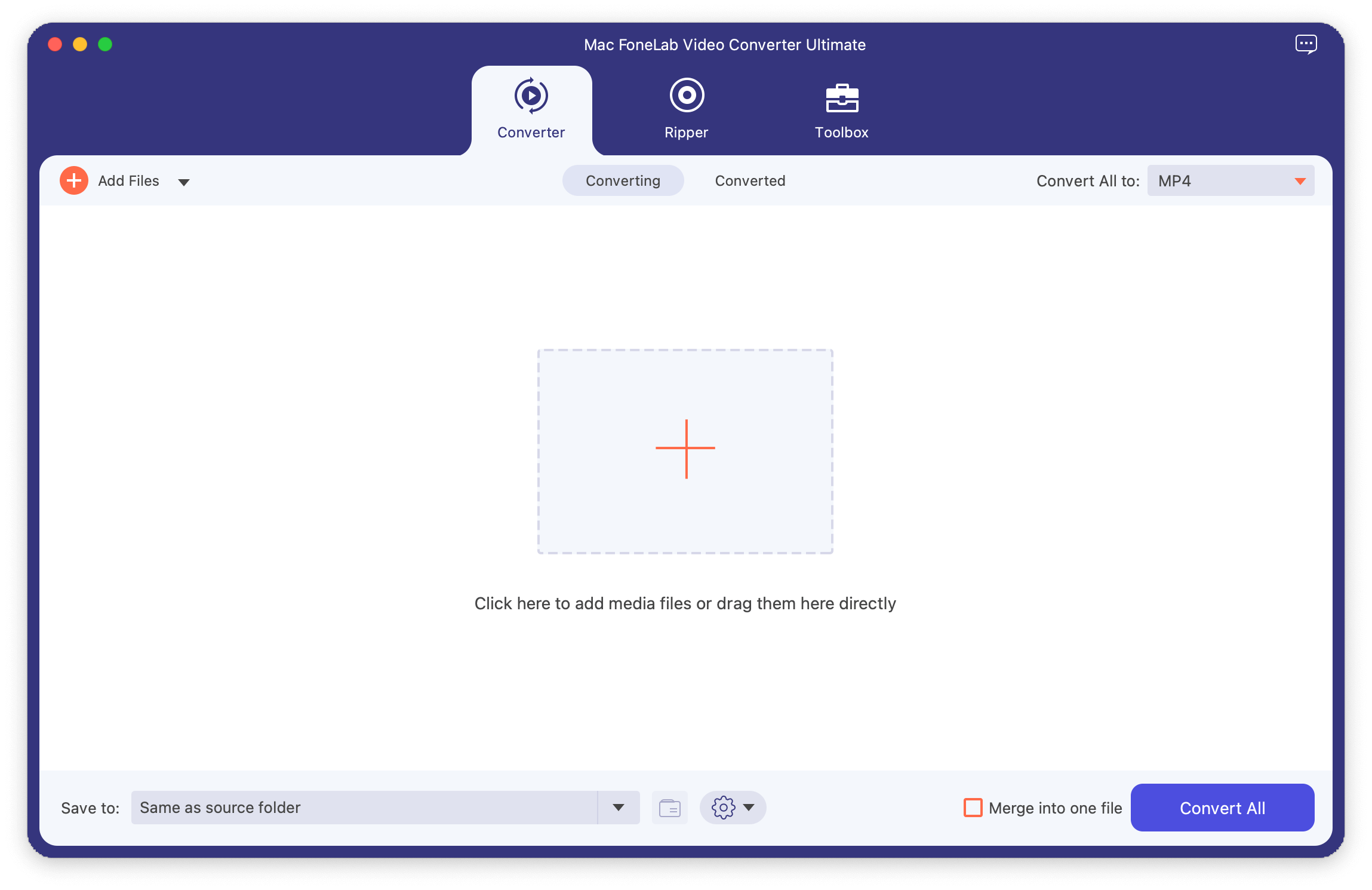
The Best Video Converter Ultimate for Mac. Do you want to get video converted to MP4? Are you still searching for an MP3 converter? Do you need a video enhancer to improve your video quality? Here Video Converter Ultimate is a perfect companion to meet all your needs.
Apart from being a high-range compatible media file player, Video Converter Ultimate is an all-in-one utility with video converting.
Features
Support external audio track and multi-audio track.
Various video or audio formats are available, including MP4, MOV, MKV, MP3, AAC, AC3, etc.
You are able to add external subtitles.
Merge video or audio files.
Optimize DVD loading processing.
Add files or folders to convert formats.
Create MV files accordingly.
Batch conversion.
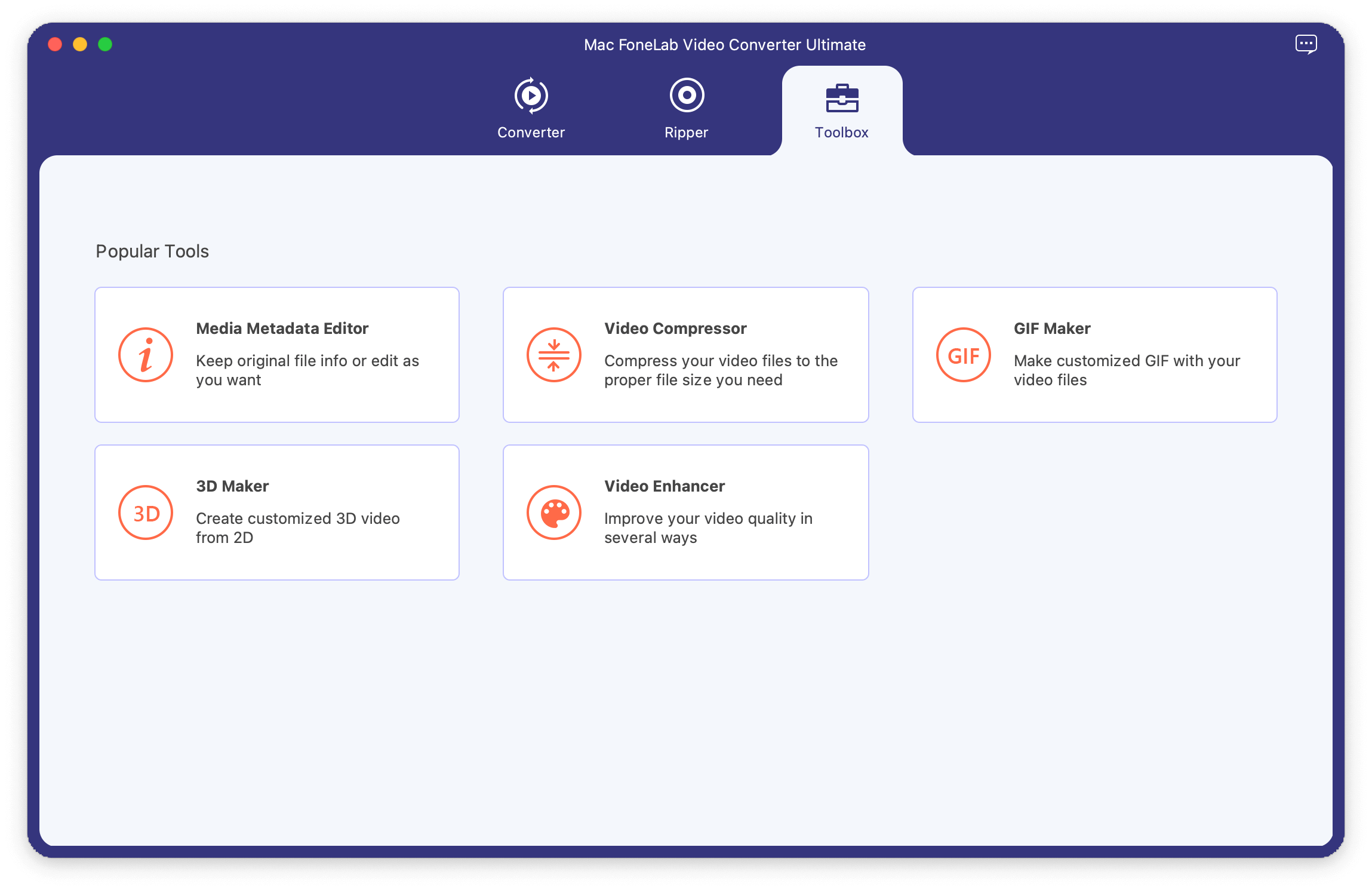
Media metadata editor, video compressor, GIF maker, 3D maker and video enhancer are available
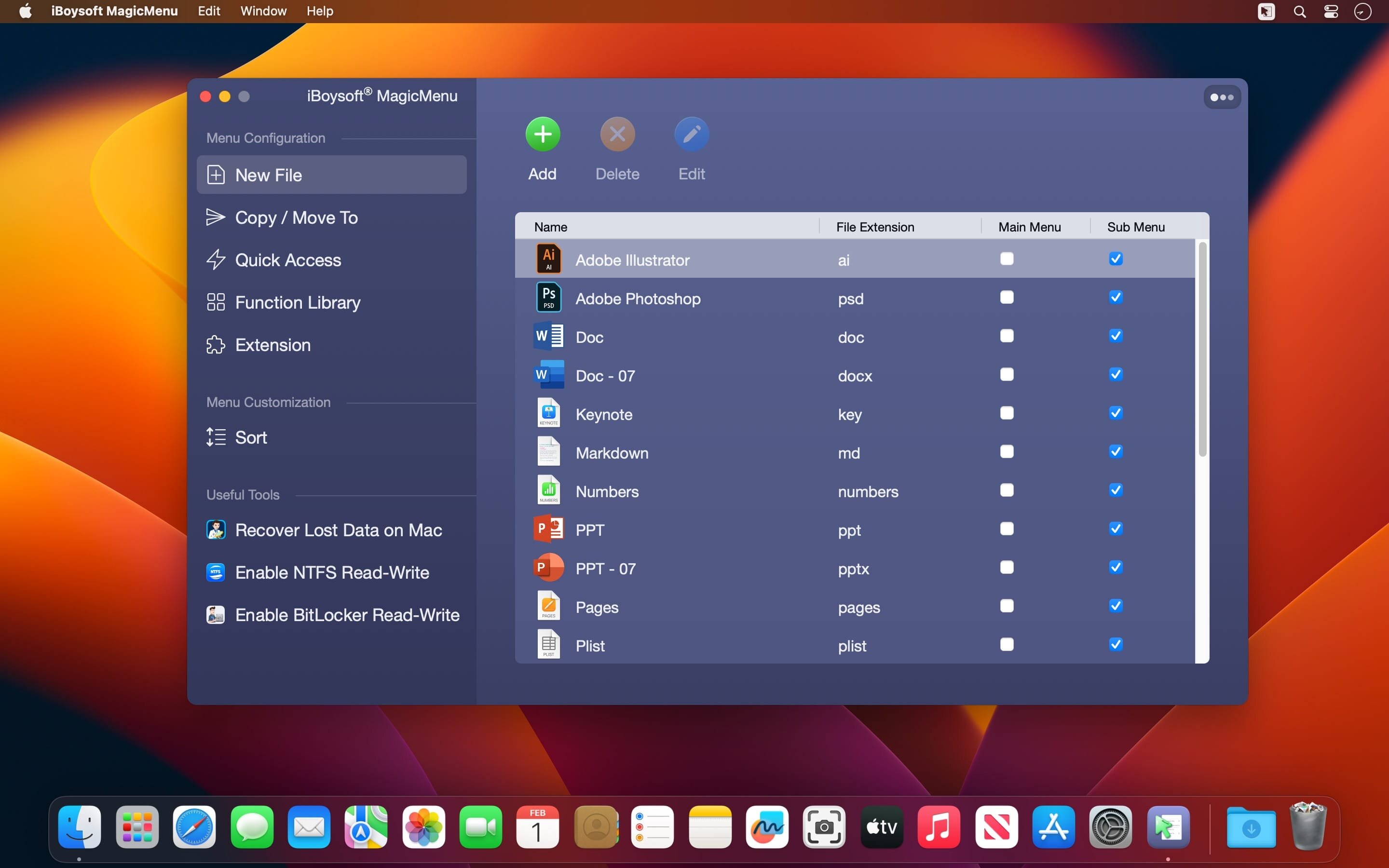
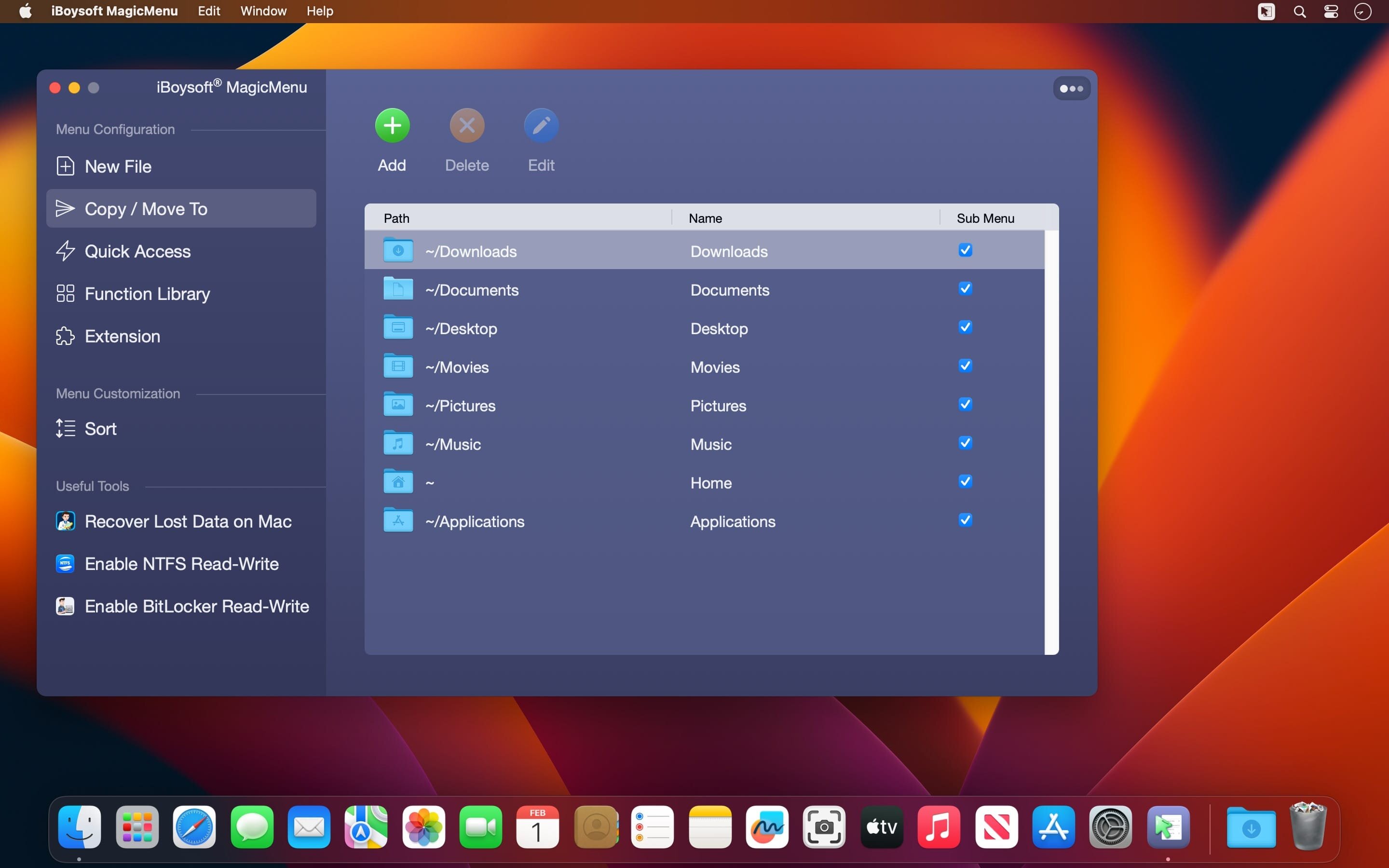
iBoysoft MagicMenu is a small tool to help customize and enhance the right-click menu on Mac. It allows adding new and improved functionalities to your control panel of a right-clicking mouse button, double-pressing on a Trackpad, or pressing the bottom right corner on a Trackpad of a MacBook Air or MacBook Pro.
With it, you can take better control of your right-click menu on Mac. You can add and customize new file creation, file transfer, quick access, app uninstalling, screen recording shortcuts and more to your right-click context menu.
Fully Customizable Finder Menus on Mac. Use the best Mac right click enhancer to help customize right click menu for Finder and then improve work efficiency on macOS.
Add Useful Shortcuts to Right Click Menu on Mac
macOS provides limited options in the control click menu. iBoysoft MagicMenu can add more useful options to improve your work efficiency and give you a clearner desktop.
Create a New File
It lets you add a shortcut to create a new file that you frequently need including doc, docx, xls, xlsx, txt, pdf, ppt, Keynote, Pages, Markdown, and Numbers when you right click your mouse on the blank space on your desktop or in an open folder. There is no need to open applications for new file creation.
iBoysoft MagicMenu also allows users to import a blank or pre-edited template file from a local folder as a shortcut if wanted file types are not listed by default.
Move Files Quickly
Mac allows you to move a file to another destination by seleting and dragging it. It can be inconvenient if the target folder is hidden. iBoysoft MagicMenu helps you add folders to Move To menu and you can move a file to a target path with a single right click.
This right click booster can add local folders, network drives, and external devices to your Mac control click menu to enable a more efficient file transferring. Moving a file will delete the file in its original folder.
Copy Files Faster
Are you still using Command+C and Command+V to copy and paste a file from one folder to another? You can add a folder shortcut to Copy To menu with this Mac right click enhancer, which helps you copy files to a location faster.
iBoysoft MagicMenu allows you to add Mac’s Library folders like Downloads, Documents, Desktop, Applications, Pictures, and Movies, user-created folders, or external disks to your right click menu for file copying.
Quick Access to an Item
You can add applications, folders, disks, browsers, and webpage links to the control panel of your right click.
You can easily access the apps you frequently use without opening Finder or Launchpad. You can open your work files with a right click instead of finding it in Finder or external disks. You can browse a webpage without saving a bookmark on a browser.
Completely Uninstall Unwanted Applications
If you want to free up disk space, reinstall misbehaving software, or delete an old app on Mac, it’s essential to remove all components of the program. This usually requires you to move the unwanted app to the Trash and go over about 9 folders to delete the leftovers associated with it.
However, powered by iBoysoft MagicMenu, you can completely uninstall any unwanted third-party apps with three clicks. Simply right-click an app in the Applications folder, select Uninstall, and tap Uninstall again to fully get rid of it.
Personalize Right Click Menu
iBoysoft MagicMenu V2.0 update adds many more useful features in Function Library such as screen recording, screen capture, hide/unhide files, copy file path and cut file to the right click options on Mac.
This Mac right click enhancing tool supports personlizing your own right click menu by adding user-built functionality and managing categories.
Mac Right Click Booster
If you feel the options in the current right click menu are not enough, iBoysoft MagicMenu can help you extend the control panel of your right click menu on Mac.
It adds new features such as creating a files, copying or moving files to another location, uninstalling unwanted apps, and offering quick access to an item. If you need extra options and customization of your right click context menu, download iBoysoft MagicMenu now.
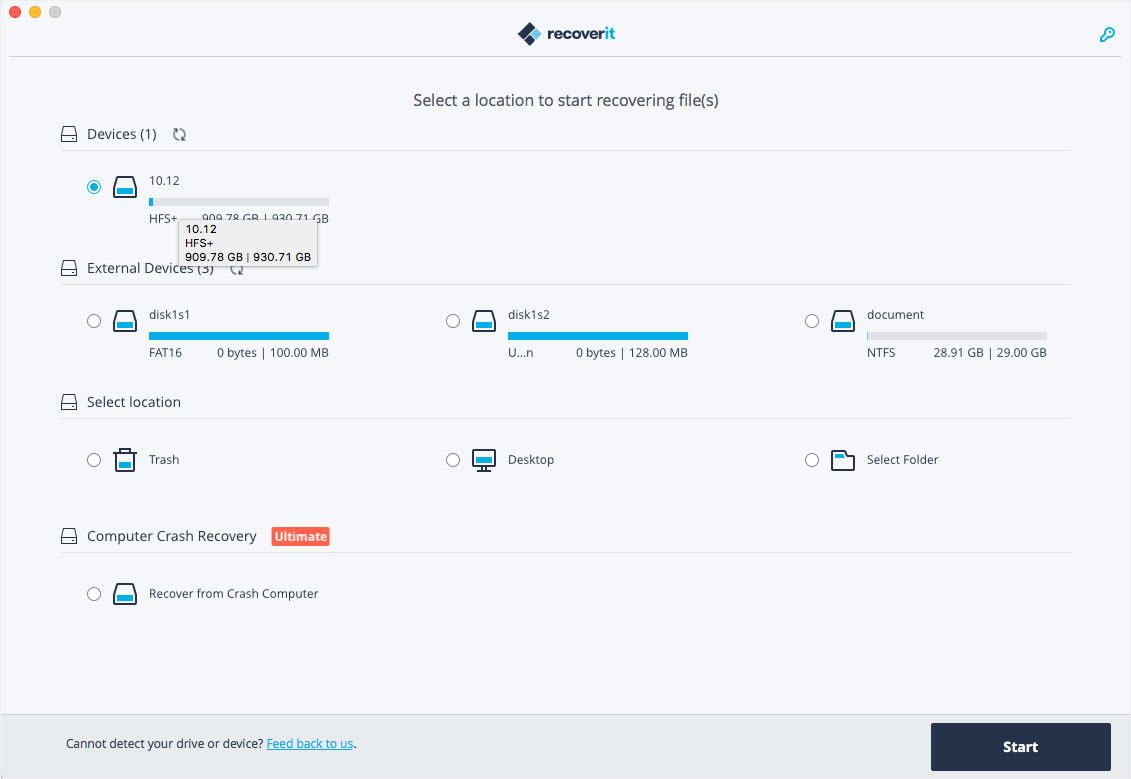
Wondershare Recoverit is a comprehensive data recovery suite to recover Mac data lost due to accidental deleting, formatting, virus infection, improper operation, unexpected power failure, and other unknown reasons.
It can recover Mac data from lost, deleted, logical corrupted and formatted Mac hard drive, iPod, USB drive, SD card, digital camera, mobile phone, MP3, and MP4 player. Compatible with HFS+, FAT16/32, and NTFS file system volumes, this non-destructive Mac file recovery software ensures safe Mac file recovery without modifying the original data saved on your Mac machine or any other storage media. Versatile preview lets you enjoy Mac data recovery in advance.
Features
Safety First:
Read-only and risk-free Mac data recovery program. No any writing operation to your original data.
Versatile Preview Ability:
For images, real-time and direct scan results is displayed during the scan process to let users stop scanning once the target images are found.
For other Mac files such as videos, audio files, archives and documents, they are displayed as a text in a Hex mode for preview to let users enjoy file recovery on Mac in advance.
Precise File Recovery for Mac:
Before data recovery on Mac, you can choose the target file types to scan, which saves you much time especially when there are tons of files on your Mac machine.
Restore deleted files for Mac with original file names, shooting date, and storage paths.
Support file names search for scanning results to provide you precise Mac file recovery.
Easy-to-use and Clean Interface:
Complete wizard and easy-to-use interface let you perform Mac data recovery in a breeze.
What’s New:
Version 11.0.4.11:
Release notes were unavailable when this listing was updated.
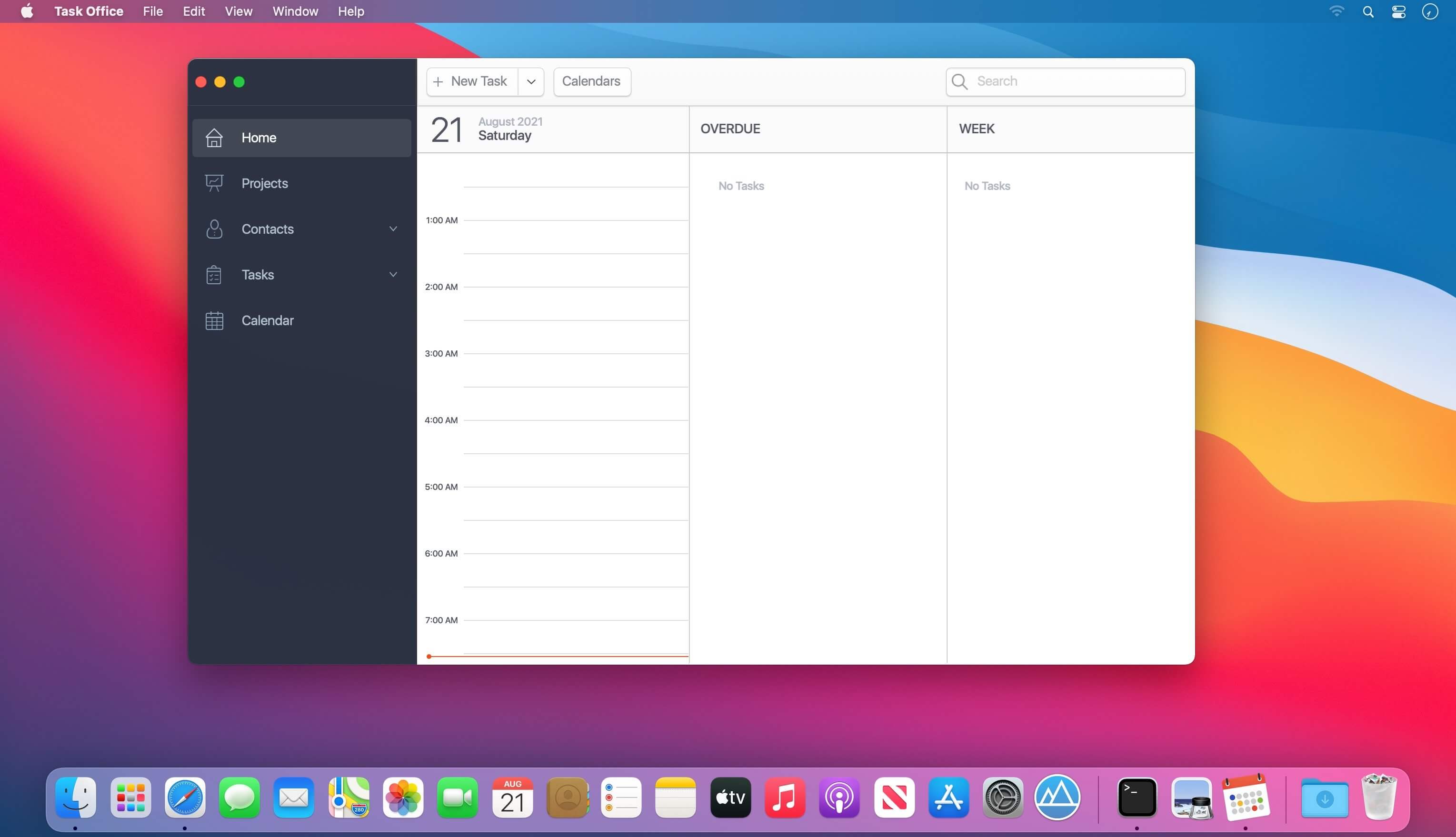
Task Office – existing GTD, to do lists, projects and contacts management apps. Designed to make business planning, scheduling and getting things done more efficient. Task Office makes your plans clear and achievable. Manage both simple and complex projects, to do lists without any difficulties and focus on the final result. Manage your contacts and relationships, schedule your time and succeed.
Features:
Get acquainted with Task Office
In order to get easily explore with App simply browse a Sample. Get prefilled to do lists, projects, contacts and calendar to view Task Office in use.
Planning & Performing
Start scheduling each new day on Home screen. Here you will find your current projects and to dos: a timeline with tasks you have planned for today and outline of upcoming tasks. Home screen allows you to focus only on current tasks, planned for today, and not to get lost in plenty of other planned tasks. You can plan your day directly from Home screen creating new tasks, projects, contacts and companies.
Quick & Easy navigation
Reach any project, task, to do list or contact in seconds. Task Office is designed in a way that will allow you to navigate within app screens just in one tap
Organize your tasks by categories, projects or priorities and make a logic order of all your plans
Detailed GTD
Add all important details to get things done: choose tasks category, status, priority and set dates
Assign tasks to people by choosing a person from all existing contacts
Add locations to each task and project
Make all your information categorized- assign special categories for easy filtering and browsing through tasks and projects
Comprehensive GTD Tab
All tasks are organized according to GTD methodology (by D. Allen)
Add tasks of different types: ToDo – tasks with duration of several days, Appointment – assign task duration accurate to minutes, Email/Call – short task for making calls or sending emails to any user
Tracking project progress
Track the progress of your projects and to do lists by viewing the pipeline: view the percentage of work performed and how many tasks still need to be done
Check out everyone who is involved in project: view the list of contacts involved in the project
Managing your team
Create new contacts and companies; add all the important information about your contact or company. Either you can export existing contact from your Apple Address Book
Send e-mails directly from Contacts Screen
Group your contacts creating your Private Lists, so that you can easily monitor their productivity and track task implementation. Save each Private list and refer back to easily
Visualized Calendar
Task Office calendar allows you to focus on what is important in your timeline. See your planed To Dos, Appointments, Emails/Calls to get things done in time
View calendar by day, week or month
Add tasks directly to the Calendar by Tap&Hold
Change tasks duration or Start and Due Dates simply by Drag&Drop
Calendar Syncing
Task Office connects all of your calendars using two-way sync
iCloud Sync
Sync your information – tasks, projects, contacts, etc. – between your devices
Set goals and achieve them. Become a part of Task Office team today!
What’s New:
Version 8.9:
Release notes were unavailable when this listing was updated.
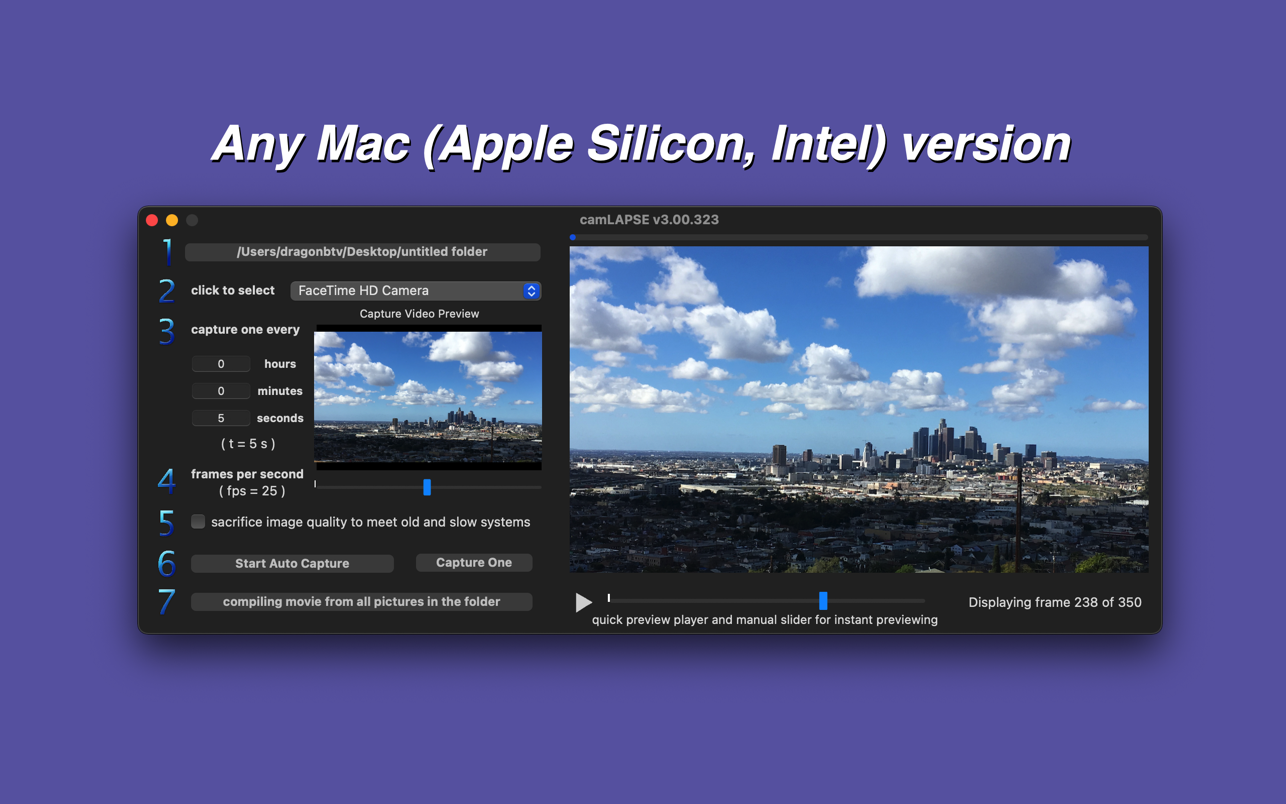
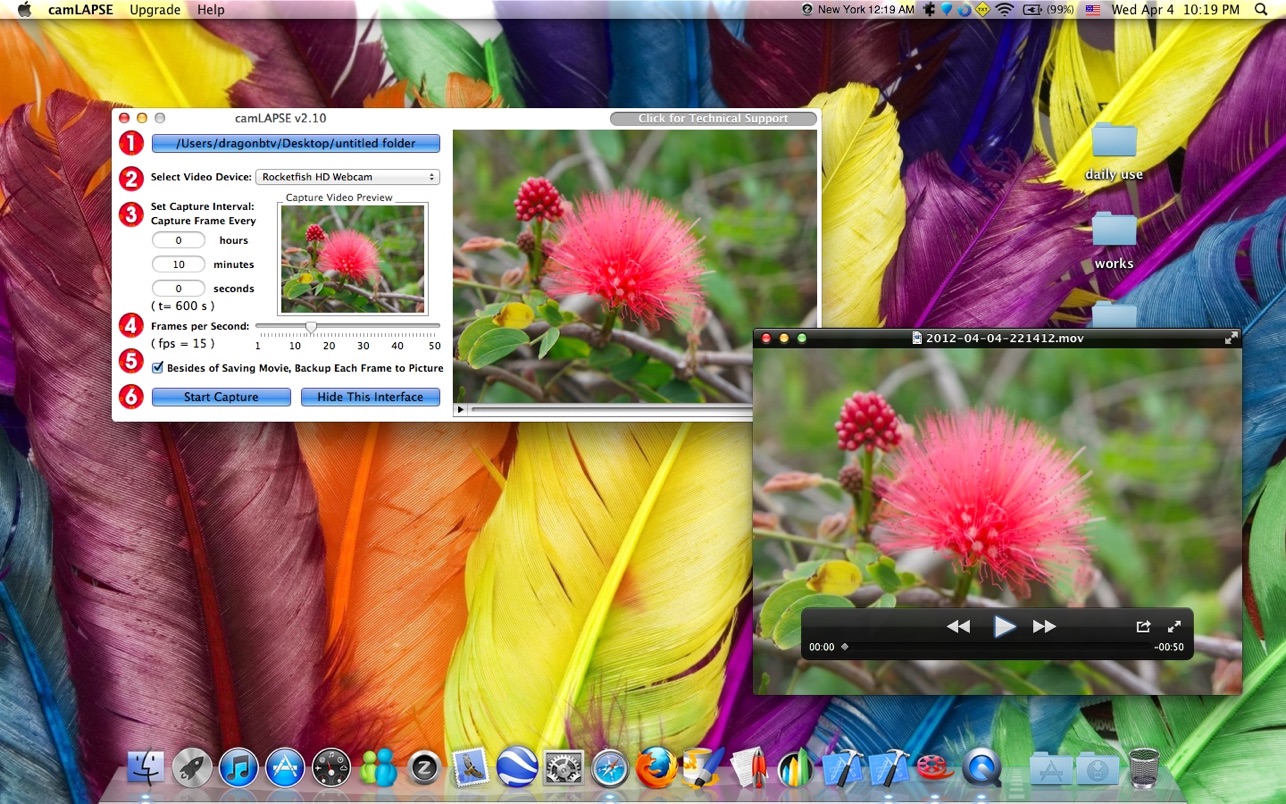
With camLAPSE, your movie is yours to control. You can determine everything, from capture frequency to the frame rate of the completed movie. camLAPSE is your ultimate tool for time-lapse movie generation!
Are you a YouTube lover vying for attention? It might surprise you to know that while very simple, time-lapse movies attract some of the most attention among different types of videos. Be it a blossoming flower, a crawling snail, or the panorama of a great sunset, life is full of beautiful things that can be captured with camLAPSE. Of course, camLAPSE is also great for surveillance.
Benefit from the quality of modern professional cameras, time LAPSE movie making is easy and efficient…
* As the captured quality could be too high, We added an option to LOWER the captured picture resolution or video quality for those old Macs.
Features
• USB & FireWire HD Webcam, iSight Cam, and DV video devices are all supported
• Capture interval can be freely set, from one second to 1000 hours
• Frames Per Second (fps) of the finished video can be set from 1 to 50
• Can save all your captured images in addition to generating the video
• If you set a long capture interval (30 seconds and above), camLAPSE will not hold your camera in that duration, meaning it is free to handle another task.
• Will capture the highest image quality possible
• Super-easy operation, step-by-step user guide included
• The whole app is fully rewritten
• Preview will produce real effects of the FPS setting
• All deprecated functions rewritten
SyncTime is the simplest solution to synchronize your files. Did you ever wish you could easily keep up to date all your backup copies, distributed across many devices?
SyncTime will just do it.
SyncTime is capable of so many things, yet is so simple to use. From manual, scheduled or completely automatic syncing, to background syncing, bidirectional syncs and sophisticated exclude filters, you’ll be able to set up your syncs exactly as you imagine.
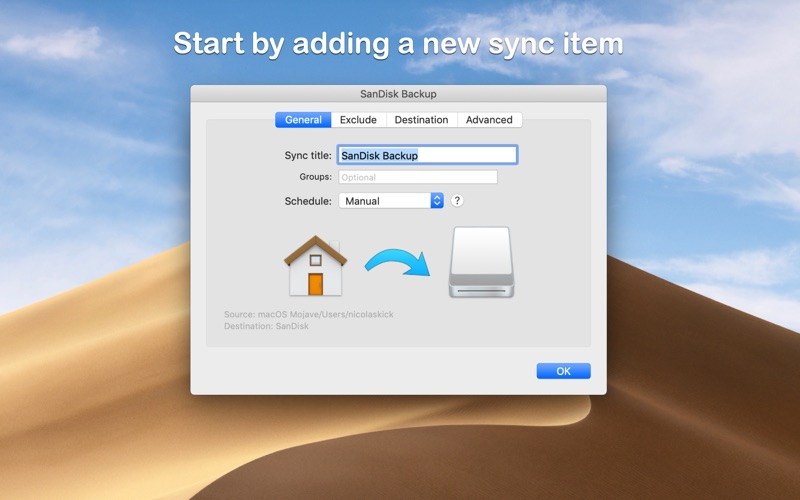
You can create as many sync items as you need and customize each one individually. A sync item mainly consists of two folders: a source and a destination. You can choose any two folders reachable in the Finder: they can be located on your Mac, on an external drive, like a USB stick, or even on a remote server. Among the possible options you will find:
four overwrite policies: don’t touch files already existing on the destination, overwrite only if the source file is newer than the destination file, overwrite if the source file has a different timestamp or overwrite always
three sync types: one-way sync (default), two-way sync (merge source and destination) and one-way move (delete the source files after a successful transfer to the destination). Please read carefully about these sync types in the Help section on the SyncTime website
remove files that don’t exist on the source anymore
background syncing: changes are monitored in real time in order to keep your destination always up to date
start to sync automatically whenever source and destination become available or sync once a day, a week or a month
every sync item can be dependent on other sync items: it will trigger the dependencies and run automatically when they are all completed
files to be overwritten or removed can be moved to the trash or to a custom backup directory
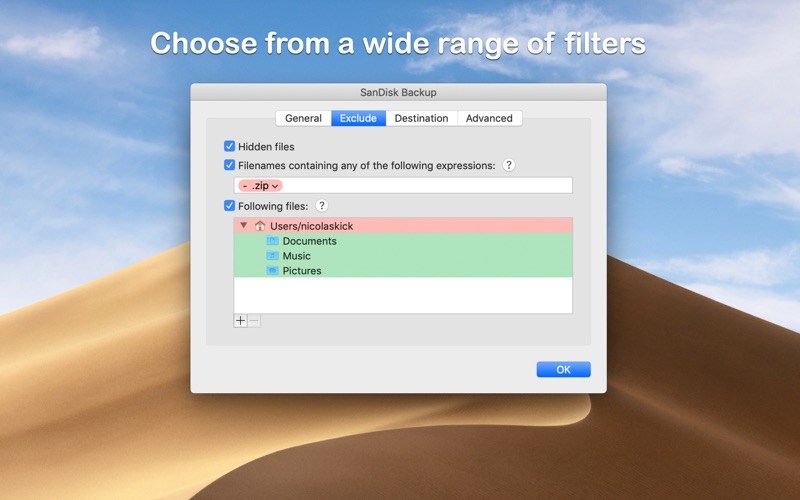
exclude hidden files, files with names containing specific words or matching a regular expression, and selected files. Or exclude the root directory and specify just some included files.
Other features include:
changes have to be confirmed by default and you can inspect the files that will be added, overwritten and removed and preview them in QuickLook
cancel a running sync at any time and restart it later
syncs run in parallel
automatic launch on login can be enabled from the status bar menu
your Mac can automatically be set to sleep or shut down after all syncs have finished (requires the respective Applescripts to be installed in the Scripts directory. For detailed instructions, please visit the website).
A brand new version with Bluetooth Low Energy devices(they are almost in this mode nowadays) support. All Sandbox restricted action (e.g. start/terminate other apps) removed…
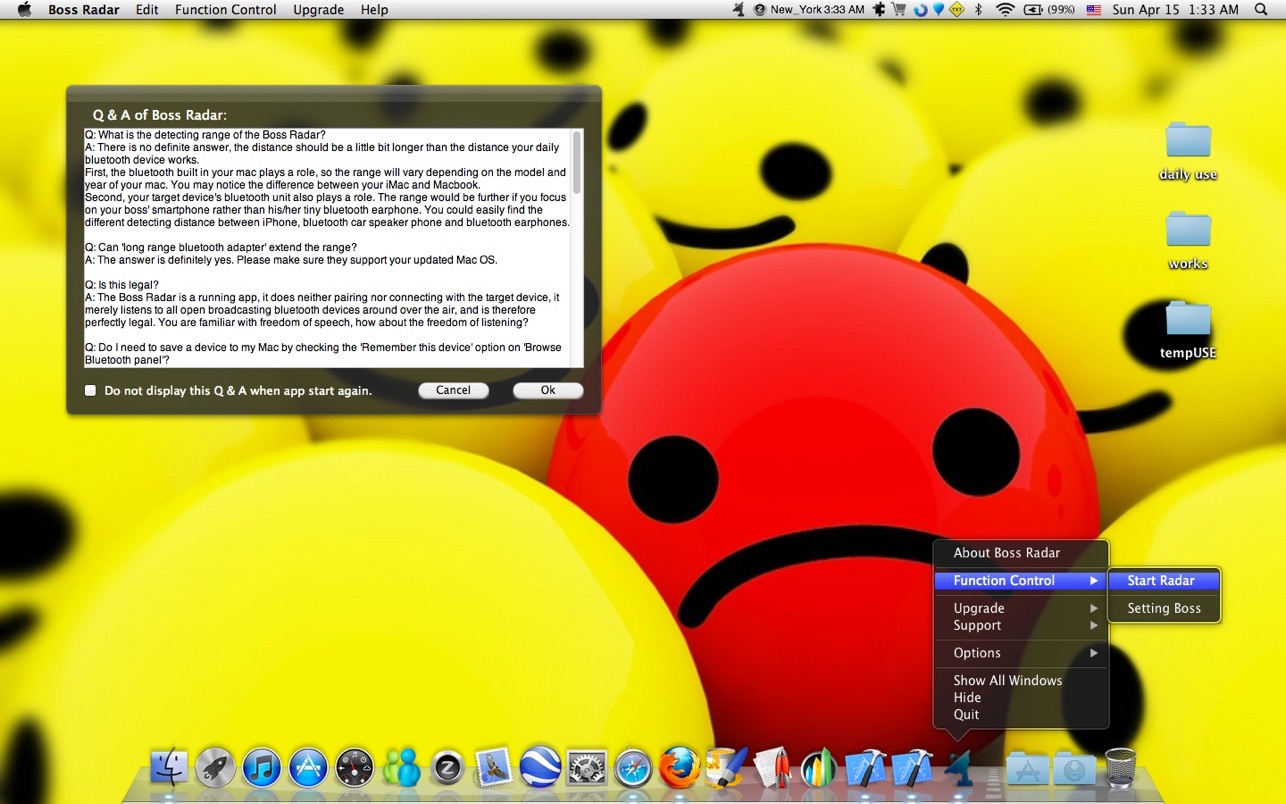
Almost everyone has been caught off task by the boss before. The encounter may be awkward, humiliating, or most likely downright disastrous. But, the truth is, nobody can work forever. In fact, if you are like most people, whatever focus you had at the beginning of the day must surely be all but gone after several long, arduous hours of work.
It’s not criminal to play a few games, look at some LOLcats, or shop on Amazon for a while to relax yourself every once in a while. You can even argue that by relaxing, your productivity increases. But, of course, your excuses will never work on your boss, who will either give you a humiliating and boring speech or worse yet, demote or even fire you.
Unfortunately, this app can’t make your boss more understanding, but it’s the next best thing.
Bosses often seem to pop out of nowhere, and usually at moment’s notice, but that cannot be literally true since it would defy the laws of physics. No, your boss had to come from somewhere, and if you had known exactly when he was going to come by your desk and check on you, all those embarrassing, promotion-killing encounters with him might have been avoided.
Knowing the location of your boss and the timing of his arrival may seem like a luxury, but not with Boss Radar.
Here’s how it works
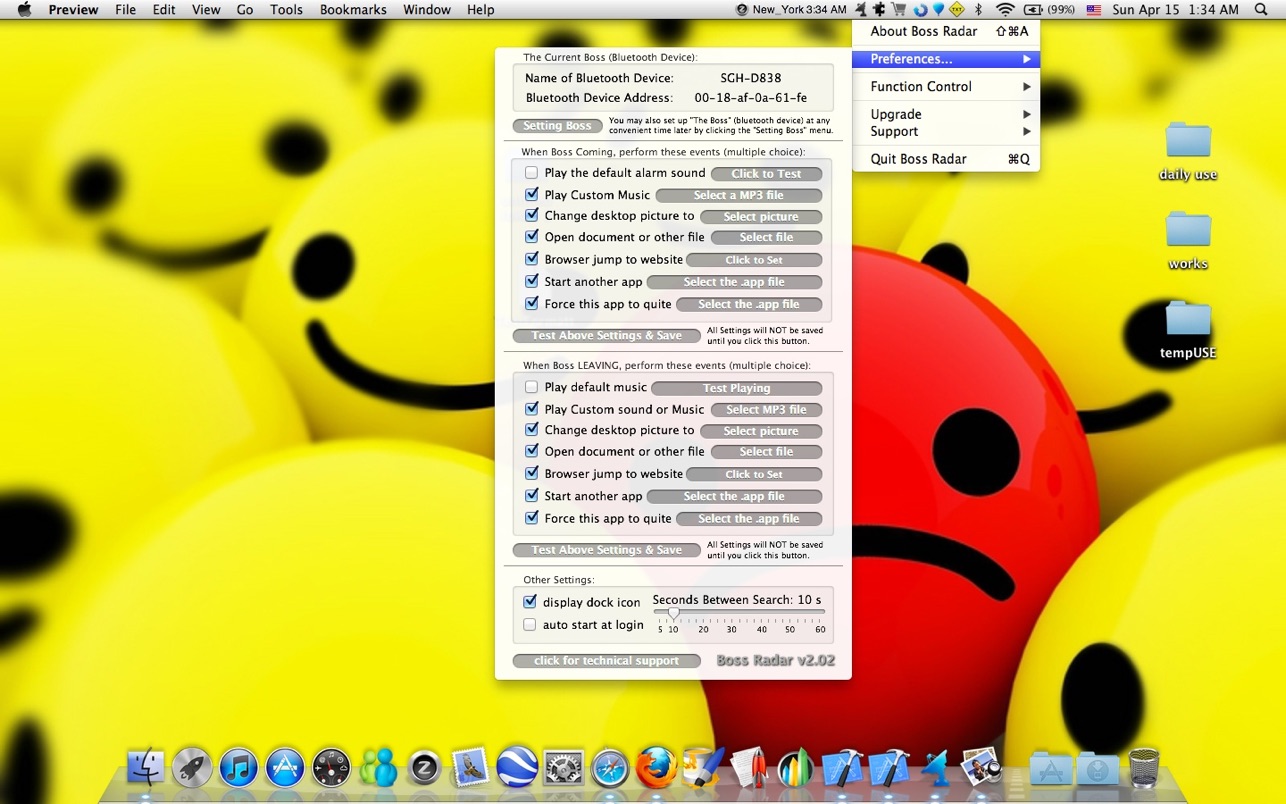
Most people nowadays, especially people such as your boss, carry some sort of Bluetooth device (earpieces, smartphones, etc…) on their person at all times. And whether the device is in use or not, the Bluetooth signal is always being emitted. It’s like this huge loudspeaker announcing the device owner’s presence everywhere he walks (because people always name their devices with some easily identifiable name lie “Dave’s Phone”). Boss Radar constantly scans for this signal. Because it is not very strong, if it does find the target device, that means the device (carried by the boss, in this case) is getting too close, and it would then warn you with a signal. In addition to the alarm, the app can also quickly and automatically change your wallpaper, stop your music, switch your browser to something work-related, open up documents, and even kill undesired apps (Warning: loss of game progress may occur!) to convince your boss of your innocence, god-like focus, utter devotion, and, most of all, the worthiness of promotion (I mean, isn’t that the whole point of pleasing the boss, to begin with?). Considering the higher salary associated with this prospect, Boss Radar is certainly worth the price.
The best part is, Boss Radar can be useful even outside of work. Use it on your wife, or maybe your kids, or maybe on that girl you met a couple of weeks ago but cannot seem to run into anymore… the list is endless.
Features
• Always on guard and scanning for your target device to protect you from your boss!
• Adjustable scanning intervals – from 5 to 60 seconds!
• Dock icon can be hidden
• Status menu icon color changes accordingly to the mode
• Two modes available, can detect both the coming and going of your boss!
• Option for an audio alarm for approaching the boss
• Options for turning on previously set music or getting rid of the currently playing one, changing your desktop picture, and opening and closing previously determined webpages, files, and apps – the app can do whatever you need to create the illusion of you working.
• The whole app is fully rewritten
• Bluetooth device detection to include BLE low energy support
• Simple click and diagnostic mode
• All Sandbox restricted actions removed
• All deprecated functions rewritten
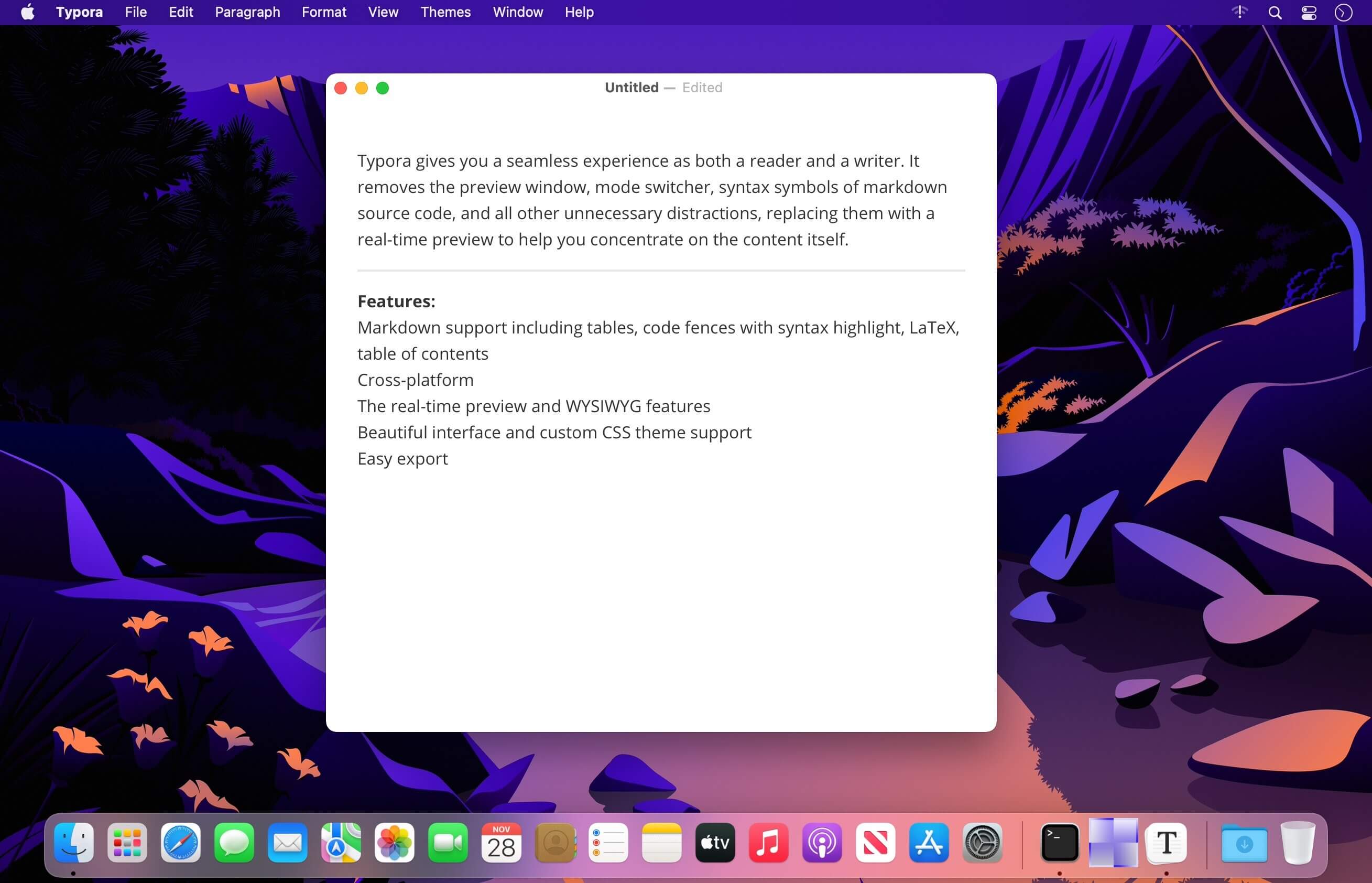
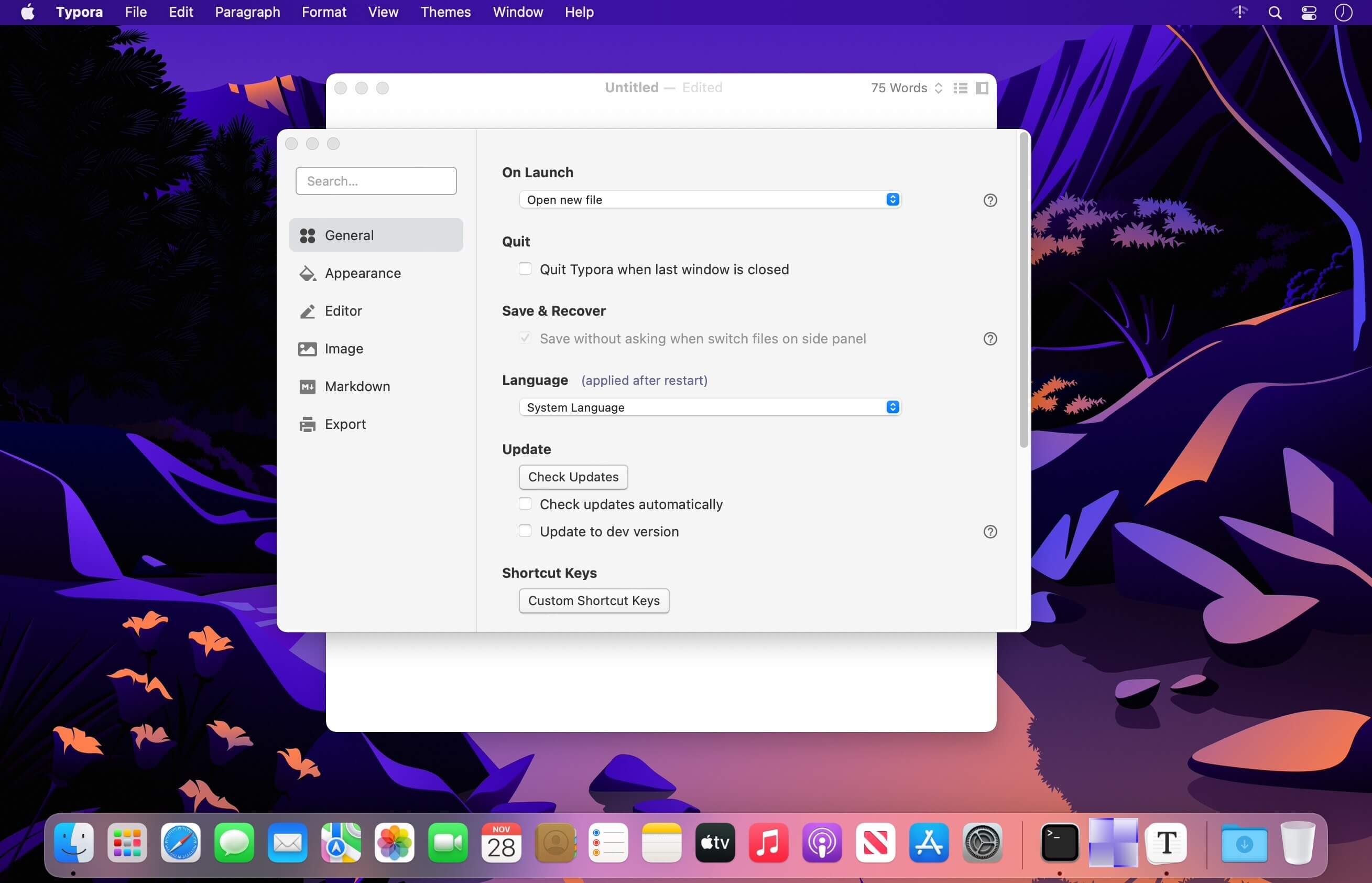
Typora gives you a seamless experience as both a reader and a writer. It removes the preview window, mode switcher, syntax symbols of markdown source code, and all other unnecessary distractions, replacing them with a real-time preview to help you concentrate on the content itself.
Features:
Markdown support including tables, code fences with syntax highlight, LaTeX, table of contents
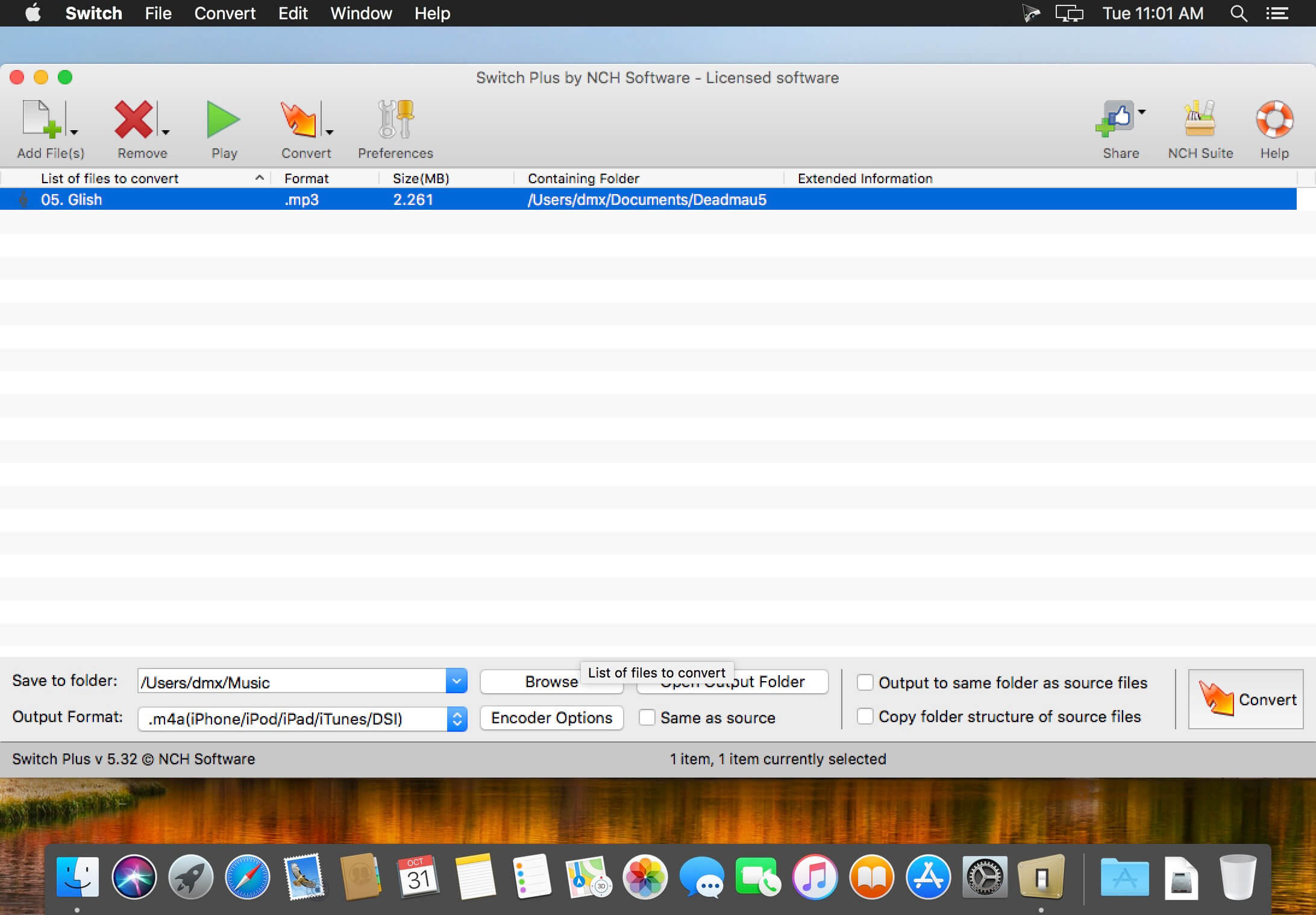
Switch is one of the most stable, easy-to-use, and comprehensive multi format audio file converters available.
→ Universal audio converter supports all popular formats
→ Convert or compress sound files in seconds
→ Batch audio converter to convert many files at once
→ Extract audio from any media file including video
Switch Audio Converter Features:
• Convert between 75+ audio file formats
• Music tags preserved for supporting formats (e.g., MP3, WAV, WMA, FLAC and OGG)
• Import and convert a playlist (M3U and PLS)
• Extract audio from DVDs and video files (e.g., AVI, MOV, MPEG)
• Access online database to add song information
• Listen to tracks prior to conversion
• Batch convert many audio files at once
• Convert from multiple file formats at one time
• Use your right click menu to convert audio files directly from Finder
• Automatically normalize audio while converting
• MP3 encoder for constant or variable bit rates
• WAV encoder and FLAC converter supports a range of sample rates
• Use as a command line plugin for automation with software to convert or compress audio files
• Equalize audio as you convert files
• Apply click/pop reduction and noise reduction to converted audio
• Upload converted audio directly to YouTube, Google Drive, OneDrive and Dropbox
• Edit ID3 metadata tags
• Convert audio files in a couple of clicks
• Update metadata of audio files
Switch Top Features:
→ Convert Audio Formats
Supports converting between all popular audio file formats.
→ Add Audio Effects
Reduce noise, equalize audio, amplify volume and more.
→ Audio Preview
Preview your new audio file to check effects and settings.
→ Metadata
Automatically apply metadata to converted files.
→ Direct CD and DVD Converter
Easily convert audio CDs and video DVDs to audio files with just a few clicks.
→ Supports Batch Conversion
Convert or compress a large number of audio files at once.
Supported Audio File Formats
• WAV, MP3, WMA, M4A, OGG, AVI, from MID, FLAC, MOV, AMR, AAC, AU, AIF, RAW, DVF, VOX, CDA, GSM, DSS, WMV, OPUS and many more audio formats
Audio Converter Power Features
• Extract audio from DVD
• Convert music from MIDI to MP3, WAV, etc.
• Normalize audio levels
• Batch convert thousands of files
Typical Audio Converter Applications
• Convert audio files for your iPod, phone or tablet
• Compress audio files to save hard drive space
• Convert to MP3 or M4R for use as a ringtone
• Convert audio files not supported by other software
• Extract sound bites from video files or DVDs
• Open formats not supported by your sound editor
• Create compressed MP3 files for easy online sharing
• Convert audio files to M4B to create audiobooks
Convert Between All Key Audio Formats
Use one of the best audio file converters on the market for lightning fast, quality conversions.
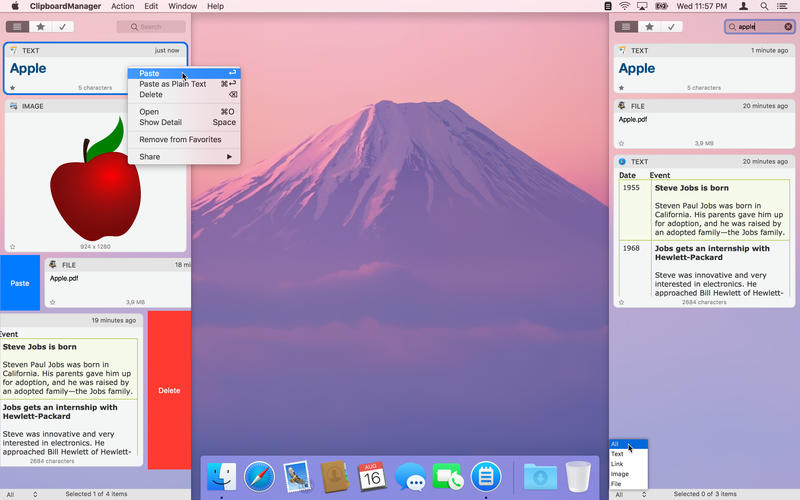
Clipboard Manager is smart clipboard history manager, which stores everything you copy for the later uses.
Key Features:
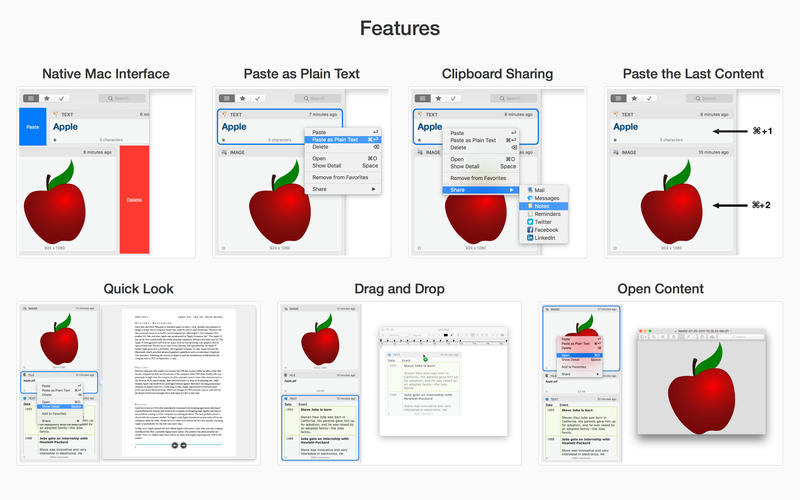
• Native Mac Interface – Paste or Delete clippings by swipe gesture.
• Direct Paste – Paste clippings direct to the current application.
• Application Actions – Paste, Paste as Plain Text, Open, Save to File and Search with Google.
• Custom Actions – User defined actions using AppleScript or Automator Workflow.
• Quick Panel – Panel in the header of every clippings for quick action execution.
• Drag and Drop – Drag and drop clippings to any application.
• Quick Look – Large preview for any clippings type.
• Sharing – Share clippings with your friends.
• Selected Text – Work with the selected text.
• Bulk Actions – Paste, delete or share more clippings at one time.
• Search and Filter – text search and filter clippings by type or application.
• Favorites – Choose your favorite clippings for easy search.
• Folders – Organize your clippings to Folders.
• Most Used – Show clippings ordered by paste count.
• Mode without Dock Icon – Show application window on active screen and active space.
• Ignored Applications – Ignore the contents of the clipboard from these applications.
• Ignored Contents – Ignore the contents of the clipboard by pasteboard type.
• Global Shortcut – Show application from anywhere.
• Launch Application at Login.
• Touch Bar Support.
TransData – Internet Data Transfer Rate. If you have the above questions, then your PC should have TransData App. See the network data transfer rate from your personal computer. This utility adds data transfer rate with icon and transfer rate in Kbps or Mbps on the menu bar.
≈ Features: ≈
◉ Shows network data transfer rate in Kbps/Mbps with up/down speed on your menu bar.
◉ Display the total data used by Mac from the start of the session.
◉ Monitor and reset Internet data usage.
◉ Displays connected WiFi network in the menu.
◉ A Beautiful widget or graph that shows upload & download internet speed per second.
◉ Display refresh rate can be set in preferences.
◉ Internet data can be displayed in two formats either KB/s(Bytes) or kb/s(bits).
◉ Dark/Light mode for all macOS versions.
TransData works with MacBook Air(M1), MacBook Pro(M1), iMac, MacBook, MacPro, Mac Mini.
≈ Basics: ≈
◎ Up/Down Speed: Upload/Download internet transfer rate per second (Kbps/Mbps)
◎ Up/Down data: Total Upload & Download internet date used over a period of time.
◎ Micro View: Floating widget on the desktop with Up/Down internet data transfer rate.
◎ Macro View: Graph which shows internet data transfer rate in detail.
≈ Menubar Preferences: ≈
◎ Total Internet data used: Display total of data sent and received.
◎ Upload speed: Display only upload internet speed.
◎ Download Speed: Display only download internet speed.
◎ Up & Down Speed: Show both upload and download speed.
◎ Active Speed: Shows upload or download, whichever is highest.
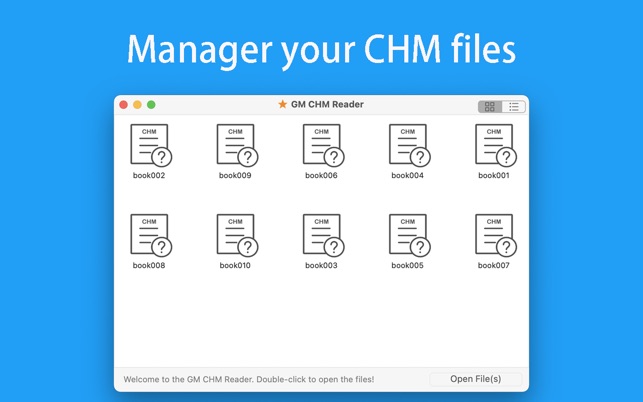
CHM Reader is a lightweight chm file reader, it can help you view your chm files, and export chm to PDF
※ CHM Reader
– Support single page search and full text search, and highlight search results.
– Support the forward and backward browsing history.
– Support page turning, zooming, and sidebar shrinking.
– Support page printing.
– Support CHM to PDF.
※ Bookshelf
– All the files you have read will be saved in the bookshelf for quick review next time.
– Support file(s) drag and drop addition.
※ Reading Experience
– It can remember the location of the last reading, so that it can continue reading next time.
– Photo adaptation, better layout.
– Support for page zooming using command+ or command- key combinations.
– Support for quick page turns and quick view of history pages using a combination of command and up and down left and right arrows.
– In the process of page reading, you can use the buttons J and K to quickly slide up and down the page.
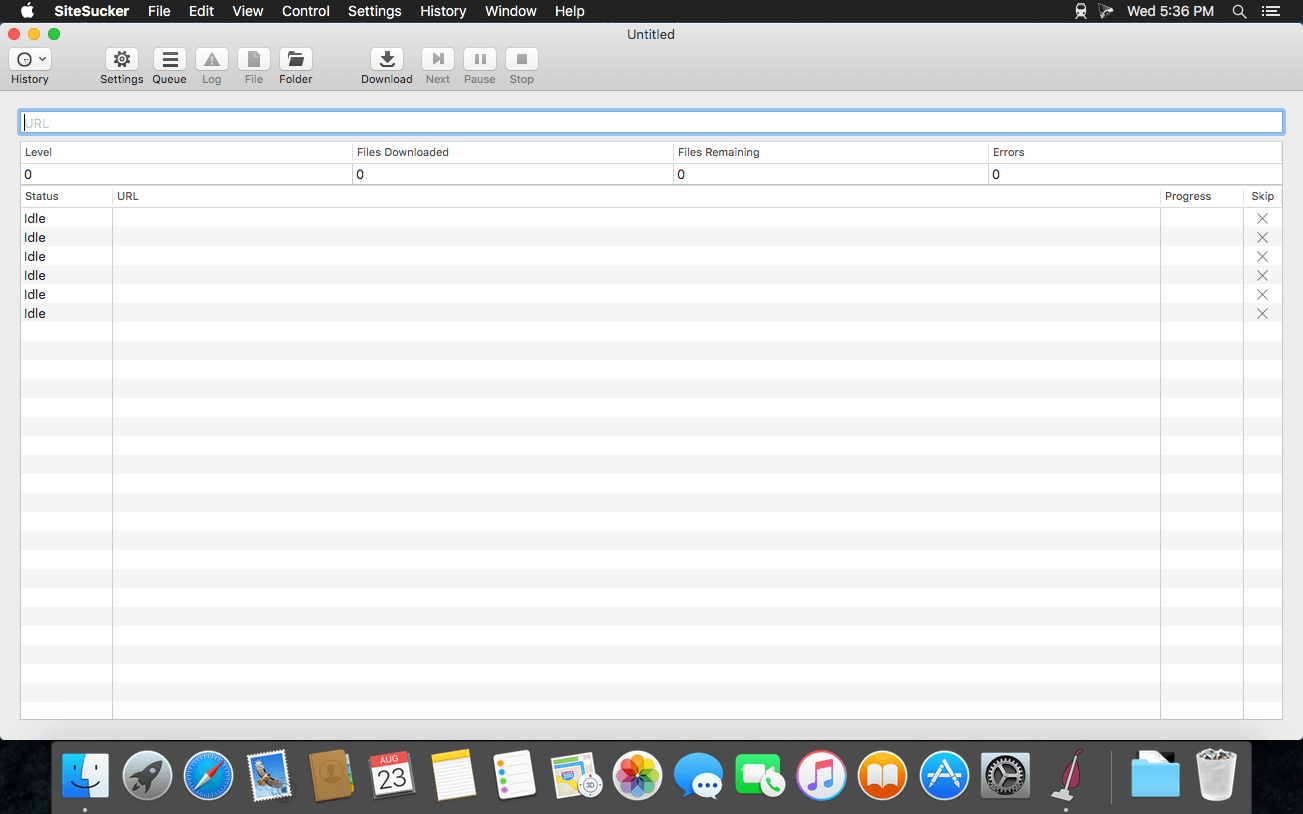
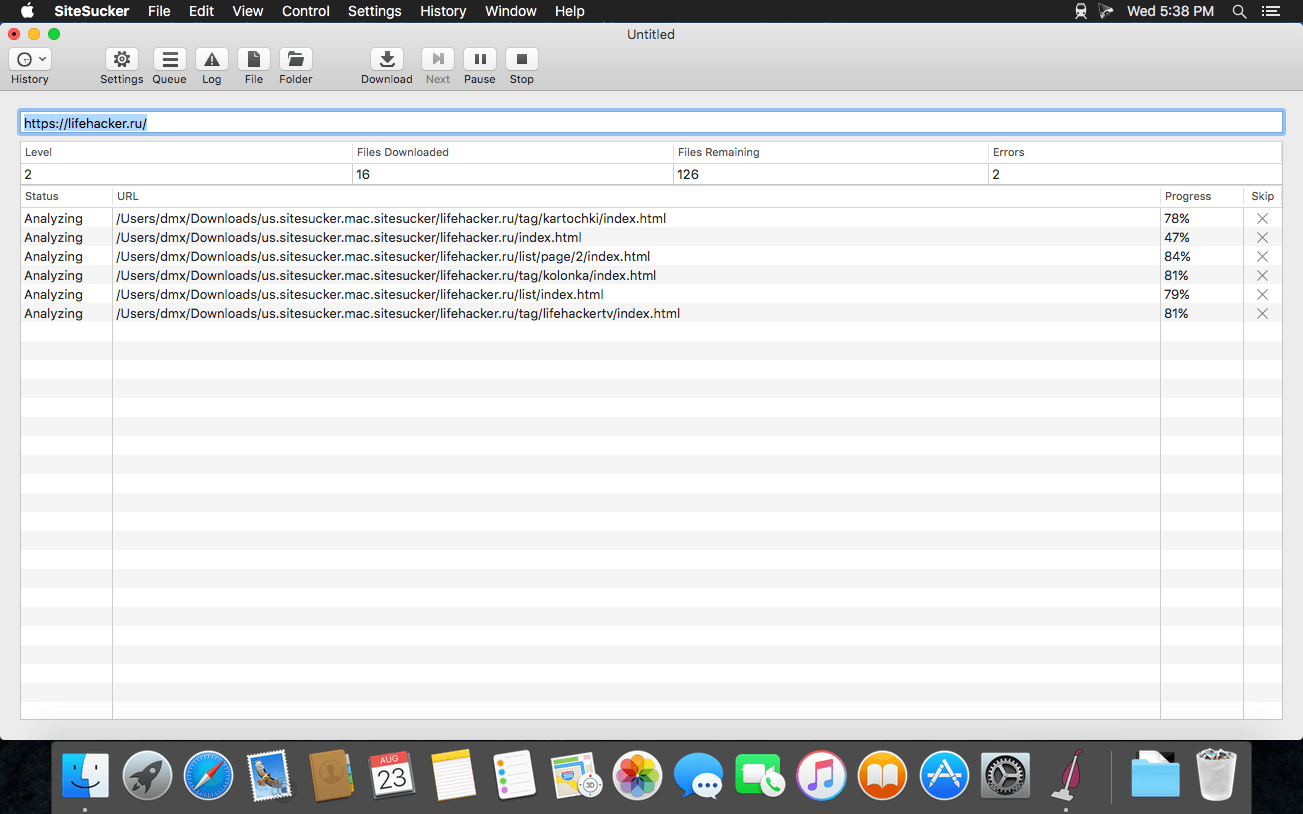
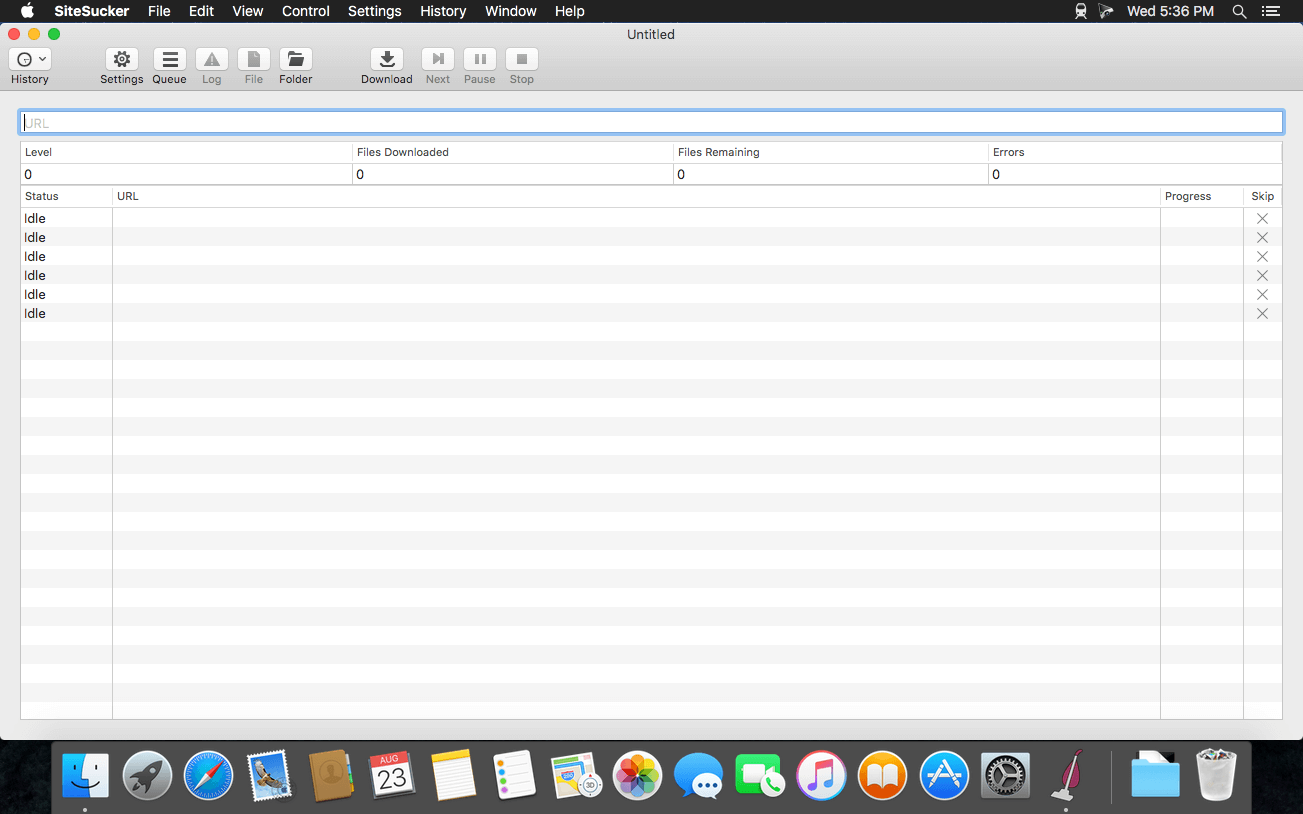
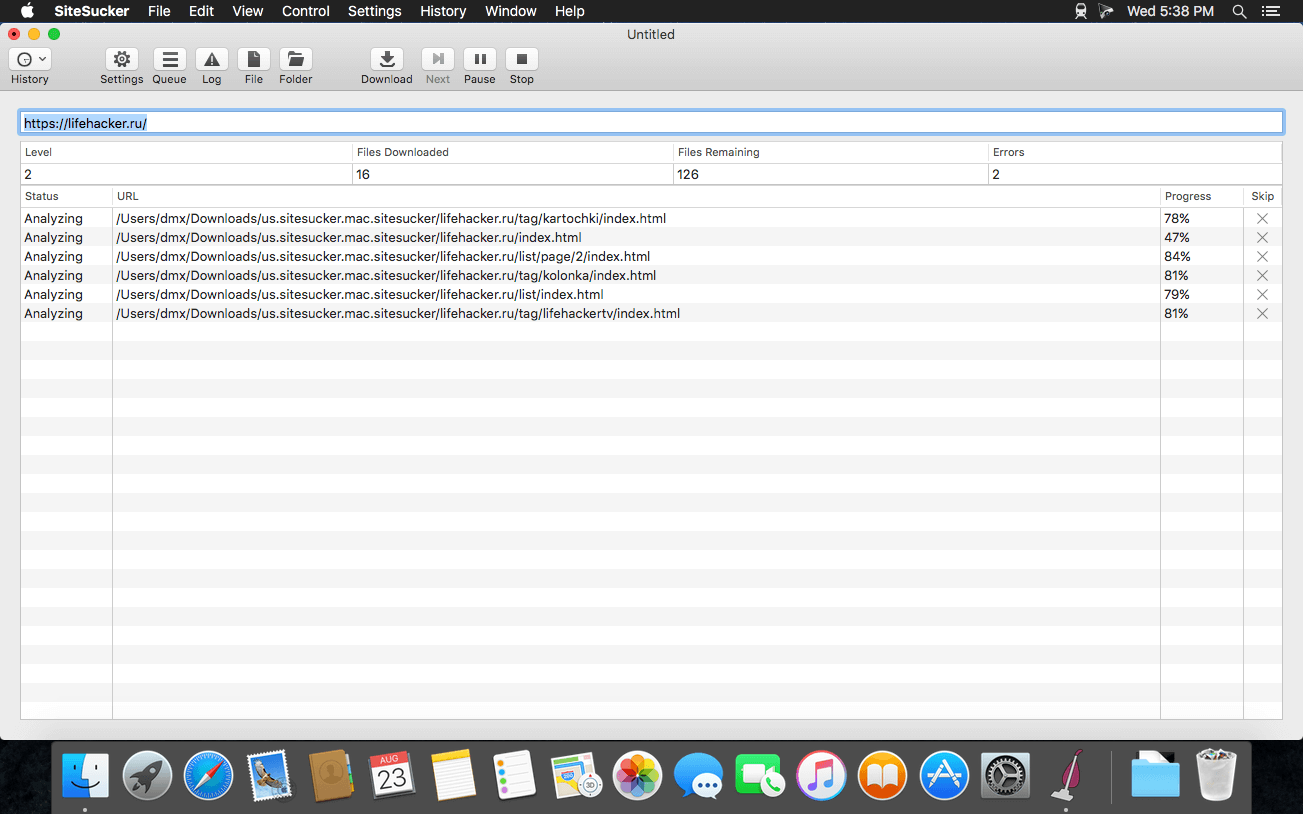
SiteSucker is an Macintosh application that automatically downloads Web sites from the Internet. It does this by asynchronously copying the site’s webpages, images, PDFs, style sheets, and other files to your local hard drive, duplicating the site’s directory structure. SiteSucker Pro is an enhanced version of SiteSucker that can download embedded videos, including embedded YouTube and Vimeo videos.
SiteSucker can be used to make local copies of Web sites. By default, SiteSucker “localizes” the files it downloads, allowing you to browse a site offline, but it can also download sites without modification.
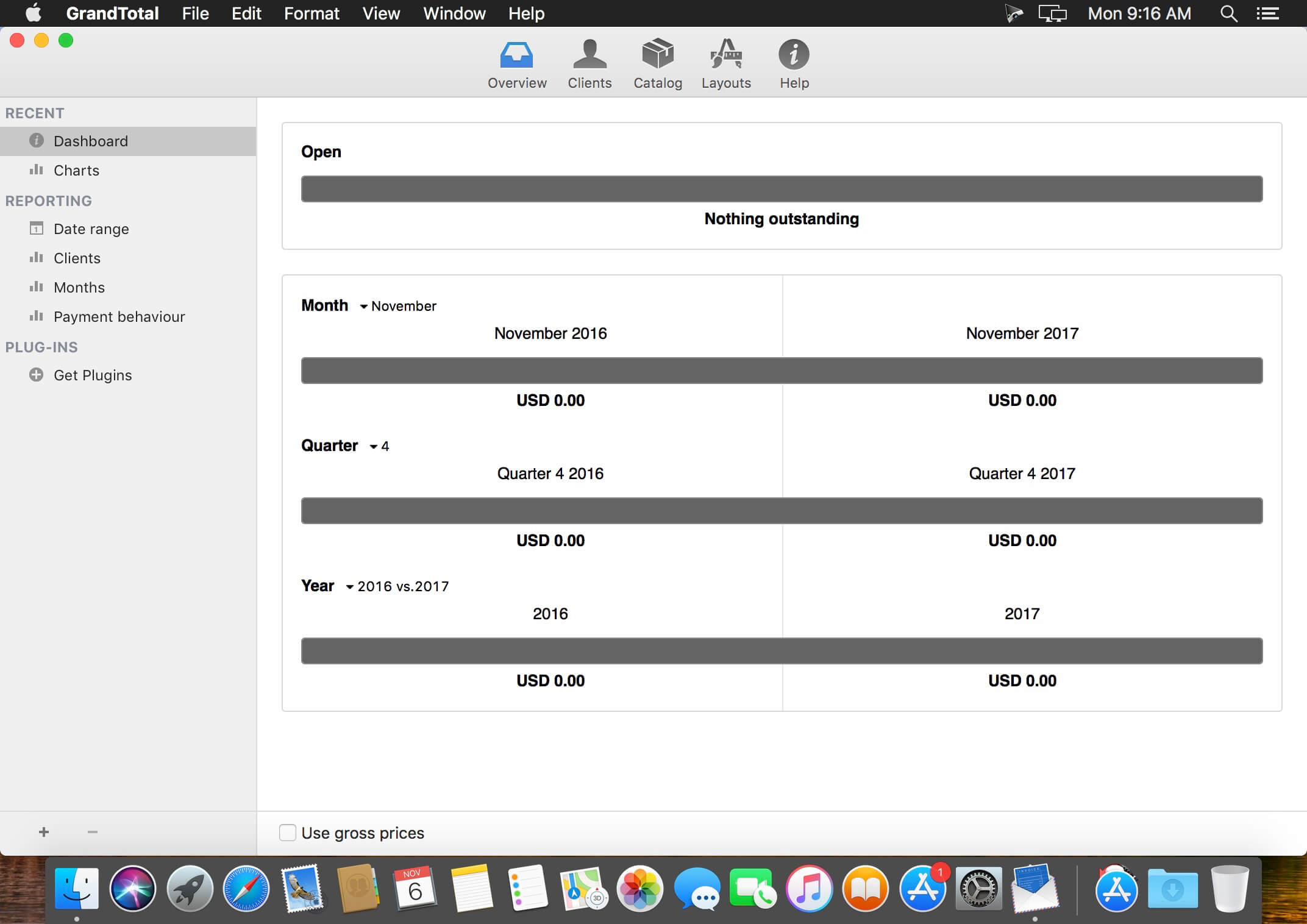
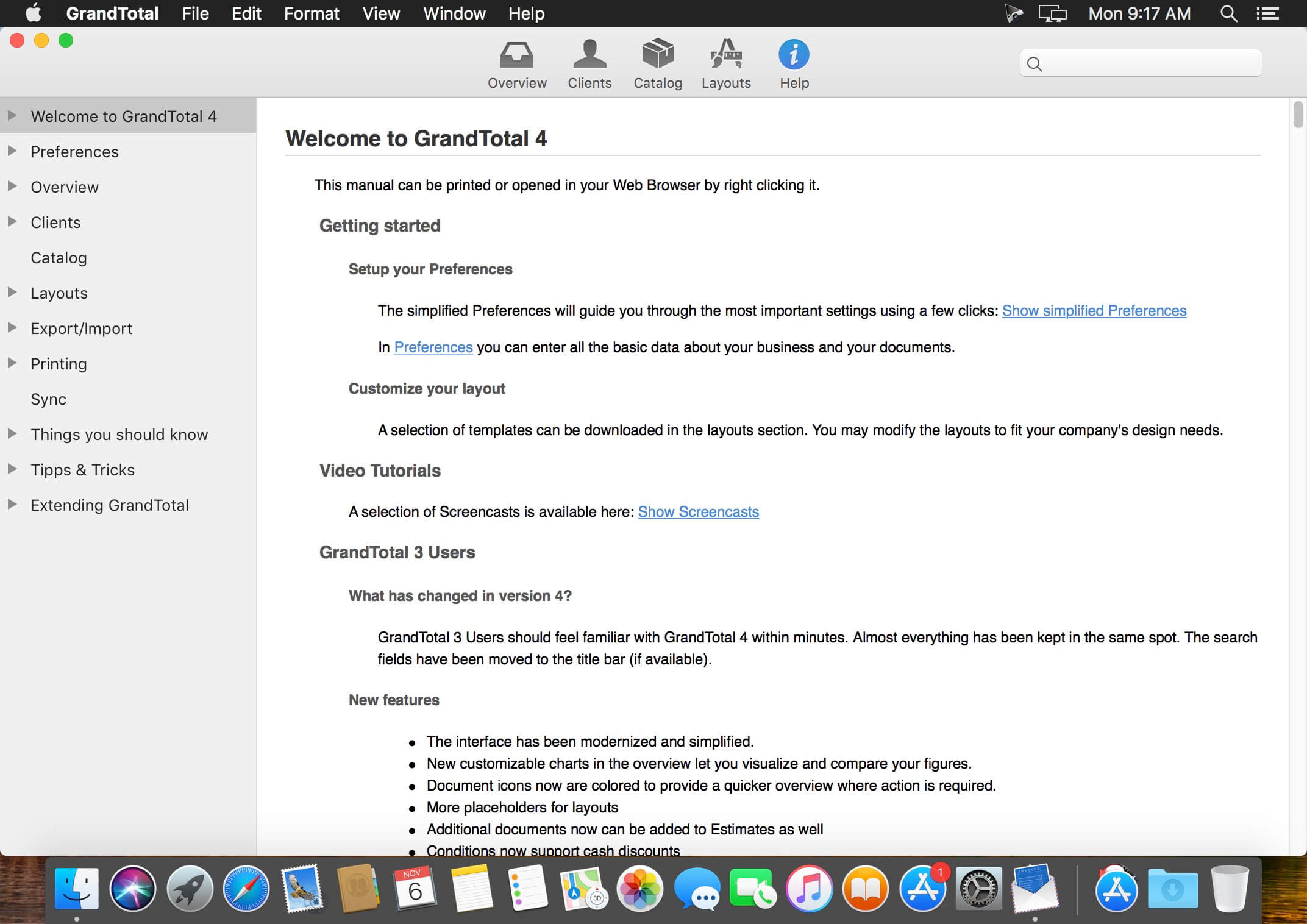
GrandTotal is an application to create invoices and estimates based on your own templates. The built-in template editor allows you to adjust your layout to fit your company’s corporate design. GrandTotal works great in conjunction with TimeLog. Using GrandTotal you can create invoices and estimates in the twinkling of an eye and keep track over the outstanding payments. Detailed statistics and graphs give you an insight into the current state of your business and allow comparison to previous periods.
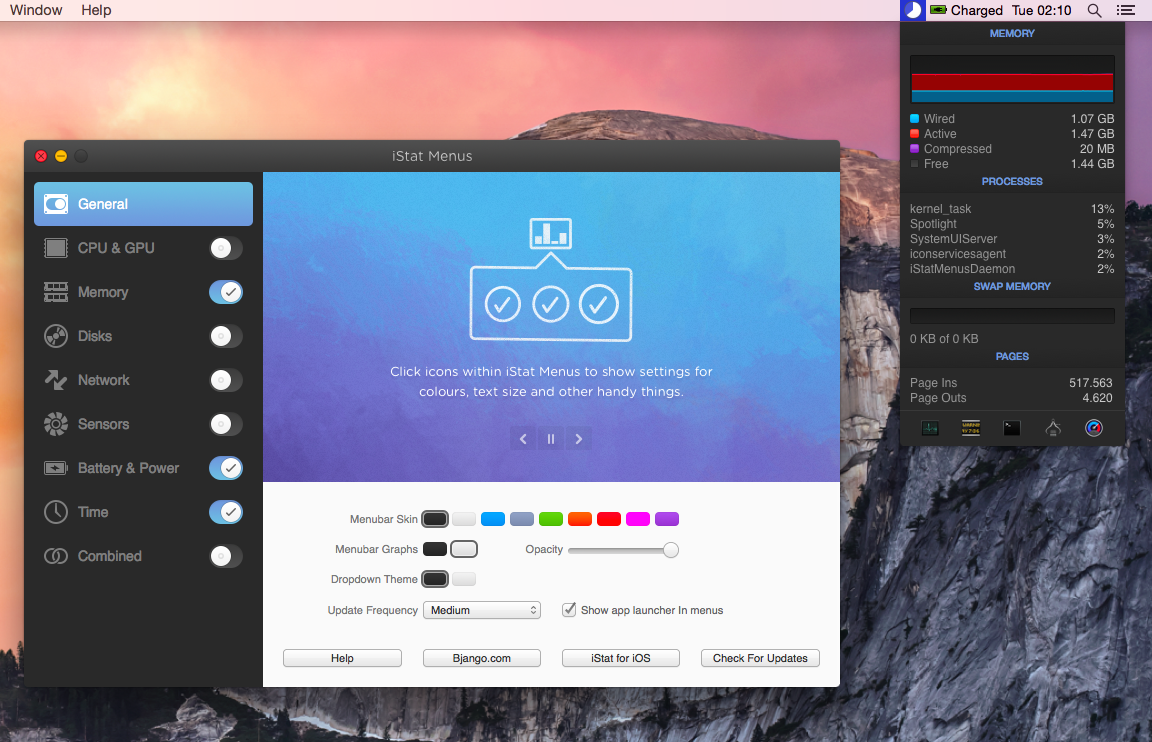
iStat Menus lets you monitor your system right from the menubar. Included are 8 menu extras that let you monitor every aspect of your system. iStat Menus 6 sports a completely new design — new menubar icons, new dropdown menus, and the app and icon itself have all been redesigned to be cleaner, clearer and more at home on Yosemite. Menubar graphs can now use dark backgrounds, improving legibility.
Better per-app stats
iStat Menus 5 features read and write disk activity on a per-app basis. Upload and download activity is also shown per-app, making it far easier to track down the biggest bandwidth hogs.
More stats
Far more detailed network information, including router address, subnet mask, DNS and MAC address. Wi-Fi stats, including channel, signal to noise ratio and many more. Improved GPU monitoring, including active GPU in menubar.
Time & world clocks
A vastly improved time menu, with current time, sunrise, noon, sunset, dawn, dusk, sun azimuth, sun altitude, light map and more for over 120,000 cities. Daylight is now indicated in the clock face (it even fades near sunrise and sunset).
Speaks your language
Our menubar and dropdown menus are now localised for Arabic, Catalan, Chinese (Simplified), Chinese (Traditional), Croatian, Czech, Danish, Dutch, Finnish, French, German, Greek, Hebrew, Hungarian, Italian, Japanese, Korean, Norwegian, Polish, Portuguese, Portuguese (Portugal), Romanian, Russian, Slovak, Spanish, Swedish, Thai, Turkish, and Ukrainian.
CPU & GPU
Realtime CPU graphs and a list of the top 5 CPU resource hogs. CPU usage can be tracked by individual cores or with all cores combined, to save menubar space. Plus, GPU memory and processor usage on supported Macs, and the active GPU can be shown in the menubar.
Memory
Memory stats for your menubar as a pie chart, graph, percentage, bar or any combination of those things. Opening the menu shows a list of the apps using the most memory, and other useful info.
Network
A realtime graph to keep on top of what’s being sent and received for all network connections, including a bandwidth breakdown for the top 5 apps.
Disk usage & activity
See used and free space for multiple disks in your menubar. S.M.A.R.T. status monitoring and more detail for all your disks is only a click away. Detailed disk I/O in your menubar, displayed as a graph, a variety of different read and write indicators, or both.
Sensors
Realtime listings of the sensors in your Mac, including temperatures, hard drive temperatures (where supported), fans, voltages, current and power. Fan speeds can be controlled, with different rules when on battery power, if you’d like.
Date & time
A highly configurable date, time and calendar for your menubar, including fuzzy clock and moon phase. Open iStat Menus’ calendar to display upcoming events, or events for any day. Plus, a world clock with sunrise, sunset, moonrise and moonset times for over 120,000 cities.
Battery & power
Detailed info on your battery’s current state and a highly configurable menu item that can change if you’re draining, charging, or completely charged. Plus, Magic Mouse, Magic Trackpad and Apple wireless keyboard battery levels.
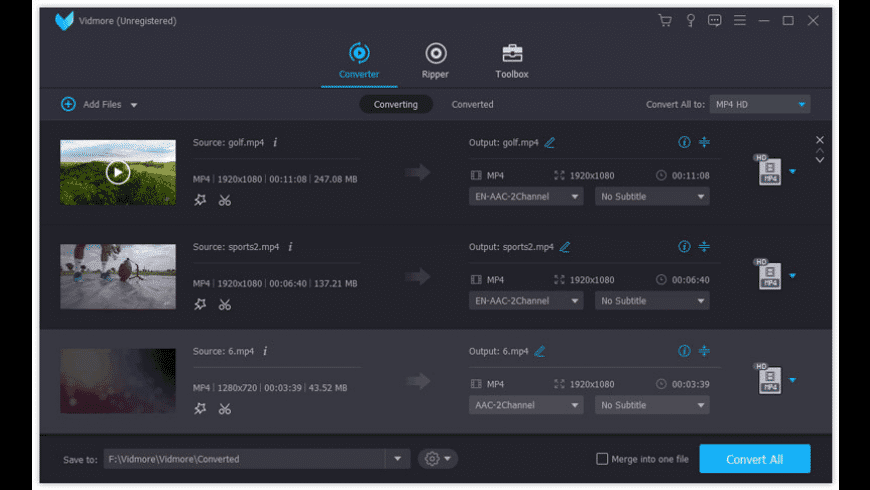
Your Complete Video Toolbox. It is the most comprehensive and powerful multi-format video converter, and converts video files to 200+ formats and devices fast without quality loss.
Vidmore Video Converter supports converting all popular video formats. It allows you to export video files into a wide range of formats and devices. You can easily choose an output format and convert your videos with ease. New formats are constantly added, making the software more powerful.
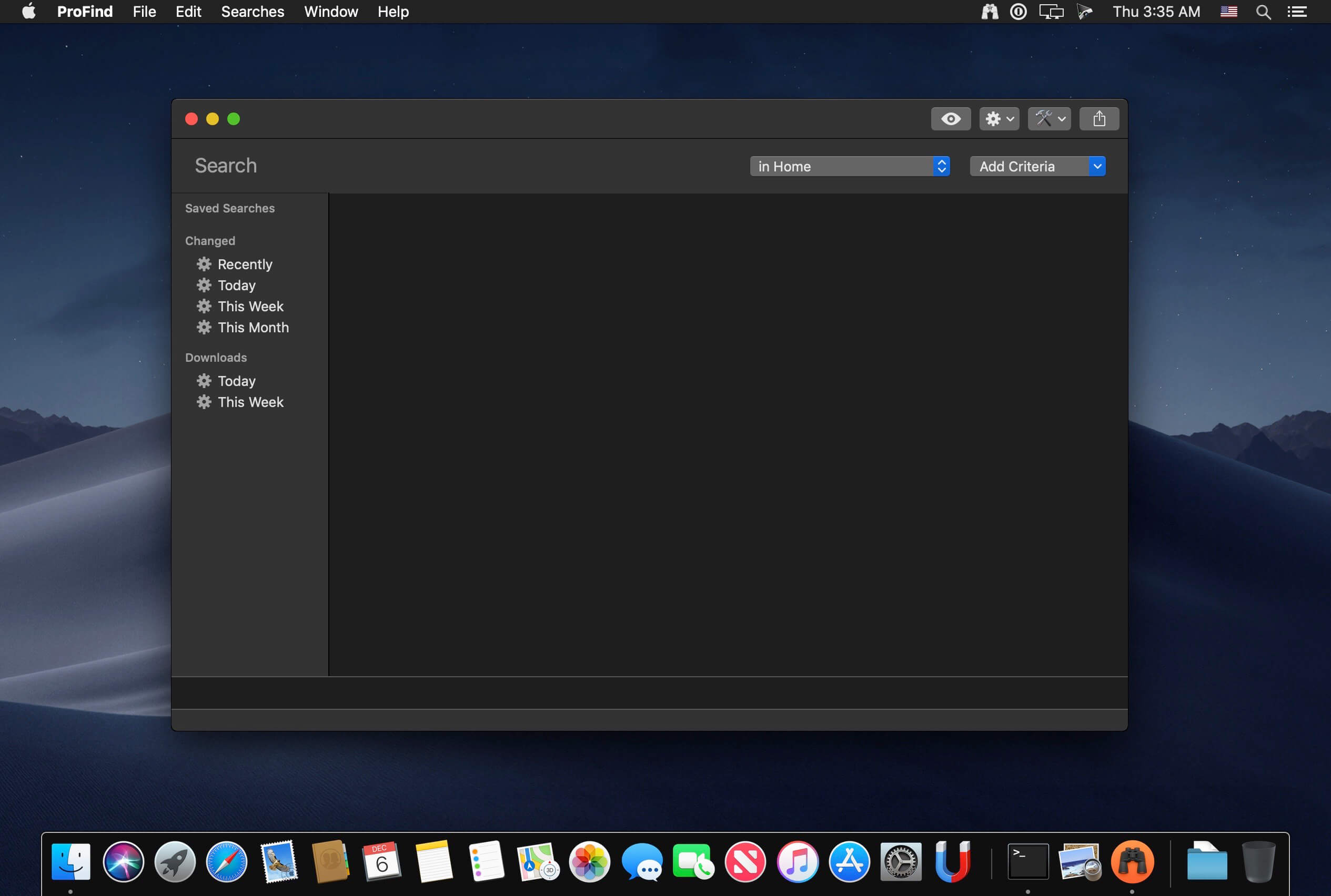
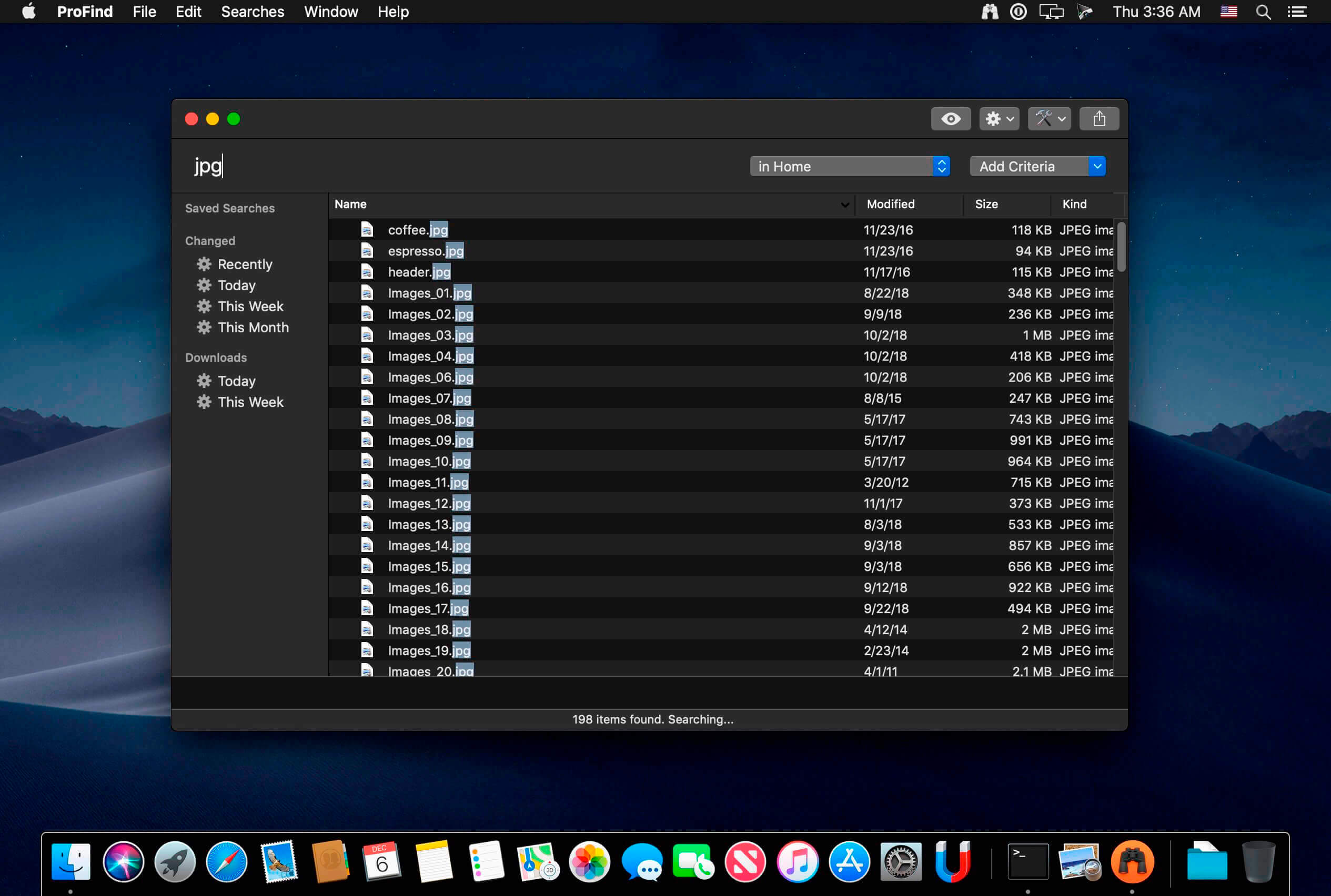
With powerful features and great performance, ProFind delivers advanced file search for macOS. And with support for natural language queries, application launching, hidden location searches, scripting and more.
Search inside invisible folders and packages. Searches any disk type.
Uses kernel based searching (searchfs) when available. Uses metadata indexes (as used by Spotlight) when available to improve performance. Autocompletion for application names. Large icon view for one or two search results.
Under it’s elegant user interface, ProFind combines the power of macOS’s different search capabilities to make sure it finds all the files your looking for. And it’s been carefully tuned for performance and responsiveness.
GraphicConverter is an all-purpose image-editing program that can import 200 different graphic-based formats, edit the image, and export it to any of 80 available file formats.
The high-end editing tools are perfect for graphic manipulation as well as the ability to use Photoshop-compatible plug-ins. It offers batch-conversion capabilities, a slide-show window, batch rename, batch and individual editing of metadata (EXIF, IPTC, XMP) and so much more.
GraphicConverter 11 RAW Developer
RAW images are much easier to edit thanks to their enormous data depth. This is particularly noticeable when brightening images with the Exposure slider. The picture remains clear, there is no gray haze as with many JPG images. GraphicConverter now offers a full-screen dialog when opening RAW files with controls for Exposure, Contrast, and Color Corrections. The picture noise can be reduced even with 6 controllers.
Unpack Archives
You want to know which pictures and documents are in an archive file? Then double-click is enough: GraphicConverter temporarily shows you the content or secures the content permanently. In addition to the Zip format, there are 12 additional formats supported, such as the TAR and TGZ formats.
Wide Equalization
In wide-angle shooting, faces and objects on the left and right edges of the image are often heavily distorted in width. With the new wide-angle equalization in GraphicConverter 11, you can now reduce this distortion.
Gradients
You need a gradient, e.g. as a background for a collage? No problem. Easily create color gradients with up to 10 colors via the new dialog.
Duo-Tone
Color your shots with two colors to duo-tone images. In this impressive technique, the lighter shades are colored with the color 1 and the darker ones with the color 2. The result is an effect that enchants your pictures.
Apple Finder Tags
Do you organize your work with Finder Tags from Apple? Then your work will be even easier, because in the browser you can now use the context menu to directly display and change these tags.
Perfectly Clear Workbench is an application that uses Athentech’s Perfectly Clear image correction libraries and is made available to demonstrate the capabilities of the Perfectly Clear processing libraries, face detection library and to allow a quick export of the processing settings for use.
One of the key features in Workbench is the ability to “export to API” when saving a Preset. This allows you to make image corrections in Workbench and tune the settings to match your style and correction needs. Then, you can quickly export these settings to a text file – ready to be copy / pasted into your source code with our image correction SDK.
What’s New in Perfectly Clear WorkBench 4
1. Beautiful new interface
2. New image correction tools
a. Preprocessing section for Input Looks and “Image Ambulance” for manual exposure corrections
b. “Face Aware” exposure for more accurate auto-exposure corrections in portraits and group photos
c. Black Point tool to deepen blacks
d. New Color Vibrancy tool to complement our previous “Vibrancy” control (now renamed to Color Restoration)
e. Sky and Foliage enhancements
3. Existing tools have been improved
a. Added strength sliders to Light Diffusion and Vibrancy for better control
b. Better ‘color pickers’ for Skin Tone and Blush adjustments
4. Manually identify faces that are not detected automatically
5. One-click to zoom to individual faces
6. Modify facial regions to provide the best corrections
7. Histogram
8. Much improved preset management
Supported Image Formats
Perfectly Clear requires RGB-formatted images in either 8 or 16-bit color depth. Any image file that Photoshop or Lightroom can open and convert to this format may be used in Perfectly Clear. Monochrome and CMYK images must be converted to RGB before using Perfectly Clear. RAW files must be opened through Adobe Camera RAW and loaded into Photoshop to be accessible to Perfectly Clear.
What’s New:
Version 4.3.0.2412:
Release notes were unavailable when this listing was updated.
Compatibility: OS X 10.9 or later • Apple Silicon or Intel Core processor Homepagehttps://eyeq.photos/
Photomatix Pro processes multiple photographs of a high contrast scene into a single image with details in both highlights and shadows. Photomatix offers two types of processes to increase the dynamic range. One process is called HDR Tone Mapping, the other Exposure Blending. Both processes are designed to produce an image with an increased apparent dynamic range, but their results are different. You should try both and then choose the result that works best with your images.
Features:
» Generation of HDR (High Dynamic Range) images from differently exposed images
» Conversion of single RAW file into pseudo-HDR image
» Tone Mapping tool for revealing highlights and shadows details in HDR image
» HDR Viewer shows local HDR image data at the appropriate exposure
» Display of HDR Histogram (logarithmic)
» Ability to batch tone map single HDR images
» Function to tone map large HDR image files while benefiting from a preview
» Read and Write support for Radiance RGBE (.hdr), OpenEXR (.exr) and Floating Point TIFF
» Color managed HDR workflow: passing trough of ICC color profiles from the source to the tone mapped images, and color managed display
» Four algorithms for Exposure Blending
» Automatic alignment option for hand-held images with two alignment methods available
» Preview and Loupe available for all Exposure Blending methods
» Ability to select the images for method ‘H&S – 2 images’
» Automatic Batch Processing
» Support JPEG, TIFF, Radiance RGBE, OpenEXR, PNG, PSD, RAW files from several camera models
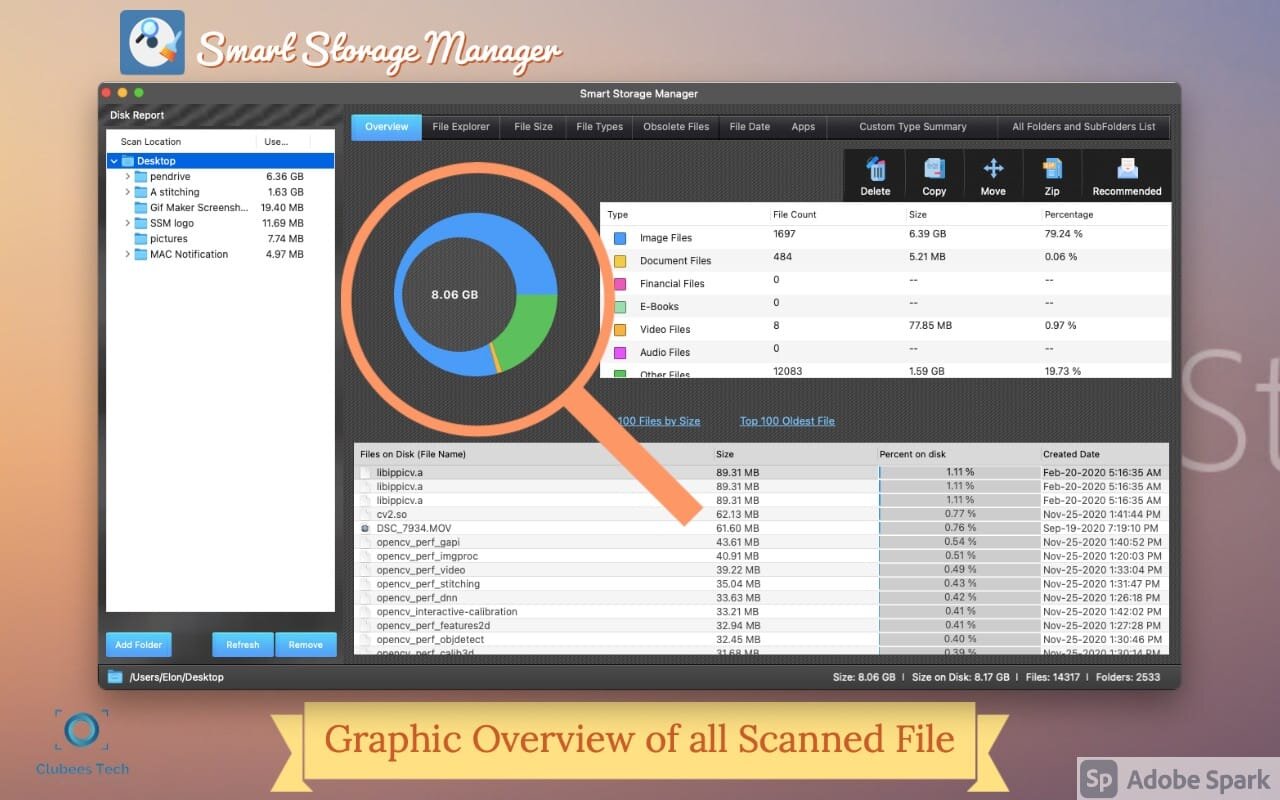
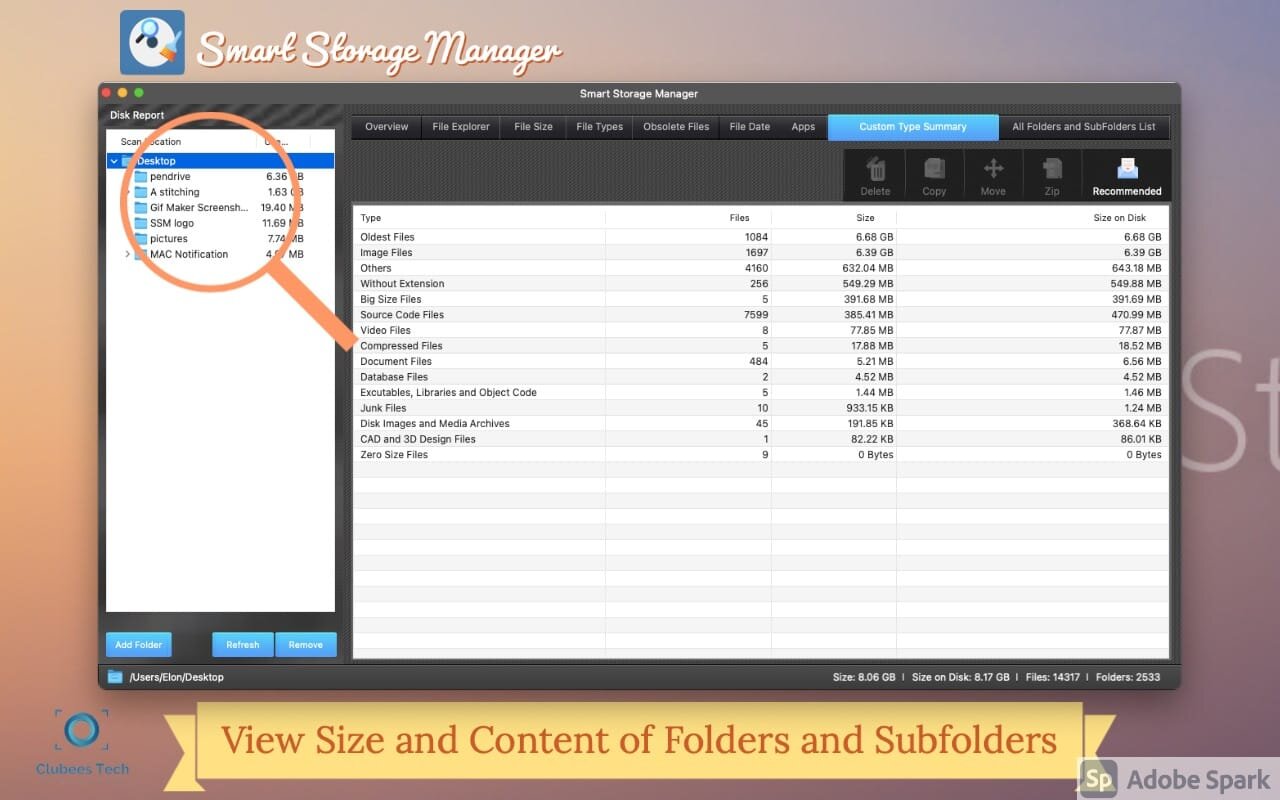
Smart Storage Manager is the easiest way to free up space on your Mac.By checking the storage space and files,Ensure Mac runs smoother and faster.
Smart Storage Manager is the go-to file system space analyzer to free up space on your Mac – you can check the storage space and free up some space by deleting or managing unwanted files, ensuring your Mac runs smoother and faster.
Smart Storage Manager is a powerful disk explorer that adds much-needed folder structure visualization to the familiar tree-like representation of your data. It’s just a matter of time before your hard drive gets close to its capacity. Smart Storage Manager quickly builds a visual data map to show you which apps, movies, photo collections, and music archives are taking up your precious disk space.
Features:
Quickly build visual maps of the disk, folder, and sub-folder sizes
Color-coded folder names help to quickly identify the largest folders
Visualize the contents of a single folder or an entire drive
Real-time scanning results
Automatic and manual filters to sort by file/folder type, size, or name
Easy file and folder removal
Extremely high scanning speed
customize file clean-up method – move to Trash or another location (or delete permanently)
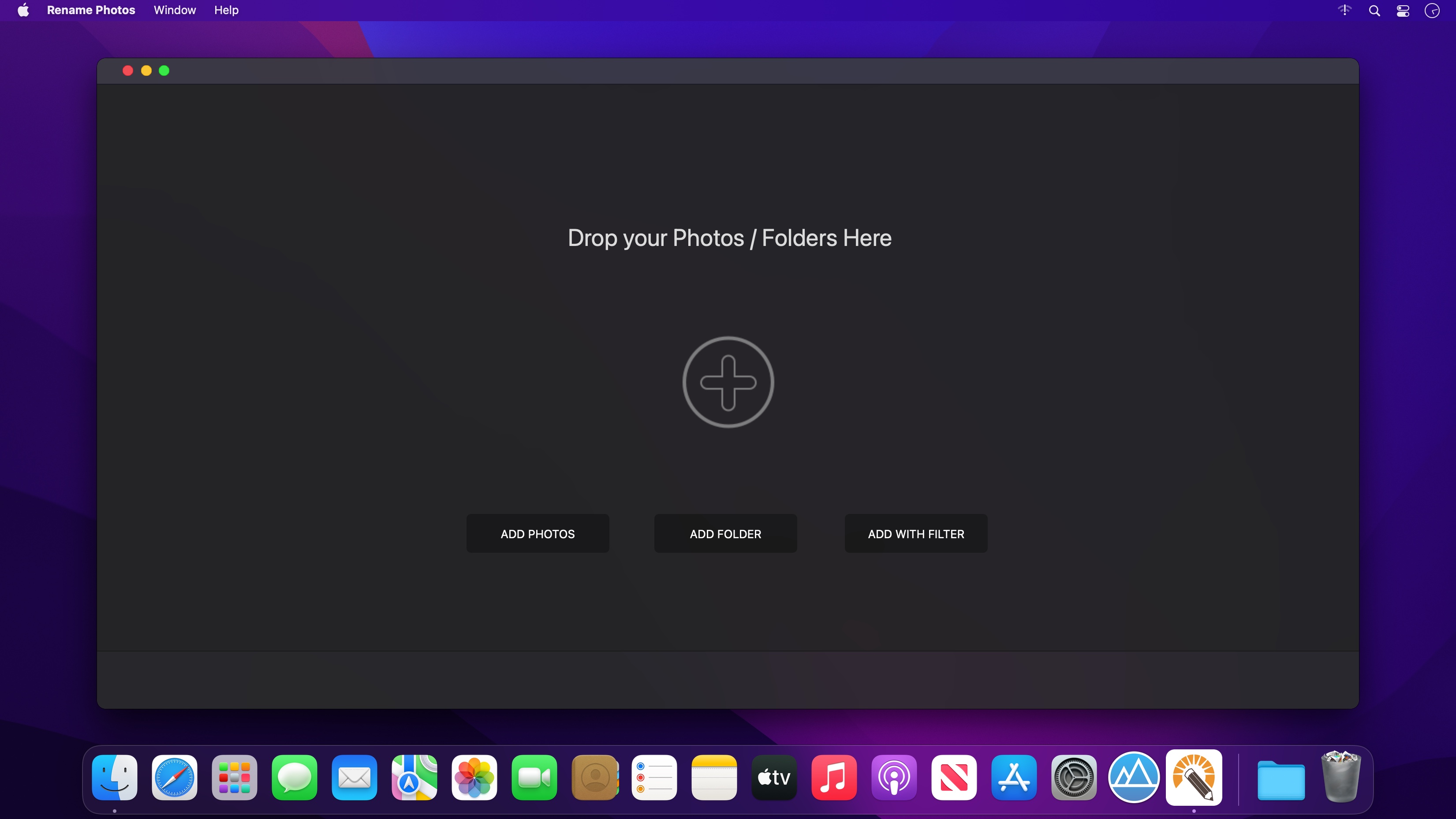
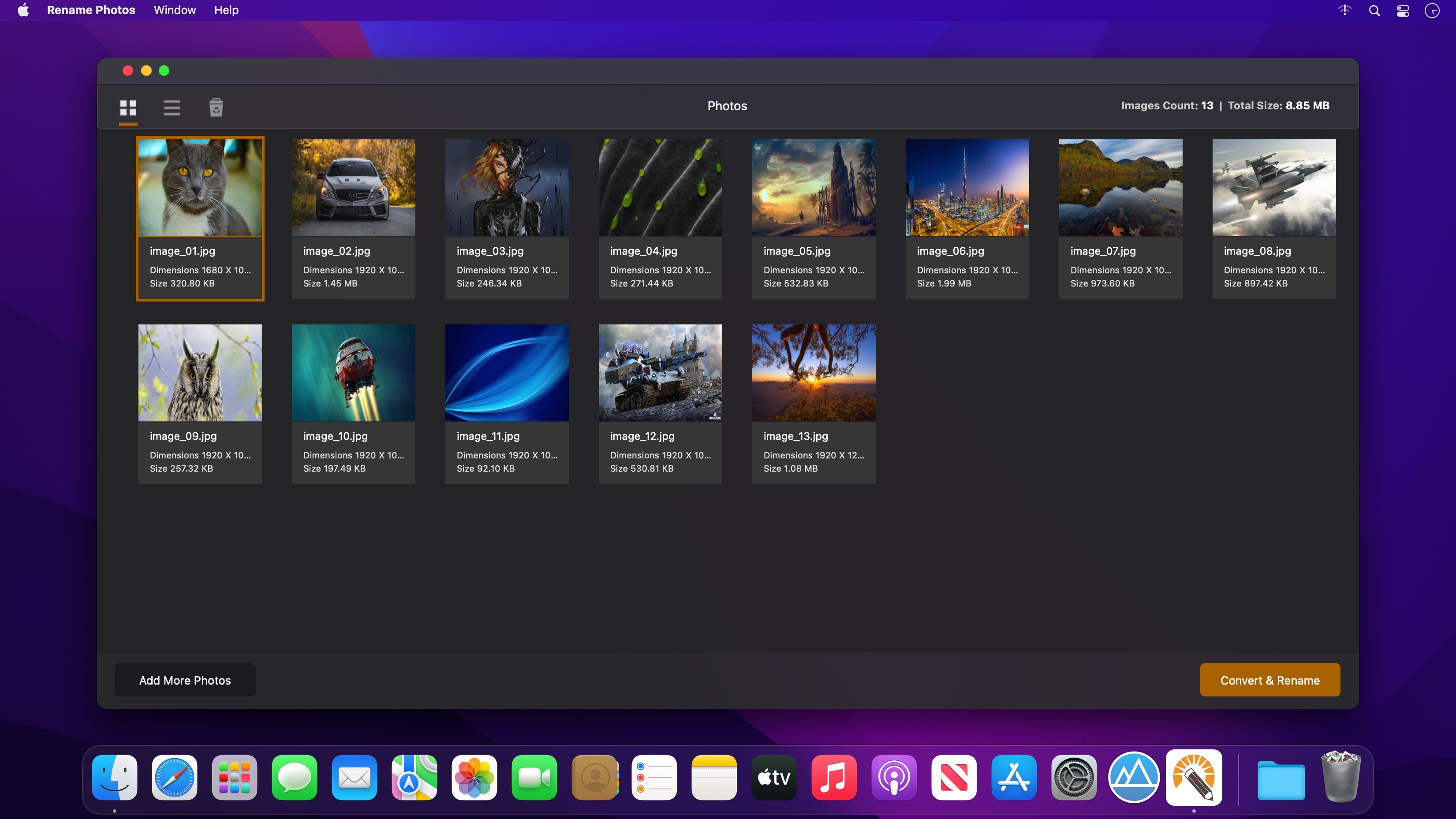
Rename Photos is a program for renaming multiple files at once. By configuring renaming methods the names can be manipulated in various ways.
It is easy to set up a batch job using multiple methods on a large amount of files.
With Rename Photos you can construct new file names by adding, removing, replacing, changing case, or giving the file a brand new name based on known information about the file.
Before performing the operations on the files you can verify that the output will be correct and if you perform the rename and regret it, you can undo the complete batch.
Some of the Features
Rename multiple files quickly: according to many flexible criteria
Convert file formats: convert image formats with a click.
Rename files in many ways: add, replace, add capture and other date, insert text into file names, Convert case, add numbers. Remove or change file extensions.
Check the detailed preview before renaming: live preview while making changes.
Rename photos using EXIF metadata (i.e. “Date Picture Taken” and other information)
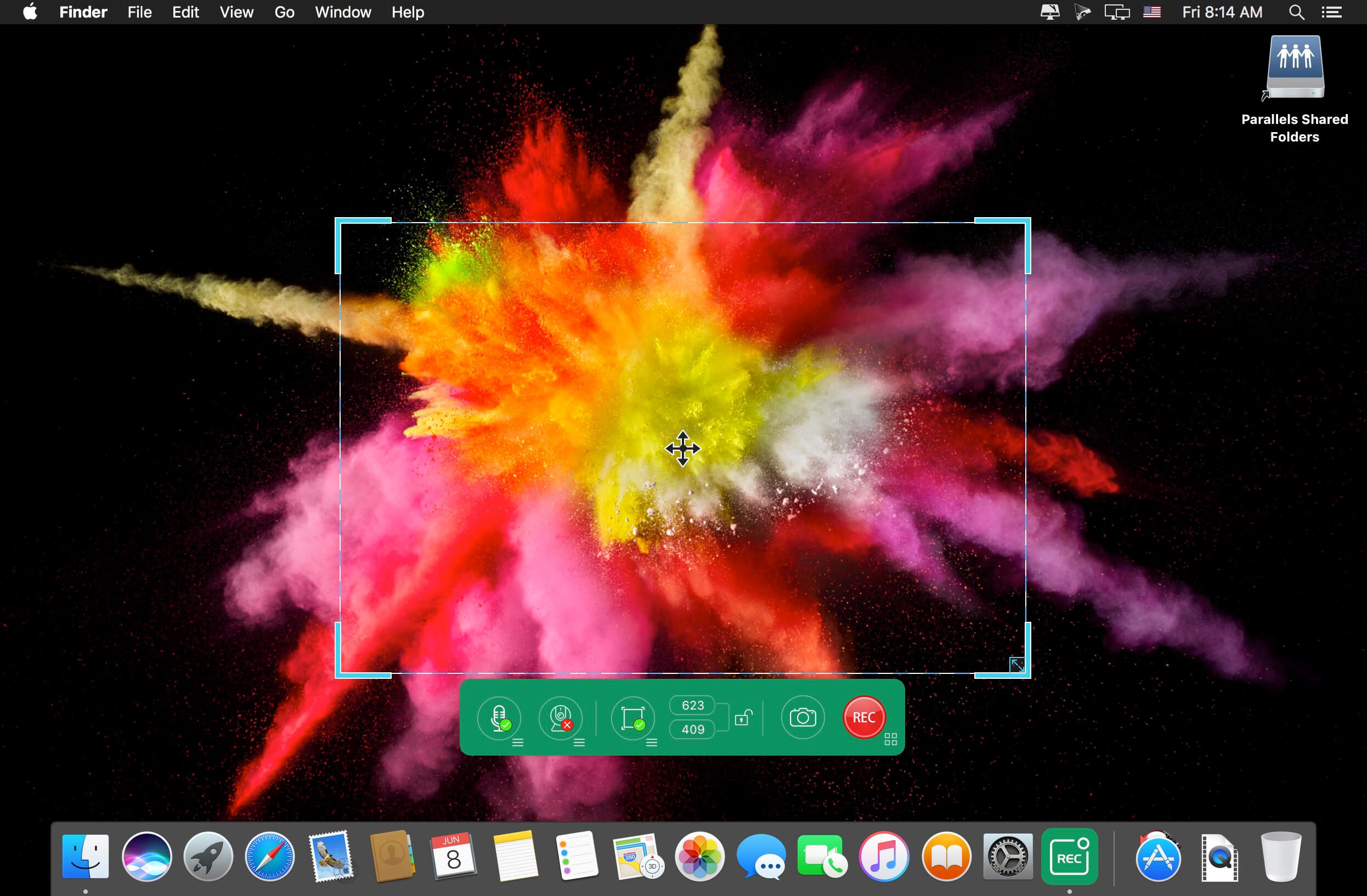
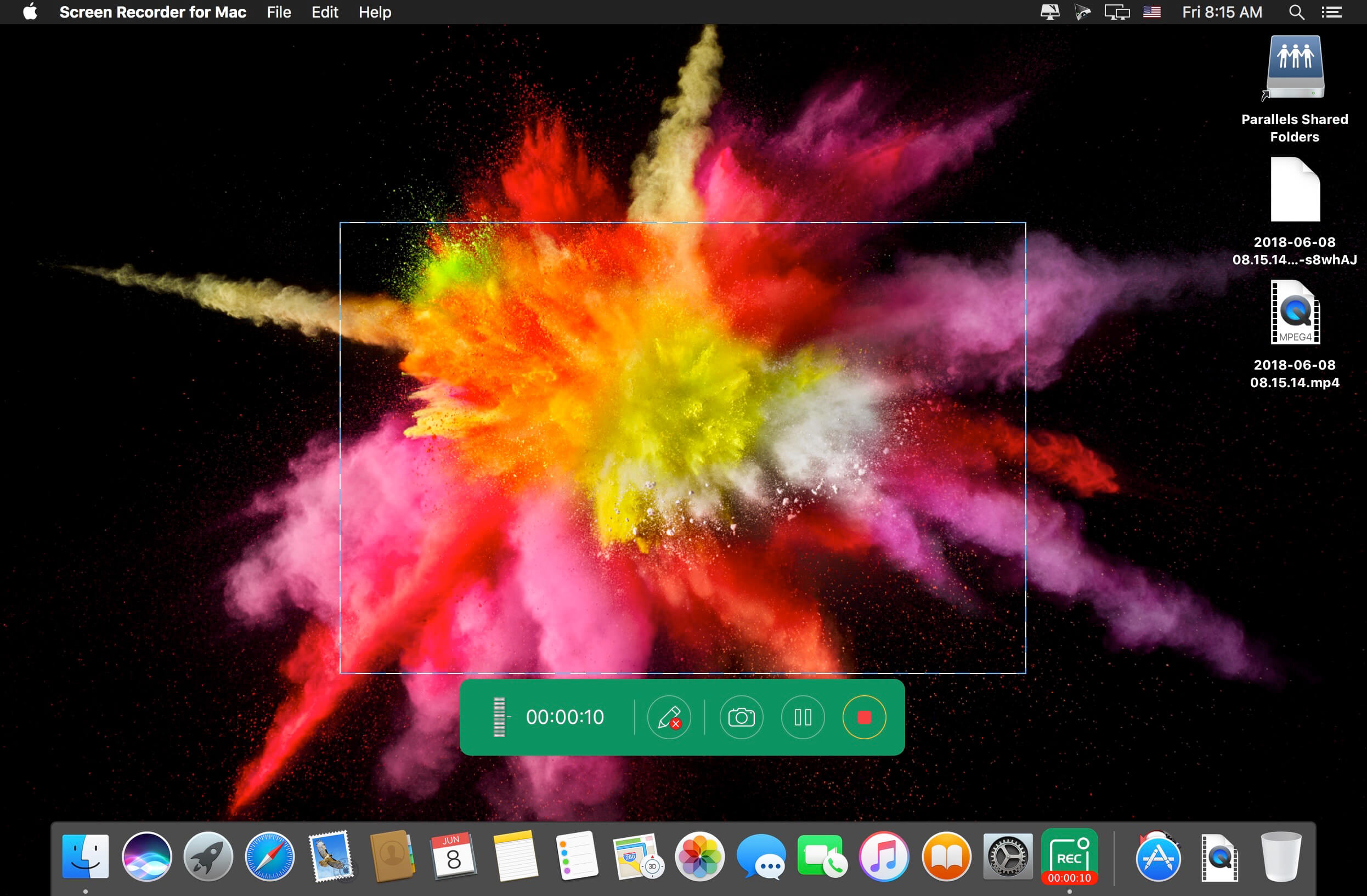
Apeaksoft Screen Recorder is a professional tool to record any video/audio and capture screen on your Mac computer. This excellent video screen recording software can help you easily get online movies and radio, record games, make video tutorials, capture webcam videos, take screenshot, etc. on your computer. Also, you are able to annotate your recording with a text box, arrow, highlight and more. What’s more, this powerful Screen Recorder enables you to make the settings you prefer in advance, and then you are able to record video using these settings next time. It is pretty convenient if you have lots of on-screen activities to record in the same demand. Screen Recorder enables you to record lock window as well.
What’s New:
Version 2.1.36:
Release notes were unavailable when this listing was updated.
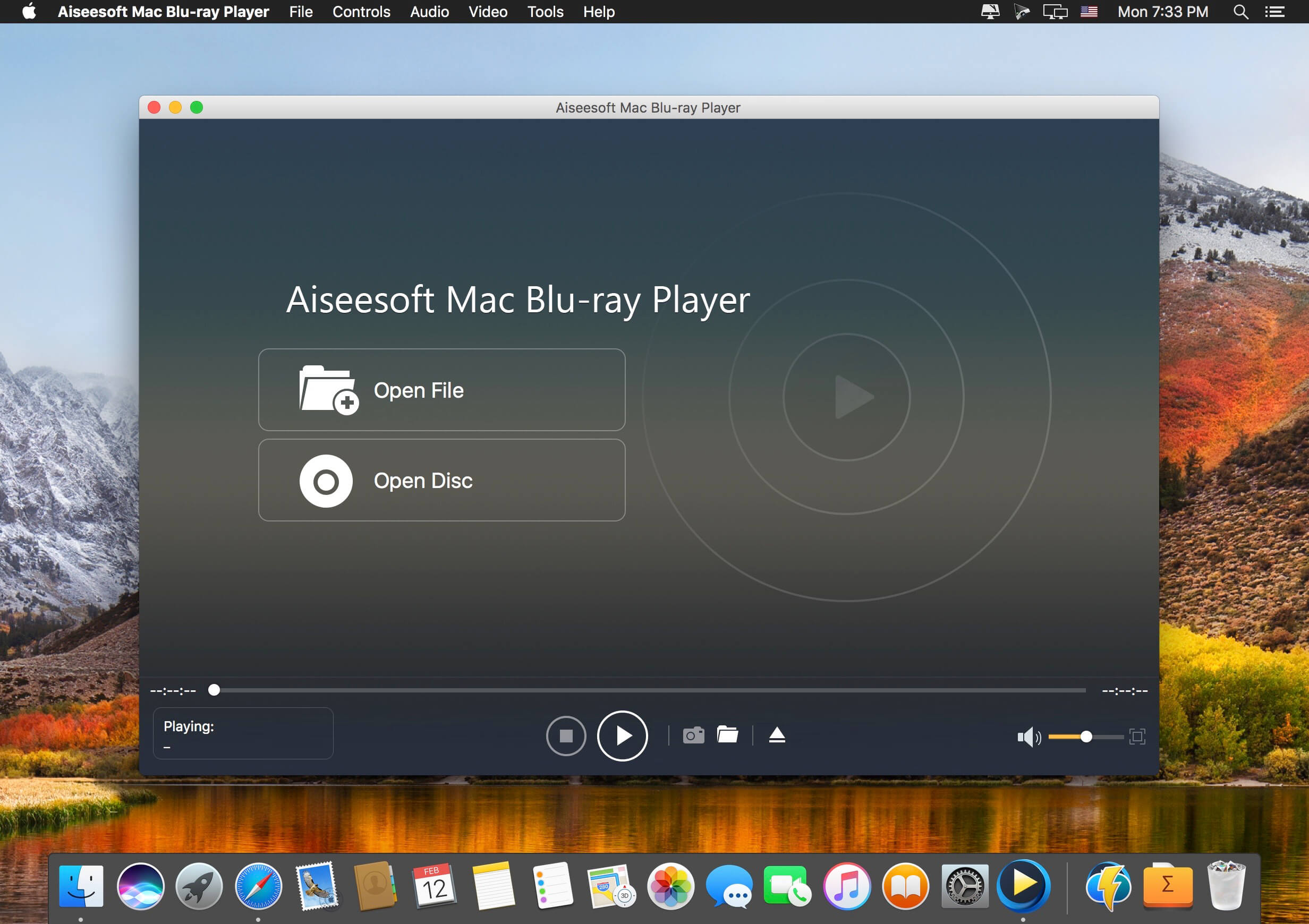
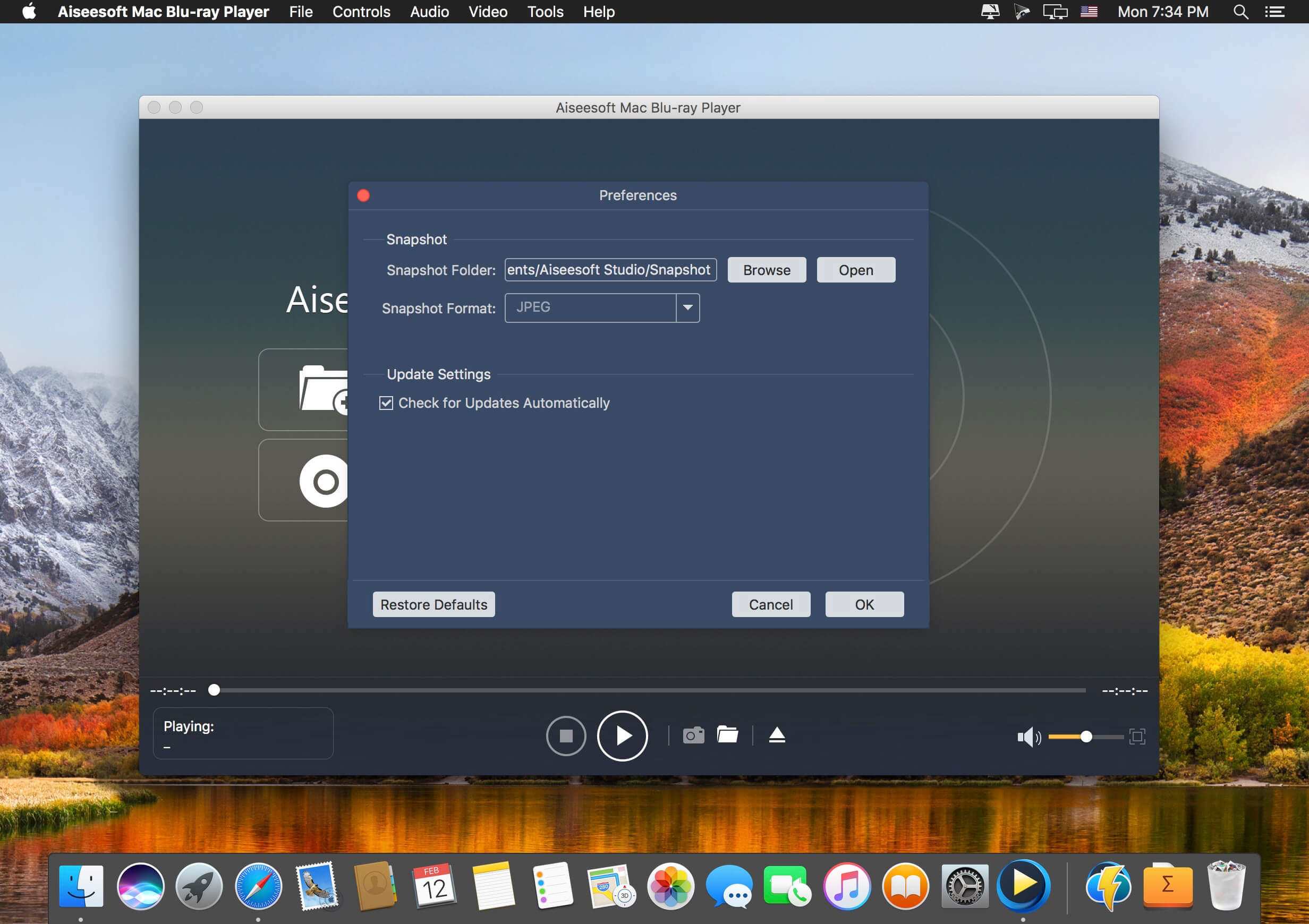
Best Blu-ray player to play Blu-ray disc, Blu-ray folder, DVD disc/folder, ISO file with high-quality visual effects.
It also can work as a powerful media player to play 4K UHD/1080p HD/SD video in MP4, MOV, AVI, MKV, and other formats.
Play Blu-ray, DVD disc/folder/ISO and media files
Play Blu-ray movies with 1080p HD visual effect and play 4K UHD, 1080p/720p HD and common SD videos losslessly and smoothly.
Play Blu-ray disc/folder and ISO file on your computer
Apeaksoft Blu-ray Player is specially designed to play Blu-ray disk, folder and ISO file. It highly supports the newly released Blu-ray movies and guarantees you a full HD 1080p Blu-ray disc playback. With this powerful Blu-ray playing software, you can easily enjoy Blu-ray movies with vivid visual effects and crystal-clear details. In addition, it also enables you to play Blu-ray folder and ISO file smoothly.
Play DVD disc/folder/ISO file
More than just a Blu-ray player, Apeaksoft Blu-ray Player also has the capability to play DVD disk, DVD folder and ISO file with high image/sound quality. Many settings are offered to help you better enjoy your DVD. For instance, you can handily set audio track/channel, video track, subtitle track and more get the best DVD playing experience.
In a word, whether you want to play Blu-ray movie, or enjoy DVD disc, this all-featured Blu-ray player can always be your best choice.
Play 4K UHD, 1080p/720p HD and SD video in any format
Besides the Blu-ray and DVD playing features, Apeaksoft Blu-ray Player allows you to play 4K/HD/SD videos in any frequently-used format. You can play video in MP4, H.264/MP4 AVC, H.265/HEVC, MPG, M4V, TS, MTS, M2TS, MXF, RM, RMVB, WMV, ASF, MKV, AVI, 3GP, F4V, FLV, VOB and more. Surely, if you prefer watching the 4K/HD video to get more fantastic visual experience, it will help you play 4K videos in MP4, H.264/MPEG-4 AVC, H.265/HEVC, TS, MKV, AVI, MOV, FLV and WebM format.
This Blu-ray player for Mac users enables you to freely play any Blu-ray disc released in different regions on your Mac without limitation. Select specific title/chapter or the main movie of Blu-ray disc to experience the high-quality picture directly. Apart from playing Blu-ray movie disc, this strong Mac Blu-ray Player software can play or playback Blu-ray folder (BDMV folder) as well as Blu-ray ISO image files (with a virtual drive). Click Open File to load local Blu-ray folder or ISO file to start the Blu-ray experience of movie-watching on your Mac with the latest macOS High Sierra.
This Blu-ray player is powerful enough to ply 4K and 1080p/1080i/720p resolution video on your Mac. Only if your Mac is equipped with high definition to 4K/1080p/1080i/720p, you will play your 4K video easily with the upscaling visual effect directly, instead of taking a Samsung/Sony/Oppo 4k Blu- ray player to connect to your Mac. Besides HD video with superior picture and video quality, you will be allowed to play other Blu-ray videos with SD resolution (480p, 360p, 240p) with this powerful Blu-ray player on your iMac, Mac mini, Macbook Air, Macbook Pro, Macbook, Mac Pro, etc.
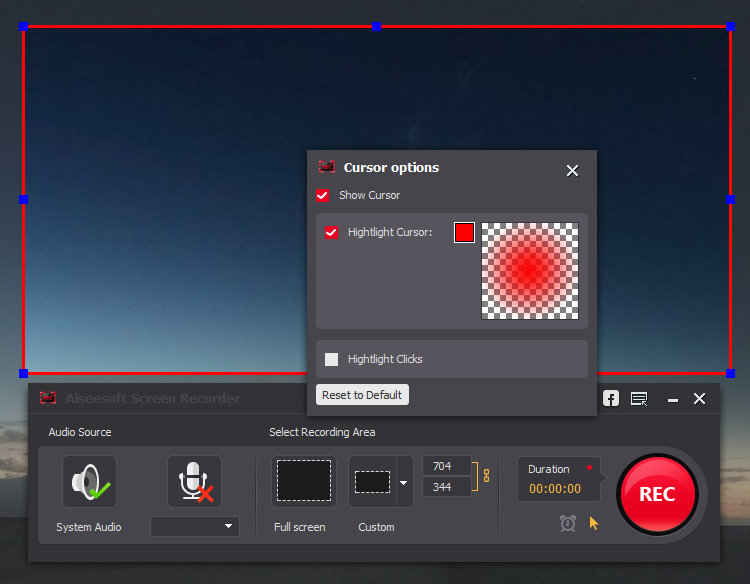
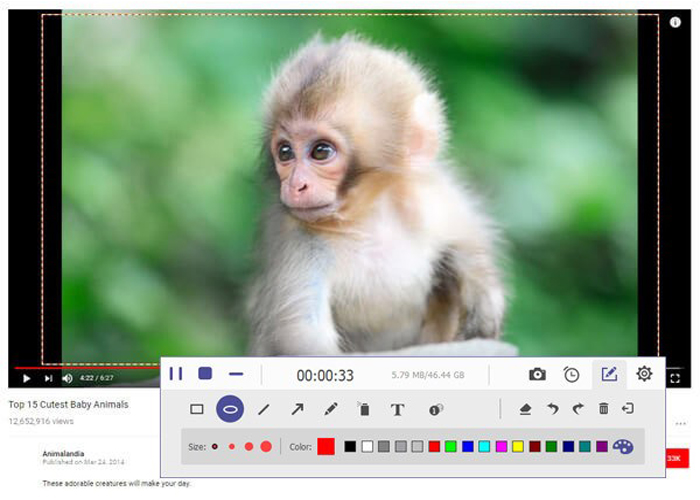
Get the easiest but professional way to record your screen and take snapshots here. Aiseesoft Screen Recorder is the best screen recording software to capture any activity on Mac computer. It can work as a good video game recorder, Skype call capture, YouTube video recording app, and more to capture any area of your screen. While screen recording, you can edit video/snapshot and draw new labels to output file.
What’s New:
Version 2.1.32:
Release notes were unavailable when this listing was updated.
AnyMP4 Screen Recorder is the best choice for you to record screen movements and actions. With its intuitive and terse interface, you can master it quickly. It is powerful software for video recording, and can record all video files and sound that are played on the computer screen. Whether you want to record a streaming video or a Blu-ray movie as a video file, record Skype calls or webinars, this software can help you. After recording, it saves the video files in WMV or MP4 format.
In order to avoid the black bars around the video and to better view the recording on different media devices, you can easily define the aspect ratio and the image size of the video recording. The Screen Recorder also offers you some predefined picture sizes, such as 640×480, 800×600, 1024×768. In addition, you are able to record the full image of your desktop.
What’s New:
Version 2.1.26:
Release notes were unavailable when this listing was updated.
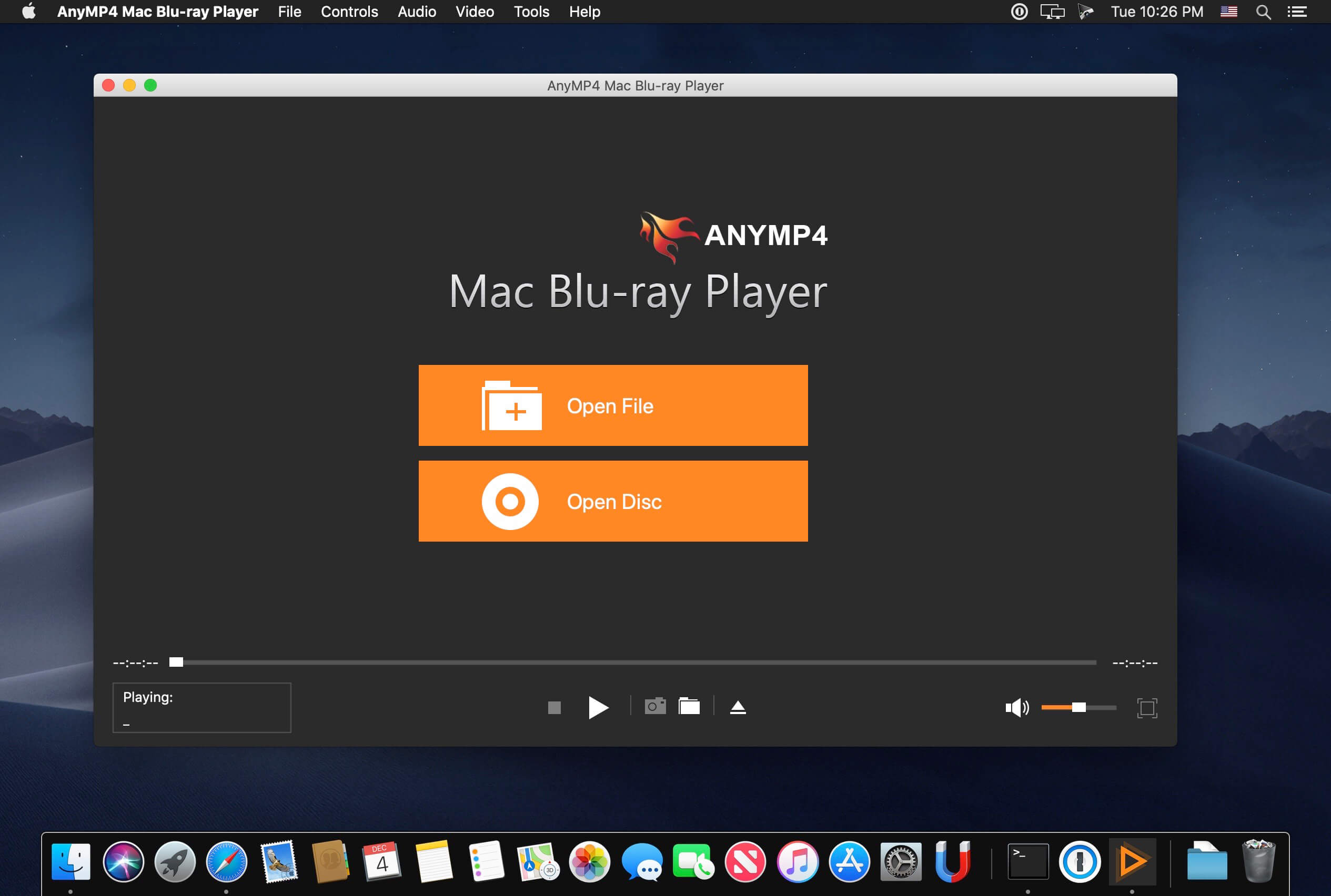
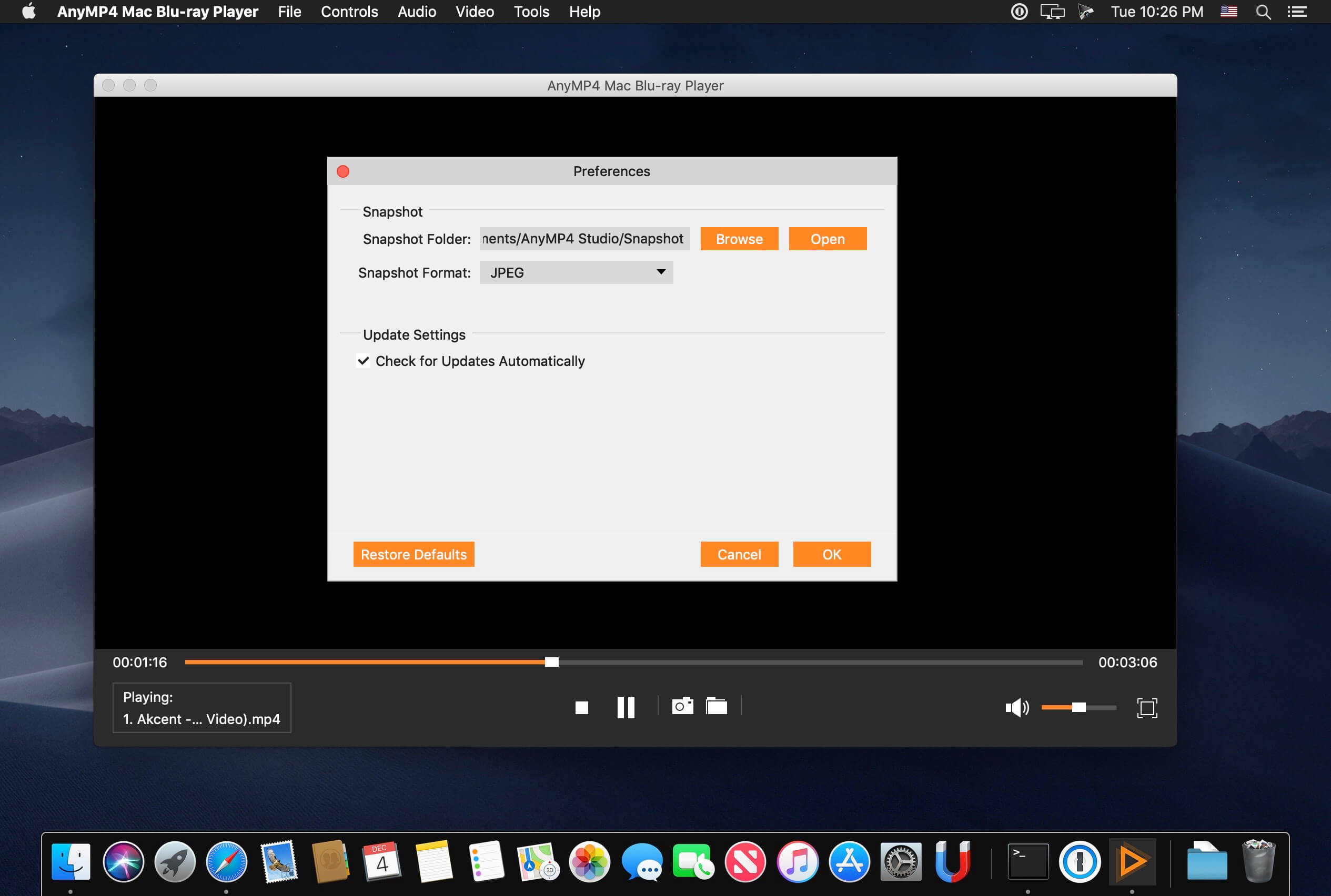
AnyMP4 Mac Blu-ray Player, the world’s best and intelligent Blu-ray Player software for all Mac users, brings the best audiovisual effect in watching Blu-ray movie with your family. The powerful Blu-ray Player for Mac enables you to play Blu-ray disc on Mac. Besides, you are allowed to enjoy Blu-ray folder and Blu-ray ISO image file with this versatile Blu-ray Player Mac software.
In addition, this Mac 4K Blu-ray Player software has the ability to play 4K video, 1080p HD video with truly high quality and fluent video effect. What’s more, any media format like AVCHD, MTS, M2TS, TS, MXF, MKV, TRP, MOV, MPEG, RMVB, and FLV, etc. is available for playback on this multifunctional Mac Media Player software.
Play Blu-ray disc, Blu-ray folder and Blu-ray ISO image files for Mac Users
With this Mac Blu-ray Player software, you can watch Blu-ray disc without any limitation, and enjoy Blu-ray folder and Blu-ray ISO image file on your Mac local disc. Just insert your favorite Blu-ray disc to the Blu-ray drive and open this Mac Blu-ray Player software, the next you need to do is to open your Blu-ray and then start to enjoy this vivid Blu-ray movie.
Freely watch the newest 4K video and Blu-ray movie on Mac
This Mac Blu-ray Player can help you play the newest Blu-ray movie, 4K video and 1080p HD video with the advanced Blu-ray technology. Thus you can watch the true high definition and fluent movie/video image, enhanced content capabilities, and 5.1 surround sound audio. The perfect audiovisual effect would bring you much more unbelievable HD video experience.
Wow, it is really wonderful Mac Media Player software!
Yes, this Mac Blu-ray software Player integrates the function of Mac Media Player software. Apart from playing any kind of Blu-ray movie, it can support the smooth playback of 4K video and 1080p HD video. AnyMP4 Mac Blu-ray Media Player has the ability to play any media file saved on your Mac local disk, such as AVCHD video, MTS, M2TS, TS, TRP, MPEG, MKV, MXF, MOV, RMVB, FLV and more with super high image/video quality and lossless audio effect.
SiteSucker is an Macintosh application that automatically downloads Web sites from the Internet. It does this by asynchronously copying the site’s webpages, images, PDFs, style sheets, and other files to your local hard drive, duplicating the site’s directory structure. SiteSucker Pro is an enhanced version of SiteSucker that can download embedded videos, including embedded YouTube and Vimeo videos.
SiteSucker can be used to make local copies of Web sites. By default, SiteSucker “localizes” the files it downloads, allowing you to browse a site offline, but it can also download sites without modification.
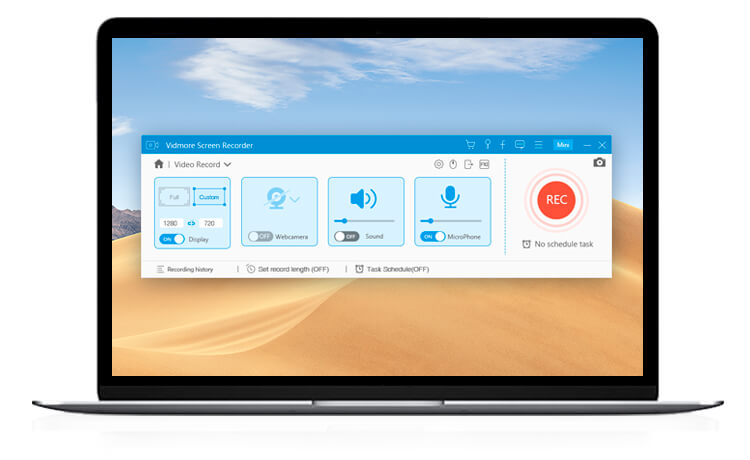
Vidmore Screen Recorder can capture any screen any time you want. No matter you want to record computer screen, exciting gameplay, webcam videos, online lectures, favorite music, or just save a screenshot.
Record Desktop Record Desktop
Easily capture your desktop screen activity of any area.
Record Gameplay Record Gameplay
Record 2D/3D games, flash games and online games on PC.
Record Live Streaming Video Capture Streaming Video
Capture online videos from YouTube, Dailymotion, Facebook, TED and more.
Record Webcam Record Webcam
Record and save high-quality video content from your webcam.
Record Audio Record Audio
Record any audio on your computer, and your voice from microphone.
Take Screenshots Take Screenshots
Take a screenshot of the whole screen or of a single window.
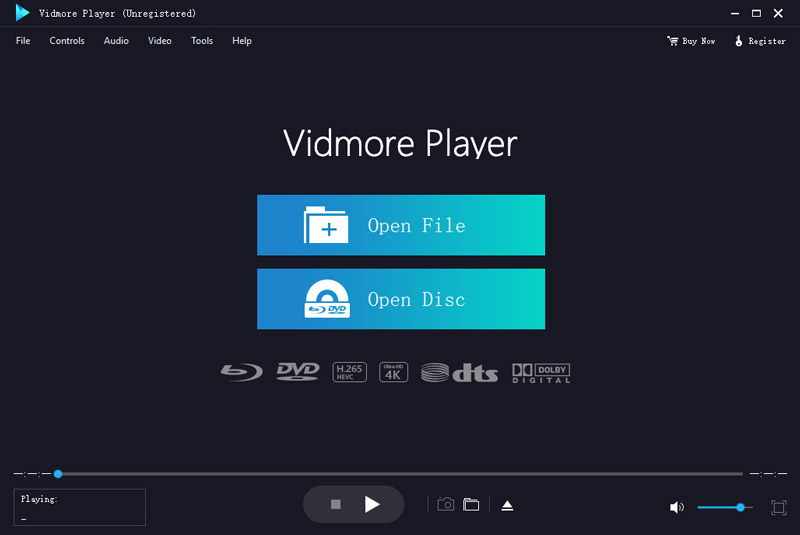
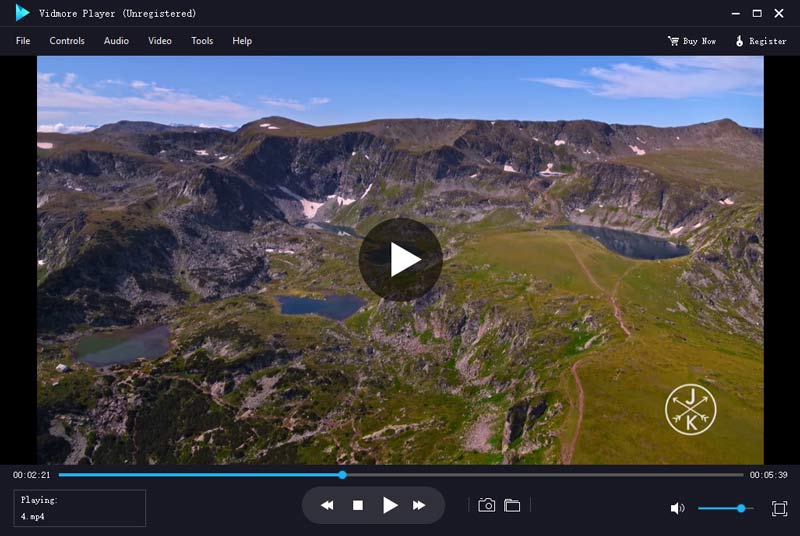
Do you have trouble in playing your Blu-ray disc/folder/ISO files and DVD disc/folder/ISO files? Are you looking for a powerful media player? Vidmore Player is your top choice. With it, you could play your Blu-rays and DVDs without any hassle.
Key functions:
Play Blu-ray disc/folder/ISO files With Vidmore Player, you could play your Blu-ray disc/folder/ISO files with the lossless sound effect as well as HD image quality. It supports various Blu-ray disc types, such as BD-5, BD-9, BD-25, BD-50, etc. It provides the function to customize video effects like adjusting the hue/brightness/contrast/saturation and Gamma.
Play DVD disc/folder/ISO files Do you want to play old DVD discs which you collected before? Do you want to play DVD folders? Do you want to play ISO files? Vidmore Player could accomplish this for you. It is able to play DVD disc/folder/ISO files and also lets you change the subtitle track/audio track.
Play any common videos If you want to play any popular video and audio files, you could have a consideration of Vidmore Player. It could not only play Blu-ray disc/folder/ISO files and DVD disc/folder/ISO files, but also play other common videos like MP4, MPG, M4V, TS, MTS, M2TS, MXF, WMV, ASF, MKV, F4V, FLV, VOB, etc. In addition, you can enjoy the 4K UHD and 1080p/720 HD videos as well.
High output quality With advanced audio decoding technologies like Dolby, DTS, AAC, TrueHD and more, you could enjoy the high quality of your media files. You could also click the Snapshot icon or use the shortcut key to take a screen shot when you play your movies.
GraphicConverter is an all-purpose image-editing program that can import 200 different graphic-based formats, edit the image, and export it to any of 80 available file formats.
The high-end editing tools are perfect for graphic manipulation as well as the ability to use Photoshop-compatible plug-ins. It offers batch-conversion capabilities, a slide-show window, batch rename, batch and individual editing of metadata (EXIF, IPTC, XMP) and so much more.
GraphicConverter 11 RAW Developer
RAW images are much easier to edit thanks to their enormous data depth. This is particularly noticeable when brightening images with the Exposure slider. The picture remains clear, there is no gray haze as with many JPG images. GraphicConverter now offers a full-screen dialog when opening RAW files with controls for Exposure, Contrast, and Color Corrections. The picture noise can be reduced even with 6 controllers.
Unpack Archives
You want to know which pictures and documents are in an archive file? Then double-click is enough: GraphicConverter temporarily shows you the content or secures the content permanently. In addition to the Zip format, there are 12 additional formats supported, such as the TAR and TGZ formats.
Wide Equalization
In wide-angle shooting, faces and objects on the left and right edges of the image are often heavily distorted in width. With the new wide-angle equalization in GraphicConverter 11, you can now reduce this distortion.
Gradients
You need a gradient, e.g. as a background for a collage? No problem. Easily create color gradients with up to 10 colors via the new dialog.
Duo-Tone
Color your shots with two colors to duo-tone images. In this impressive technique, the lighter shades are colored with the color 1 and the darker ones with the color 2. The result is an effect that enchants your pictures.
Apple Finder Tags
Do you organize your work with Finder Tags from Apple? Then your work will be even easier, because in the browser you can now use the context menu to directly display and change these tags.
Compatibility: macOS 10.13 or later • Apple Silicon or Intel Core processor Homepagehttps://www.lemkesoft.de
Express Accounts is professional business accounting software, perfect for small businesses needing to document and report on incoming and outgoing cash flow including sales, receipts, payments and purchases.
Sales and Accounts Receivable
Track sales and accounts receivable
Automatically record recurring orders and invoices
Accounts receivable & reports update as invoices are paid
Generate professional quotes, sales orders and invoices
Financial Analysis and Reports
Easily generate over 20 essential financial reports at any time
Income Statement (Profit & Loss statement) shows how your business has performed
Balance Sheet shows your current assets and liabilities
Analyze sales by customer, salesperson or item
Financial reports help prepare your tax returns quickly
Accounts Payable
Manage accounts payable and pay bills
Track outgoing payment and purchasing transactions
Generate purchase orders
Create and print checks
Additional Accounting Features
Multiple users with web access within the organization can securely log on and use the program on your network or online
Secure mobile access to the program through the web interface (e.g., iPhone, Android)
Integrates with Inventoria to maintain inventory data across all aspects of your business
Run multiple businesses with a single installation, including businesses operating with different currencies
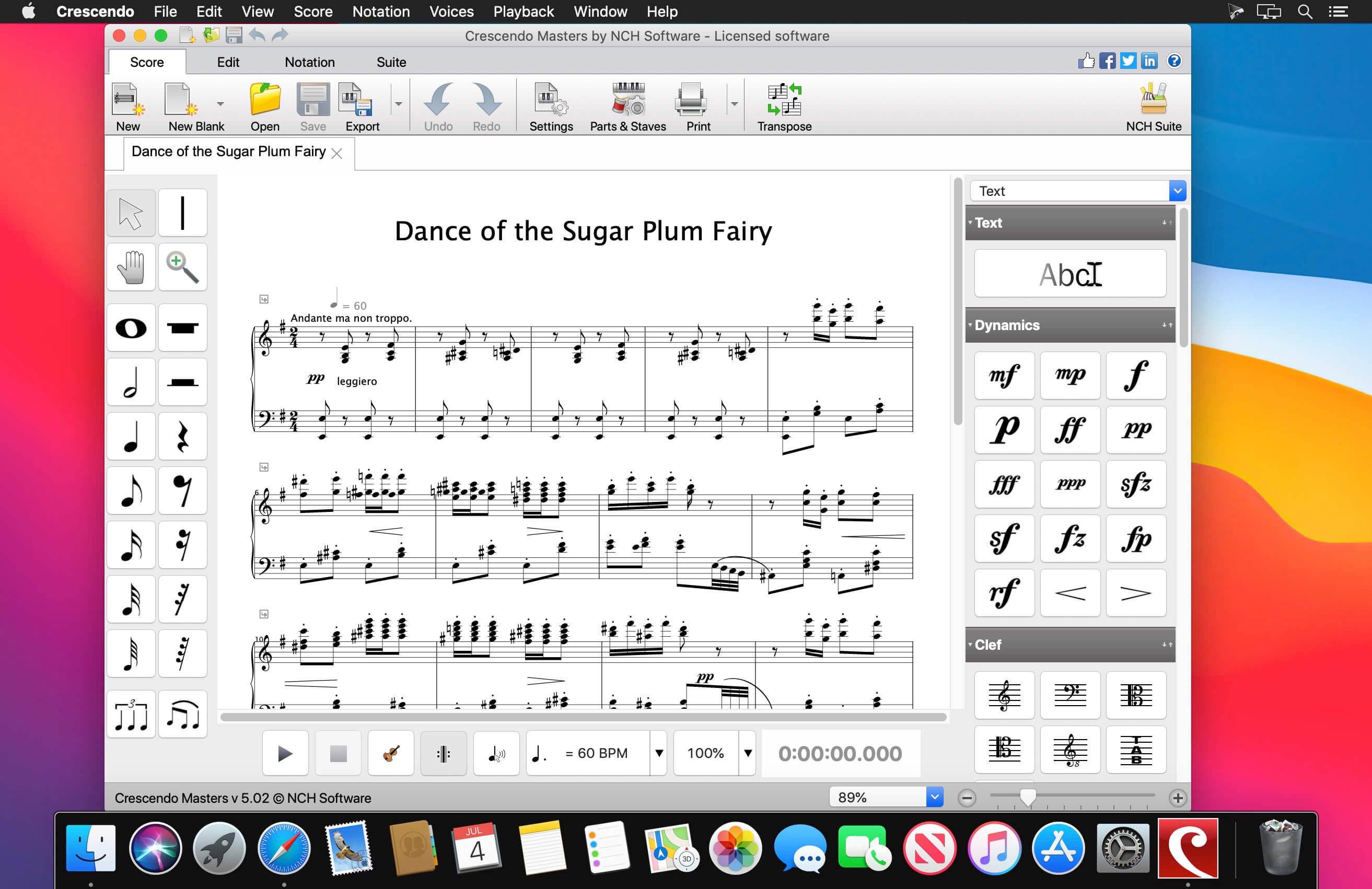
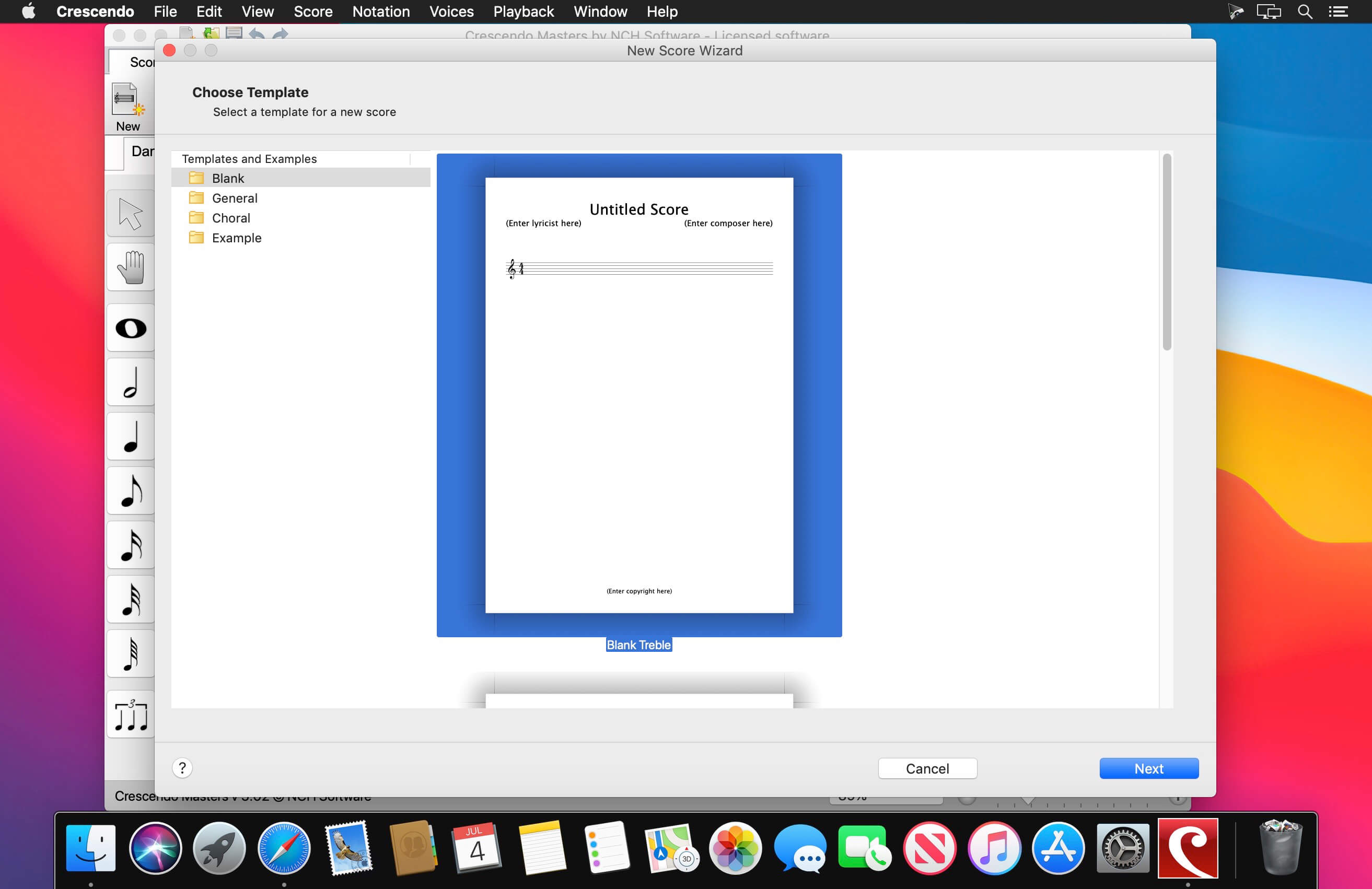
Crescendo Music Notation is the perfect software to start composing your music today. Using a free form sheet music layout, you can write your song, score, or composition your way. Create your arrangements with a variety of notation tools, where you can change the Dynamics, Clef, Key Signature, Time Signature, and more. Notes are easy to add and can quickly be transposed by key or by interval.
Once finished, you can easily print your sheet music or save your score to MIDI, PDF, and more.
Music Notation Software Features
Change the key signature and time signature
Add whole, half, quarter, eighth, sixteenth and thirty-second notes and rests (semibreve to demisemiquaver)
Create sheet music in Treble, Bass, Tenor or Alto Clefs
Display note name in notes to help beginner musicians
Write your own guitar tablature
Use drum kits and templates to write percussion notation
Assign sharp, flat and natural accidentals to notes
Add ties and slurs across notes
Create dotted notes, chords, add repeats, and more
Composing Program Features
Keyboard shortcuts toggle between notes and rests
Insert text to specify a title, tempo, dynamics or lyrics
Drag notes to change their pitch or placement
Copy, cut and paste measures to easily insert themes
Zoom in and out for easier editing
Brace staves together to compose scores for ensembles
Preview and Share Your Score
Listen to your composition with MIDI playback, or export MIDI music files
Create and playback guitar tabs
Supports VSTi instruments, such as piano or violin, for quality MIDI playback
Print completed music projects to share
Print blank music sheets for hand transcription
What’s New:
Version 9.18:
Release notes were unavailable when this listing was updated.
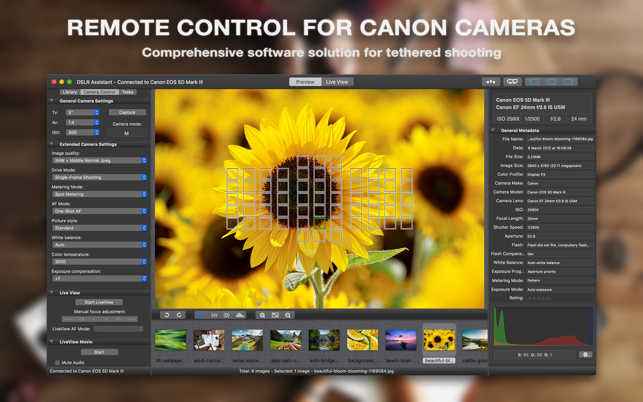
Operate a Canon camera tethered to a Mac, efficiently capture digital images, automatically perform various photo tasks and maintain the high quality of images throughout your workflow.
WHY SHOOT TETHERED?
Save Time. Perform you photo tasks faster, better and more easily. Reduce the amount of post processing workflow.
Enhance Image Quality. Make sure that focus, exposure, lighting, and of course composition are all the way you want them.
Get immediate feedback from the client and/or model. Make on-the-spot decisions which would benefit both of you.
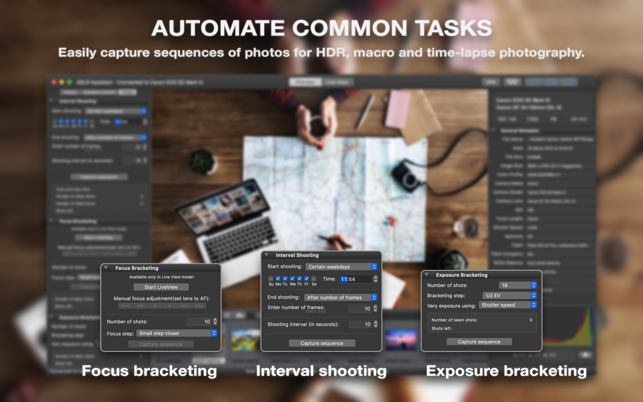
Automate Common Tasks. Easily capture sequences of photos for HDR, macro and time-lapse photography.
FEATURES: TETHERED SHOOTING
Control practically all camera parameters, key settings and shooting functions remotely. With only a few clicks you may change aperture, shutter speed, ISO, image size and quality, control lens focus and more. While it is still possible to set all options in the camera, it often makes more sense to make the changes remotely.
Release the shutter by pressing the release button on a camera body or remotely from the app.
Automatically transfer all captured images to your Mac.
See a live view from a camera on a large screen while shooting.
Adjust lens focus precisely when shooting at a shallow depth of field.
Record high quality native video stream into a file.
IMAGE LIBRARY
Automatically organise captured images.
Support for tokens in file and folder names.
Rate images from within the app.
INSTANT IMAGE PREVIEW
Preview captured images instantly on a large screen while shooting.
Image histogram with red, green and blue channels.
Identify overexposed and underexposed areas of the image.
Review the focus points used by the camera when recording the picture.
Examine EXIF information describing different parameters digital camera used while taking a shot.
LIVE VIEW
Frame the shot without the need to look through the camera’s viewfinder, you may use the Mac screen instead.
Precisely adjust lens focus.
Zoom LiveView image in and out.
Flip live preview image horizontally.
Record LiveView video stream into a file.
NIGHT MODE
Dim the screen to preserve your eyesight in a darkened environment.
Make your screen red to preserve your night vision even better.
INTERVAL SHOOTING
Arbitrary number of shots in the sequence.
User-defined time interval between shots.
Start and finish shooting at the predefined time.
Shooting on certain weekdays.
FOCUS BRACKETING
Automatically capture images with different positions of the focal plane to increase depth of field in your macro shots.
User-defined number of shots and focus step between sequential shots.
EXPOSURE BRACKETING
Automatic capture of bracketed series of images for high dynamic range photography.
Arbitrary number of shots in the sequence.
Far greater dynamic range.
User-defined bracketing step.
BULB MODE
Set your shutter speed for longer than 30 seconds.
SUPPORTED CANON EOS CAMERAS
40D, 50D, 60D, 70D, 77D, 80D, 100D, 200D, 450D, 500D, 550D, 600D, 650D, 700D, 750D, 760D, 800D, 1000D, 1100D, 1200D, 1300D, 2000D, R, RP, 1D Mark III, 1Ds Mark III, 1D Mark IV, 1D X, 1D X Mark II, 5D Mark II, 5D Mark III, 5D Mark IV, 5DS, 6D, 6D Mark II, 7D, 7D Mark II
Rebel XSi, T1i, T2i, T3i, T4i, T5i, T6i, T6s, T7i, SL1, SL2, XS, T3, T5, T6, T7
Kiss X2, X3, X4, X5, X6i, X7, X7i, X9, X9i, F, X50, X70
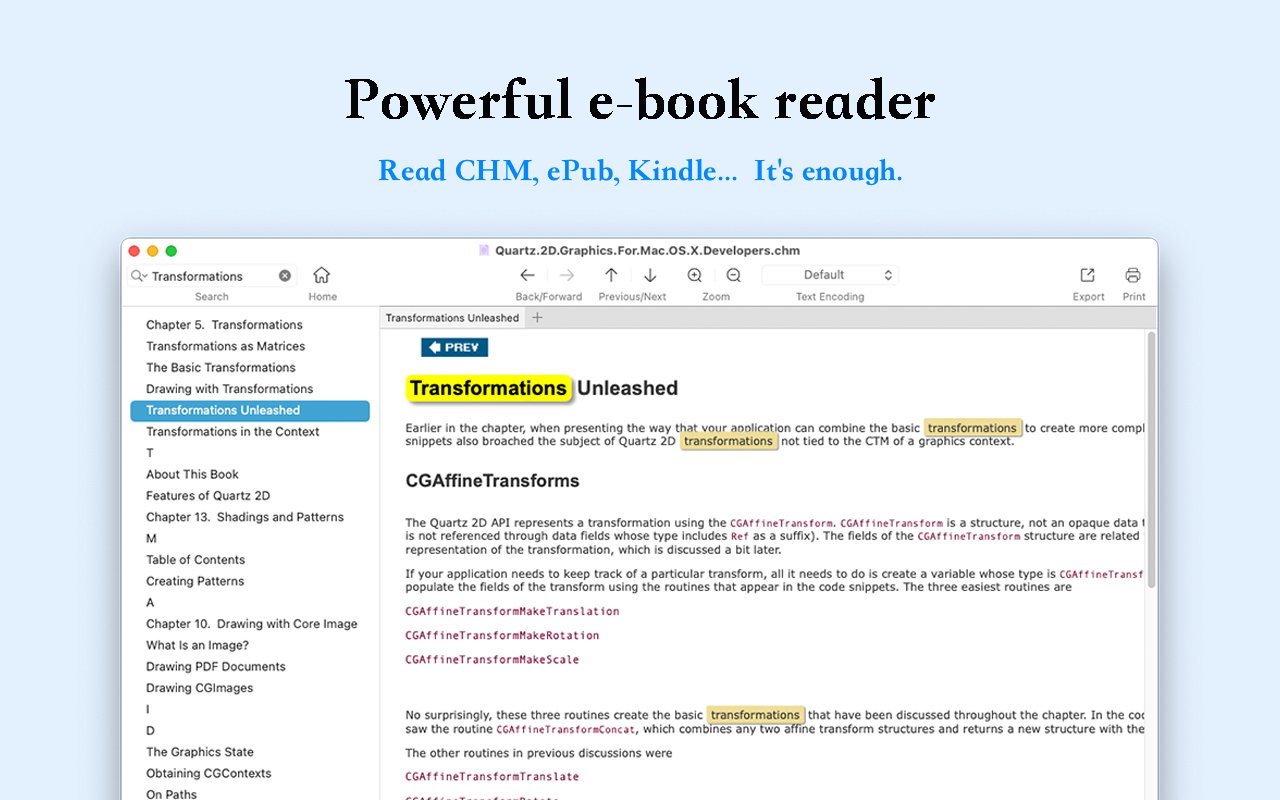
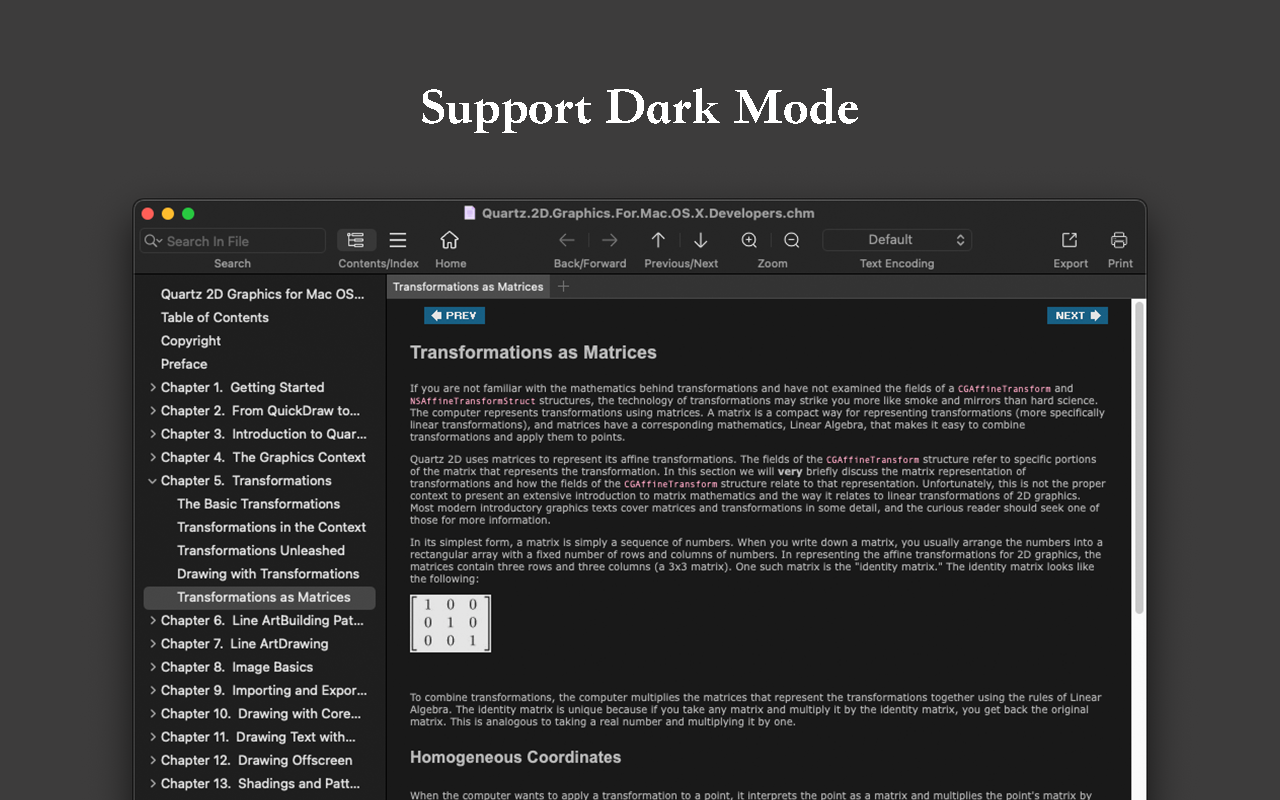
Read EPUB,CHM,MOBI… use it.. GM Reader is a fully functional book Reader with a simple and beautiful interface and a good reading experience.
▸ Features
– Supports reading EPUB, CHM and Kindle files.
– Support single page search and full text search, and highlight search results.
– Support the forward and backward browsing history.
– Supports page turning, zooming, and sidebar shrinking.
– Support page printing.
– Support to view the basic information of the file.
– Supports file export to EPUB, PDF.
– Support to extract all images in the file.
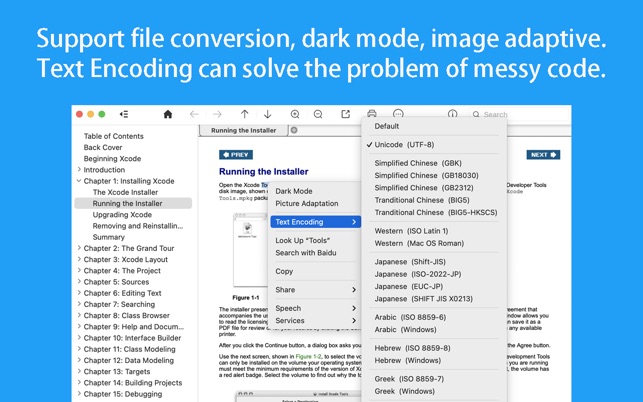
– Support file coding, deal with the problem of garbled code.
– Support image adaptive, automatically adjust the size of the picture.
▸ Bookrack
– All the files you have read will be saved in the bookshelf for quick review next time.
– Supports file drag and drop addition.
Say goodbye to camera limitations and bad lighting. Open the possibilities of using AI enhanced video. This automatic video enhancement technology is revolutionizing the industry by using artificial intelligence to increase the quality of your video frame by frame
Simple, real-time automatic video enhancement
If you’re going to enhance video with AI, it needs to be done right. We took care of the complicated part so your business can benefit from a simple, easy solution.
Perfectly Clear Video will automatically
– Bring your video to life with light and color correction
– Remove tint
– Powerfully recover highlights
– Create better contour, depth, and color tone on faces
– Vividly enhance skies and foliage
– Provide an exceptional exposure correction on any backlit videos
ZBrush is the leading industry standard digital sculpting software. This update provides enhancements that will help you explore new workflows, including the ability to create high quality renders with the integration of Redshift. From Hard Surface modeling and Character Creation to World Building and Environment Design, ZBrush provides you with access to diverse workflows and limitless creative possibilities with ease.
Integrate fully GPU-accelerated, biased rendering into your ZBrush pipeline
Render high resolution images without UV and Texture Map information on the fly. Take your art further with Subsurface Scattering, Emissive Light generation, full metallic material management and caustic effects for realistic glass. Using ZBrush with Redshift integration provides new and exciting opportunities to create high-quality images.
Slime Bridge
A dynamic way to create! Using the power of ZBrush’s Masking system, Slime Bridge works to expand modeling capacity to include complex geometric connections and designs from one masked island to another. Simply draw out a mask on a given surface and create another mask on an adjacent group of faces to set your Slime Bridge parameters. Click the Slime Bridge button and watch real-time construction and eclectic shapes come to life. The Tension, Bridges Calipers and Branches sliders provide access points for even more creative control when it comes time to slime things up!
Sculptris Pro
Sculptris Pro, a dynamic tessellation sculpting workflow that enables you to ignore the constraints of polygon distribution and just – sculpt! Sculptris Pro makes it possible for you begin with any shape or model, whether it has ten polygons or ten thousand. There is absolutely no need to worry about having enough polygons to capture details. With Sculptris Pro you can simply brush across the surface. Sculptris Pro will dynamically add and reduce polygons wherever and whenever it’s needed, freeing you to focus entirely on the look you’re trying to achieve.
ZBrush places a library of over 400 sculpting brushes at your fingertips. Activating Sculptris Pro will transform each of these brushes into a system that places no limitations on your creativity. ZBrush comes with a set of brushes designed specifically for Sculptris Pro.
Subdivision Size Picker
Additions to the already robust Sculptris Pro feature set include increased resolution capabilities. Take advantage of triangle size at five times the density. Using the Sculptris Pro slider provides control for increasing density in desired areas while also reducing the size of triangles. This means more detail where it counts. Extended use includes interactive manipulation of triangle size while hovering over designated areas of an asset.
Multi-Resolution Mesh Editing
The inherent problem with traditional 3D modeling methods is that once you divide your mesh you are locked into the design thus far. There is no way to go back and make changes at the macro level without sacrificing everything that has been done at higher resolutions. ZBrush does away with that restriction through multi-resolution subdivision editing, the feature for which it received an Academy Award. With this system you are free to move between subdivision levels at any time, making changes wherever they are most appropriate. Those changes then automatically ripple across all other levels of your model.
Mask Region
Mask Region allows for expanded use of ZBrush’s robust masking system by allowing you to draw shapes on the surface of a mesh while filling those areas uniformly and independently. Selecting the Auto Region option will auto-fill your mask to complete your selection. With Analyze Region, you make multiple masking selections while ZBrush detects and fills the selected areas. Fill Region will auto-fill all areas that ZBrush detected to complete multiple mask selections at once with the push of a button.
Apply Last Action
The Apply Last Action to All Subtools function allows for application of material attributes, color information and any other “undoable” operations to multiple subtools inside the ZBrush Tool Palette with the click of a button. Only Subtools with the “Eyeball” icon activated/visibility turned on inside the Subtool menu will be affected.
Taking this functionality further sees the addition of Folder support. The Folder “add-on” function provides you with an opportunity to manage Apply Last Action to specific folders for increased control over modeling and visual representation of assets. Grouping your subtools together into a Folder will allow you to use Apply Last Action to subtools within a currently selected folder.
MINIMUM SYSTEM REQUIREMENTS:
OS: Mac OSX: 10.14 or above.
CPU: Intel i7/i9 technology or above.
RAM: 4 GB (6+ GB strongly recommended)
HDD: 20 GB of free hard drive space for ZBrush and its scratch disk.
Pen Tablet: Mouse or compatible pressure sensitive tablet.
Monitor: 1280×1024 monitor resolution with millions of colors.
Video card: Must support OpenGL 3.3 or higher.
VMware Fusion gives Mac users the power to run Windows on Mac along with hundreds of other operating systems side by side with Mac applications, without rebooting. Fusion is simple enough for home users and powerful enough for IT professionals, developers and businesses.
Run Nearly Any Operating System on a Mac
Running Windows on Mac is only the beginning. VMware Fusion lets you choose from hundreds of supported operating systems, from lesser-known Linux distributions to the latest Windows 10 release.
Connect to VMware vSphere
Securely connect with vSphere, ESXi and Workstation servers to launch, control and manage both virtual machines (VMs) and physical hosts. Thanks to the common VMware platform, VMs can be easily transferred from the vSphere data center to the Mac desktop and then run in Fusion.
Develop and Test for Any Platform
Fusion makes it simple to test nearly any OS and app on a Mac. Build and test apps in a sandbox while securely sharing local source files and folders. Fusion Pro now includes a RESTful API to integrate with modern development tools like Docker, Vagrant, Ansible, Chef, and others to fit the power of VMware into today’s Agile and DevOps-oriented production pipelines.
Design and Demo Complex Solutions
With the ability to run an entire virtual cloud stack on a single Mac, solution architects can demonstrate their entire software solution in real time, with safe rollback points to return to known configurations. Fully express the story of your software journey by running all of its components on a single notebook to show the wor
Compatibility: macOS 12.0 or later, Apple Silicon or Intel Core processor Homepagehttps://www.vmware.com
SponsorBlock lets you skip over sponsors, intros, outros, subscription reminders, and other annoying parts of YouTube videos. SponsorBlock is a crowdsourced browser extension that let’s anyone submit the start and end time’s of sponsored segments and other segments of YouTube videos.
Once one person submits this information, everyone else with this extension will skip right over the sponsored segment.
You can also skip over non music sections of music videos.