Category Archives: Mirror

Mirror for LG TV 3.6.1

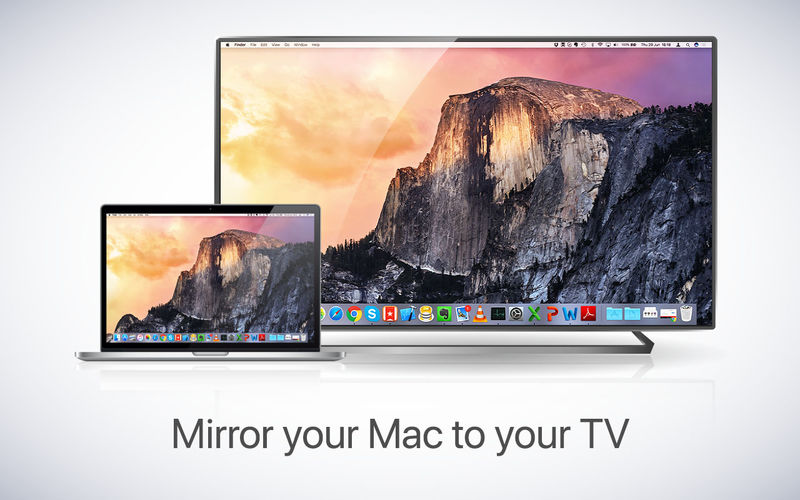
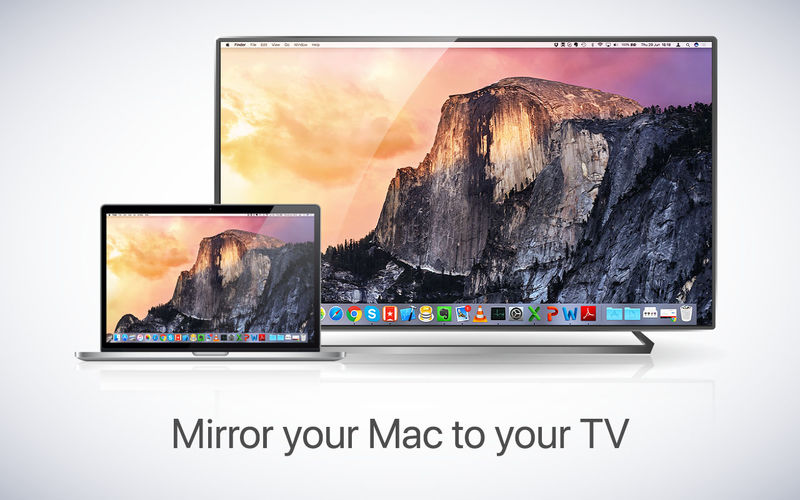
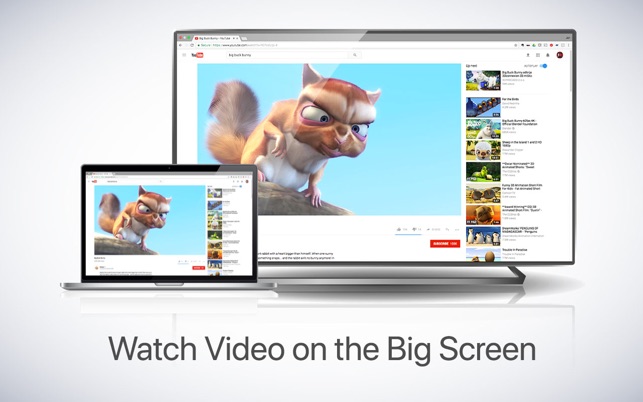
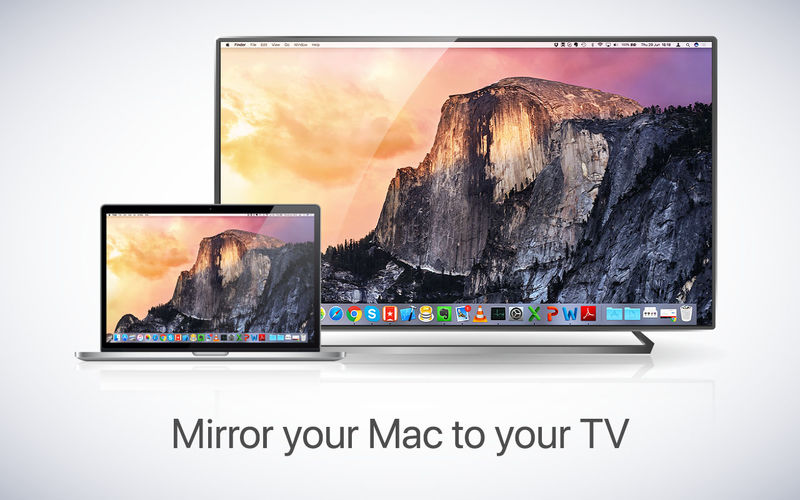
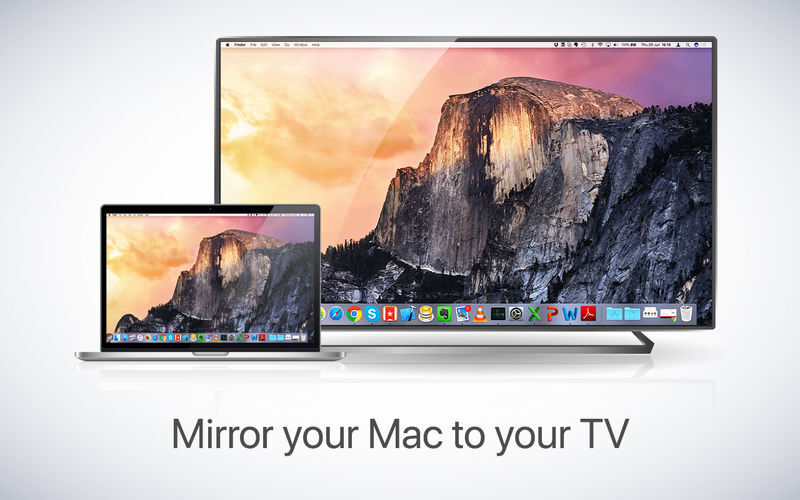
Application to mirror the screen of your Mac to any LG Smart TV. No wires and no additional hardware needed! You can also stream individual video files from your Mac to your TV. Also, we included the option to watch one window on your Mac, and another window on your TV!

This works on any LG Smart TV from the 2012 models onwards. And the LG Home Theater System.

In using the app, there will be about 2 to 3 seconds of latency. So this mirroring is not suitable for gaming.

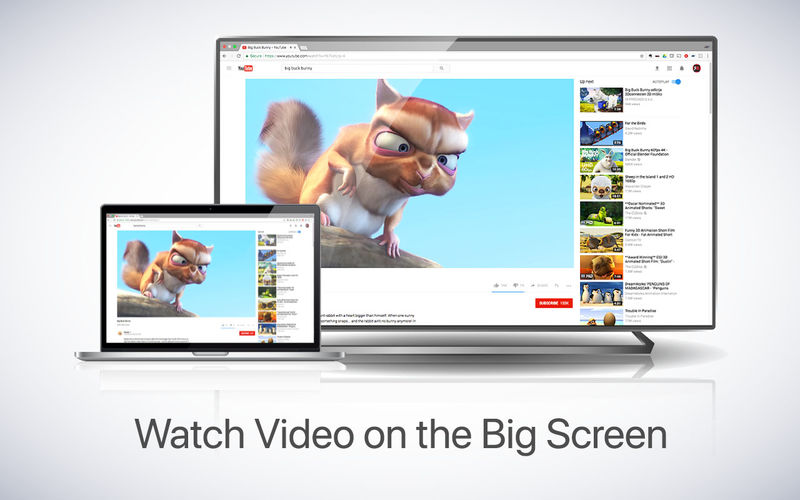
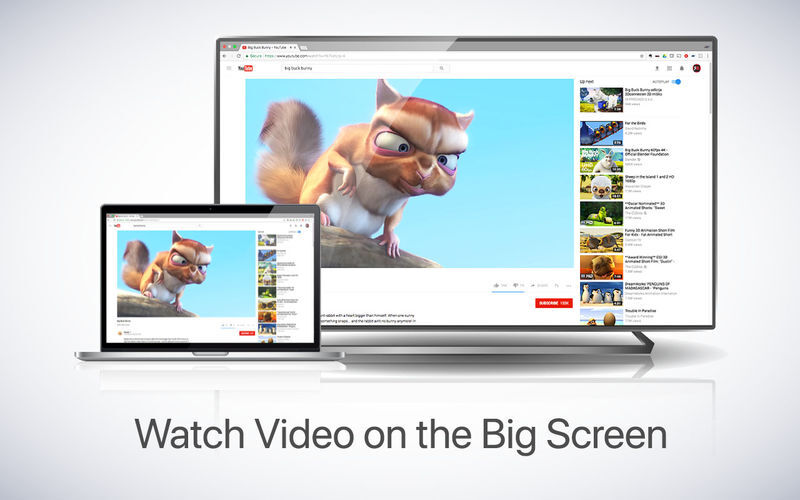
However, it is very suitable for watching movies, giving presentations, watching photos, and much more!

The quality of your experience will be dependent on the quality of your local network. Some tips to enhance the experience:

  • Preferably, connect your TV by LAN cable to your router.
  • Use an “ac” router. If you don’t have one, then an “n” router.
  • Try not to overload your wifi network by moving big files around while you are mirroring.

How the app works:
First, make sure that your LG TV is on the same local network and same subnet as your Mac. The TV should not be in screen mirroring mode, but just on “TV” Mode or any HDMI IN port.

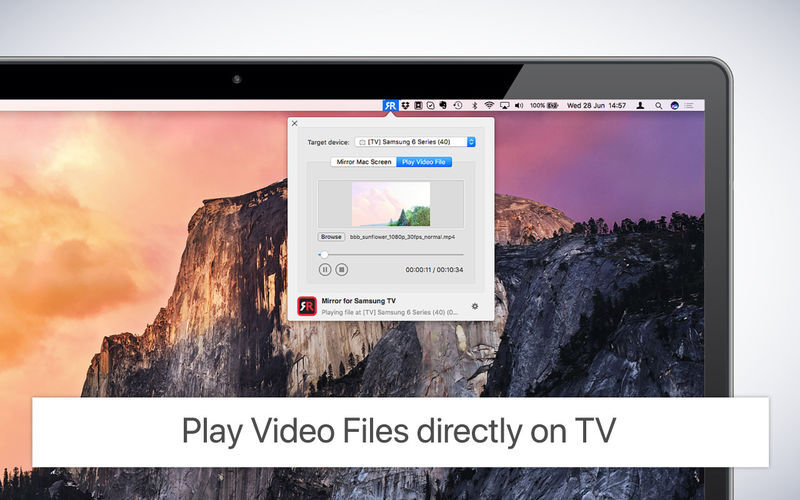
After launching the app, you will see the app icon appearing in the top bar of your Mac and the app will look for your TV on the network. It will show your TV when it has found it. Now, you have two options:

Mirror your Mac Screen:
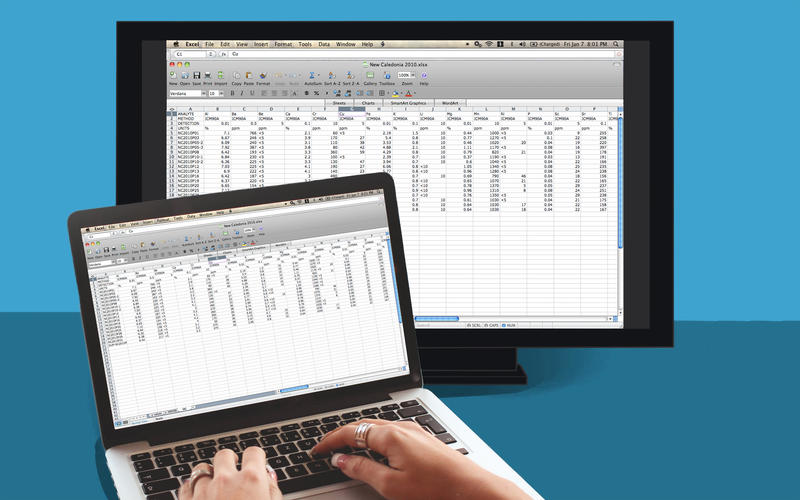
Use this option to put the screen of your Mac on TV. In source, you can select which screen (or attached monitor) you want to display on TV. If you are running multiple applications on your Mac, you can also select which application window you want to see on TV.

Enable Sound: check this to hear the sound of your Mac coming from the TV. You will need the additional (free) audio driver, which you can download here: http://bit.ly/MirrorAudio

Play Video File:
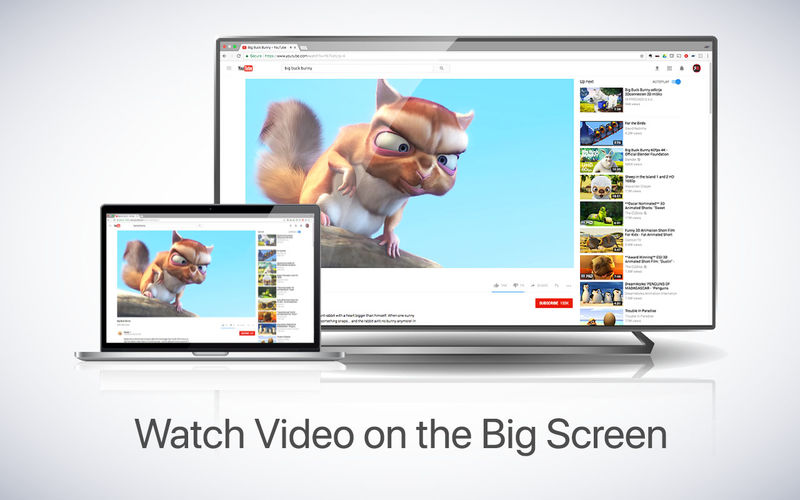
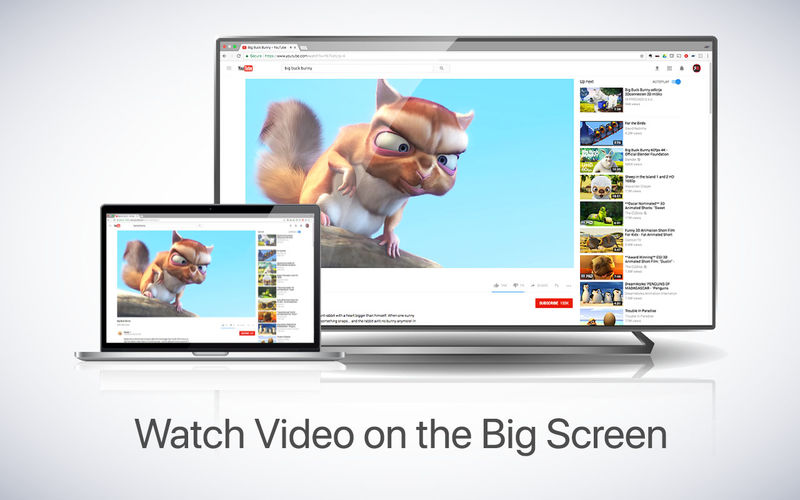
Use this option if you have a video file on your Mac and you want to play just the file on TV. Drop it in the box and it will play on TV.

Settings (the icon in the bottom right of the app): click here to request support from our 24/7 support staff. They usually respond within 2 hours on any query that you might have. If your question is technical, please also include the diagnostics information.

Limitations: Apple has HDCP DRM protection for playing iTunes movies. This means that screen mirroring is not possible when watching movies from iTunes.

What’s New:

Version 3.6.1

  • Bugfixes and Stability Improvements

Compatibility: OS X 10.10 or later 64-bit
Homepage https://www.airbeam.tv

Screenshots
Name: Mirror_for_LG_TV_3.6.1__TNT_Mactorrents.io.dmg
Size: 15.49 MB
Files Mirror_for_LG_TV_3.6.1__TNT_Mactorrents.io.dmg[15.49 MB]

   Download

Mirror for Sony TV 3.6

Application to mirror the screen of your Mac to any Sony Bravia Smart TV. No wires and no additional hardware needed! You can also stream individual video files from your Mac to your TV. Also, we included the option to watch one window on your Mac, and another window on your TV!

This works on any Sony Smart TV from the 2012 models onwards.

In using the app, there will be about 1 to 2 seconds of latency. So this mirroring is not suitable for gaming.

However, it is very suitable for watching movies, giving presentations, watching photos, and much more!

The quality of your experience will be dependent on the quality of your local network. Some tips to enhance the experience:

  • Preferably, connect your TV by LAN cable to your router.
  • Use an “ac” router. If you don’t have one, then an “n” router.
  • Try not to overload your wifi network by moving big files around while you are mirroring.

How the app works:
First, make sure that your Sony TV is on the same local network and same subnet as your Mac. The TV should not be in screen mirroring mode, but just on “TV” Mode or any HDMI IN port.

After launching the app, you will see the app icon appearing in the top bar of your Mac and the app will look for your TV on the network. It will show your TV when it has found it. Now, you have two options:

Mirror your Mac Screen:
Use this option to put the screen of your Mac on TV. In source, you can select which screen (or attached monitor) you want to display on TV. If you are running multiple applications on your Mac, you can also select which application window you want to see on TV.

Enable Sound: check this to hear the sound of your Mac coming from the TV. You will need the additional (free) audio driver, which you can download here: http://bit.ly/MirrorAudio

Play Video File:
Use this option if you have a video file on your Mac and you want to play just the file on TV. Drop it in the box and it will play on TV.

What’s New:

Version 3.5:

  • Bugfixes and Stability Improvements
  • Adaptive streaming for better performance on lower quality networks

Compatibility: OS X 10.10 or later 64-bit
Homepage https://www.airbeam.tv

Screenshots

Name: Mirror_for_Sony_TV_3.6__TNT_Mactorrents.io.dmg
Size: 15 MB
Files Mirror_for_Sony_TV_3.6__TNT_Mactorrents.io.dmg[15 MB]

   Download

Oka Mirror for Any Device 1.0.3

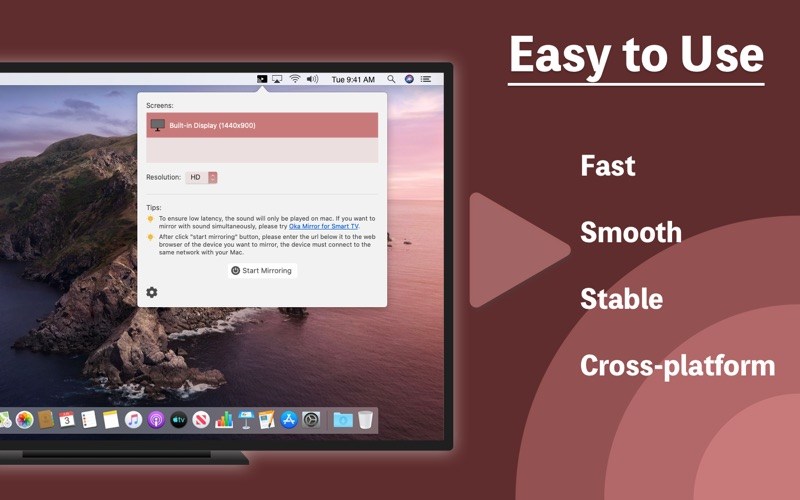
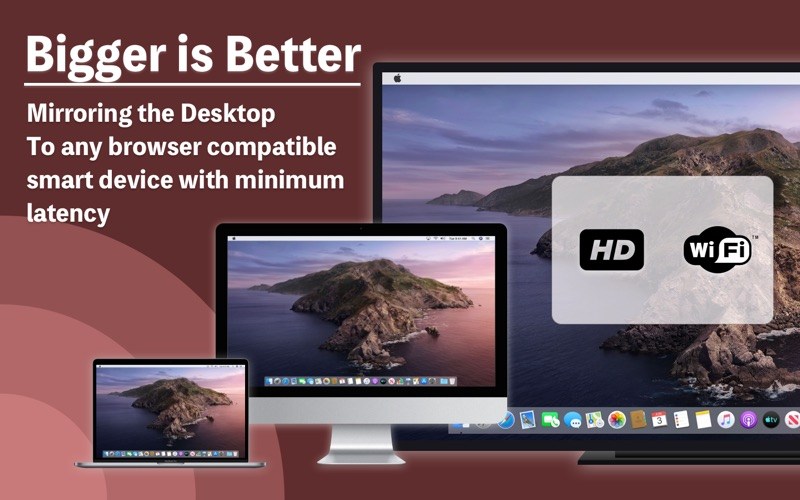
With Oka Mirror – for any device, you can view live screen images on your Mac from a browser on any device!

Screen Mirroring

Use this option to put the screen of your Mac on any device – desktop,Laptop,mobile phone,smart TV …

Just use a web browser with smooth access to the local network, such as Safari, Chrome, Firefox, Edge… to view the clear, low latency Mac live screen!

What’s new

Some bug fix

Compatibility: macOS 10.13 or later
Homepage http://apps.apple.com/app/oka-mirror-for-any-device/id1523794932

Screenshots


Name: Oka_Mirror_for_Any_Device_1.0.3_MAS__HCiSO_Mactorrents.io.dmg
Size: 11.3 MB
Files Oka_Mirror_for_Any_Device_1.0.3_MAS__HCiSO_Mactorrents.io.dmg[11.3 MB]

   Download

Mirror for Roku TV 2.8

Application to mirror the screen and audio of your Mac to a Roku Streaming Player, Roku Streaming Stick or Roku TV. You can also stream individual video files from your Mac to your Roku. Also, we included the option to watch one window on your Mac, and another window on your Roku!

In using the app, there will be a about 2 to 3 seconds of latency (lag). So this mirroring is not suitable for gaming.

However, it is very suitable for watching movies, giving presentations, watching photos, and much more!

The quality of your experience will be dependent on the quality of your local network. Some tips to enhance the experience:
1. Restart your router. Just take out the power plug, wait 10 seconds and put it back in. This resets your router and will make your home network faster and more stable. Why this works? Routers are in essence little computers, with software. Software will have small memory leaks and some processes will stop working correctly over time. That’s why it is a good idea to reset your router once in a while. Our recommendation: once a week.

2. Don’t do network intense work while screen mirroring. As explained, screen mirroring is network intense. For the best performance, don’t do other network intense work at the same time. This includes making timemachine backups over the network and uploading/downloading large files from the internet while screen mirroring.

3. Put your Mac and your Roku on the same router channel. Some routers (dual band) have create both a 2.4Ghz and a 5Ghz wireless network. For the best performance, put your Mac and your TV on the same network. Preferably the 5Ghz network. But definitely not the Mac on 5Ghz and the TV on 2.4Ghz, because that will negatively impact the performance of screen mirroring.

4. Use an AC or N router. Newer routers support Wifi AC and N. Older routers might only have Wifi B and/or G. B and G are not really up to scratch anymore for modern networking tasks, so go for an AC or N router. If your router supports AC and N, also make sure that your router is set to use either the Wifi N or Wifi AC networking.

How the app works:
First, make sure that your Roku is on the same local network and same subnet as your Mac. After launching the app, you will see the app icon appearing in the top bar of your Mac and the app will look for your Roku on the network. It will show your Roku when it has found it. Now, you have two options:

Mirror your Mac Screen:
Use this option to put the screen of your Mac on TV. In source, you can select which screen (or attached monitor) you want to display on TV. If you are running multiple applications on your Mac, you can also select which application window you want to see on TV.

Enable Sound: check this to hear the sound of your Mac coming from the TV. You will need the additional (free) audio driver, which you can download here: http://bit.ly/MirrorAudio

Play Video File:
Use this option if you have a video file on your Mac and you want to play just the file on TV. Drop it in the box and it will play on TV.

What’s New:

Version 2.8:

  • Release notes were unavailable when this listing was updated.

Compatibility: OS X 10.10 or later, 64-bit processor
Homepage https://www.airbeam.tv/

Screenshots


Name: Mirror_for_Roku_2.8__TNT_Mactorrents.io.dmg
Size: 15.12 MB
Files Mirror_for_Roku_2.8__TNT_Mactorrents.io.dmg[15.12 MB]

   Download

Mirror for Panasonic TV 3.5.6

Application to mirror the screen of your Mac to any Panasonic Smart TV. No wires and no additional hardware needed! You can also stream individual video files from your Mac to your TV. Also, we included the option to watch one window on your Mac, and another window on your TV!

This works on any Panasonic Smart TV from the 2012 models onward.

In using the app, there will be about a second of latency. So this mirroring is not suitable for gaming.

However, it is very suitable for watching movies, giving presentations, watching photos, and much more!

The quality of your experience will be dependent on the quality of your local network. Some tips to enhance the experience:

– Preferably, connect your TV by LAN cable to your router.
– Use an “ac” router. If you don’t have one, then an “n” router.
– Try not to overload your wifi network by moving big files around while you are mirroring.

How the app works:
First, make sure that your Samsung TV is on the same local network and same subnet as your Mac. The TV should not be in screen mirroring mode, but just on “TV” Mode or any HDMI IN port.

After launching the app, you will see the app icon appearing in the top bar of your Mac and the app will look for your TV on the network. It will show your TV when it has found it. Now, you have two options:

Mirror your Mac Screen:
Use this option to put the screen of your Mac on TV. In source, you can select which screen (or attached monitor) you want to display on TV. If you are running multiple applications on your Mac, you can also select which application window you want to see on TV.

Enable Sound: check this to hear the sound of your Mac coming from the TV. You will need the additional (free) audio driver, which you can download here: http://bit.ly/MirrorAudio

Play Video File:
Use this option if you have a video file on your Mac and you want to play just the file on TV. Drop it in the box and it will play on TV.

Settings (the icon in the bottom right of the app): click here to request support from our 24/7 support staff. They usually respond within 2 hours on any query that you might have. If your question is technical, please also include the diagnostics information.

Limitations: Apple has HDCP DRM protection for playing iTunes movies. This means that screen mirroring is not possible when watching movies from iTunes.

When you like the app, please don’t forget to give it a positive rating! Thanks in advance from the AirBeamTV development team!

Compatibility: OS X 10.10 or later, 64-bit processor
Homepage https://geo.itunes.apple.com/app/id1148522522

Screenshots

Name: Mirror_for_Panasonic_TV_3.5.6__TNT_Mactorrents.io.dmg
Size: 15 MB
Files Mirror_for_Panasonic_TV_3.5.6__TNT_Mactorrents.io.dmg[15 MB]

   Download

Mirror for Samsung TV 3.5.7

Application to mirror the screen of your Mac to any Samsung Smart TV. No wires and no additional hardware needed!

This works on any Samsung Smart TV from the 2012 models onward. Which model year do you have? You can see that by looking at the middle letter in your model type (on the back of your Samsung TV).
E = 2012
F = 2013
H = 2014
J = 2015
K = 2016
M = 2017
N = 2018
Q = QLED (supported)

For instance:
UE55_E_S8000 = 2012.
UE78_H_U8500L = 2014.

In using the app, there will be a couple of seconds of latency (usually between 1 and 3). So this mirroring is not suitable for gaming.

However, it is very suitable for watching movies, giving presentations, watching photos, and much more!

The quality of your experience will be dependant on the quality of your local network. Some tips to enhance the experience:

  • Preferably, connect your TV by LAN cable to your router.
  • Use an “ac” router. If you don’t have one, then an “n” router.
  • Try not to overload your wifi network by moving big files around while you are mirroring.

How the app works:
After launching the app, you will see the app icon appearing in the top bar of your Mac. Click on the icon and you will see a list of options:

DEVICES:
Here we scan your home network for connected Samsung Smart TVs. When a TV is found in the same network as your Mac, it will be listed here. To start mirroring, select the TV from this list.

DISPLAYS:
Under Displays, you will see all your screens. The primary screen of your Mac, or, when you have another monitor connected, you will see that screen as well. Please select the screen that you would like to have mirrored on your Samsung TV.

Enable Audio: you can choose whether you would like to hear the audio on your Mac or through the speakers of your Samsung TV.

NETWORK QUALITY:
When you are experiencing performance issues with the app, it might be because your local network is not coping with the video data that we are sending from your Mac to your TV. You can select a lesser quality network and try again.

What’s New:

Version 3.5.7

  • Bugfixes and Stability Improvements

Compatibility: OS X 10.10 or later, 64-bit processor
Mac App Store https://itunes.apple.com/app/mirror-for-samsung-tv/id1107644799?mt=12

Screenshots


Name: Mirror_for_Samsung_TV_3.5.7_MAS__TNT_Mactorrents.io.dmg
Size: 15.13 MB
Files Mirror_for_Samsung_TV_3.5.7_MAS__TNT_Mactorrents.io.dmg[15.13 MB]

   Download

Mirror for LG TV 3.6

Mirror for LG TV is an application to mirror the screen of your Mac to any LG Smart TV. No wires and no additional hardware needed. This works on any LG Smart TV from the 2012 models onwards, and on the LG Home Theater System.

The quality of your experience will be dependant on the quality of your local network. Some tips to enhance the experience:

• Preferably, connect your TV by LAN cable to your router.
• Use an “ac” router. If you don’t have one, then an “n” router.
• Try not to overload your wifi network by moving big files around while you are mirroring.

Compatibility: OS X 10.10 or later 64-bit
Homepage https://www.airbeam.tv

Screenshots

Name: Mirror_for_LG_TV_3.6__HCiSO_Mactorrents.io.dmg
Size: 13 MB
Files Mirror_for_LG_TV_3.6__HCiSO_Mactorrents.io.dmg[13 MB]

   Download

Mirror & Offset v1.2

Mirror & Offset v1.2 for After Effects MacOS

Offset and create a mirrored copy of the selected keyframes across multiple layers.

Mirror & Offset is a simple tool that does two things
1. Offset multiple keyframes across multiple layers with a single click

Select the keyframes, set the desired offset step(frames) and press the OFFSET button. There are additional options:

Direction you’d like the offset to happen (Upwards or Downwards).
How you’d like the offset to be applied (take all the keyframes in the layer as one stack and offset each stack, or, take each property and offset it individually).
Shuffle the layers (that have selected keyframes) before applying the offset.

2. Create an exact mirrored copy of the selected keyframes across multiple layers

Select the keyframes and click the MIRROR button.
There is an additional option that lets you just mirror the selected keyframes instead of creating their mirrored copy. Note that the plugin mirrors not only the keyframes but also the easing graph.

Homepage https://aescripts.com/mirror-and-offset/

Name: mirror-and-offset_1.2_Mactorrents.io.zip
Size: 490 KB
Files mirror-and-offset_1.2_Mactorrents.io.dmg[490 KB]

   Download

Mirror for Smart TV Bundle (upd 28.11.2019)

Download Mirror for Smart TV App Bundle (upd 28.11.2019)
AirBeamTV offers the solution to mirror the screen and audio of your Mac or Macbook to any Smart TV.No wires and no additional hardware needed! You can stream any app on your Mac screen to your television. With the Mirror for Smart TV apps you can watch your favourite shows together on the big screen.

Download and install the Mac app for the Samsung, Sony, Panasonic, Philips and LG Smart TV’s today, to get started! We also have applications for Roku, Amazon Fire TV, Chromecast , Android TV and other!

What’s Included in Mirror for Smart TV App Bundle (upd 28.11.2019):

  1. Mirror for Android TV 2.4.4
  2. Mirror for Arcelik TV 3.4.4
  3. Mirror for Beko TV 3.4.4
  4. Mirror for Chromecast 2.7.1
  5. Mirror for Fire TV 2.4.5
  6. Mirror for Hisense TV 3.5.7
  7. Mirror for Grundig TV 3.4.4
  8. Mirror for Hitachi TV 1.0.2
  9. Mirror for LG TV 3.5.6
  10. Mirror for Panasonic TV 3.5.6
  11. Mirror for Philips TV 2.5.6
  12. Mirror for Roku 2.7.5
  13. Mirror for Samsung TV 3.5.6
  14. Mirror for Sharp TV_3.5.8
  15. Mirror for Sony TV 3.5.6
  16. Mirror for TCL TV 3.5.7
  17. Mirror for Toshiba TV 1.0.2

Information

CompatibilityOS X 10.10 or later 64-bit
LanguagesEnglish

Screenshots

Name AirBeamTV Mirror Bundle 20191127 [TNT] mac-torrents.net.zip
Size 389.7 MB
Created on 2019-11-28 19:32:27
Hash 5d3ef45576fdfa2fe483f22c4d40d6b5c59816ef
Files AirBeamTV Mirror Bundle 20191127 [TNT] mac-torrents.net.zip (389.7 MB)

Download