iNet provides you with information about networks your Mac is connected to. Its very easy and user friendly design allows even the unexperienced user to get a profound and understandable overview of a network and the running services. iNet is also available as iPhone and iPad App via the iTunes Store.
In the current version the following functions are available:
Network Scanner
Bonjour Browser
Portscan for standard ports
Airport Monitor
Wake on Lan
What’s New:
Version 2.7.6
[Added] Better detection of Apple devices running iOS 14 or iPadOS 14*
Keep under control your network with Network Kit X, an user friendly set of network tools that will help you to analyze your LAN, and not only that.
In addition, with a single click you can PING a domain, query a Whois server or use NSLookup/Dig service to discover every info about it.
You can copy any information of the network that you are connected with a simple right-click on it!
An amazing real time graph help you to visualize PING response times, and Network Utility v4 has also real time stats.
The Geo IP tool allows you to to quickly geolocate a domain or IP in a matter of seconds.
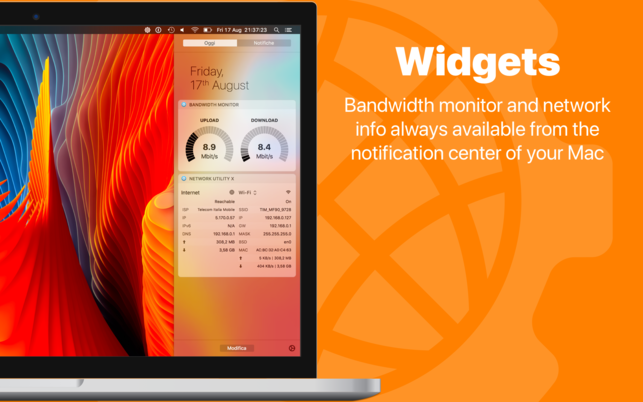
WIDGET An useful widget brings network info into your Notification Center. Keep under control your machine’s IP, downlink and uplink speeds and many other informations.
HANDOFF Start an action on Mac and replicate it on your iPad/iPhone with a single tap (Require Network Utility v4.2 or greater).
Internet
ISP
IP
REACHABILITY STATUS
DNS
TOTAL SENT DATA
TOTAL RECEIVED DATA
Wi-Fi
STATUS
SSID
BSSID
IP
GATEWAY
SUBNET MASK
SECURITY
CHANNEL
RSSI
NOISE
Tx RATE
PHY MODE
INTERFACE BSD NAME
MAC ADDRESS
SENT BYTES
RECEIVED BYTES
UPLINK SPEED
DOWNLINK SPEED
PACKETS
ERRORS
COLLISIONS
Other interfaces (Thunderbolt, Ethernet, Bluetooth, etc…)
STATUS
IP
GATEWAY
SUBNET MASK
INTERFACE BSD NAME
MAC ADDRESS
SENT BYTES
RECEIVED BYTES
UPLINK SPEED
DOWNLINK SPEED
PACKETS
ERRORS
COLLISIONS
What’s New:
Version 8.0.0
macOS Big Sur compatibility
Native support to the Apple Silicon architecture
Many new customizable widgets for the Notification Center of your Mac: check the state of your network with the panoramic widget of quickly get details about your WiFi connection or about a network adapter
New options menu available in Network Kit and Network Kit mini to quickly open preferences, keep the app in foreground or quickly switch from Network Kit to Network Kit mini and vice versa
Now you can set the monitored interface of the bandwidth monitor tool without passing from the preferences, click on the interface name to open a contextual menu
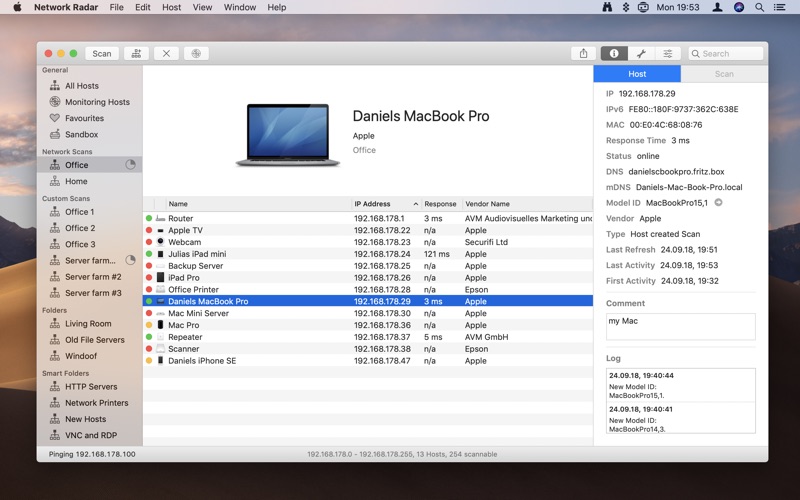
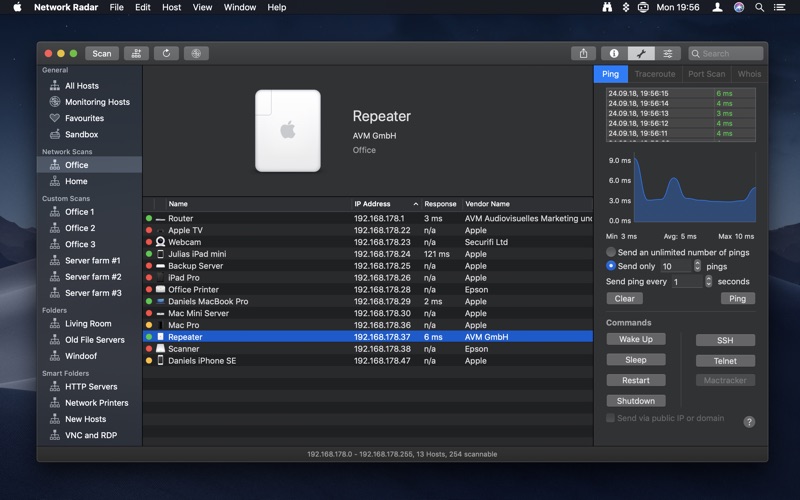
Network Radar is an advanced network scanning and managing tool. Featuring an easy-to-use and streamlined design, the all-new Network Radar 2 has been engineered from the ground up as a modern Mac application.
Key Features
Scan your network and retrieve detailed information on network devices
Run useful network tools and commands with the click of a button
Use the monitoring feature and get notified about changes in your network
Access devices from previous scans, even in different networks
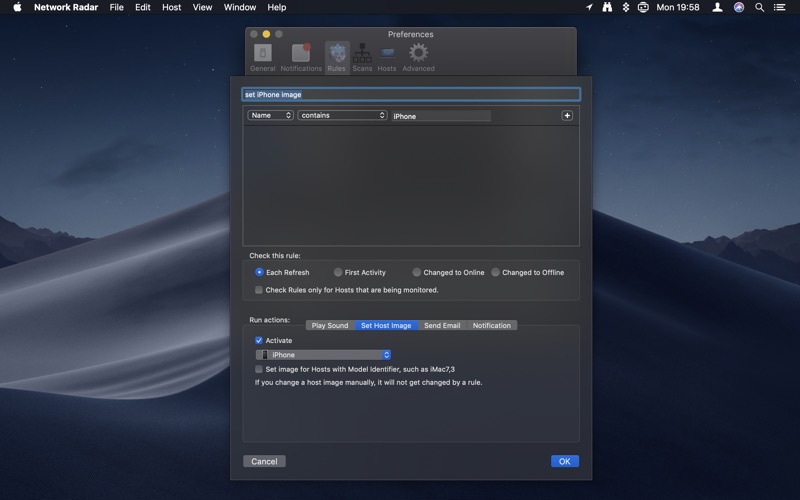
Use the simple rules / actions system for automatic processing of devices
Simply connect to a device by double-clicking it in the list
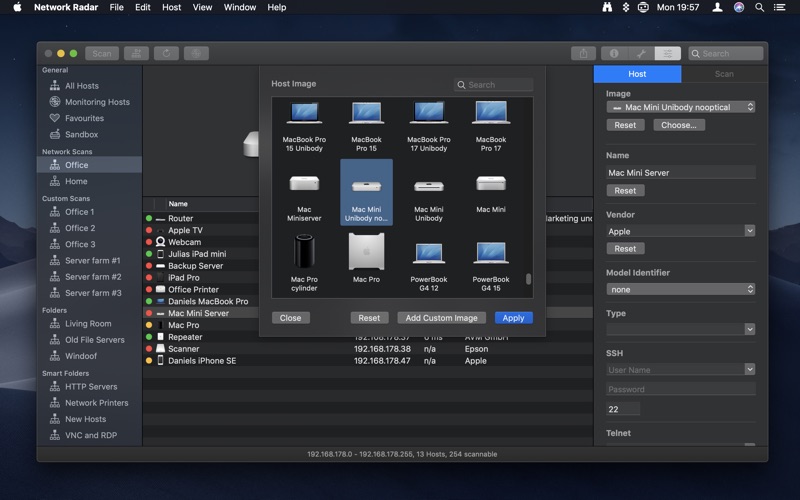
Assign your own names and choose from provided icons or import own icons
Organize your hosts in folders and smart folders
Create scans with custom IP ranges
Export a scan to XML, CSV, TXT or PDF
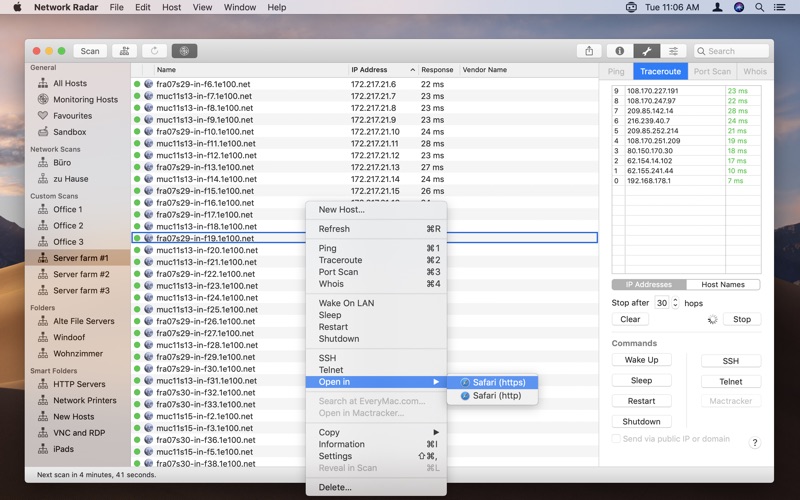
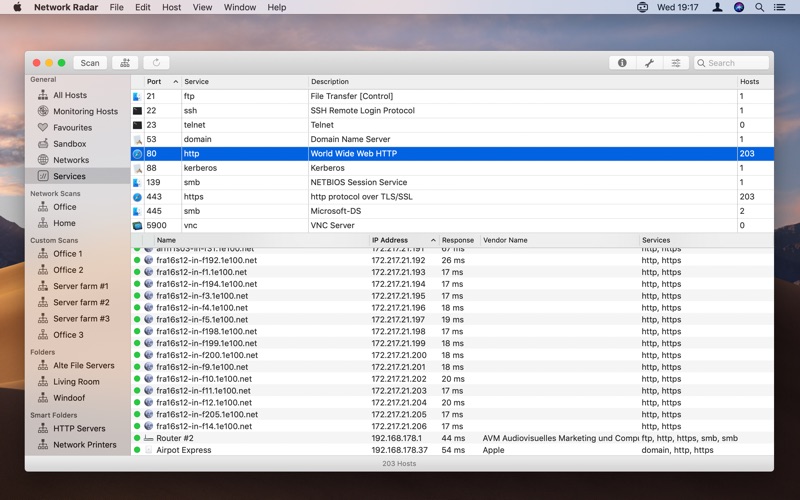
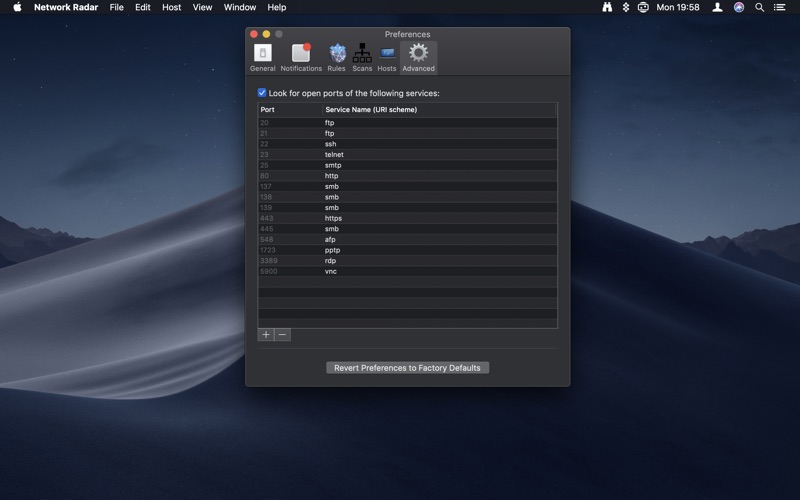
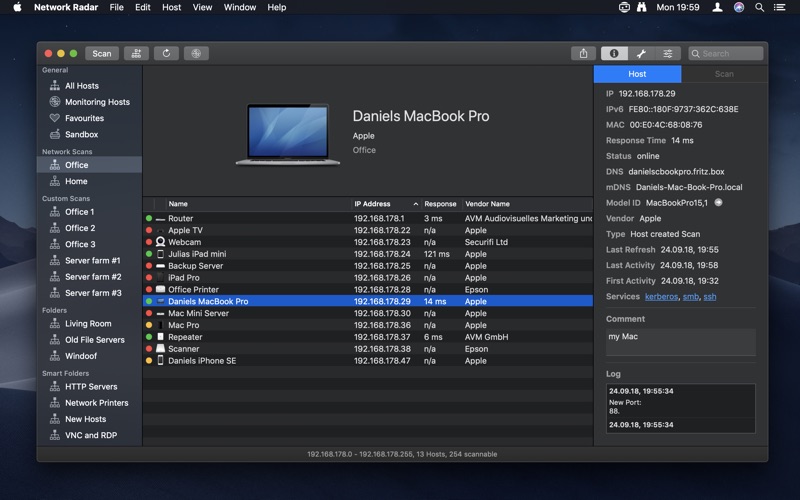
All you have to do to use Network Radar is to click the Scan button. No configuration is required. However, Network Radar is more than a simple IP scanner. It comes with useful tools, such as Ping, Portscan and Whois. In addition to that you can send commands to your devices with the click of a button. Use Wake On LAN with every Wake On LAN capable device and shutdown, restart or send other Macs to sleep, even if they are not within your local network.
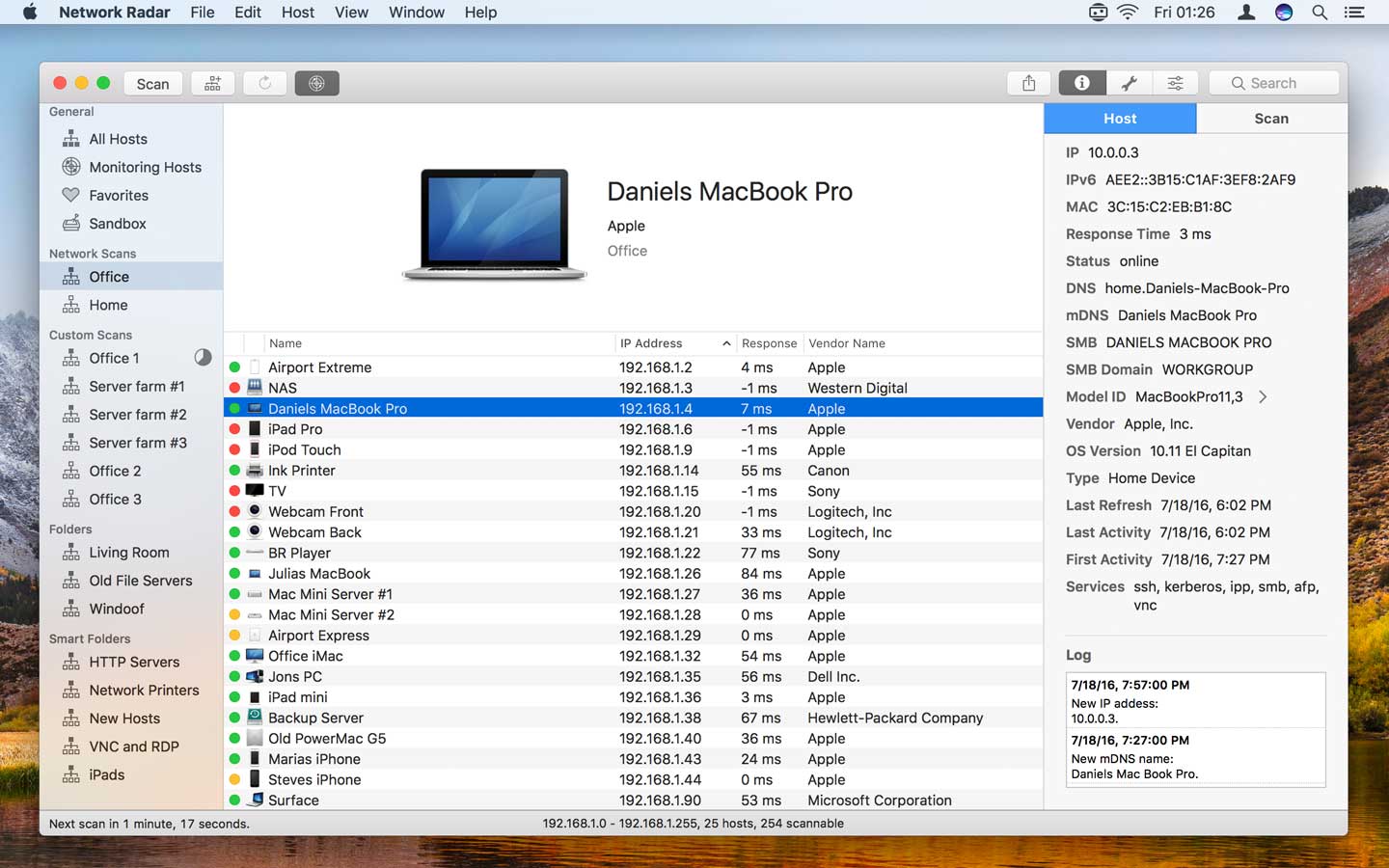
Once Network Radar has scanned your network, it lists all found devices. Select one to see more details, such as IP, IPv6 and MAC address, vendor name, DNS name, mDNS names, NetBIOS name, NetBIOS domain, open ports, OS version, response time, the Mac model identifier and much more depending on how much information your device and network reveals. Let Network Radar monitor a scan and get live updates on changes in your network. All changes are logged. You may also want to receive notifications when a device enters or leaves your network. With the possibility to configure custom rules and actions you can do things such as sending a mail to yourself as soon as your server goes offline or play a sound when a FTP Server appears in your network. Organize your hosts in folders. You want all your iPads in one folder? Just create a smart folders and let Network Radar do the work. By binding scans to networks, Network Radar always knows if a devices is reachable or not, making it easy to refresh or monitor a bunch of devices even from different networks.
Supported Network Interfaces
Built-in WiFi
Built-in Ethernet
Apple’s USB to Ethernet Adapter
Apple’s Thunderbolt to Ethernet Adapter
Apple’s Thunderbolt Display Ethernet *Please note that the amount of information Network Radar can find depends on the network it scans.
Network Radar is an advanced network scanning and managing tool. Featuring an easy-to-use and streamlined design, the all-new Network Radar 2 has been engineered from the ground up as a modern Mac application.
Key Features
Scan your network and retrieve detailed information on network devices
Run useful network tools and commands with the click of a button
Use the monitoring feature and get notified about changes in your network
Access devices from previous scans, even in different networks
Use the simple rules / actions system for automatic processing of devices
Simply connect to a device by double-clicking it in the list
Assign your own names and choose from provided icons or import own icons
Organize your hosts in folders and smart folders
Create scans with custom IP ranges
Export a scan to XML, CSV, TXT or PDF
All you have to do to use Network Radar is to click the Scan button. No configuration is required. However, Network Radar is more than a simple IP scanner. It comes with useful tools, such as Ping, Portscan and Whois. In addition to that you can send commands to your devices with the click of a button. Use Wake On LAN with every Wake On LAN capable device and shutdown, restart or send other Macs to sleep, even if they are not within your local network.
Once Network Radar has scanned your network, it lists all found devices. Select one to see more details, such as IP, IPv6 and MAC address, vendor name, DNS name, mDNS names, NetBIOS name, NetBIOS domain, open ports, OS version, response time, the Mac model identifier and much more depending on how much information your device and network reveals. Let Network Radar monitor a scan and get live updates on changes in your network. All changes are logged. You may also want to receive notifications when a device enters or leaves your network. With the possibility to configure custom rules and actions you can do things such as sending a mail to yourself as soon as your server goes offline or play a sound when a FTP Server appears in your network. Organize your hosts in folders. You want all your iPads in one folder? Just create a smart folders and let Network Radar do the work. By binding scans to networks, Network Radar always knows if a devices is reachable or not, making it easy to refresh or monitor a bunch of devices even from different networks.
Supported Network Interfaces
Built-in WiFi
Built-in Ethernet
Apple’s USB to Ethernet Adapter
Apple’s Thunderbolt to Ethernet Adapter
Apple’s Thunderbolt Display Ethernet *Please note that the amount of information Network Radar can find depends on the network it scans.
What’s New:
Version 2.10 New Features
The interface has been updated to match the new design of macOS 11 Big Sur.
Network Radar now uses the open source service of ipify.org to determine the public IP address.
Empty Networks can now be removed in the Network section.
The minimum OS has been increased to macOS 10.15.
The system images and model IDs have been cleaned up by removing similar models.
The vendor and device database has been updated.
Bug Fixes
For some users the app did crash while launching.
Sometimes the public IP address of a network did not update automatically.
The host image menu responded slowly on some Macs.
iNet provides you with information about networks your Mac is connected to. Its very easy and user friendly design allows even the unexperienced user to get a profound and understandable overview of a network and the running services. iNet is also available as iPhone and iPad App via the iTunes Store.
In the current version the following functions are available:
Network Scanner
Bonjour Browser
Portscan for standard ports
Airport Monitor
Wake on Lan
What’s New:
Version 2.7.5
[Added] Possibility to change username if establishing a connection via ssh
[Updated] All Databases
Have Fun. Stay healthy. Greetings from BananaGlue.
iNet provides you with information about networks your Mac is connected to. Its very easy and user friendly design allows even the unexperienced user to get a profound and understandable overview of a network and the running services. iNet is also available as iPhone and iPad App via the iTunes Store.
In the current version the following functions are available:
Network Scanner
Bonjour Browser
Portscan for standard ports
Airport Monitor
Wake on Lan
What’s New:
Version 2.7.4
[Added] Latest Apple devices
[Updated] All Databases
Have Fun. Stay healthy. Greetings from BananaGlue.
iNet provides you with information about networks your Mac is connected to. Its very easy and user friendly design allows even the unexperienced user to get a profound and understandable overview of a network and the running services. iNet is also available as iPhone and iPad App via the iTunes Store.
In the current version the following functions are available:
Keep under control your network with Network Kit X, an user friendly set of network tools that will help you to analyze your LAN, and not only that.
In addition, with a single click you can PING a domain, query a Whois server or use NSLookup/Dig service to discover every info about it.
You can copy any information of the network that you are connected with a simple right-click on it!
An amazing real time graph help you to visualize PING response times, and Network Utility v4 has also real time stats.
The Geo IP tool allows you to to quickly geolocate a domain or IP in a matter of seconds.
WIDGET An useful widget brings network info into your Notification Center. Keep under control your machine’s IP, downlink and uplink speeds and many other informations.
HANDOFF Start an action on Mac and replicate it on your iPad/iPhone with a single tap (Require Network Utility v4.2 or greater).
Internet
ISP
IP
REACHABILITY STATUS
DNS
TOTAL SENT DATA
TOTAL RECEIVED DATA
Wi-Fi
STATUS
SSID
BSSID
IP
GATEWAY
SUBNET MASK
SECURITY
CHANNEL
RSSI
NOISE
Tx RATE
PHY MODE
INTERFACE BSD NAME
MAC ADDRESS
SENT BYTES
RECEIVED BYTES
UPLINK SPEED
DOWNLINK SPEED
PACKETS
ERRORS
COLLISIONS
Other interfaces (Thunderbolt, Ethernet, Bluetooth, etc…)
STATUS
IP
GATEWAY
SUBNET MASK
INTERFACE BSD NAME
MAC ADDRESS
SENT BYTES
RECEIVED BYTES
UPLINK SPEED
DOWNLINK SPEED
PACKETS
ERRORS
COLLISIONS
What’s New:
Version 7.2.3
Fixed BSSID not displaying on macOS Catalina
Version 7.1
Support for the Dark Mode of macOS Mojave
New theme option available from the general preferences of the app (only for macOS Mojave)
Added sent and received bytes stats to the Bandwidth Monitor Widget
iNet provides you with information about networks your Mac is connected to. Its very easy and user friendly design allows even the unexperienced user to get a profound and understandable overview of a network and the running services. iNet is also available as iPhone and iPad App via the iTunes Store.
In the current version the following functions are available:
iNet provides you with information about networks your Mac is connected to. Its very easy and user friendly design allows even the unexperienced user to get a profound and understandable overview of a network and the running services. iNet is also available as iPhone and iPad App via the iTunes Store.
In the current version the following functions are available:
Network Scanner
Bonjour Browser
Portscan for standard ports
Airport Monitor
Wake on Lan
What’s New:
Version 2.7.1
[Added] Sorting of scan results via MAC address (switch via preferences)
Network Radar is an advanced network scanning and managing tool. Featuring an easy-to-use and streamlined design, the all-new Network Radar 2 has been engineered from the ground up as a modern Mac application.
Key Features
Scan your network and retrieve detailed information on network devices
Run useful network tools and commands with the click of a button
Use the monitoring feature and get notified about changes in your network
Access devices from previous scans, even in different networks
Use the simple rules / actions system for automatic processing of devices
Simply connect to a device by double-clicking it in the list
Assign your own names and choose from provided icons or import own icons
Organize your hosts in folders and smart folders
Create scans with custom IP ranges
Export a scan to XML, CSV, TXT or PDF
All you have to do to use Network Radar is to click the Scan button. No configuration is required. However, Network Radar is more than a simple IP scanner. It comes with useful tools, such as Ping, Portscan and Whois. In addition to that you can send commands to your devices with the click of a button. Use Wake On LAN with every Wake On LAN capable device and shutdown, restart or send other Macs to sleep, even if they are not within your local network.
Once Network Radar has scanned your network, it lists all found devices. Select one to see more details, such as IP, IPv6 and MAC address, vendor name, DNS name, mDNS names, NetBIOS name, NetBIOS domain, open ports, OS version, response time, the Mac model identifier and much more depending on how much information your device and network reveals. Let Network Radar monitor a scan and get live updates on changes in your network. All changes are logged. You may also want to receive notifications when a device enters or leaves your network. With the possibility to configure custom rules and actions you can do things such as sending a mail to yourself as soon as your server goes offline or play a sound when a FTP Server appears in your network. Organize your hosts in folders. You want all your iPads in one folder? Just create a smart folders and let Network Radar do the work. By binding scans to networks, Network Radar always knows if a devices is reachable or not, making it easy to refresh or monitor a bunch of devices even from different networks.
Supported Network Interfaces
Built-in WiFi
Built-in Ethernet
Apple’s USB to Ethernet Adapter
Apple’s Thunderbolt to Ethernet Adapter
Apple’s Thunderbolt Display Ethernet *Please note that the amount of information Network Radar can find depends on the network it scans.
Network Radar is an advanced network scanning and managing tool. Featuring an easy-to-use and streamlined design, the all-new Network Radar 2 has been engineered from the ground up as a modern Mac application.
Key Features
Scan your network and retrieve detailed information on network devices
Run useful network tools and commands with the click of a button
Use the monitoring feature and get notified about changes in your network
Access devices from previous scans, even in different networks
Use the simple rules / actions system for automatic processing of devices
Simply connect to a device by double-clicking it in the list
Assign your own names and choose from provided icons or import own icons
Organize your hosts in folders and smart folders
Create scans with custom IP ranges
Export a scan to XML, CSV, TXT or PDF
All you have to do to use Network Radar is to click the Scan button. No configuration is required. However, Network Radar is more than a simple IP scanner. It comes with useful tools, such as Ping, Portscan and Whois. In addition to that you can send commands to your devices with the click of a button. Use Wake On LAN with every Wake On LAN capable device and shutdown, restart or send other Macs to sleep, even if they are not within your local network.
Once Network Radar has scanned your network, it lists all found devices. Select one to see more details, such as IP, IPv6 and MAC address, vendor name, DNS name, mDNS names, NetBIOS name, NetBIOS domain, open ports, OS version, response time, the Mac model identifier and much more depending on how much information your device and network reveals. Let Network Radar monitor a scan and get live updates on changes in your network. All changes are logged. You may also want to receive notifications when a device enters or leaves your network. With the possibility to configure custom rules and actions you can do things such as sending a mail to yourself as soon as your server goes offline or play a sound when a FTP Server appears in your network. Organize your hosts in folders. You want all your iPads in one folder? Just create a smart folders and let Network Radar do the work. By binding scans to networks, Network Radar always knows if a devices is reachable or not, making it easy to refresh or monitor a bunch of devices even from different networks.
Supported Network Interfaces
Built-in WiFi
Built-in Ethernet
Apple’s USB to Ethernet Adapter
Apple’s Thunderbolt to Ethernet Adapter
Apple’s Thunderbolt Display Ethernet *Please note that the amount of information Network Radar can find depends on the network it scans.
What’s New:
Version 2.9 New Features
A new option has been added to the Scan settings to change the way Hosts are identified. (MAC address or IP address or IP address only)
The Network section now displays a network’s last known public IP address.
The Response time for is now logged in the Port Scanner section.
More IoT / Smart Home Host images have been added to the library.
There is a new view option to show the status indicators with a shape to distinguish them more easily.
There is a new view option to switch to a list view with larger rows and Host images.
You can now right click on the Ping graph to export it as an image.
Last activity has been added to PDF export options.
The interface for creating new Custom Scans has been updated with options to adjust the Scan settings.
Bug Fixes
Parts of the sidebar could disappear if running on macOs 10.14 or below.
Sortation by IP address was incorrect.
In rare cases an empty windows was shown.
Refreshing a single host in All Hosts did not work.
Refreshing a single hosts sometime did stop the port scanner too early.
Sometimes the Host list was empty.
The app could become unresponsive when a DNS server timed out.
Crash when running the Ping tool.
Creating a new custom host could crash the app.
Changing PDF export options could crash the app.
Writing logs for too many Hosts at once could crash the app.
Network Radar is an advanced network scanning and managing tool. Featuring an easy-to-use and streamlined design, the all-new Network Radar 2 has been engineered from the ground up as a modern Mac application.
Key Features
Scan your network and retrieve detailed information on network devices
Run useful network tools and commands with the click of a button
Use the monitoring feature and get notified about changes in your network
Access devices from previous scans, even in different networks
Use the simple rules / actions system for automatic processing of devices
Simply connect to a device by double-clicking it in the list
Assign your own names and choose from provided icons or import own icons
Organize your hosts in folders and smart folders
Create scans with custom IP ranges
Export a scan to XML, CSV, TXT or PDF
All you have to do to use Network Radar is to click the Scan button. No configuration is required. However, Network Radar is more than a simple IP scanner. It comes with useful tools, such as Ping, Portscan and Whois. In addition to that you can send commands to your devices with the click of a button. Use Wake On LAN with every Wake On LAN capable device and shutdown, restart or send other Macs to sleep, even if they are not within your local network.
Once Network Radar has scanned your network, it lists all found devices. Select one to see more details, such as IP, IPv6 and MAC address, vendor name, DNS name, mDNS names, NetBIOS name, NetBIOS domain, open ports, OS version, response time, the Mac model identifier and much more depending on how much information your device and network reveals. Let Network Radar monitor a scan and get live updates on changes in your network. All changes are logged. You may also want to receive notifications when a device enters or leaves your network. With the possibility to configure custom rules and actions you can do things such as sending a mail to yourself as soon as your server goes offline or play a sound when a FTP Server appears in your network. Organize your hosts in folders. You want all your iPads in one folder? Just create a smart folders and let Network Radar do the work. By binding scans to networks, Network Radar always knows if a devices is reachable or not, making it easy to refresh or monitor a bunch of devices even from different networks.
Supported Network Interfaces
Built-in WiFi
Built-in Ethernet
Apple’s USB to Ethernet Adapter
Apple’s Thunderbolt to Ethernet Adapter
Apple’s Thunderbolt Display Ethernet *Please note that the amount of information Network Radar can find depends on the network it scans.
What’s New:
Version 2.8.1 New Features
Chinese localisation has been added. Thank you 陈晨.
The Host status ‘unknown’ has been renamed to ‘cached’.
Bug Fixes
Exiting the full screen could lead to a crash.
In some cases sorting the host list by response time did not work as expected.
Sometimes deleting a scan in the sidebar did not work.
Reading a Bonjour service’s TXT data could crash the app.
The could crash when updating the state of the export menu.
Network Radar is a powerful network scanning and managing tool that everyone can use. Find out which devices are connected to your network, detect intruders, troubleshoot network issues and get notified upon changes.
Once Network Radar has scanned your network, it lists all devices – even those that have been online before you started the first scan. Select a device on the list to see more details, such as IP, IPv6 and MAC address, vendor name, DNS names, mDNS name, NetBIOS name, NetBIOS domain, open ports, OS version, response time, the Mac model identifier and much more.
Let Network Radar monitor a scan and get live updates on changes in your network. All changes are logged so you always know what happened when. You may also want to receive notifications when a device enters or leaves your network. With the possibility to configure custom rules and actions Network Radar can send yourself a mail as soon as a certain server goes offline or play a sound when a FTP Server appears in your network. The possible configurations are endless.
Organise your hosts in folders. You want all your iPads in one folder? Just create a smart folders and let Network Radar do the work. By binding scans to networks, Network Radar always knows if a devices is reachable or not, making it easy to refresh or monitor a bunch of devices even from different networks.
KEY FEATURES:
Network Radar offers many features in a single, elegant interface. Here are just a few of them:
Scan your network and retrieve detailed information about network devices
Run useful network tools and commands with the click of a button
Monitor devices and get notified about changes in your network
Use the simple rules / actions system for automatic processing of devices
Establish a connection to a device by simply double-clicking it in the list
Customise your devices by assigning your own names, icons, type and vendor names
Organise your hosts in folders and smart folders
Create scans with custom IP ranges
Export a scan to XML, CSV, TXT, PDF or NETRADR and import back to Network Radar
Supported Network Interfaces
Built-in WiFi
Built-in Ethernet
Apple’s USB to Ethernet Adapter
Apple’s Thunderbolt to Ethernet Adapter
Apple’s Thunderbolt Display Ethernet *Please note that the amount of information Network Radar can find depends on the network it scans.
Information
CompatibilityOS X 10.11 or later, 64-bit processor