Tag Archives: Loopback

Loopback 2.4.1

It’s easy to pass audio between applications on your Mac, with the power of Loopback. Create virtual audio devices to take the sound from apps and audio input devices, then pass it to any audio processing software. With an easy-to-use wire-based interface, Loopback gives you the power of a high-end studio mixing board, right inside your computer!

Combine Audio Sources
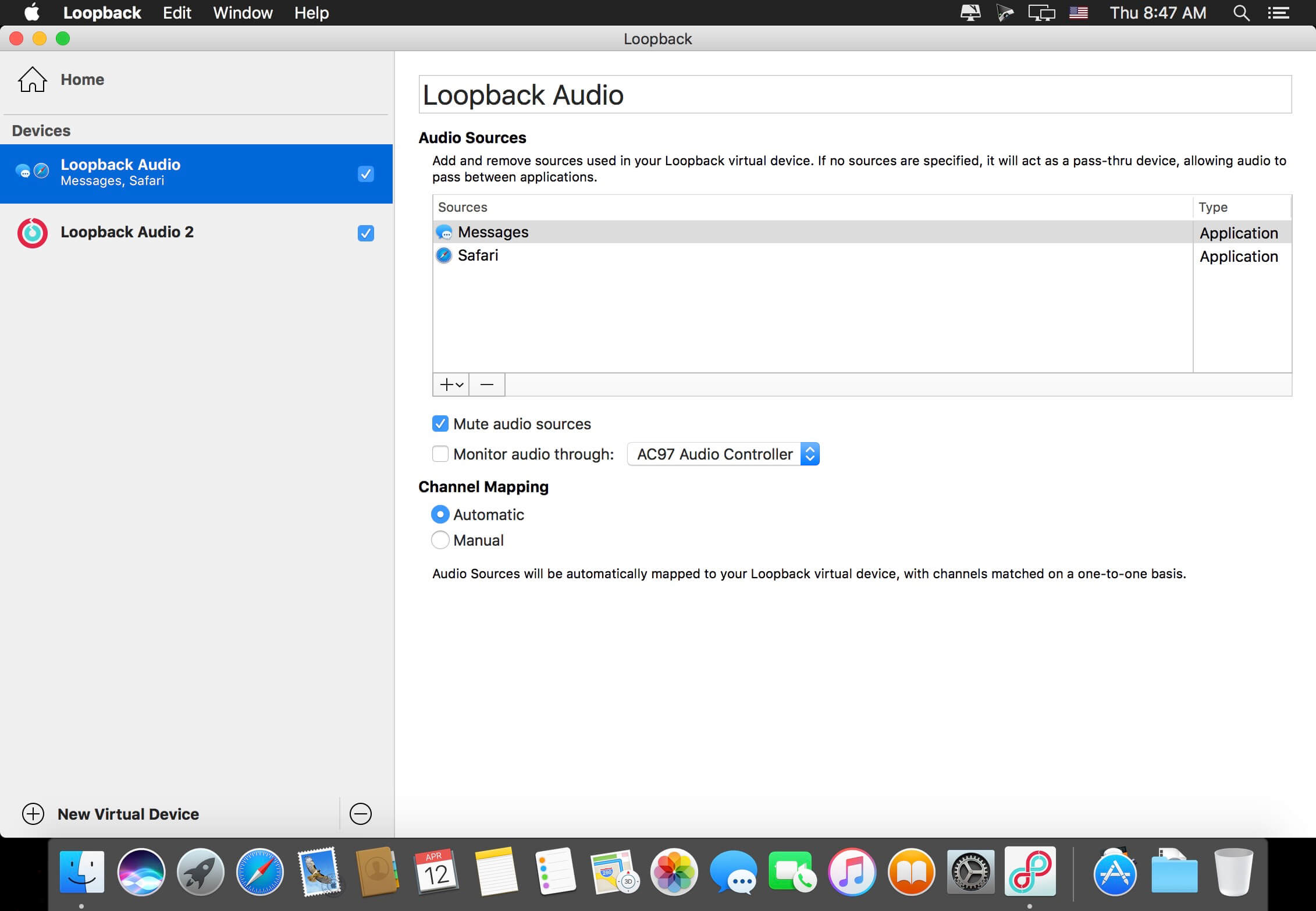
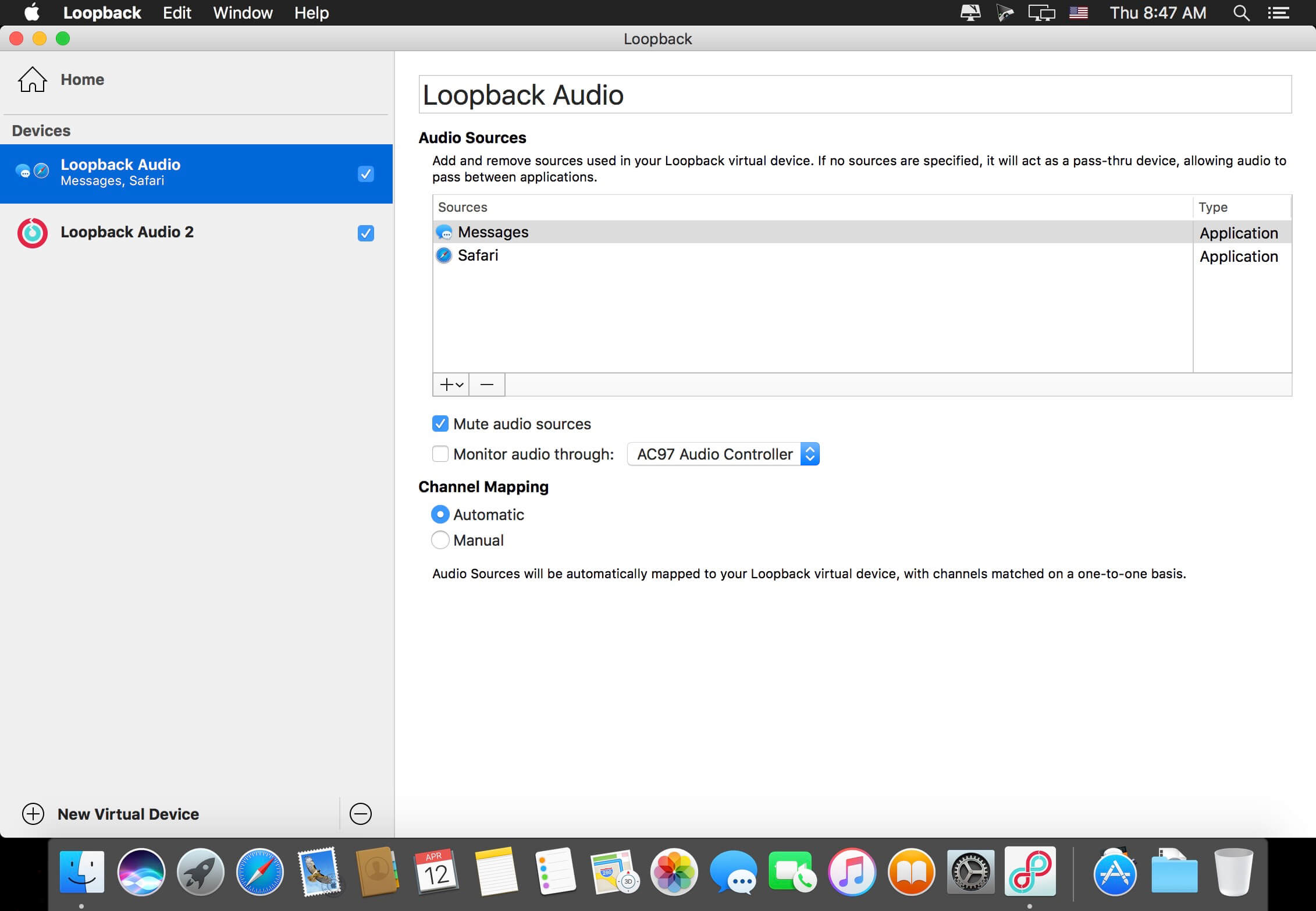
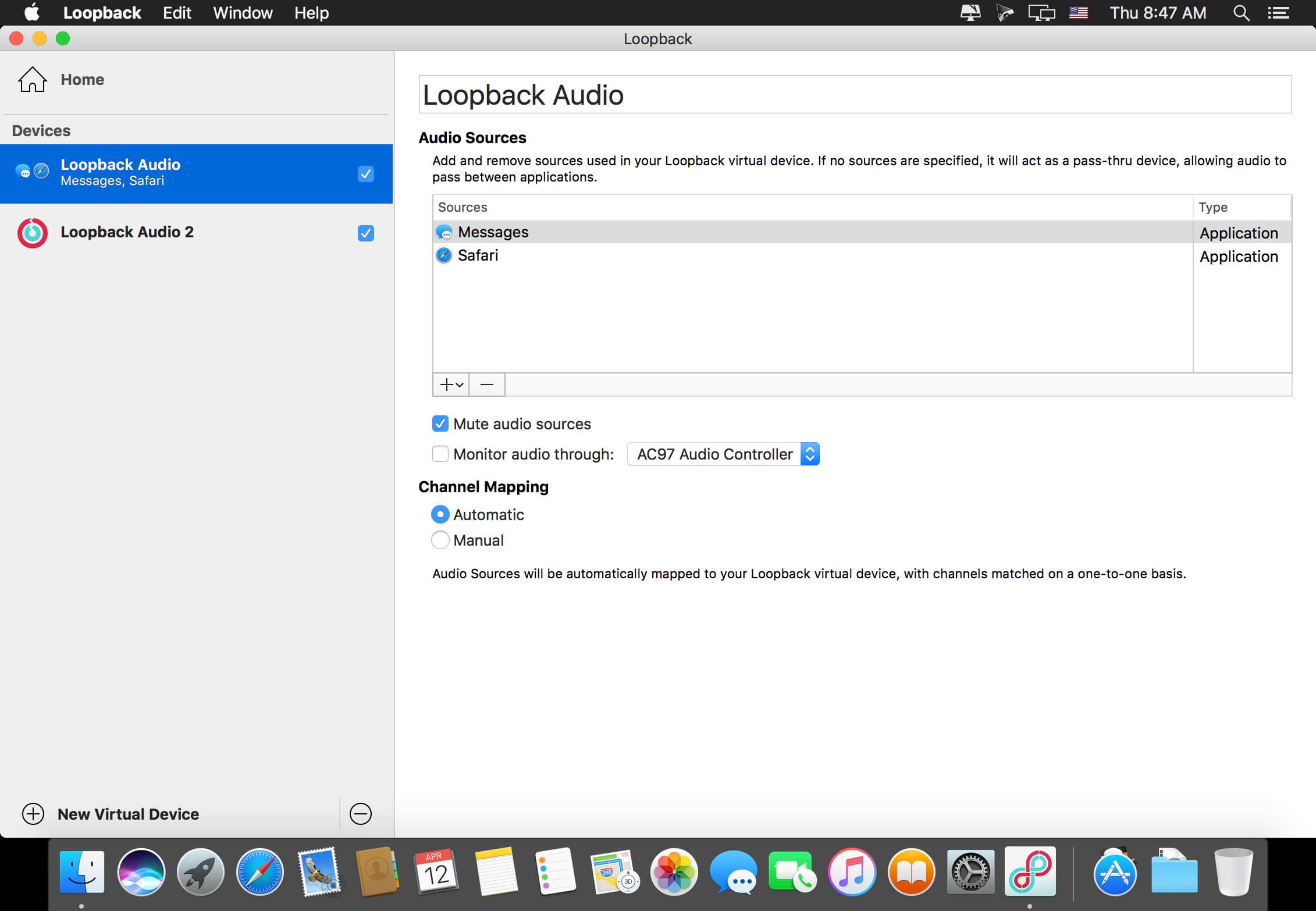
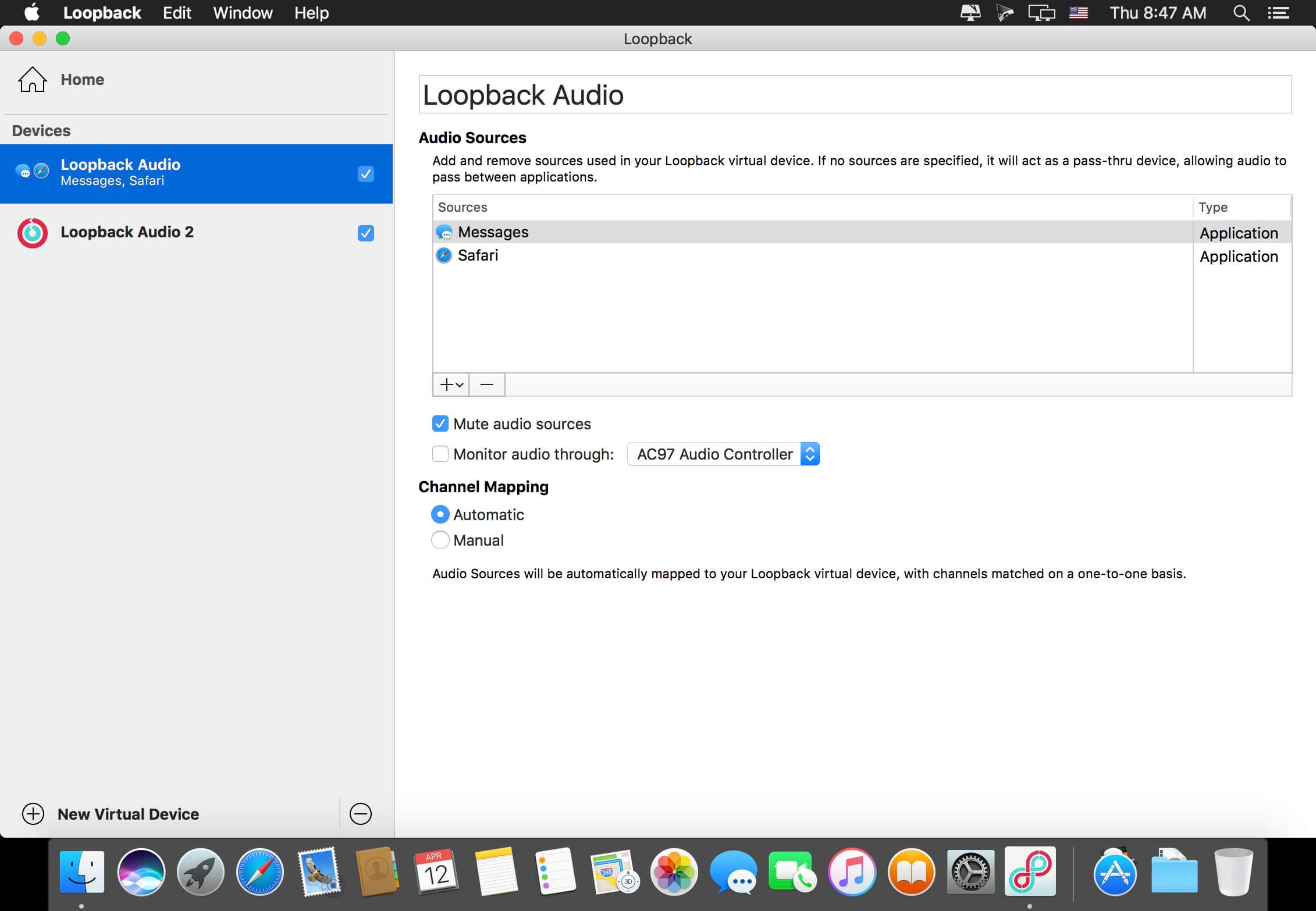
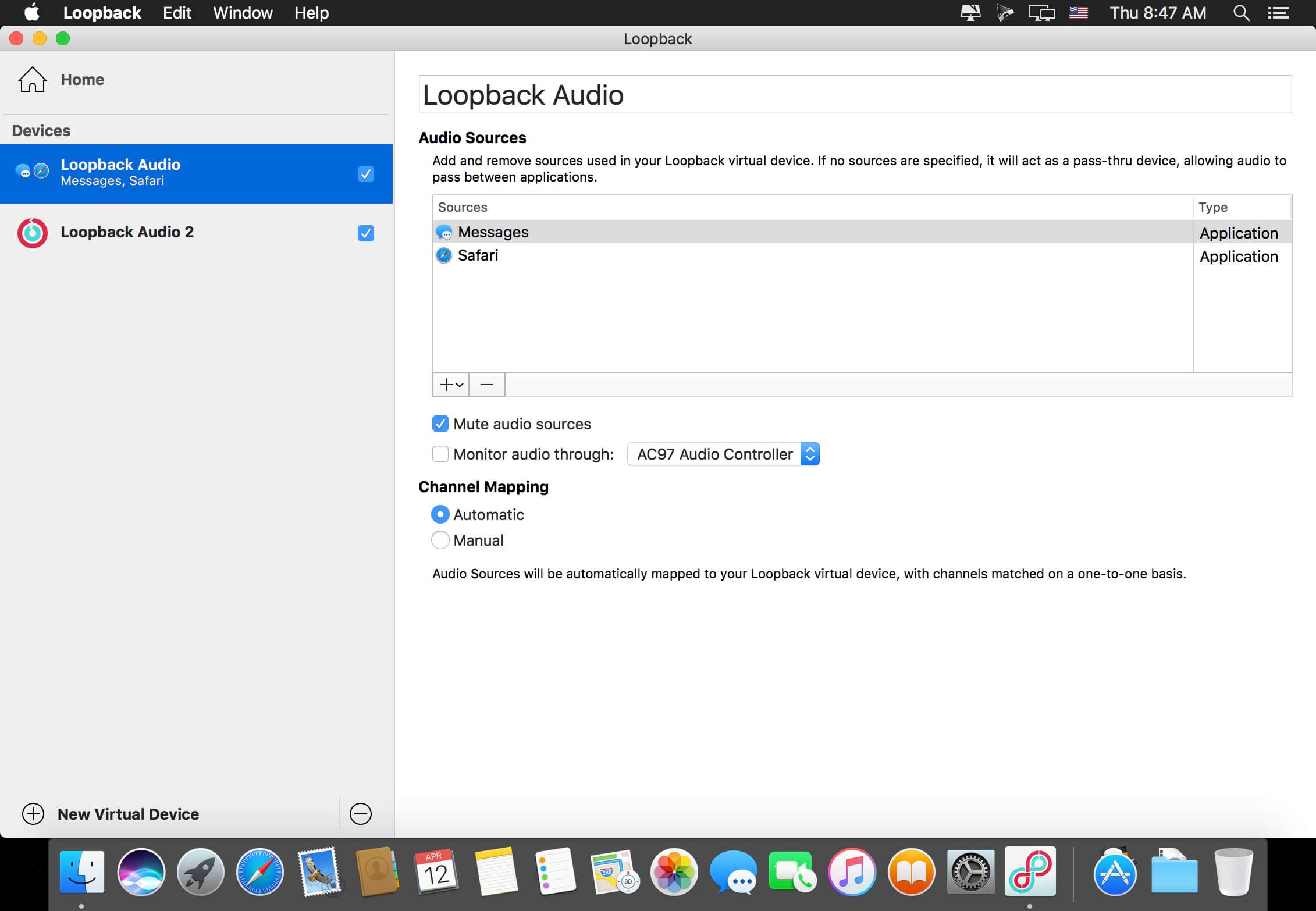
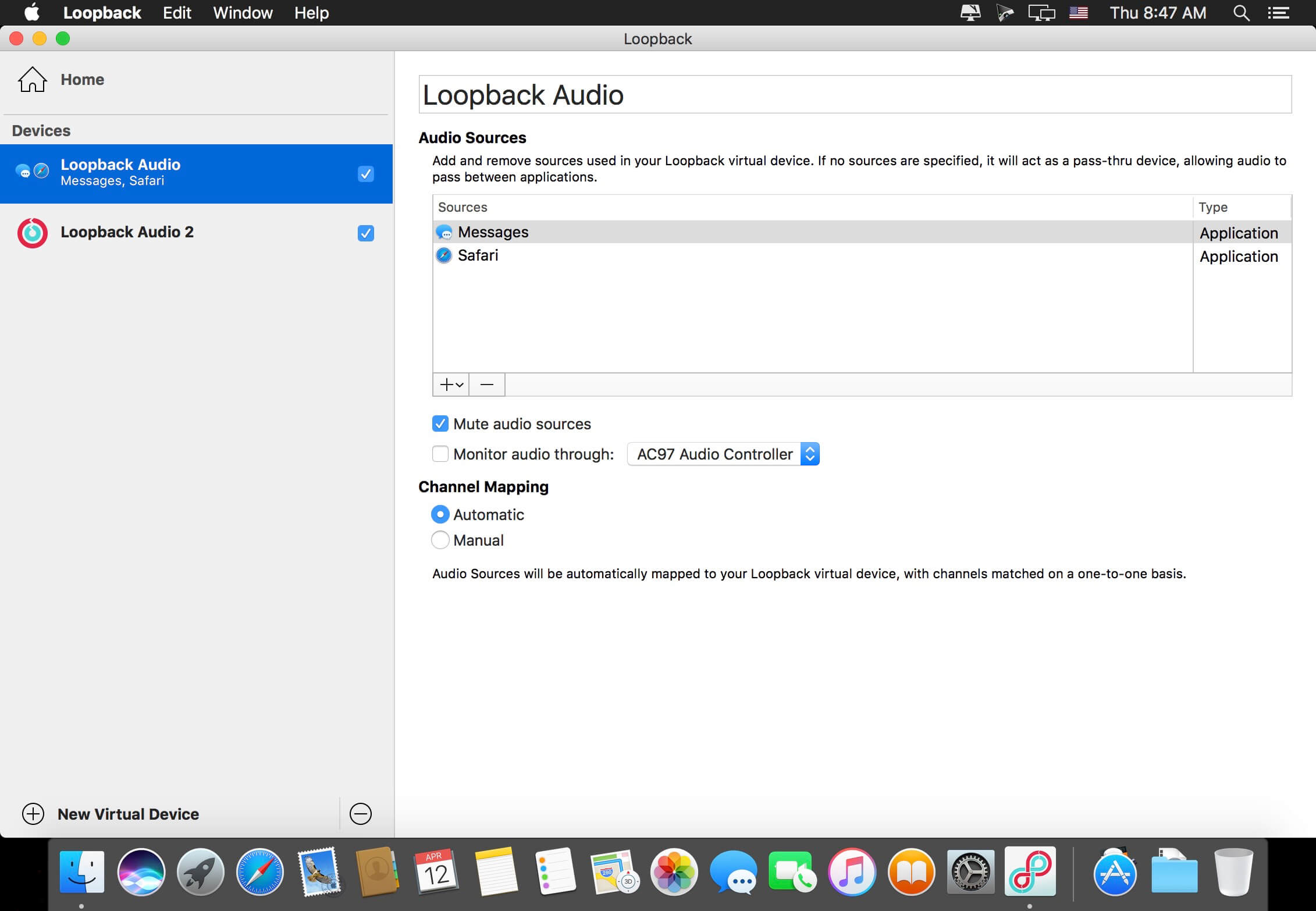
Pull audio from multiple sources into one virtual device! Just add the applications and physical audio devices you want to include to the Sources column to get started.

Powerful Channel Options
Add as many output channels as needed, then configure your routing with easy and powerful virtual wiring. Customizing exactly where audio flows is a snap.

Pass-Thru, Too
A Pass-Thru device let you pass audio directly from one application to another, with almost no configuration required. Loopback pipes audio around for you.

Play Music And More to Podcast Guests
Combine your mic with audio sources like iTunes or Farrago, then select your Loopback device as your source in Skype. Presto! Your guests hear both your voice and your audio add-ons.

Turn Multiple Hardware Devices Into One
Apps like GarageBand, Logic, and Ableton Live are limited to recording from just one audio device at a time. Thanks to Loopback, you can combine multiple input devices into a single virtual device, to record all your audio.

Create Top-Notch Screencasts
Most screen recorders allow you to include your mic’s audio, and some may allow recording of system audio, but neither option is ideal. Instead create a virtual device that grabs your mic and the app’s audio to get exactly the audio you want.

Compatibility: macOS 14.5 or later
Homepage https://www.rogueamoeba.com/loopback/

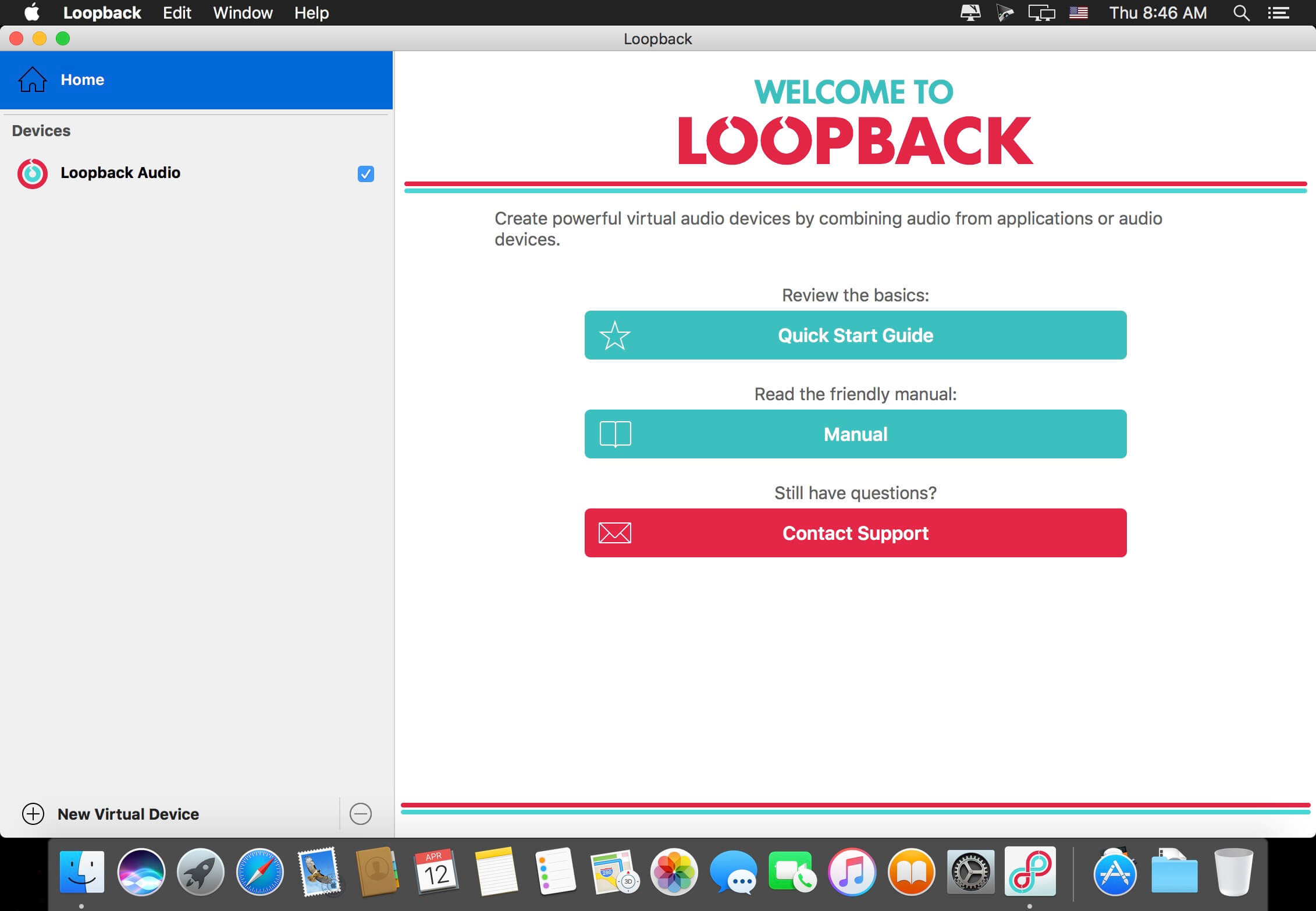
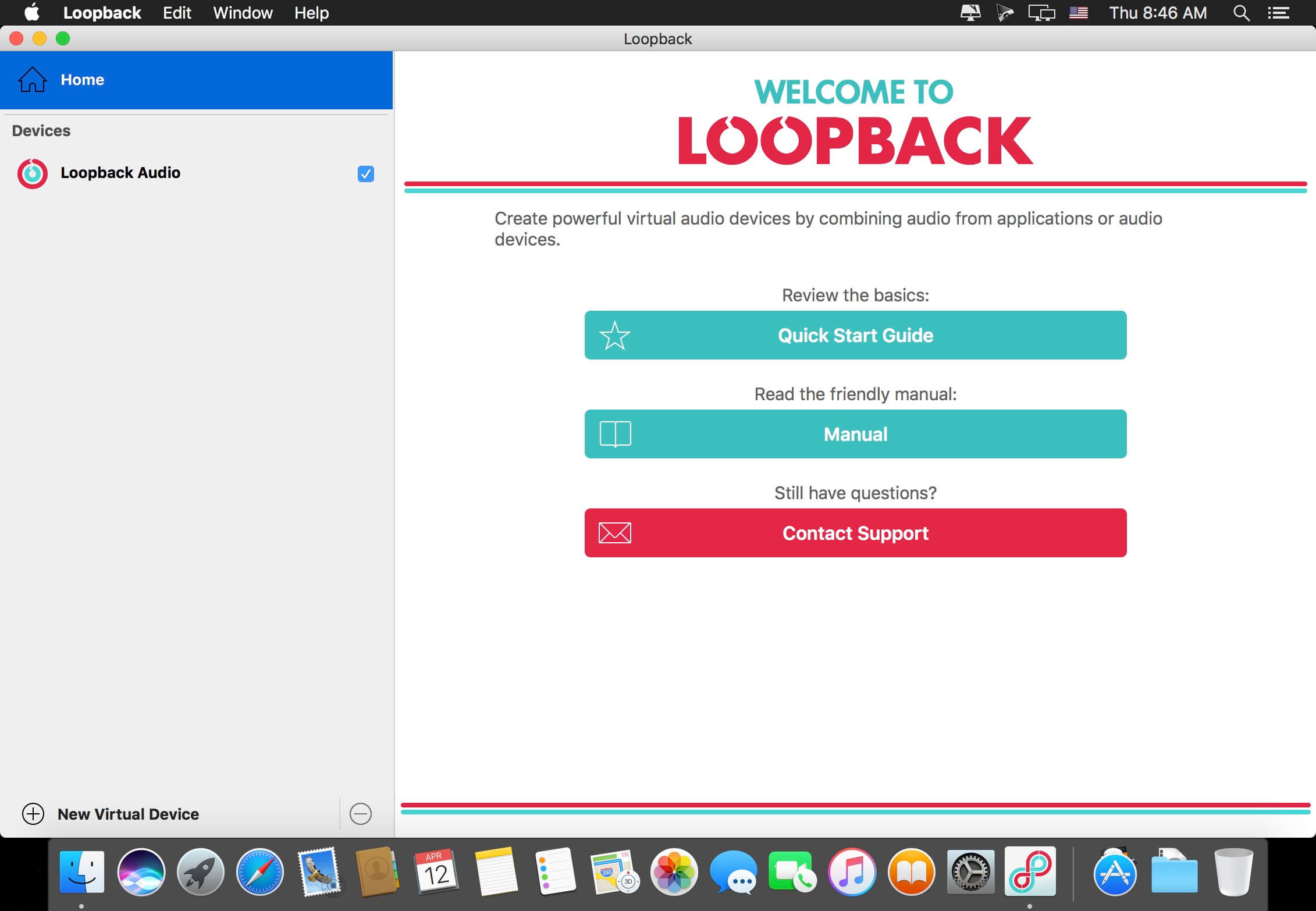
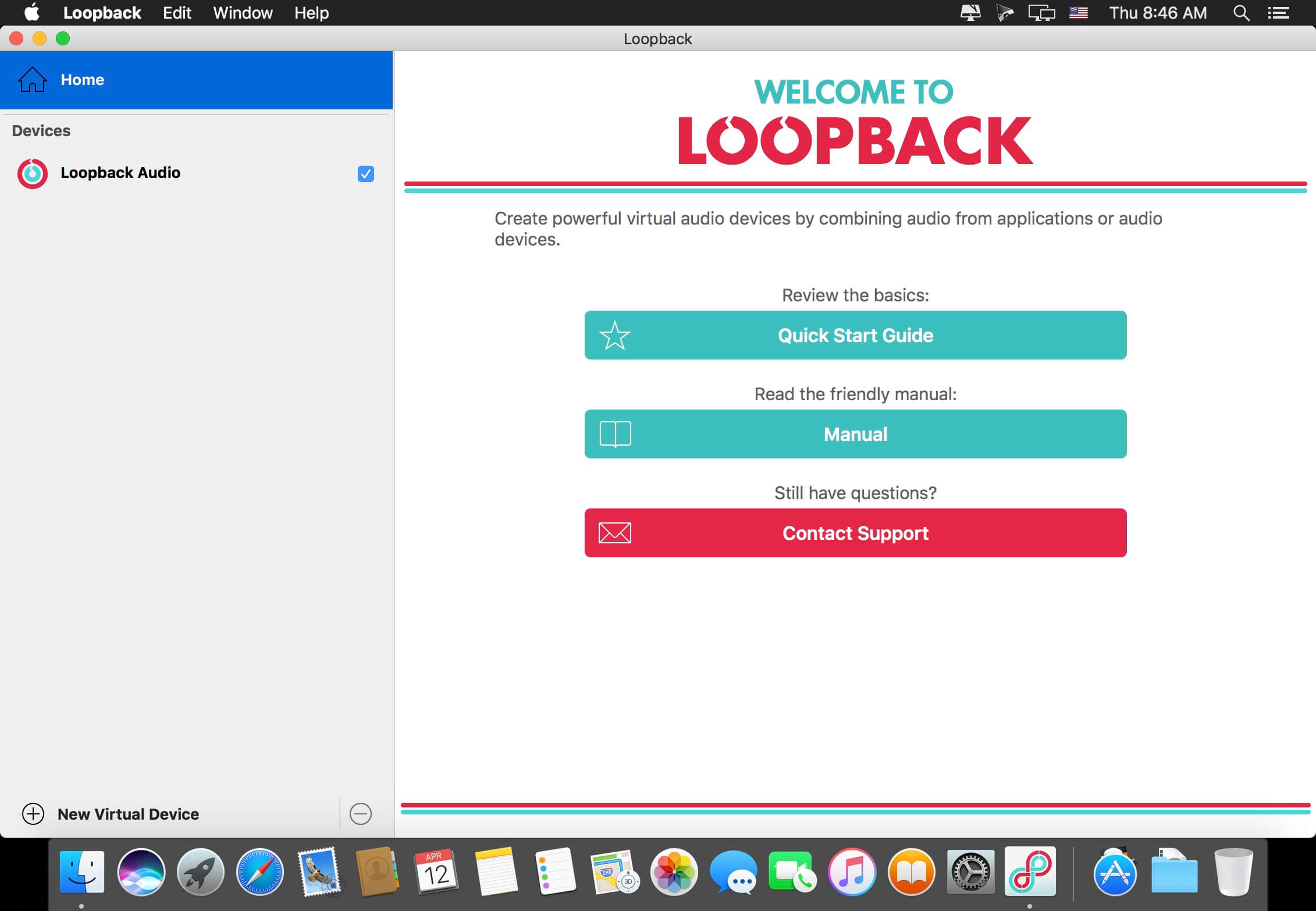
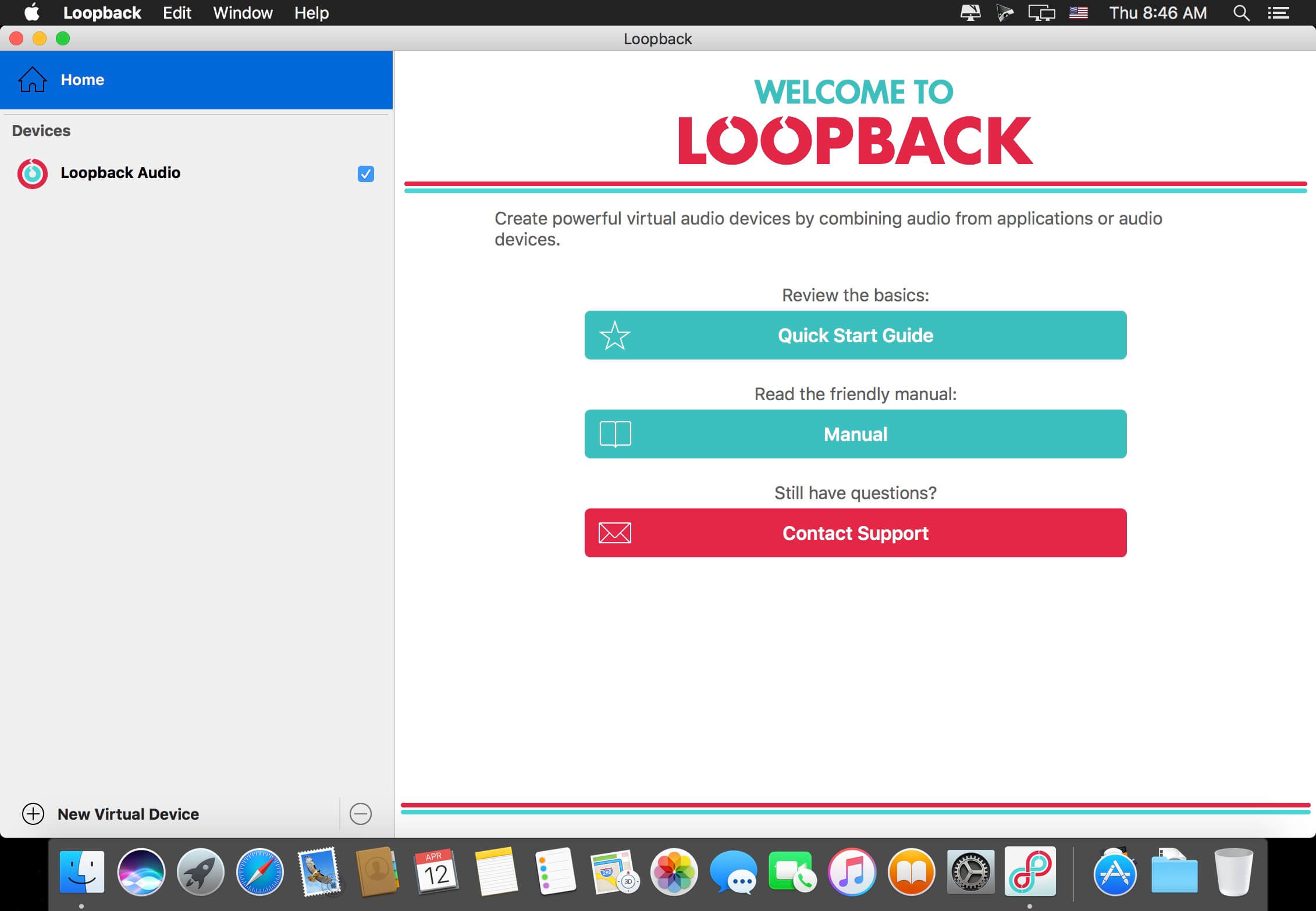
Screenshots

Name: Loopback_2.4.1_Mactorrents.Me.dmg
Size: 32 MB
Files Loopback_2.4.1_Mactorrents.Me.dmg[32 MB]

   Download Torrent

Loopback 2.4.0

Name: Loopback_2.4.0_Mactorrents.biz.dmg
Size: 32 MB
Files Loopback_2.4.0_Mactorrents.biz.dmg[32 MB]

   Download Torrent

Cable-Free Audio Routing for Mac
Suddenly, it’s easy to pass audio between applications on your Mac. Create virtual audio devices to take the sound from applications and audio input devices, then send it to audio processing applications. Loopback gives you the power of a high-end studio mixing board, right inside your computer!

A Transit System for Your Audio
Combine Audio Sources
Configuring a virtual audio device from multiple sources is easy. Just add the applications and physical audio devices you want to include to the Audio Sources table to get started.

Available System-Wide
Your Mac will show Loopback’s virtual devices exactly like physical devices. Find them listed among other devices in System Preferences or select them as an input or output in any audio app.

Send Audio Between Apps
Loopback can also create pass-thru devices, which send audio from one app to another. Set the Loopback device as the output in one app and the input in another to make audio flow directly between the applications.

A Massive Interface Overhaul:

  • The most noticeable change in Loopback 2 is its brand-new user interface. The first version of Loopback offered tremendous audio routing capability, but harnessing that power was not as simple as it could’ve been.
  • For version 2, we worked hard on a redesigned interface that will be intuitive for everyone. Loopback now features a simple new wiring system that lets you easily visualize and adjust how your audio will flow.

Volume Controls Galore:

  • Users asked for it, and we provided it. Loopback 2 provides control over volume levels at every step of the way. The volume from individual sources can be tweaked relative to other sources, to get the perfect mix. Audio levels sent to monitoring devices can also be adjusted, as can the audio level from the virtual audio device itself.

More Powerful Monitoring:

  • Monitoring virtual audio devices is now simpler than ever. Just add a monitor at the end of the device, and wire it up to get the exact audio desired. Listen in to the entire device, or use the custom wiring to monitor just part of the audio. You can even have multiple Monitors per virtual audio device, so you can hear exactly what you need to.

Capture Hidden Sources:

  • Audio can now be captured from previously unavailable sources, like Siri, VoiceOver, and Text-to-Speech. Hold down the option key while clicking the Add Source button to reveal the “Running Processes” menu, then select the correct hidden source.

Up to 64 Channels:

  • Virtual audio devices can now provide up to 64 channels of input and output, for amazing power.

Fully Configurable Channels:

  • Just about any setup is now possible, with configurable routing of audio from all audio sources to output channels, as well as from output channels to the new, more powerful monitoring devices.

An Explicit Pass-Thru Source:

  • Pass-Thru functionality, previously an implicit part of Loopback, is now visible as an actual audio source. This allows for more power and control over the audio passing through your virtual audio devices.

On/Off Toggles for Sources and Monitors:

  • Loopback’s virtual audio devices are more configurable than ever, with the ability to turn off individual sources and monitors within a device. Rather than deleting a source or monitor, and losing its settings, you can now temporarily toggle it off as you make adjustments to get exactly the audio you need.

Compatibility: macOS 14.5 or later
Homepage https://www.rogueamoeba.com/loopback/

Screenshots

Loopback 2.3.3

Name: Loopback.2.3.3_Mactorrents.biz.zip
Size: 24 MB
Files Loopback.2.3.3_Mactorrents.biz.dmg[24 MB]

   Download Torrent

Cable-Free Audio Routing for Mac
Suddenly, it’s easy to pass audio between applications on your Mac. Create virtual audio devices to take the sound from applications and audio input devices, then send it to audio processing applications. Loopback gives you the power of a high-end studio mixing board, right inside your computer!

A Transit System for Your Audio
Combine Audio Sources
Configuring a virtual audio device from multiple sources is easy. Just add the applications and physical audio devices you want to include to the Audio Sources table to get started.

Available System-Wide
Your Mac will show Loopback’s virtual devices exactly like physical devices. Find them listed among other devices in System Preferences or select them as an input or output in any audio app.

Send Audio Between Apps
Loopback can also create pass-thru devices, which send audio from one app to another. Set the Loopback device as the output in one app and the input in another to make audio flow directly between the applications.

A Massive Interface Overhaul:

  • The most noticeable change in Loopback 2 is its brand-new user interface. The first version of Loopback offered tremendous audio routing capability, but harnessing that power was not as simple as it could’ve been.
  • For version 2, we worked hard on a redesigned interface that will be intuitive for everyone. Loopback now features a simple new wiring system that lets you easily visualize and adjust how your audio will flow.

Volume Controls Galore:

  • Users asked for it, and we provided it. Loopback 2 provides control over volume levels at every step of the way. The volume from individual sources can be tweaked relative to other sources, to get the perfect mix. Audio levels sent to monitoring devices can also be adjusted, as can the audio level from the virtual audio device itself.

More Powerful Monitoring:

  • Monitoring virtual audio devices is now simpler than ever. Just add a monitor at the end of the device, and wire it up to get the exact audio desired. Listen in to the entire device, or use the custom wiring to monitor just part of the audio. You can even have multiple Monitors per virtual audio device, so you can hear exactly what you need to.

Capture Hidden Sources:

  • Audio can now be captured from previously unavailable sources, like Siri, VoiceOver, and Text-to-Speech. Hold down the option key while clicking the Add Source button to reveal the “Running Processes” menu, then select the correct hidden source.

Up to 64 Channels:

  • Virtual audio devices can now provide up to 64 channels of input and output, for amazing power.

Fully Configurable Channels:

  • Just about any setup is now possible, with configurable routing of audio from all audio sources to output channels, as well as from output channels to the new, more powerful monitoring devices.

An Explicit Pass-Thru Source:

  • Pass-Thru functionality, previously an implicit part of Loopback, is now visible as an actual audio source. This allows for more power and control over the audio passing through your virtual audio devices.

On/Off Toggles for Sources and Monitors:

  • Loopback’s virtual audio devices are more configurable than ever, with the ability to turn off individual sources and monitors within a device. Rather than deleting a source or monitor, and losing its settings, you can now temporarily toggle it off as you make adjustments to get exactly the audio you need.

Compatibility: macOS 10.14 or later • Apple Silicon or Intel Core processor
Homepage https://www.rogueamoeba.com/loopback/

Screenshots


Loopback 2.2.12

Cable-Free Audio Routing for Mac
Suddenly, it’s easy to pass audio between applications on your Mac. Create virtual audio devices to take the sound from applications and audio input devices, then send it to audio processing applications. Loopback gives you the power of a high-end studio mixing board, right inside your computer!

A Transit System for Your Audio
Combine Audio Sources
Configuring a virtual audio device from multiple sources is easy. Just add the applications and physical audio devices you want to include to the Audio Sources table to get started.

Available System-Wide
Your Mac will show Loopback’s virtual devices exactly like physical devices. Find them listed among other devices in System Preferences or select them as an input or output in any audio app.

Send Audio Between Apps
Loopback can also create pass-thru devices, which send audio from one app to another. Set the Loopback device as the output in one app and the input in another to make audio flow directly between the applications.

A Massive Interface Overhaul:

  • The most noticeable change in Loopback 2 is its brand-new user interface. The first version of Loopback offered tremendous audio routing capability, but harnessing that power was not as simple as it could’ve been.
  • For version 2, we worked hard on a redesigned interface that will be intuitive for everyone. Loopback now features a simple new wiring system that lets you easily visualize and adjust how your audio will flow.

Volume Controls Galore:

  • Users asked for it, and we provided it. Loopback 2 provides control over volume levels at every step of the way. The volume from individual sources can be tweaked relative to other sources, to get the perfect mix. Audio levels sent to monitoring devices can also be adjusted, as can the audio level from the virtual audio device itself.

More Powerful Monitoring:

  • Monitoring virtual audio devices is now simpler than ever. Just add a monitor at the end of the device, and wire it up to get the exact audio desired. Listen in to the entire device, or use the custom wiring to monitor just part of the audio. You can even have multiple Monitors per virtual audio device, so you can hear exactly what you need to.

Capture Hidden Sources:

  • Audio can now be captured from previously unavailable sources, like Siri, VoiceOver, and Text-to-Speech. Hold down the option key while clicking the Add Source button to reveal the “Running Processes” menu, then select the correct hidden source.

Up to 64 Channels:

  • Virtual audio devices can now provide up to 64 channels of input and output, for amazing power.

Fully Configurable Channels:

  • Just about any setup is now possible, with configurable routing of audio from all audio sources to output channels, as well as from output channels to the new, more powerful monitoring devices.

An Explicit Pass-Thru Source:

  • Pass-Thru functionality, previously an implicit part of Loopback, is now visible as an actual audio source. This allows for more power and control over the audio passing through your virtual audio devices.

On/Off Toggles for Sources and Monitors:

  • Loopback’s virtual audio devices are more configurable than ever, with the ability to turn off individual sources and monitors within a device. Rather than deleting a source or monitor, and losing its settings, you can now temporarily toggle it off as you make adjustments to get exactly the audio you need.

Compatibility: OS X 10.10 or later, 64-bit processor
Homepage https://www.rogueamoeba.com/loopback/

Screenshots


Name: Loopback 2.2.12 [HCiSO]_Mactorrents.is.dmg
Size: 24.2 MB
Files Loopback 2.2.12 [HCiSO]_ Mactorrents.is.dmg[24.2 MB]

   Download

Loopback 2.2.11

Cable-Free Audio Routing for Mac
Suddenly, it’s easy to pass audio between applications on your Mac. Create virtual audio devices to take the sound from applications and audio input devices, then send it to audio processing applications. Loopback gives you the power of a high-end studio mixing board, right inside your computer!

A Transit System for Your Audio
Combine Audio Sources
Configuring a virtual audio device from multiple sources is easy. Just add the applications and physical audio devices you want to include to the Audio Sources table to get started.

Available System-Wide
Your Mac will show Loopback’s virtual devices exactly like physical devices. Find them listed among other devices in System Preferences or select them as an input or output in any audio app.

Send Audio Between Apps
Loopback can also create pass-thru devices, which send audio from one app to another. Set the Loopback device as the output in one app and the input in another to make audio flow directly between the applications.

A Massive Interface Overhaul:

  • The most noticeable change in Loopback 2 is its brand-new user interface. The first version of Loopback offered tremendous audio routing capability, but harnessing that power was not as simple as it could’ve been.
  • For version 2, we worked hard on a redesigned interface that will be intuitive for everyone. Loopback now features a simple new wiring system that lets you easily visualize and adjust how your audio will flow.

Volume Controls Galore:

  • Users asked for it, and we provided it. Loopback 2 provides control over volume levels at every step of the way. The volume from individual sources can be tweaked relative to other sources, to get the perfect mix. Audio levels sent to monitoring devices can also be adjusted, as can the audio level from the virtual audio device itself.

More Powerful Monitoring:

  • Monitoring virtual audio devices is now simpler than ever. Just add a monitor at the end of the device, and wire it up to get the exact audio desired. Listen in to the entire device, or use the custom wiring to monitor just part of the audio. You can even have multiple Monitors per virtual audio device, so you can hear exactly what you need to.

Capture Hidden Sources:

  • Audio can now be captured from previously unavailable sources, like Siri, VoiceOver, and Text-to-Speech. Hold down the option key while clicking the Add Source button to reveal the “Running Processes” menu, then select the correct hidden source.

Up to 64 Channels:

  • Virtual audio devices can now provide up to 64 channels of input and output, for amazing power.

Fully Configurable Channels:

  • Just about any setup is now possible, with configurable routing of audio from all audio sources to output channels, as well as from output channels to the new, more powerful monitoring devices.

An Explicit Pass-Thru Source:

  • Pass-Thru functionality, previously an implicit part of Loopback, is now visible as an actual audio source. This allows for more power and control over the audio passing through your virtual audio devices.

On/Off Toggles for Sources and Monitors:

  • Loopback’s virtual audio devices are more configurable than ever, with the ability to turn off individual sources and monitors within a device. Rather than deleting a source or monitor, and losing its settings, you can now temporarily toggle it off as you make adjustments to get exactly the audio you need.

Compatibility: OS X 10.10 or later, 64-bit processor
Homepage https://www.rogueamoeba.com/loopback/

Screenshots


Name: Loopback 2.2.11 [HCiSO]_Mactorrents.is.dmg
Size: 24.21 MB
Files Loopback 2.2.11 [HCiSO]_ Mactorrents.is.dmg[24.21 MB]

   Download

Loopback 2.1.2

Rogue Amoeba Loopback 2.1.2 MacOS

Cable-Free Audio Routing for Mac
Suddenly, it’s easy to pass audio between applications on your Mac. Create virtual audio devices to take the sound from applications and audio input devices, then send it to audio processing applications. Loopback gives you the power of a high-end studio mixing board, right inside your computer!

A Transit System for Your Audio
Combine Audio Sources
Configuring a virtual audio device from multiple sources is easy. Just add the applications and physical audio devices you want to include to the Audio Sources table to get started.

Available System-Wide
Your Mac will show Loopback’s virtual devices exactly like physical devices. Find them listed among other devices in System Preferences or select them as an input or output in any audio app.

Send Audio Between Apps
Loopback can also create pass-thru devices, which send audio from one app to another. Set the Loopback device as the output in one app and the input in another to make audio flow directly between the applications.

What’s New:

Version 2.0.0:
A Massive Interface Overhaul:

  • The most noticeable change in Loopback 2 is its brand-new user interface. The first version of Loopback offered tremendous audio routing capability, but harnessing that power was not as simple as it could’ve been.
  • For version 2, we worked hard on a redesigned interface that will be intuitive for everyone. Loopback now features a simple new wiring system that lets you easily visualize and adjust how your audio will flow.

Volume Controls Galore:

  • Users asked for it, and we provided it. Loopback 2 provides control over volume levels at every step of the way. The volume from individual sources can be tweaked relative to other sources, to get the perfect mix. Audio levels sent to monitoring devices can also be adjusted, as can the audio level from the virtual audio device itself.

More Powerful Monitoring:

  • Monitoring virtual audio devices is now simpler than ever. Just add a monitor at the end of the device, and wire it up to get the exact audio desired. Listen in to the entire device, or use the custom wiring to monitor just part of the audio. You can even have multiple Monitors per virtual audio device, so you can hear exactly what you need to.

Capture Hidden Sources:

  • Audio can now be captured from previously unavailable sources, like Siri, VoiceOver, and Text-to-Speech. Hold down the option key while clicking the Add Source button to reveal the “Running Processes” menu, then select the correct hidden source.

Up to 64 Channels:

  • Virtual audio devices can now provide up to 64 channels of input and output, for amazing power.

Fully Configurable Channels:

  • Just about any setup is now possible, with configurable routing of audio from all audio sources to output channels, as well as from output channels to the new, more powerful monitoring devices.

An Explicit Pass-Thru Source:

  • Pass-Thru functionality, previously an implicit part of Loopback, is now visible as an actual audio source. This allows for more power and control over the audio passing through your virtual audio devices.

On/Off Toggles for Sources and Monitors:

  • Loopback’s virtual audio devices are more configurable than ever, with the ability to turn off individual sources and monitors within a device. Rather than deleting a source or monitor, and losing its settings, you can now temporarily toggle it off as you make adjustments to get exactly the audio you need.

Compatibility: OS X 10.10 or later, 64-bit processor
Homepage https://www.rogueamoeba.com/loopback/

Screenshots


Name: Loopback_212_Mactorrents.io.rar
Size: 10.7 MB
Files Loopback_212_Mactorrents.io.rar[10.7 MB]

   Download

Rogue Amoeba Loopback 2.1.0

Download

Descriptions for Rogue Amoeba Loopback 2.1.0

Suddenly, it’s easy to pass audio between applications on your Mac. Create virtual audio devices to take the sound from applications and audio input devices, then send it to audio processing applications. Loopback gives you the power of a high-end studio mixing board, right inside your computer!

Record Gameplay Videos

Making gameplay videos with great audio can often be very difficult. If you’re using a device like Elgato’s Game Capture hardware and you want to record both your microphone and the game’s audio at once, Loopback can assist!

Combine Hardware Devices

Apps like GarageBand, Logic, and Ableton Live only record from a single audio device at once. Thankfully, they offer recording from many channels. With Loopback, you can combine multiple input devices into one virtual device for easy recording.

Create Top-Notch Screencasts

Screen recorders, including QuickTime Player, allow you to include your mic’s audio. Some allow recording of system audio instead, but neither option is ideal. Create a virtual device that grabs just the mic and the app’s audio to get exactly the audio you want.

Route Audio For Broadcasts

Set a simple (pass-thru) device as the output at the end of an Audio Hijack chain, and then as the input source in Nicecast. Now listeners can tune in to a live stream of your podcast as you record it!

So Much More…

With Loopback, you gain incredible power and control over how audio is routed around your Mac and between applications. We can’t wait to hear about the incredible new uses you find for it!

Works With Any Application

Make a virtual audio device with audio from the applications on your Mac, including production apps like Logic or Reason, as well as simple audio players, like iTunes or QuickTime.

Works With Any Input Device

Pull audio from the physical audio devices connected to your Mac. Whether you’ve got simple USB microphones, or high-end studio mixers, Loopback can access it all.

Combine Apps and Physical Devices

Of course, you can create a virtual audio device that includes audio from both apps and physical audio devices.

Multichannel Audio

Your virtual audio devices can be configured to have up to 32 channels, providing tremendous power.

Custom Channel Mapping

By default, Loopback sets up channel mapping automatically. If you want to manually configure things, though, you’ve got powerful options!

Unlimited Devices

Create as many virtual audio devices as you need to get the job done.

Information

Compatibility
MacOS 10.11 or Later
Languages
English
Includes
Serial (block outbound connections)

What’s New in Rogue Amoeba Loopback 2.1.0

  • Release notes not available at the time of this post.

Screenshots

Name Loopback 2.1.0 mac-torrents.net.dmg
Size 11.04 MB
Created on 2019-09-17 02:28:37
Hash b8d9dfe8c9eb4aaabf4f01507e0b82e6dfe2c0c1
Files Loopback 2.1.0 mac-torrents.net.dmg (11.04 MB)

Download