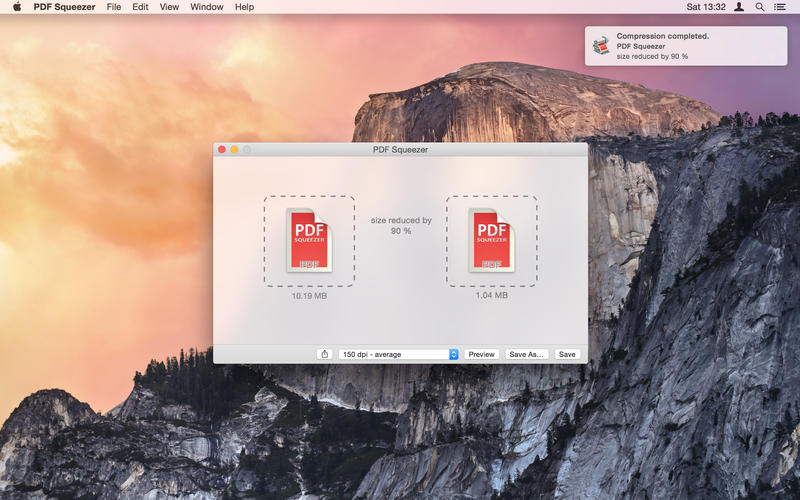
PDF Squeezer is an easy-to-use PDF compression tool. It reduces the size of large PDF documents by compressing images and removing irrelevant information. This will help you obtain important savings in bandwidth costs, digital storage costs and network transmission times.
Key Features:
Everything Mac: Specifically designed and engineered to work optimally with macOS
Drop it like it’s hot: Drag and drop your file into the application window
The more the merrier: Batch compress multiple files
Every bit counts: Sophisticated compression process that uses numerous methods to reduce the file size
Automate your workflow: Includes an Automator action and a command line interface
Compression Profile: Select from predefined compression profiles OR create your own!
Folder Convenience: Select a folder and compress all its files – including subfolders
Watchdog: Support for password-protected PDFs
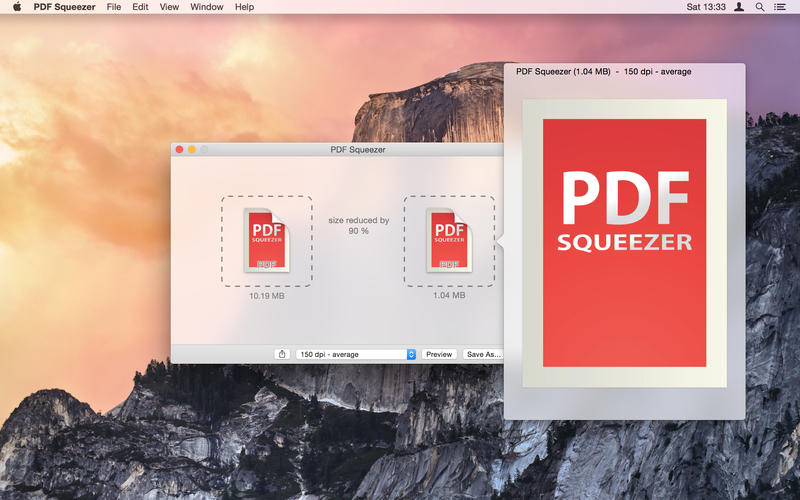
Side by side Comparisons: Compare files and different compression settings easily
Sharing is caring: Export and share your compression profiles with others
Full-screen mode: The app window supports a full-screen mode which is especially useful when comparing compressions
Up to date: Conforms to all common PDF versions from 1.0 to 1.7 and 2.0
Stats, stats, stats: See how much disc space you’ve saved since you started using PDF Squeezer
What’s New:
Version 4.2: New Features
The interface has been updated to match the new design of macOS 11 Big Sur.
You can now extract all images of a PDF file.
Options have been added to set custom file metadata for keyword, subject, producer and creator. To remove metadata, just leave the text field blank.
View information about your PDF files like author, creator, image count and more.
Editing multiple compression profiles at once is now possible.
Exporting and importing multiple compression profiles into one PDFSCP file is now possible.
If the file extension of the original is hidden, a compressed copy of that file will now also hide the extension.
The command line tool is now able to compress all files of a folder so you don’t have to provide the path for each file anymore.
The command line tool now shows you the progress if you compress multiple files at once.
Due to a bug in macOS 11 the compression rate is no longer displayed in small font in the profile pop up button. It will return as soon as Apple fixes that bug in a future version of macOS.
The Danish and Norwegian translation has been improved.
Updating the modification and creation date has been moved to the profile settings.
You can now drag the main window by clicking and dragging anywhere in the background.
Bug Fixes
Adding tags in the save panel were not being added to the file.
For some file types bitonal images were completely blank or black after compression.
Sometimes files that are password protected have been deleted without saving the compressed version.
In some situations the app did crash after launch on older Macs.
Dragging a PDF from Apple’s Mail app to PDF Squeezer did not always work.
The compression engine has been improved for some PDF types.
PDF Squeezer is an easy-to-use PDF compression tool. It reduces the size of large PDF documents by compressing images and removing irrelevant information. This will help you obtain important savings in bandwidth costs, digital storage costs and network transmission times.
Key Features:
Everything Mac: Specifically designed and engineered to work optimally with macOS
Drop it like it’s hot: Drag and drop your file into the application window
The more the merrier: Batch compress multiple files
Every bit counts: Sophisticated compression process that uses numerous methods to reduce the file size
Automate your workflow: Includes an Automator action and a command line interface
Compression Profile: Select from predefined compression profiles OR create your own!
Folder Convenience: Select a folder and compress all its files – including subfolders
Watchdog: Support for password-protected PDFs
Side by side Comparisons: Compare files and different compression settings easily
Sharing is caring: Export and share your compression profiles with others
Full-screen mode: The app window supports a full-screen mode which is especially useful when comparing compressions
Up to date: Conforms to all common PDF versions from 1.0 to 1.7 and 2.0
Stats, stats, stats: See how much disc space you’ve saved since you started using PDF Squeezer
PDF Squeezer is an easy-to-use PDF compression tool. It reduces the size of large PDF documents by compressing images and removing irrelevant information. This will help you obtain important savings in bandwidth costs, digital storage costs and network transmission times.
Key Features:
Everything Mac: Specifically designed and engineered to work optimally with macOS
Drop it like it’s hot: Drag and drop your file into the application window
The more the merrier: Batch compress multiple files
Every bit counts: Sophisticated compression process that uses numerous methods to reduce the file size
Automate your workflow: Includes an Automator action and a command line interface
Compression Profile: Select from predefined compression profiles OR create your own!
Folder Convenience: Select a folder and compress all its files – including subfolders
Watchdog: Support for password-protected PDFs
Side by side Comparisons: Compare files and different compression settings easily
Sharing is caring: Export and share your compression profiles with others
Full-screen mode: The app window supports a full-screen mode which is especially useful when comparing compressions
Up to date: Conforms to all common PDF versions from 1.0 to 1.7 and 2.0
Stats, stats, stats: See how much disc space you’ve saved since you started using PDF Squeezer
PDF Squeezer is an easy-to-use PDF compression tool. It reduces the size of large PDF documents by compressing images and removing irrelevant information. This will help you obtain important savings in bandwidth costs, digital storage costs and network transmission times.
Key Features:
Everything Mac: Specifically designed and engineered to work optimally with macOS
Drop it like it’s hot: Drag and drop your file into the application window
The more the merrier: Batch compress multiple files
Every bit counts: Sophisticated compression process that uses numerous methods to reduce the file size
Automate your workflow: Includes an Automator action and a command line interface
Compression Profile: Select from predefined compression profiles OR create your own!
Folder Convenience: Select a folder and compress all its files – including subfolders
Watchdog: Support for password-protected PDFs
Side by side Comparisons: Compare files and different compression settings easily
Sharing is caring: Export and share your compression profiles with others
Full-screen mode: The app window supports a full-screen mode which is especially useful when comparing compressions
Up to date: Conforms to all common PDF versions from 1.0 to 1.7 and 2.0
Stats, stats, stats: See how much disc space you’ve saved since you started using PDF Squeezer
What’s New:
Version 4.1: New Features
An option has been added to remove all images of a file.
Files that have been added to PDF Squeezer before can now be added again should the file have changed.
You can now double click the files in the sidebar and main area to open the original in a viewer or save the compressed file.
A new button has been added to duplicate a profile.
Clicking the save button now opens a save dialog if the original file is a PDF attachments, a. File from the print dialog and another temporary file.
Options have been added to remove file metadata for author, title, subject and keywords.
Saving large files on remote disk may takes time, which is why the progress is now being shown in the status bar. The status bar can be activated from the View menu.
The save button in the toolbar is now disabled if the selected file has been saved.
There is a new option in the general preferences that allows you to keep the original file’s modification date.
Bug Fixes
In some cases clicking the save button did not work as expected.
Compressing many items at once could result in lost of pages of some files.
Some menu items were not disabled even though there no file had been added to the app yet.
The compressed file size could be displayed incorrectly.
Opening a folder that contained no PDF files could crash the app.
Showing the license window twice could crash the app.
Opening a broken file could crash the app.
Opening an alias file did not work in some cases.
In some cases you could not save a file on a remote disk.
PDF Squeezer is an easy-to-use PDF compression tool. It reduces the size of large PDF documents by compressing images and removing irrelevant information. This will help you obtain important savings in bandwidth costs, digital storage costs and network transmission times.
FEATURES:
Simply drag and drop your file into the application window or onto the app icon in your Dock
Choose from predefined compression filters or create your own
Batch compress multiple files
Support for password protected PDFs
Automatic compression and save with ‘One-Click-Compression’
What’s New:
Version 3.11:
NEW: Preparations for the upgrade to PDF Squeezer 4 have been made.
FIX: Fixed a rare issue with a certain kind of PDF files.
FIX: In dark mode the filter title wasn’t readable while editing.
FIX: Using Save all files at once as copy did not include postfix.
PDF Squeezer is an easy-to-use PDF compression tool. It reduces the size of large PDF documents by compressing images and removing irrelevant information. This will help you obtain important savings in bandwidth costs, digital storage costs and network transmission times.
Key Features:
Everything Mac: Specifically designed and engineered to work optimally with macOS
Drop it like it’s hot: Drag and drop your file into the application window
The more the merrier: Batch compress multiple files
Every bit counts: Sophisticated compression process that uses numerous methods to reduce the file size
Automate your workflow: Includes an Automator action and a command line interface
Compression Profile: Select from predefined compression profiles OR create your own!
Folder Convenience: Select a folder and compress all its files – including subfolders
Watchdog: Support for password-protected PDFs
Side by side Comparisons: Compare files and different compression settings easily
Sharing is caring: Export and share your compression profiles with others
Full-screen mode: The app window supports a full-screen mode which is especially useful when comparing compressions
Up to date: Conforms to all common PDF versions from 1.0 to 1.7 and 2.0
Stats, stats, stats: See how much disc space you’ve saved since you started using PDF Squeezer
What’s New:
Version 4.0.1:
PDF Squeezer 4 has been redesigned from the ground up. Nothing has been left untouched
The app now comes with its own Automator action, which lets you create powerful workflows
The compression profiles have been expanded with many new options to remove unnecessary resources
All languages have been updated and new languages have been added, including: Ukrainian, Norwegian, Indonesian, Hebrew, Korean, Finnish, Swedish, Arabic, Turkish, Danish and Czech
Install the integrated Quick Action for easy access of PDF Squeezer from other apps like the Finder or the Touch Bar
The comparison mode has been redone, making it super easy to compare files and different compression settings side by side
You can now let the app compress files that are dropped into a specific folder using a Folder Action
A compression can now be stopped
A customisable toolbar has been added at the top of the window
A statusbar with information about all files such as average best compression rate has been added
Compression profiles can be changed directly in the main window which makes it very easy to try different settings
It is now possible to export compression profiles and share them with others
The app icon has been updated by Raphael Lopes
@raphaellopesph
The app window now supports fullscreen mode which is peculiarly useful with the new comparison feature
The handling of large number of files has been improved
You can now let the app try multiple compression profiles automatically until a compression was successful
A Notification shows up and plays a sound after all files have been compressed
A default output folder can be specified in the preferences
An Open Recent menu has been added to the File-Menu and the Dock icon
An indicator has been added to the sidebar to show if the compression was successful
An option has been added to always show the sidebar or to show it automatically if more than one file has been added
New files can now be compressed automatically or by clicking a button
Statistics have been added to the PDF Squeezer menu to show how much disk space you have saved since the first launch of PDF Squeezer 4
The original file is now being placed in the Trash before overwriting it so you can recover it later
The width of the sidebar and the main window size and position is now being remembered across various launches of the app
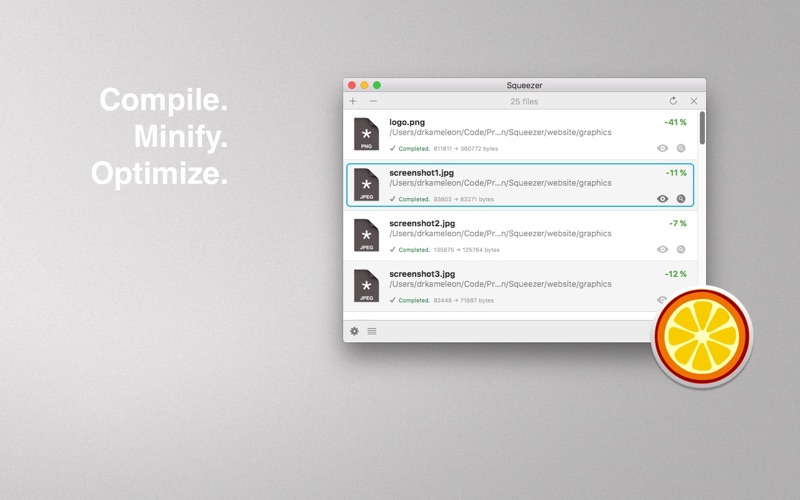
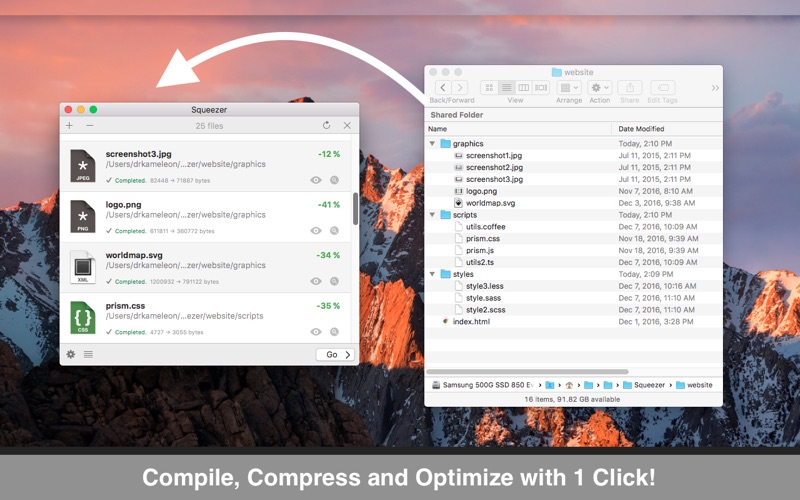
Squeezer is the Web developer’s pal. It can compile your scripts, optimize your images, and shave unnecessary file bulk to speed site load times. Just drag-and-drop your files, and Squeezer will take care of the rest!
Easy-to-use, intuitive UI
Batteries-included: You don’t need to install anything; it just works
Add or drag-and-drop your files/folders
Works with a single click
Watch your files for changes and have them processed automatically, in the background
Two view options: mini or extended
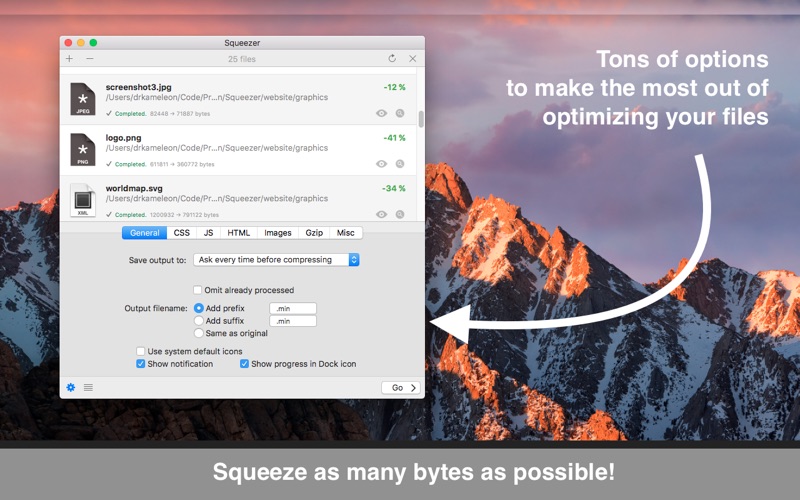
Tons of custom preferences, to make Squeezer suit your particular needs